How to A/B Test Thumbnails on YouTube with Test & Compare
Thumbnails decide whether people click your video. YouTube Studio has a built-in way to split test them, called Test & compare, so you don’t need an outside tool.
Note: since this video was made, YouTube moved the feature to an A/B Testing button on the video details page and added title testing too. The idea and the report work the same way.
Upload up to three thumbnails
When you upload a video, or on the video details page of an existing one, open the thumbnail testing option and upload up to three different thumbnails. You can make three completely different designs, or keep a design that already works and change only a few words, like in the video (made in Canva).
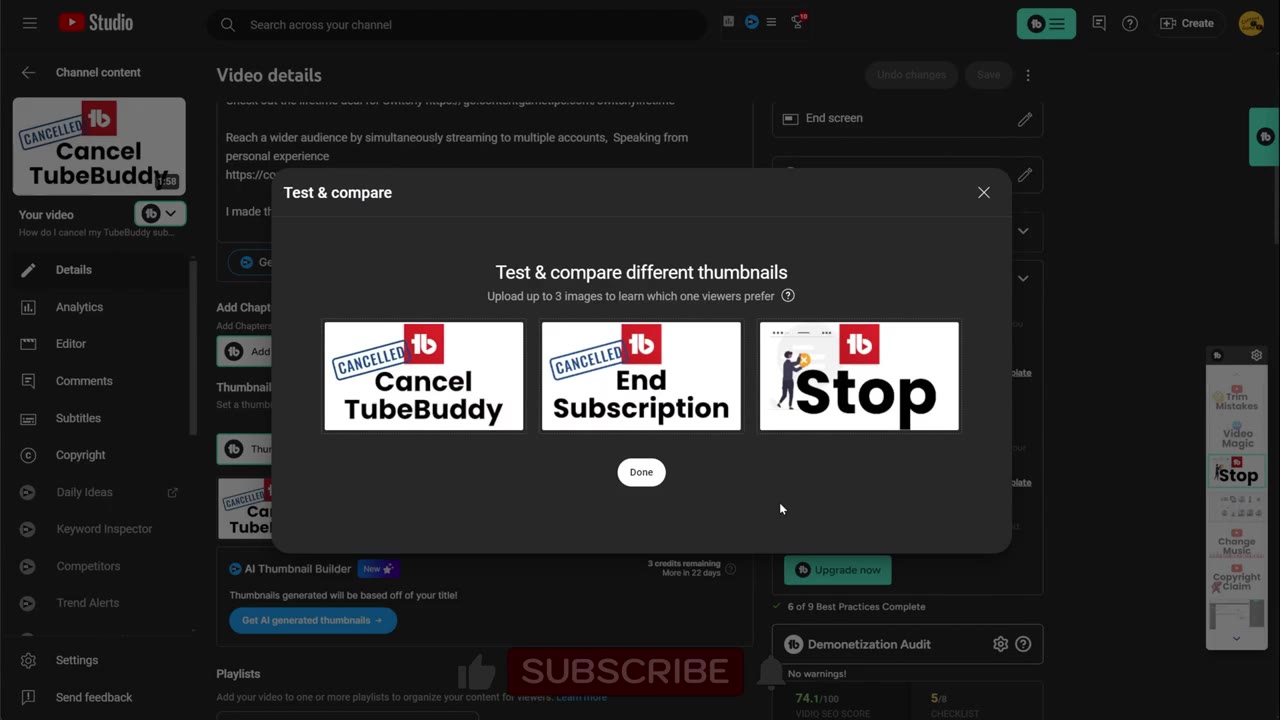
Let the test run
Give the test at least two weeks. In the Content tab you can spot videos with a running test because they show several thumbnails.
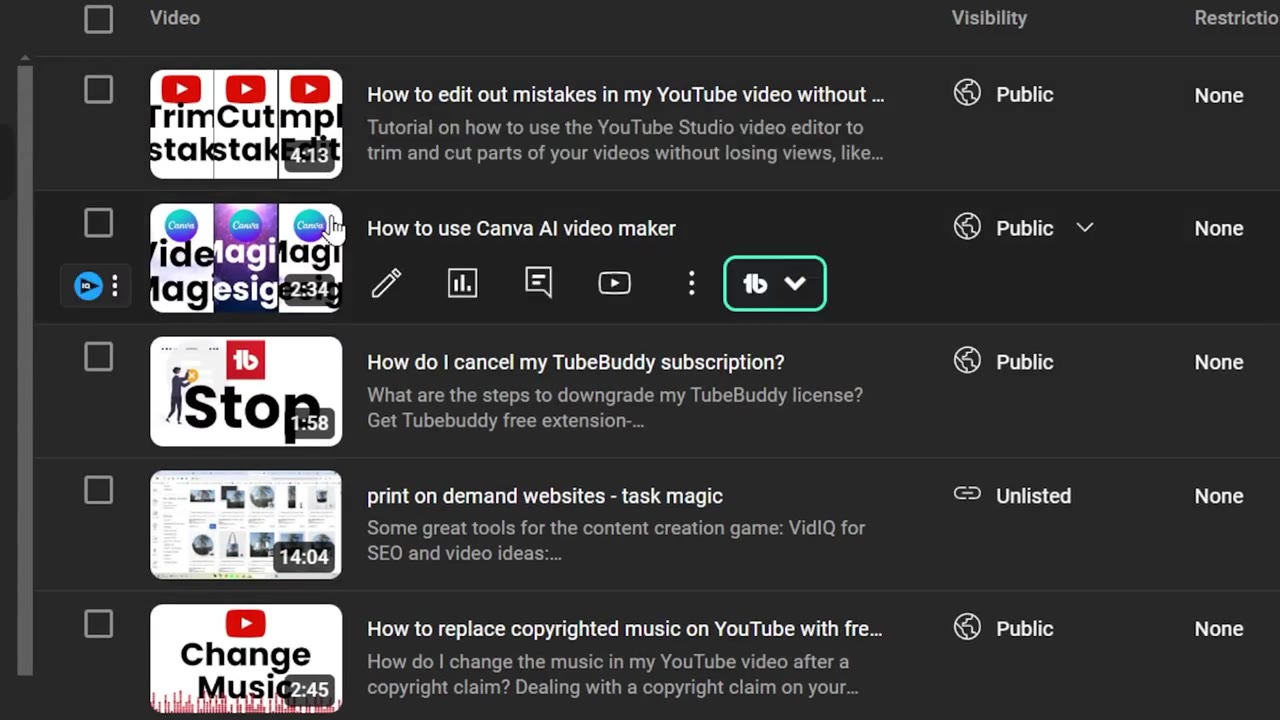
Read the test report
When the test ends, open the video, go to the thumbnail section and click the three dots to see the report. It shows the watch time share of each thumbnail. If the video didn’t get enough views, the test ends without a clear winner, so testing works best on new videos or older videos with potential.
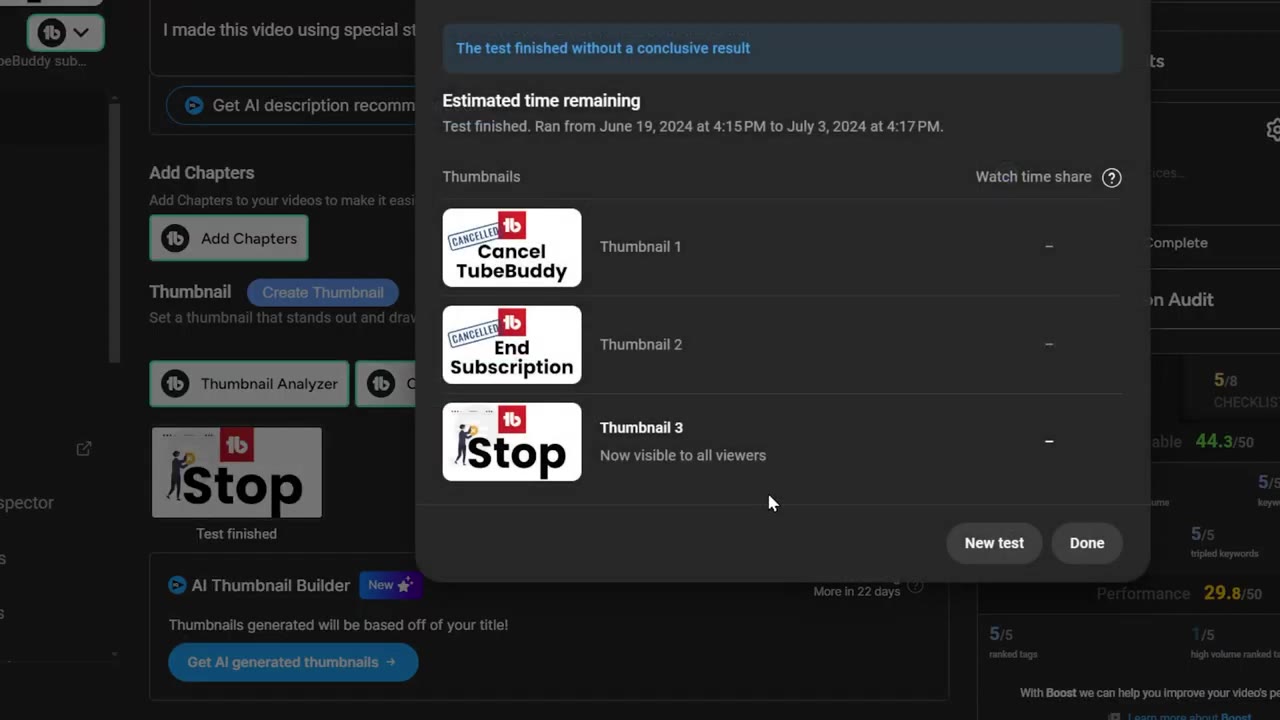
Change the thumbnail or start a new test
You can set any of the tested thumbnails as the main one. To test again, upload all the thumbnails again. Starting a new test deletes the old one.
More: how to use the YouTube Studio editor.
Keep learning
This guide is part of the complete guide: YouTube Channel Guide.
Free download: get the New YouTube Channel Checklist, every step on one page.