AppSumo Refund: How to Get Your Money Back (Step by Step)
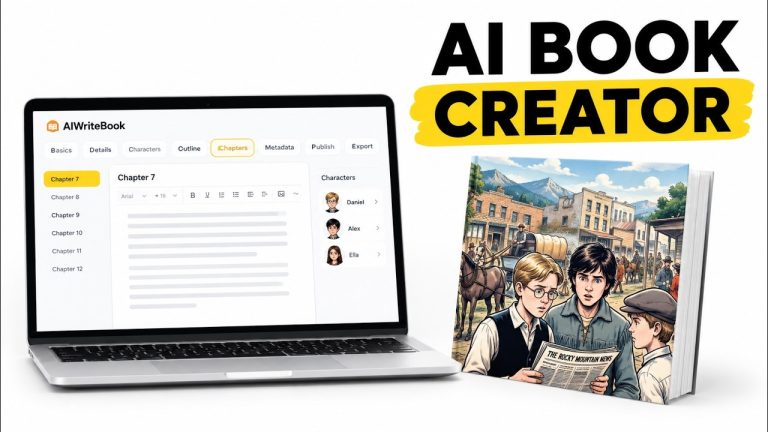
AppSumo lifetime deals are tempting, and sometimes a tool just doesn’t fit what you need. The good news is that AppSumo has a 60-day money-back guarantee, and asking for a refund takes about two minutes. I bought AI WriteBook, it wasn’t right for me, so I asked for a refund and recorded the whole process. I got $287.10 back.
Step 1: Find the product in your AppSumo account
Log in to AppSumo, click your profile picture at the top and choose Products. This page lists every product you bought. Find the one you want to return, open the menu next to it and click Refund.
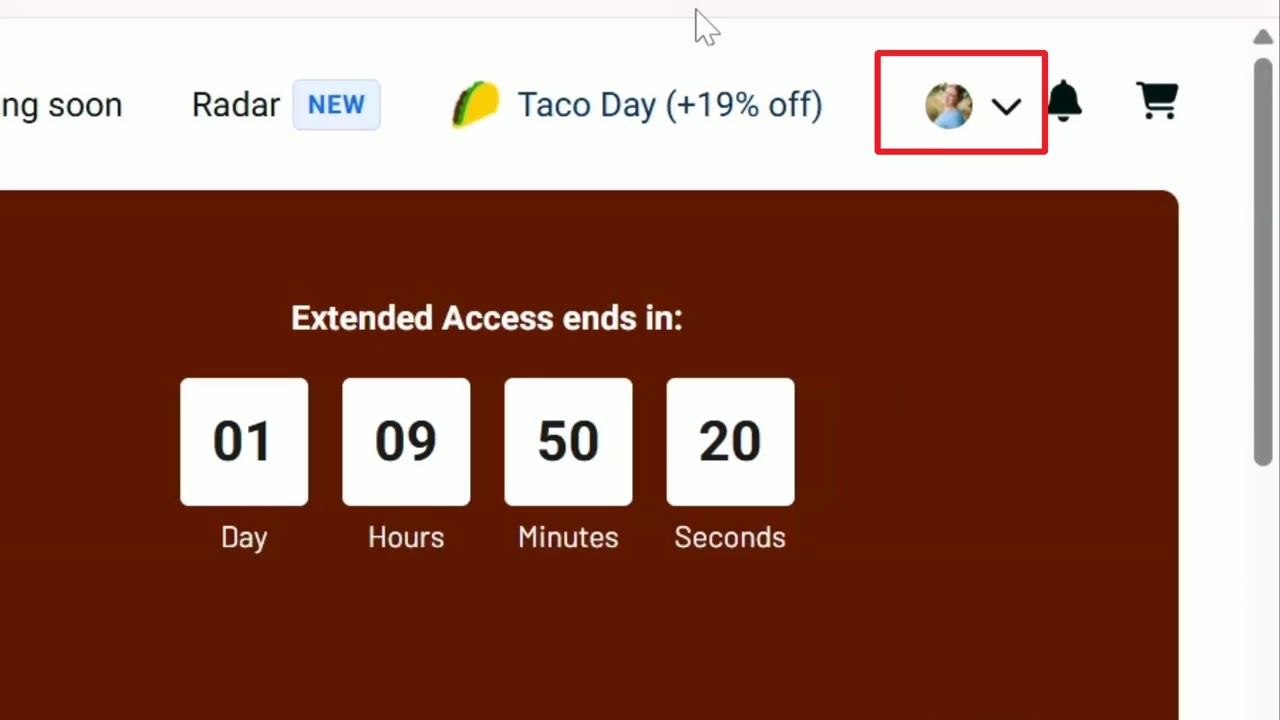
Step 2: Check the refund deadline and click Initiate refund
AppSumo opens the product page. At the bottom you’ll see the Initiate refund button, and under it the last date you can still ask for a refund. You have 60 days from the purchase, so don’t miss that date.
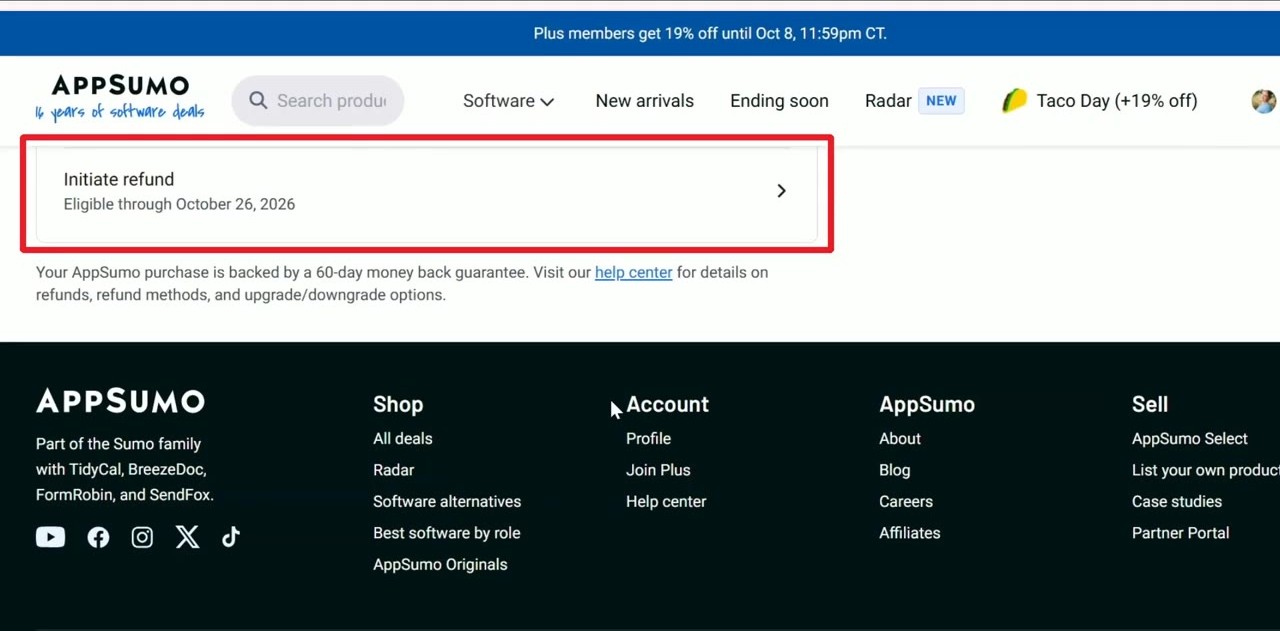
Step 3: Choose a reason
AppSumo asks why you want a refund. It also says the product is refundable no matter what you choose, so this is only feedback. I chose Product’s functionality was too limited and clicked Continue.
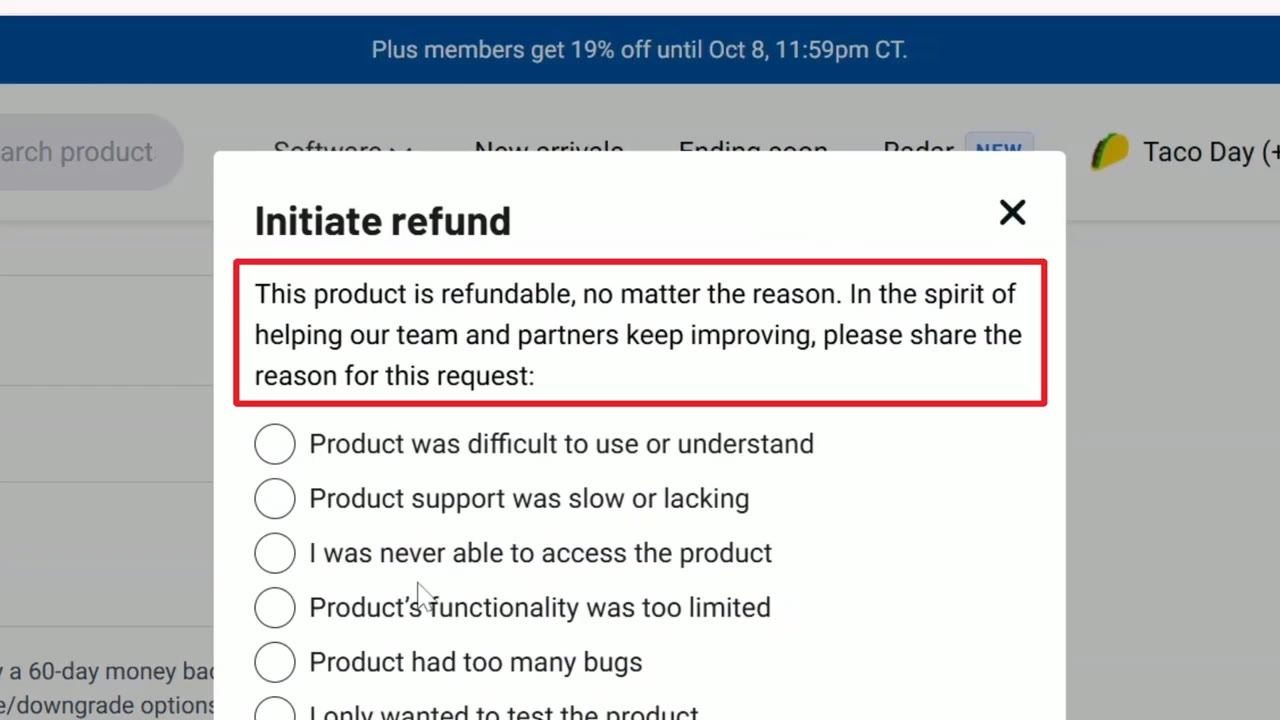
Step 4: Write short feedback for the founder
Next AppSumo asks which features you found lacking. This text goes to the founder and you only have 200 characters, so keep it short and clear. If you find it hard to say it in 200 characters, an AI assistant can help you shorten it. Click Continue.
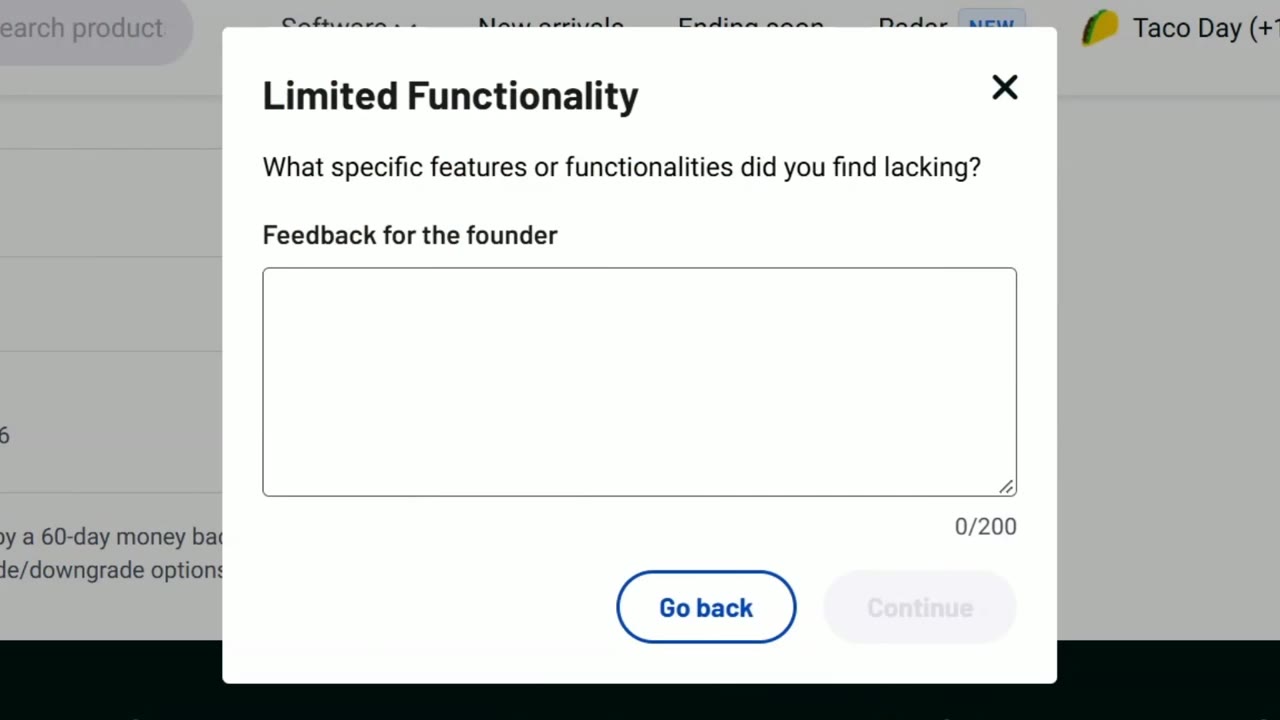
Step 5: Choose how to get your money back
AppSumo reminds you that refunds are final and that you lose access to the product right away. Then you pick one of two options:
- AppSumo credits: instant, and you can use them to buy another deal.
- Original payment method: the money goes back to your card or PayPal within 5 to 10 business days.
I wanted the money back, so I chose the original payment method and clicked Confirm and initiate refund.
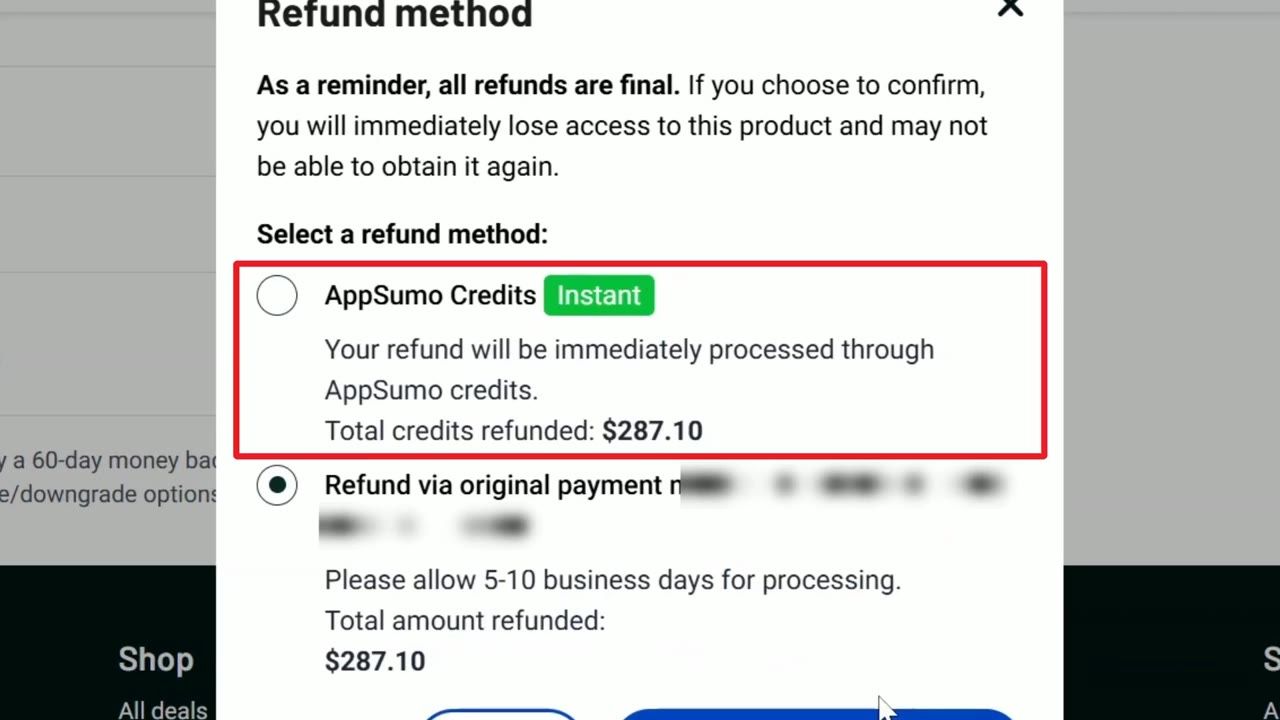
Step 6: Refund successful
That’s it. AppSumo shows that the refund was successful, and when you go back to the Products page the product isn’t on the list anymore.
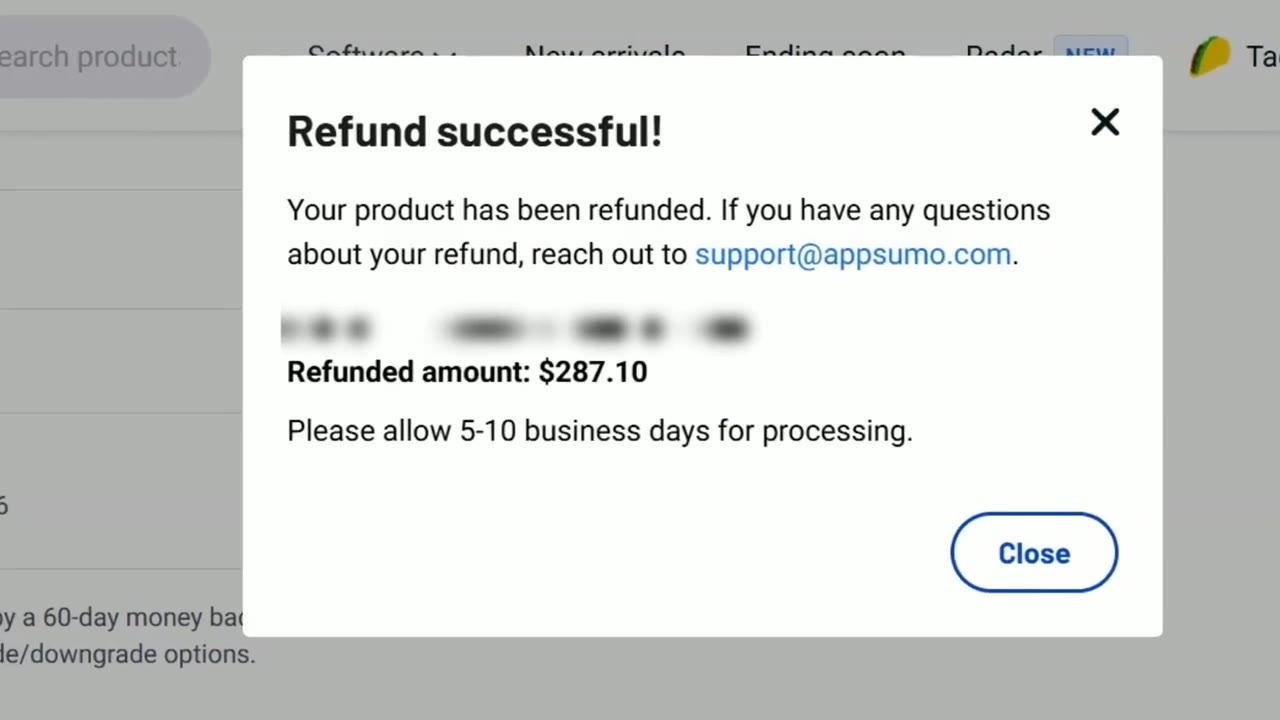
Before you buy your next deal
The 60-day guarantee is what makes AppSumo deals low risk. Buy, test the tool properly in the first few weeks, and if it doesn’t do what you need, use these steps before the deadline. You can browse the current deals here: AppSumo deals.