How to Connect TeePublic to YouTube Shopping (Dashery Setup)
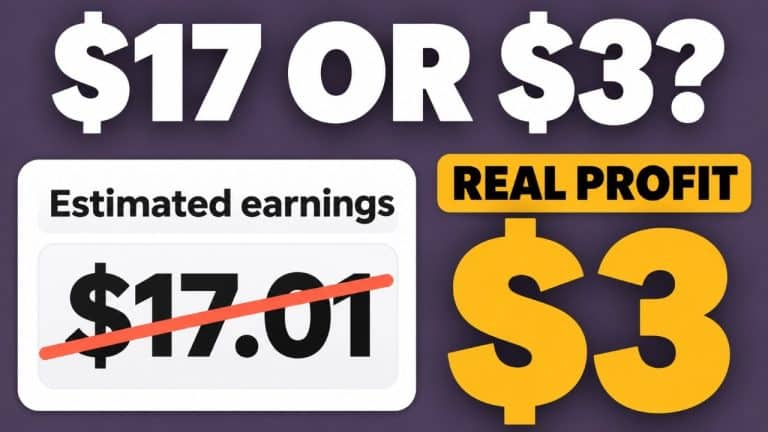
When I connected my TeePublic store to my YouTube channel, I followed every step, waited almost a week, and YouTube still showed zero products. In this video I show how to connect your TeePublic store to YouTube Shopping, what finally got my products to show up, and the catch I only found out about later.
The connection goes through Dashery, TeePublic’s own store builder, so most of the setup happens there.
Step 1: Open Dashery from your TeePublic account
Log in to TeePublic and go to My Account. In the menu on the left, under Dashery Store, click Dashery Admin to open your Dashery dashboard.
Step 2: Set up and publish your Dashery store
Your Dashery store has to be published before you can connect it. The first time you open Dashery you get a short Get Started list:
- Domain: type the name you want, click Set URL and then Confirm Subdomain. Choose carefully, because the subdomain can’t be changed later.
- Pricing: choose your profit level (I chose Standard, the recommended option) and click Update Merch Pricing.
- Marketing: choose whether to collect customer emails at checkout.
- Publish Store so your Dashery store goes live.
Step 3: Make sure your channel can use YouTube Shopping
Your channel has to be in the YouTube Partner Program. You can join once you have 500 subscribers, 3 public uploads in the last 90 days, and either 3,000 watch hours in the last year or 3 million Shorts views in the last 90 days. In some countries you still need 1,000 subscribers and 4,000 watch hours.
Your channel also can’t be set as made for kids, and the TeePublic products you want to show have to be public. You can check your status in YouTube Studio under Earn.
Step 4: Connect your YouTube channel in Dashery
In Dashery, scroll down the menu on the left and click Integrations. Next to YouTube, click Add Store to YouTube, then scroll down to Connect your YouTube account and click Connect. Choose your Google account and the channel, check both permission boxes and click Continue.
Dashery logged me out after that. If it happens to you, just log in again and go back to Integrations, where YouTube now says Connected with your channel name under it. YouTube reviews the account, which takes about three business days.
Step 5: Check your products in YouTube Studio
In YouTube Studio click Earn, open the Shopping tab and click Connected stores.
Zero products? What fixed it for me
I waited almost a week and still had zero products. TeePublic support told me to remove the connection between YouTube and my store and connect it again. I did exactly that, went through the same steps, and this time my products showed up.
Only 40 products, not 40 designs
YouTube brought in only 40 products, and that’s 40 products, not 40 designs. So the same design can show up on many products, and you don’t choose which ones come in.
Step 6: Choose your own channel store products
On the Shopping tab, scroll down, click Channel store and then Create your own selection. Click the plus next to each product you want (up to 30) and click Save.
The catch: products YouTube didn’t approve
You can only choose from the products YouTube approved, not from your whole TeePublic store. In my case 29 products were not approved. Clicking Resolve only opens the YouTube help page, which says that for stores like TeePublic you need to contact the store directly. I’ve contacted TeePublic support, and I’ll update this post when I get an answer.
Step 7: Tag products under each video
In YouTube Studio click Content, click the video’s title, and on the Details page scroll down to the description. Under it, click Products and then the pencil icon. Click the plus next to the products you want, click Next, add a timestamp if you want (optional), click Done and then Save. You can tag up to 60 products in one video, and viewers get a shopping button right on the video.