How to Sell More Books on KDP With AI WriteBook’s Publishing Tools
Writing the book is only part of the job. Before you upload to Amazon you still need keywords, categories, a description, an author bio and more. AI WriteBook has a whole section of tools for this, and here’s how each one works, how many credits it costs, and what to do with the result on KDP. I used my own book, The Wrong Choice, the first book in my series Trace in Colorado.
All these tools are under KDP Publishing on the left. Most of them let you attach a book at the top, so the tool takes the details from your book and saves what it generates to that book. You don’t need to copy and paste everything again. You can find the app here: AI WriteBook.
1. Keyword Research (15 credits)
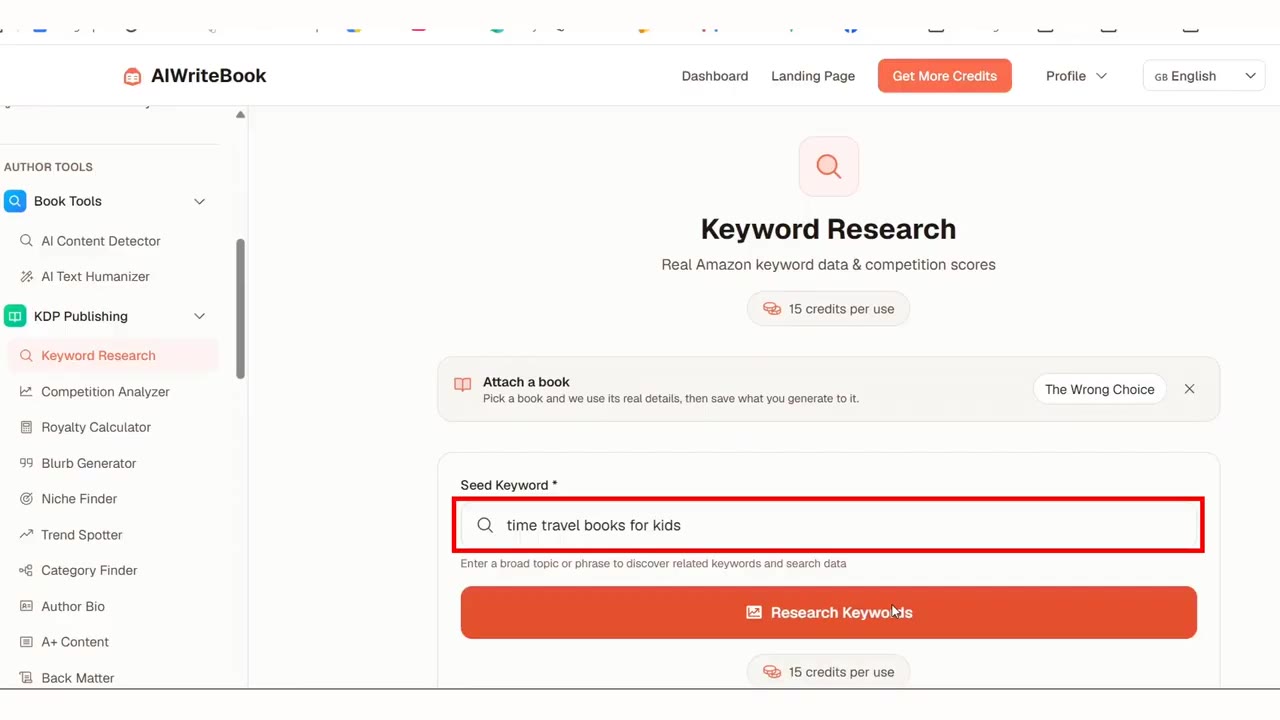
Attach your book and write a seed keyword, a short phrase a reader would type in the Amazon search. I wrote time travel books for kids and clicked Research keywords. You get a table with monthly searches, average pages, number of competitors, average price, average earnings and a competition score (green is low, red is high), plus related keywords and suggested categories.
Every run costs another 15 credits, so think about your seed keyword before you click. Then pick keywords with good searches and low competition for the seven keyword boxes on KDP, and keep the list for the next tools.
2. Category Finder (10 credits)
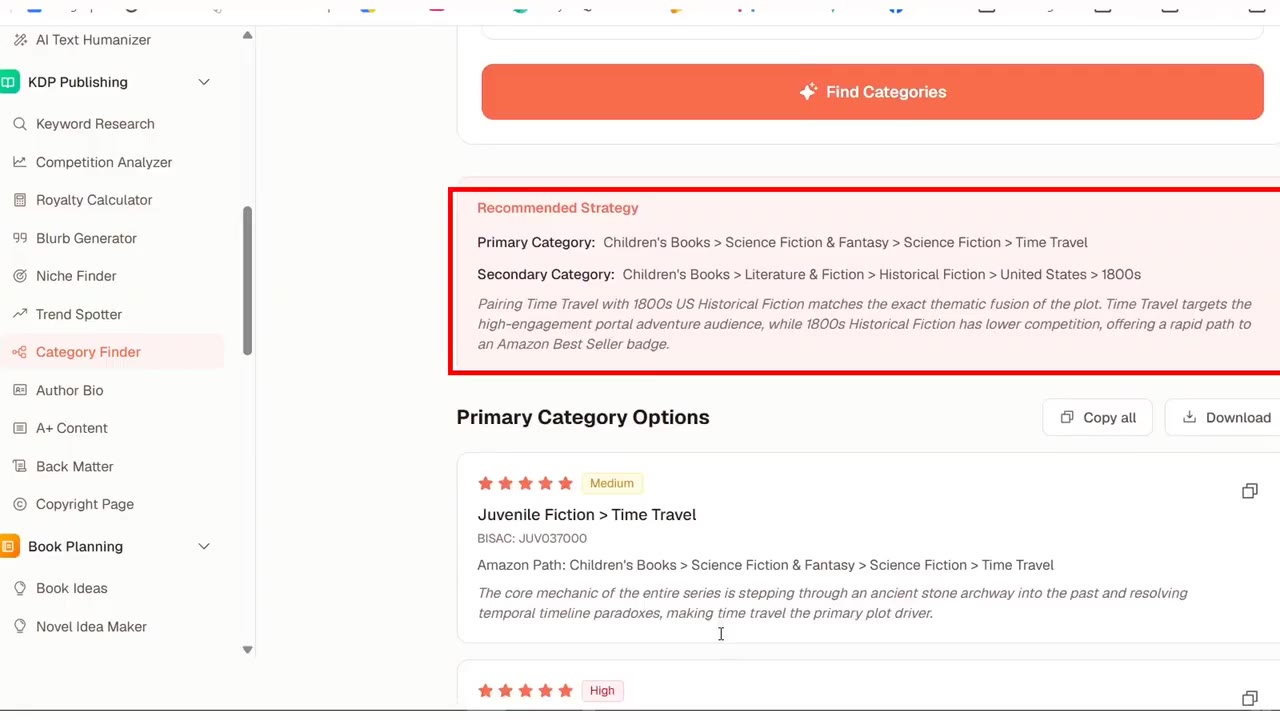
Attach your book and the description fills in by itself. Choose fiction or nonfiction and add the audience if you like. I added kids 9 to 13. You get a recommended primary and secondary category with the reason, more options with stars, competition level, the BISAC code and the full Amazon path, and some niche alternatives. Smaller categories with less competition give you a better chance at the bestseller badge.
3. Blurb Generator (10 credits)
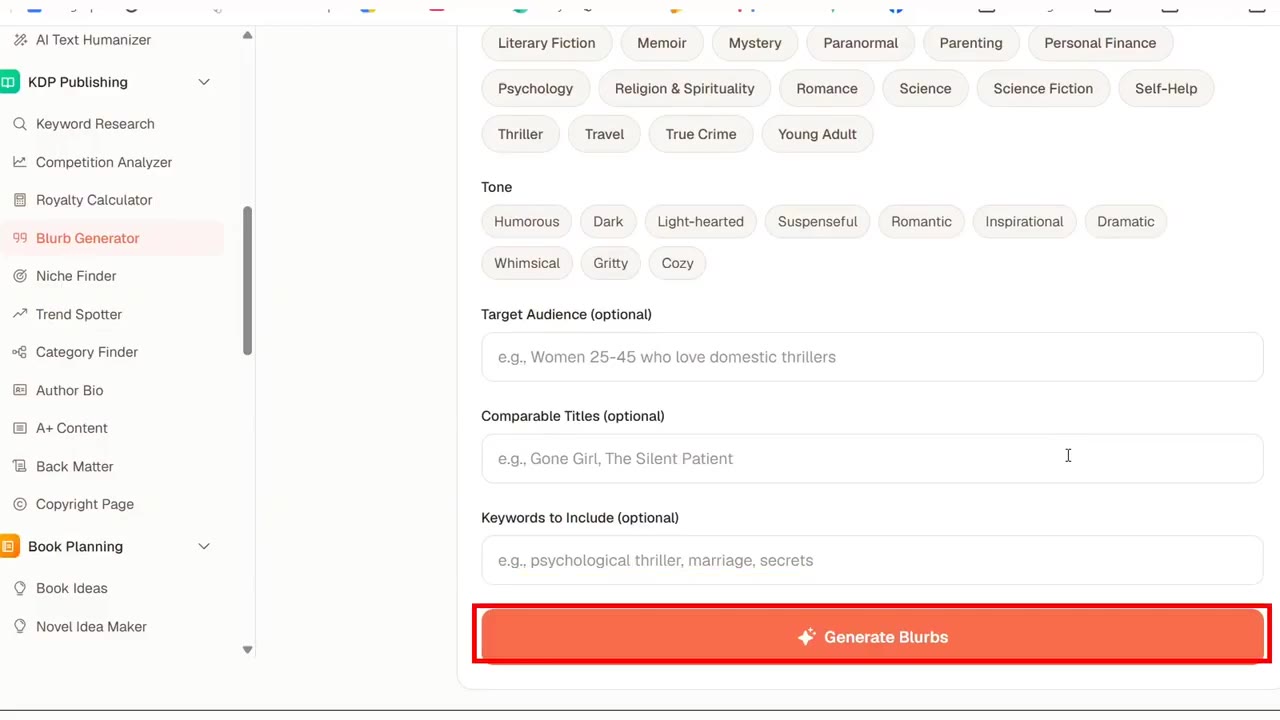
The blurb is the book description on Amazon, the text that makes people buy. Attach your book, choose the genre and tone, and add the keywords from the first tool. You get short, medium and long versions, each starting with a hook. Pick one, fix anything that doesn’t sound like you, and paste it in the description box on KDP.
4. Royalty Calculator (free)
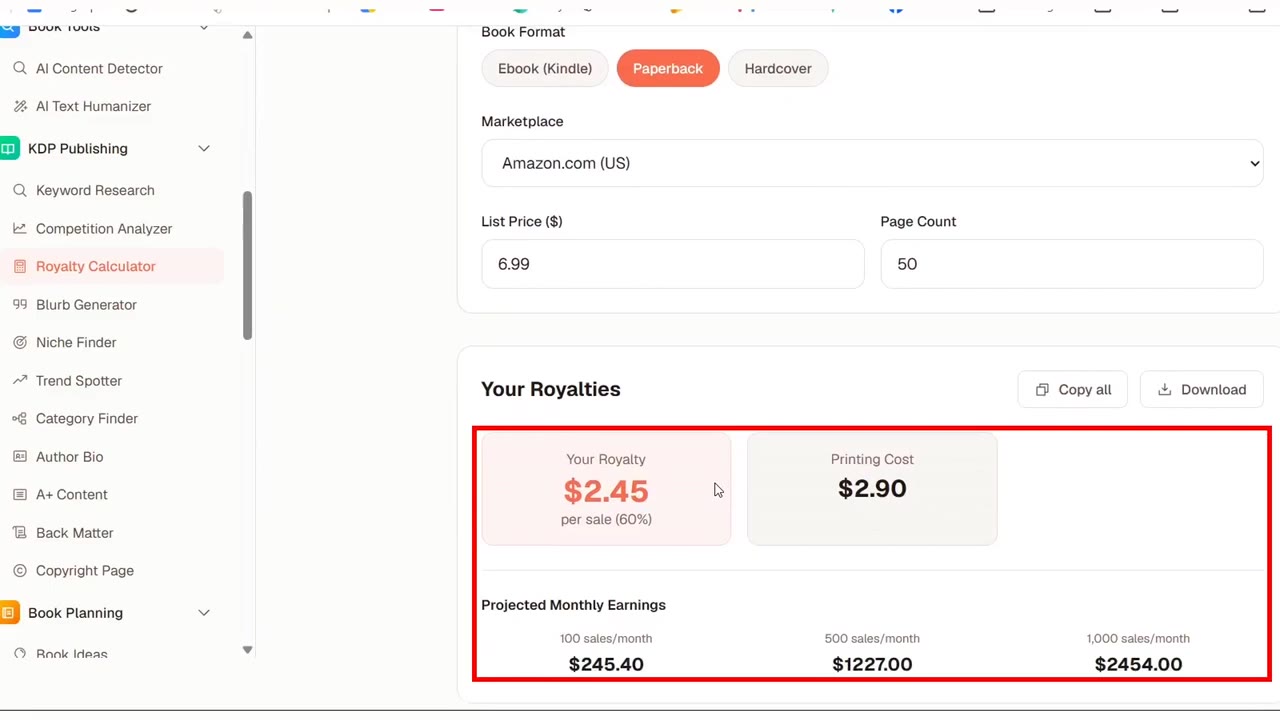
This one costs no credits. Choose the format, marketplace, price and page count, and see your royalty per sale, the printing cost and what 100, 500 or 1,000 sales a month would bring. Watch this: at $6.99, a 350-page paperback brings a royalty of zero, because printing costs more than you get. For the 70% eBook royalty the price needs to be between $2.99 and $9.99.
5. Author Bio (10 credits)
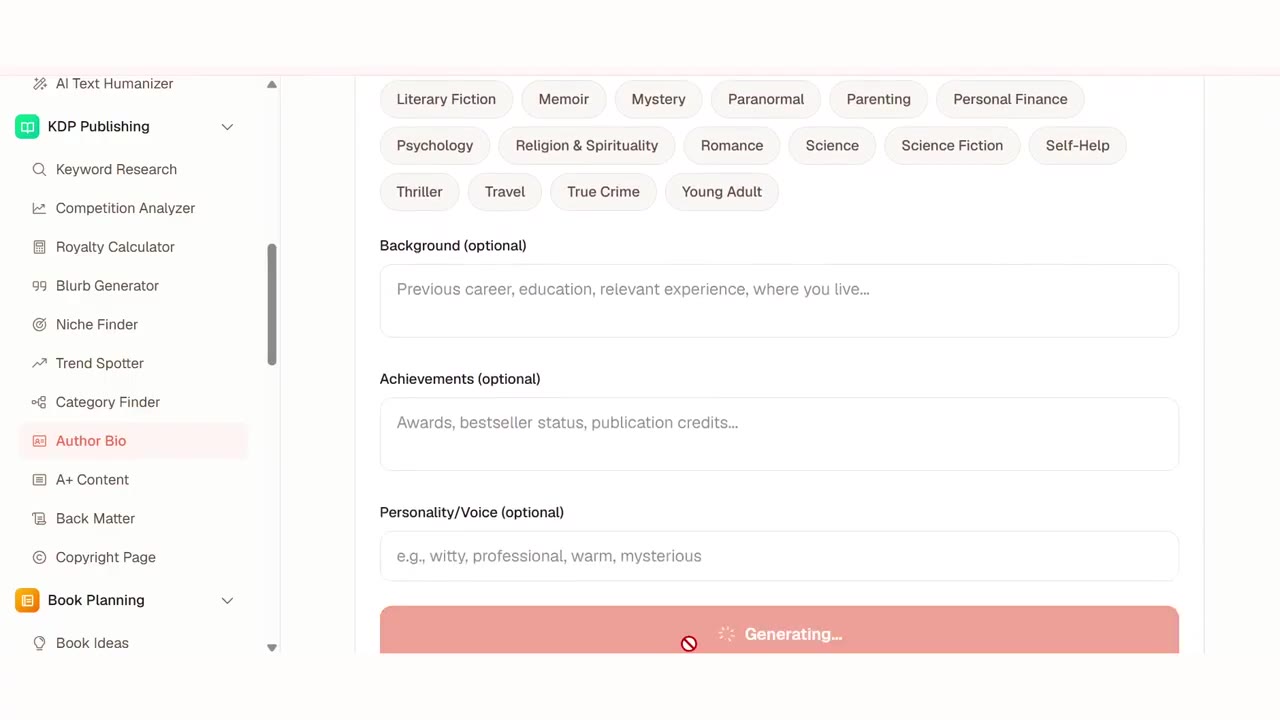
Write your author or pen name and main genre. You get short, medium and long bios plus short versions for social media. Use them on your Amazon author page, the back cover or the About the author page. Make sure everything it writes about you is true.
6. A+ Content (10 credits)
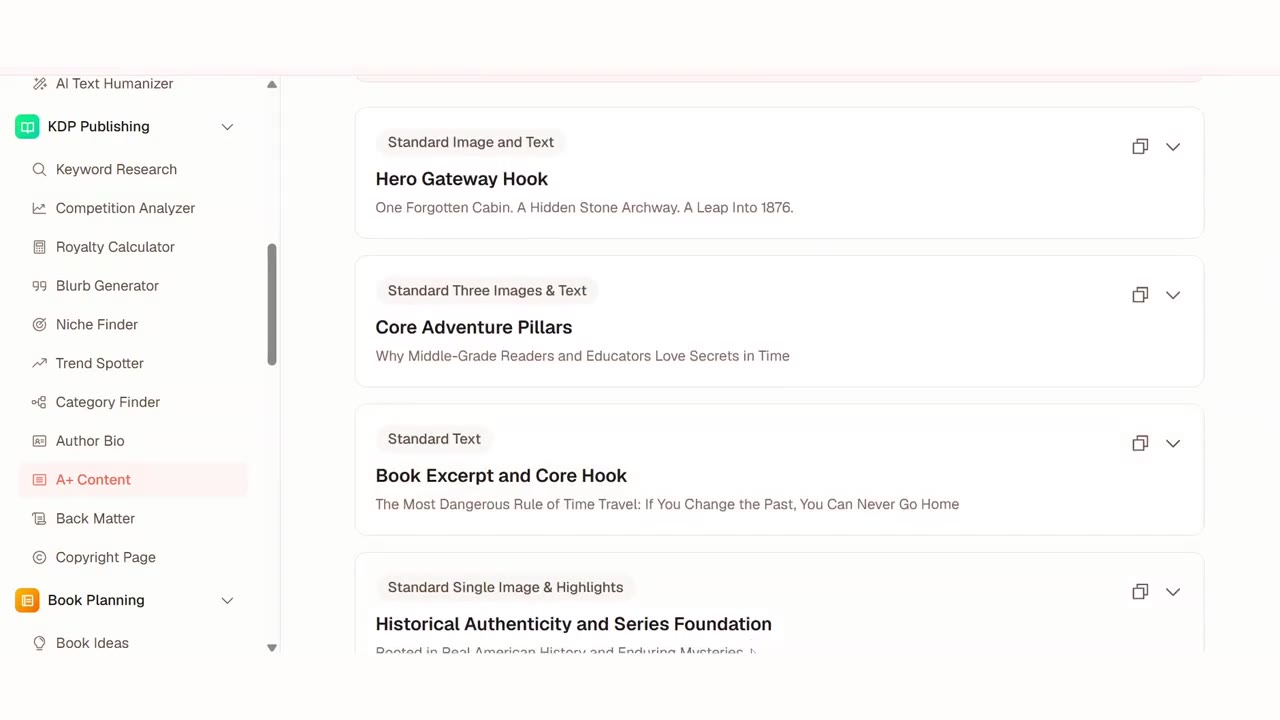
A+ Content is the images and text under the description on the Amazon book page. You get a strategy and a list of modules, each with the Amazon module type, headline, body text, image suggestions and layout notes. You still need to make the images, and the suggestions work well as prompts. Add A+ Content in the Marketing tab on KDP after the book is published.
7. Back Matter (10 credits)
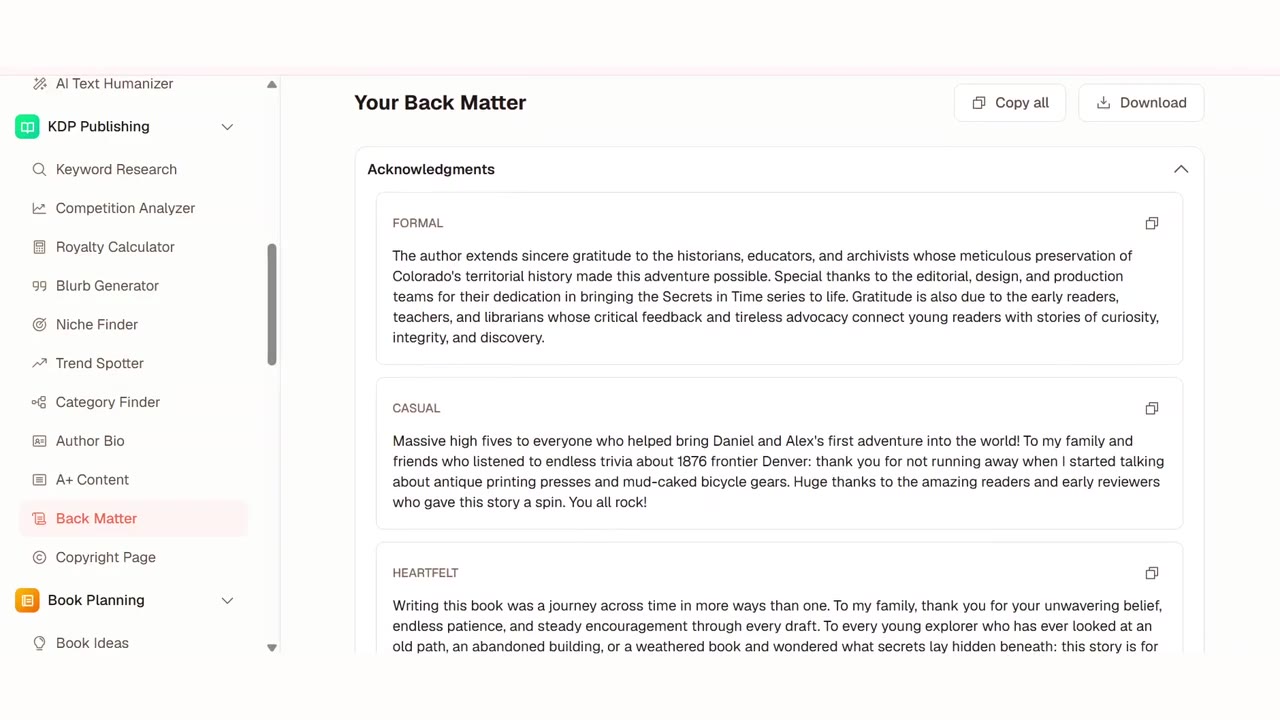
These are the pages at the end of the book: acknowledgements in three styles, an author’s note, About the author, a preview of your next book and a call to action like asking for a review. Put the call to action first, because that’s when readers are most excited.
8. Copyright Page (5 credits)
You fill in the author, title, year, ISBN, publisher and country. For me it didn’t work: every time I clicked generate I got a content policy error, even after changing the details. A copyright page is simple to write yourself, so I didn’t bother. If it works for you, put it right after the title page.
Tell Amazon you used AI
When you upload, KDP asks if you used AI for the text, images or translation. If you used AI WriteBook for the book or these texts, answer yes and name the tool. Using all these tools once costs about 70 credits.
Want to see a full book made and uploaded with AI WriteBook? Read my honest review: a nonfiction book from idea to Amazon KDP.
Keep learning
This guide is part of the complete guide: Publish Books on Amazon KDP with AI.