How to Delete a Pinterest Account Step by Step
Made an extra Pinterest account by mistake, or just don’t use one anymore? Here’s how to delete it for good. Deleting can’t be undone: your pins and boards will be gone, so save anything you need first.
Step 1: Open the settings
Log in to the account you want to delete. Pinterest may ask for your birthdate first. Click the arrow next to your profile picture at the top right and choose Settings.
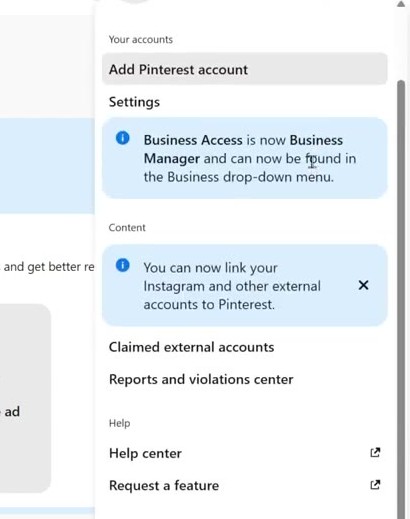
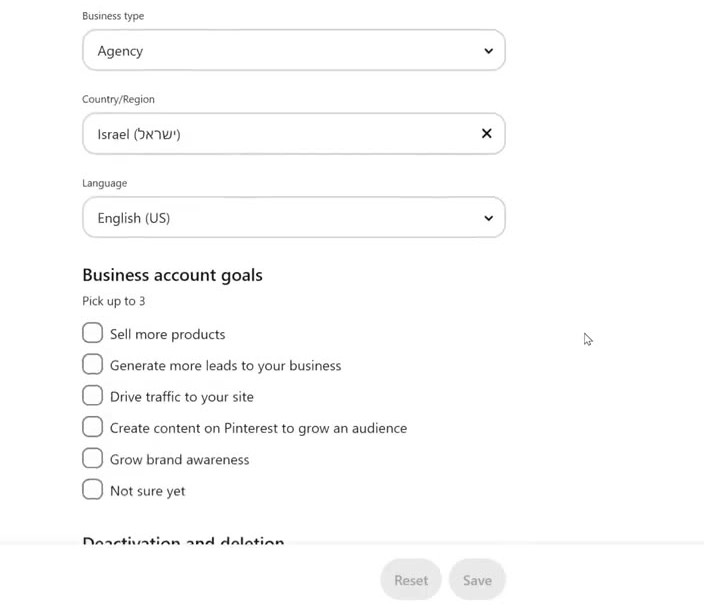
Step 2: Find Deactivation and deletion
In Account management, scroll down to Deactivation and deletion and click Delete account. If you only want a break, choose deactivate instead, which keeps your pins.
Step 3: Confirm and choose a reason
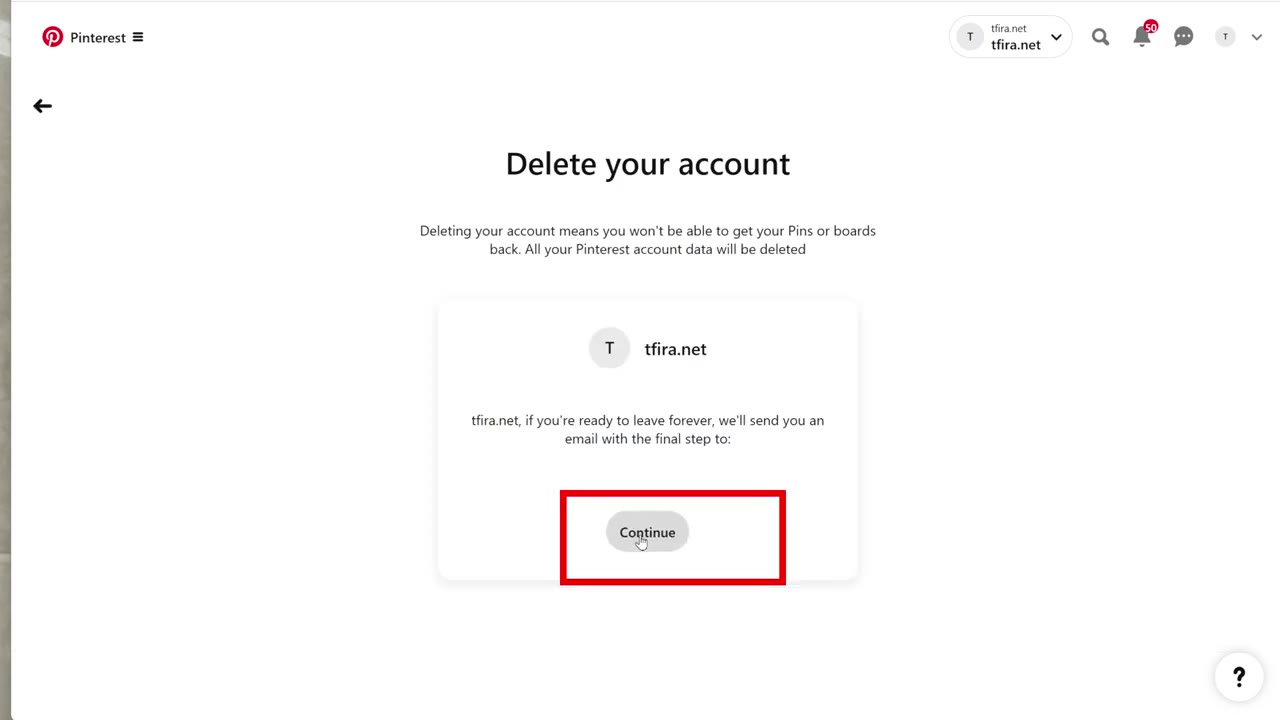
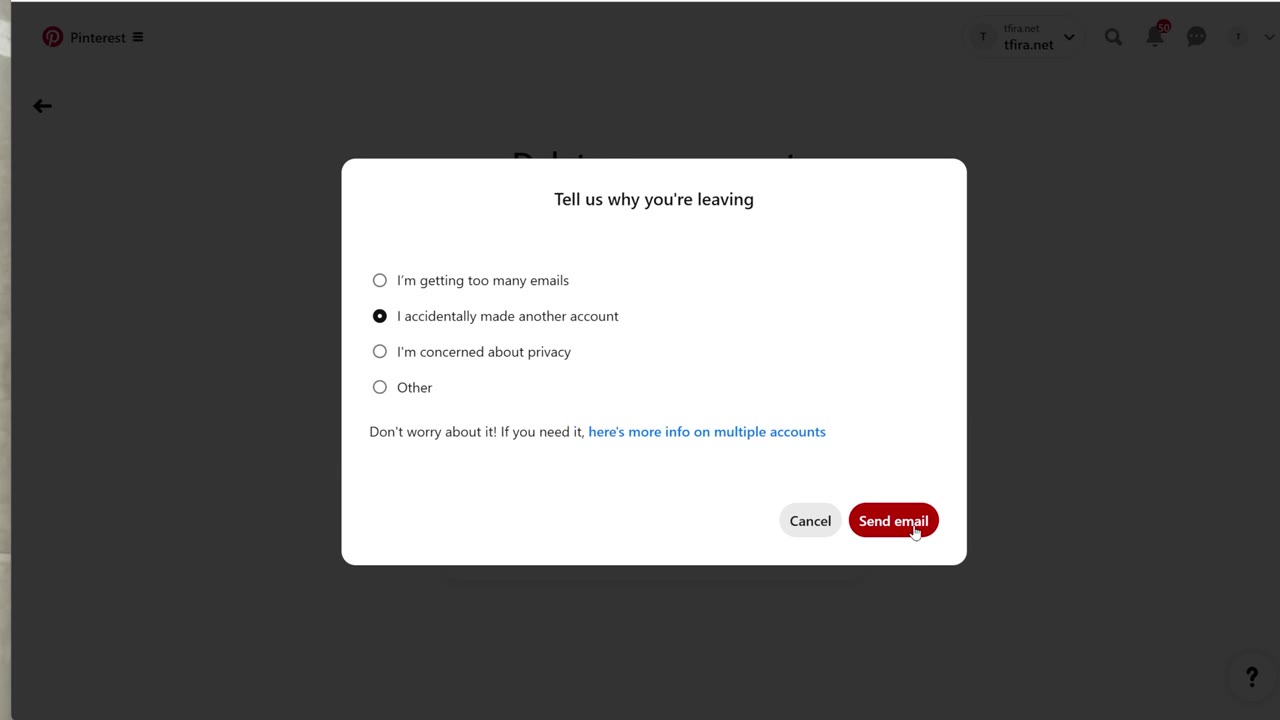
Pinterest explains that you won’t be able to get your pins or boards back. Click Continue, choose why you’re leaving and click Send email.
Step 4: Confirm from the email
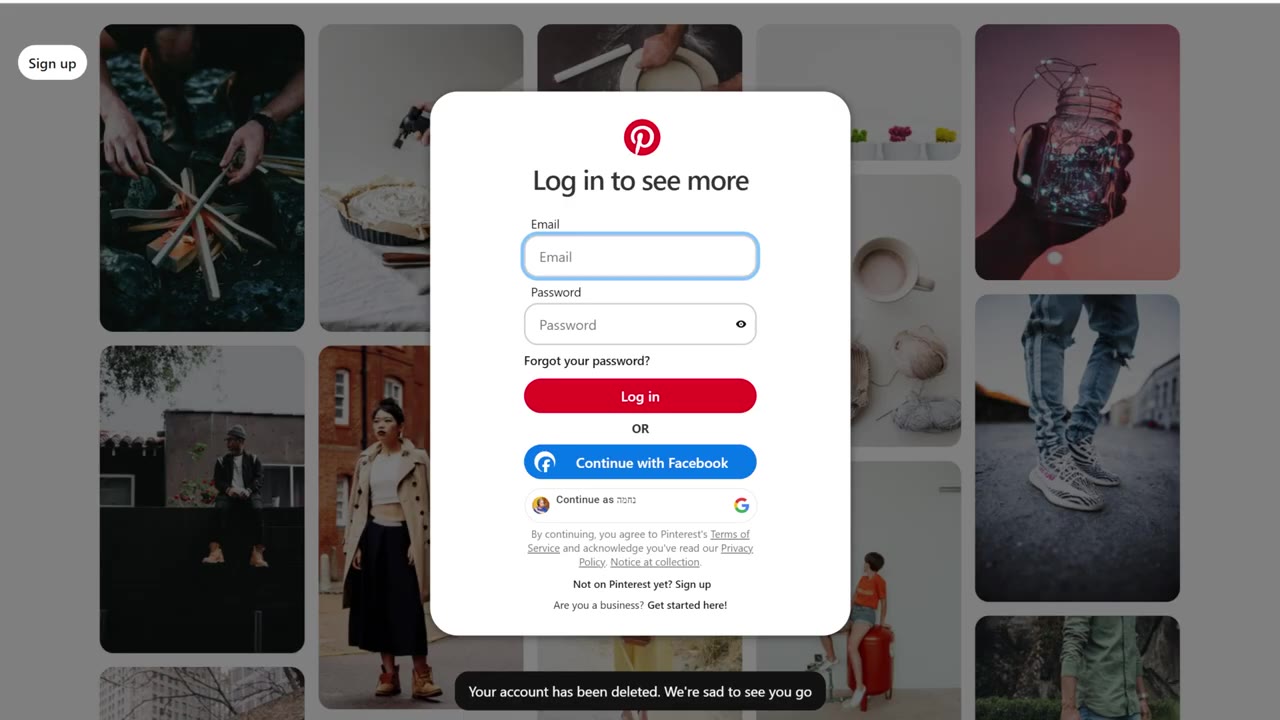
Pinterest sends an email with the final step. Open it and confirm. After that you’ll see a message that your account has been deleted.
Have two Pinterest accounts and want to keep only one? See how to organize Pinterest boards before you move your pins around.
Keep learning
This guide is part of the complete guide: Pinterest and Social Media Guide for Creators.