How to Auto-Post from Instagram to Pinterest (No Extra Apps)
Pinterest can publish your Instagram posts automatically, without any third-party tool. Once you connect the accounts, every new Instagram post becomes a pin on a board you choose.
Step 1: Claim your Instagram account
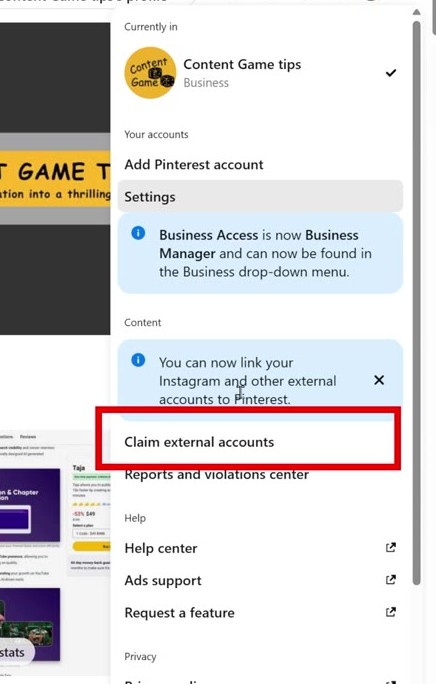
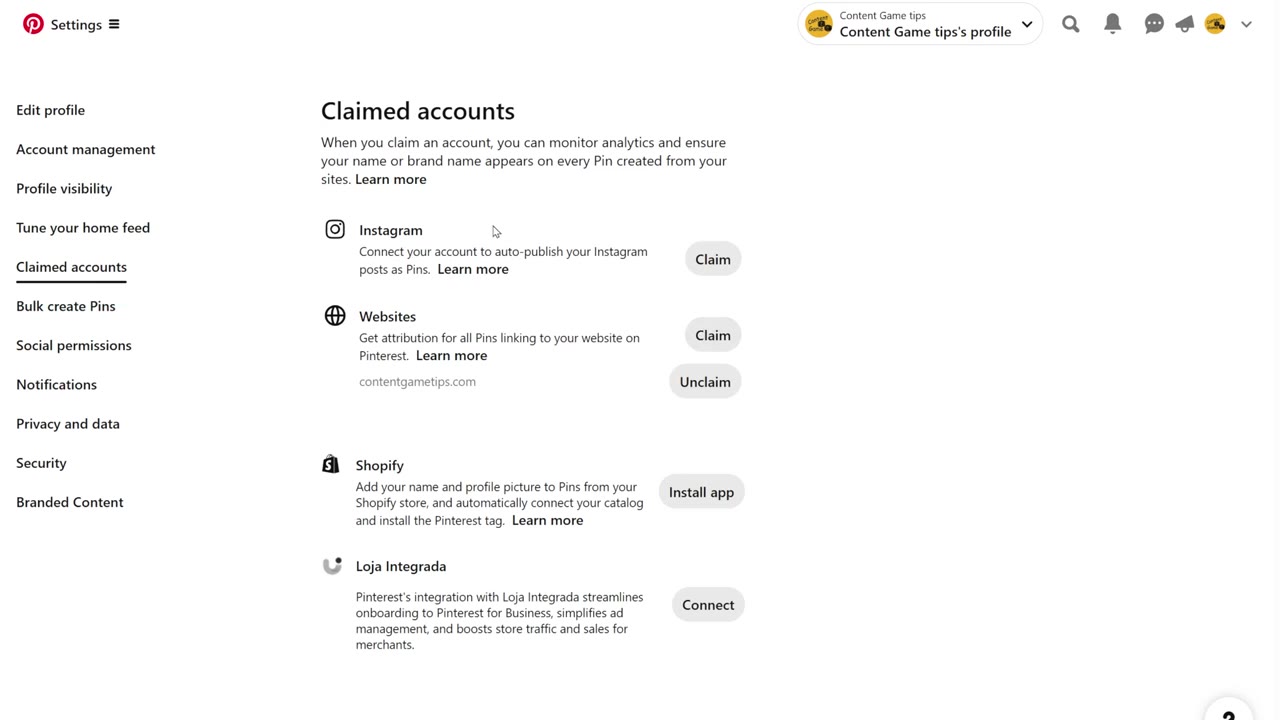
You need both accounts first. On Pinterest, click the arrow next to your profile picture and choose Claim external accounts. You can also find it in Settings under Claimed accounts.
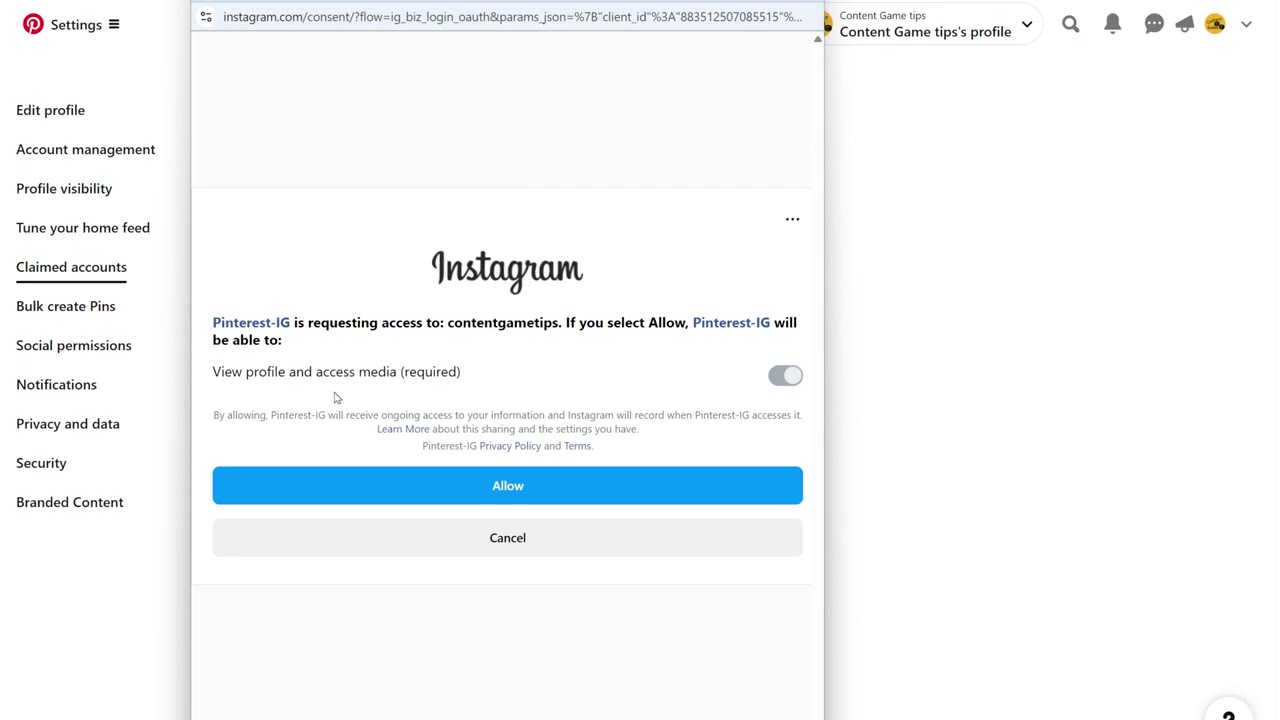
Next to Instagram click Claim, log in to Instagram and click Allow.
Step 2: Choose older posts and the board
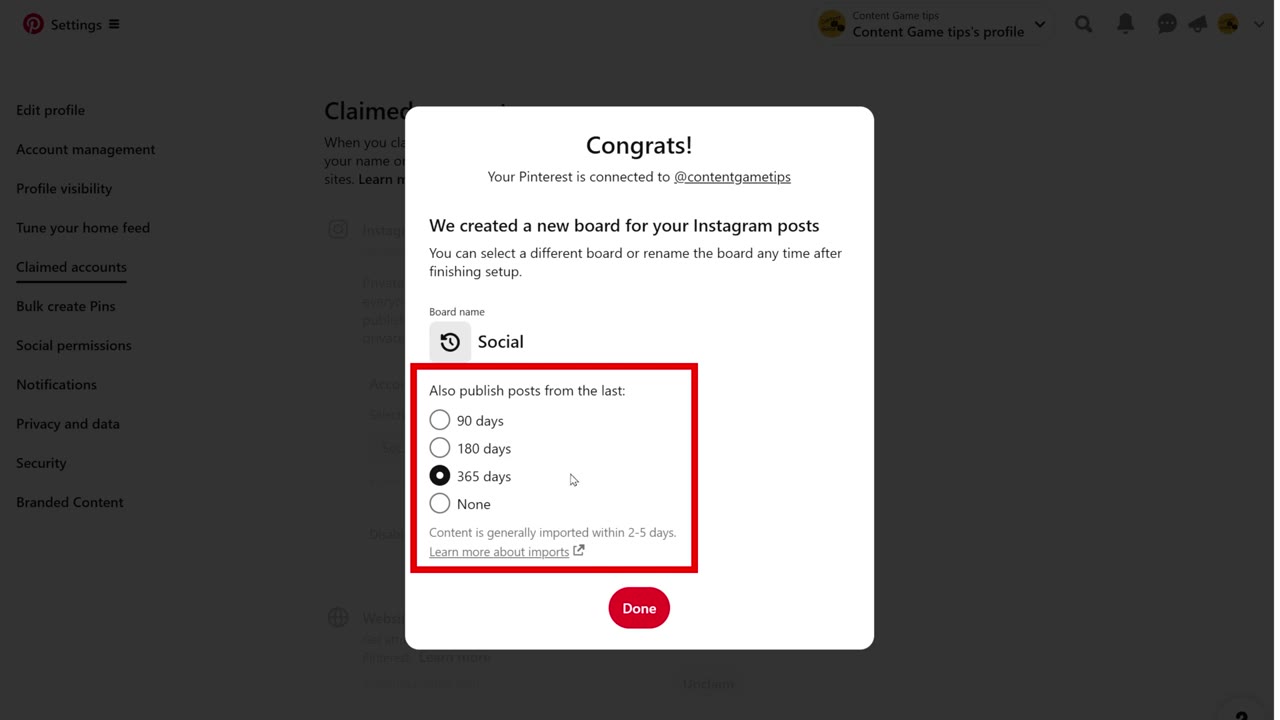
Pinterest creates a board for your Instagram posts. You can rename it or pick another board later. Choose whether to also publish posts from the last 90, 180 or 365 days, or None for new posts only. Only regular posts are pinned, not Reels or Stories.
Change the board, pause or disconnect
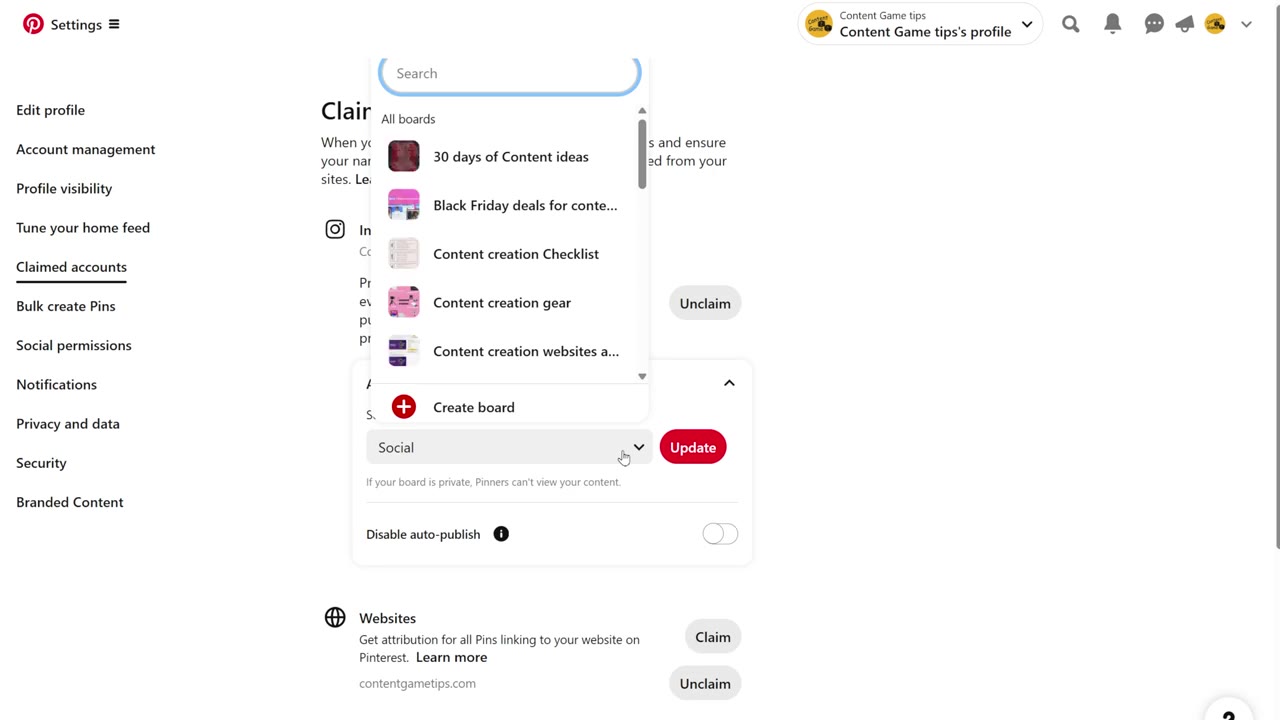
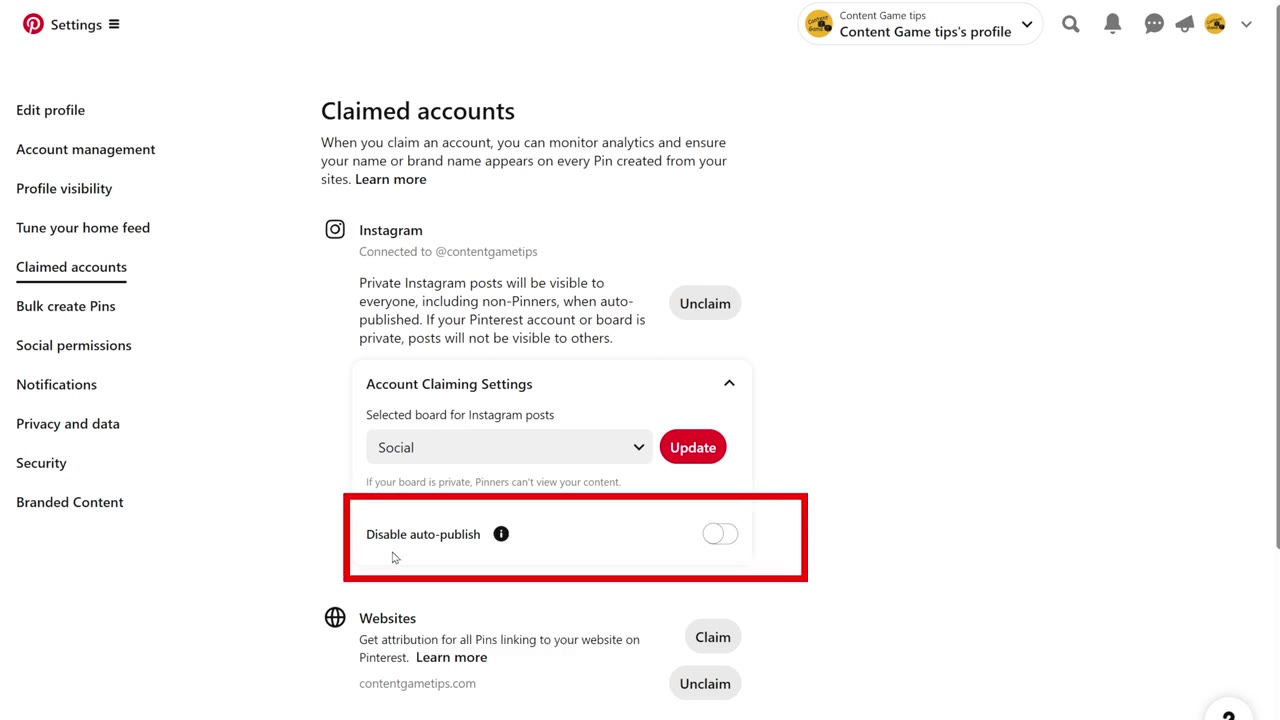
Go back to Claimed accounts to choose a different board or create a new one. To pause without disconnecting, turn on Disable auto-publish. To disconnect completely, click Unclaim.
Rename the board
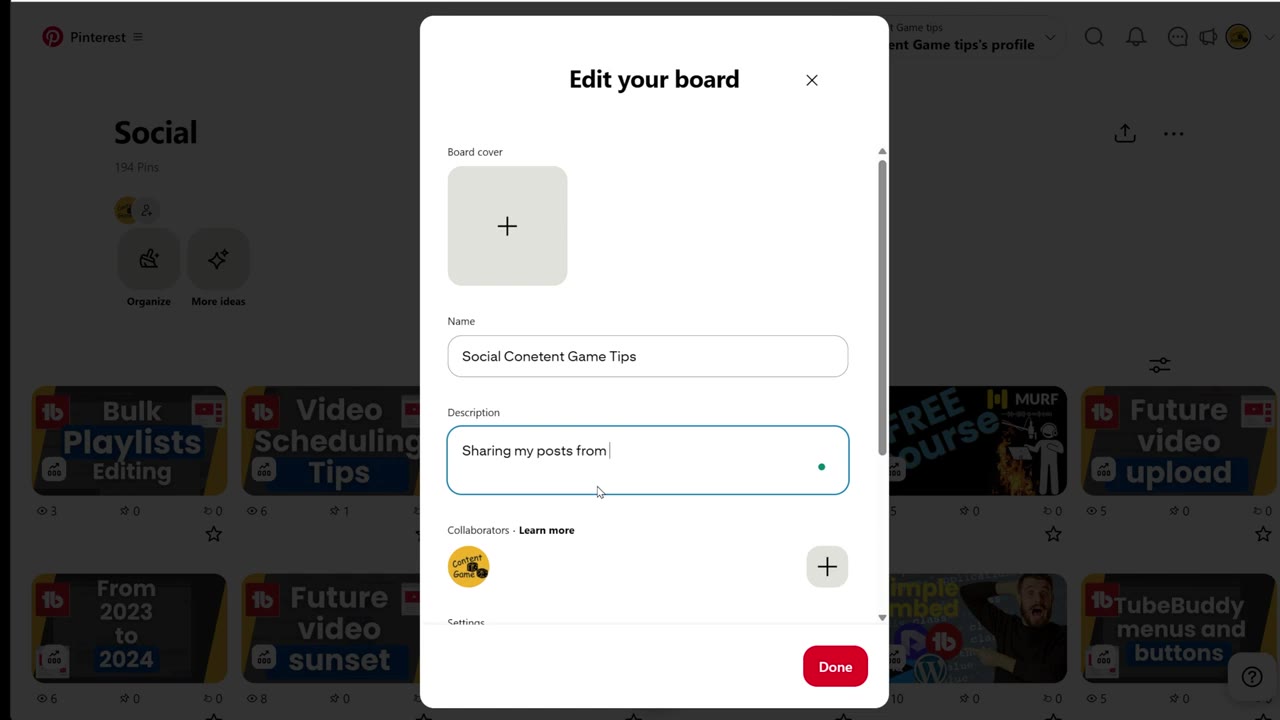
Open your profile, go to your boards and open the board Pinterest created. Click the three dots, choose Edit board and change the name and description, so visitors know what the board is about.
More: how to organize Pinterest boards.
Keep learning
This guide is part of the complete guide: Pinterest and Social Media Guide for Creators.