First Step After You Become Eligible for YouTube Monetization: Set Up AdSense and Tax Info
When your channel reaches the monetization threshold, some steps take days to get approved, so start them right away. Here’s how to apply in YouTube Studio, set up AdSense for YouTube and submit your tax information.
Note: I’m not an accountant or a lawyer. This is what worked for me as a non-US creator. Check your own situation with a professional.
Step 1: Apply in the Earn tab
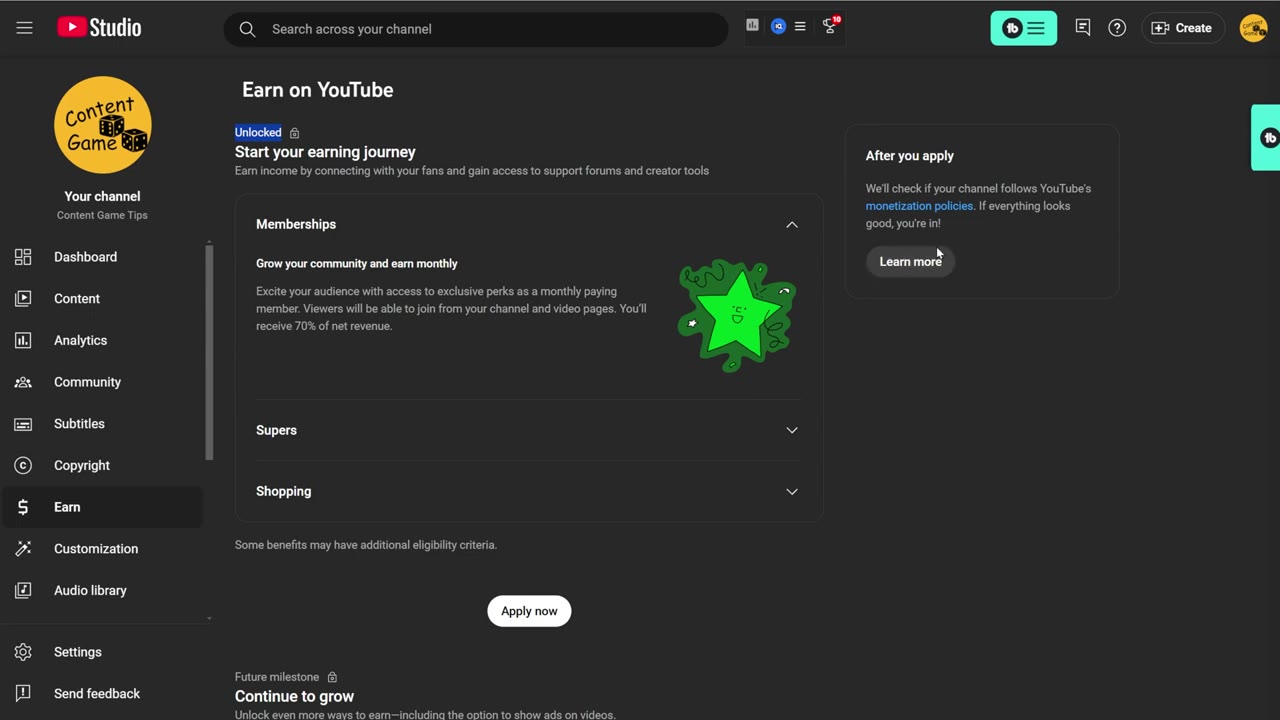
In YouTube Studio click Earn. When you’re eligible, the threshold counter changes to an application. Click Apply now.
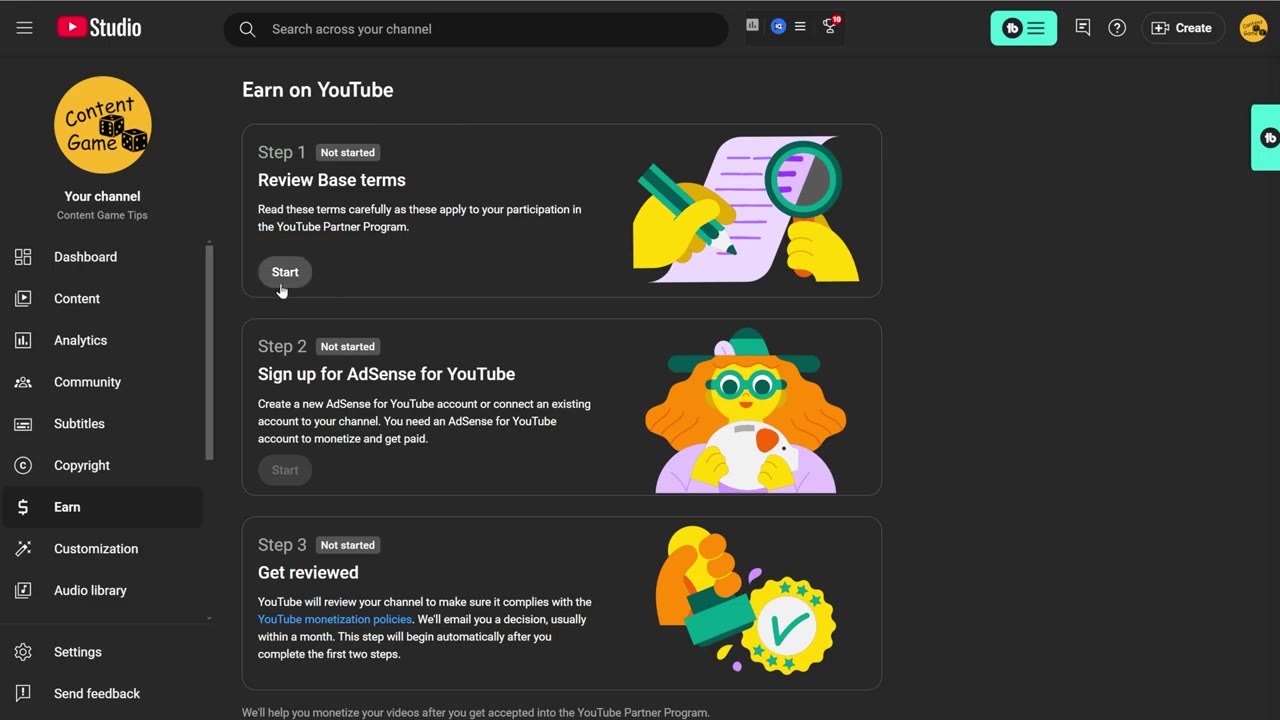
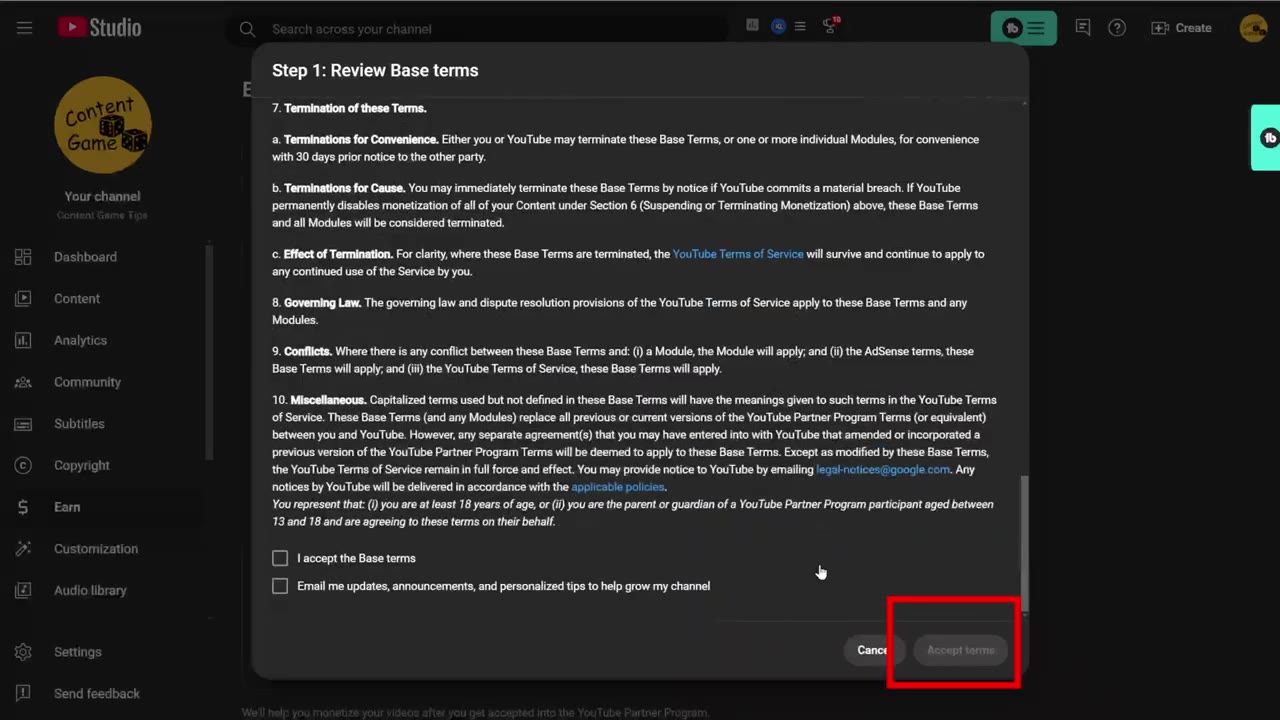
You’ll see the steps of the process. First review and accept the base terms. In short: if you break Google’s rules, you can be removed from the program.
Step 2: Create or connect AdSense for YouTube
If you already have an AdSense account, connect it. If not, choose that you don’t have one and sign in with the Google account you want to use. It doesn’t have to be the same Gmail as your channel.
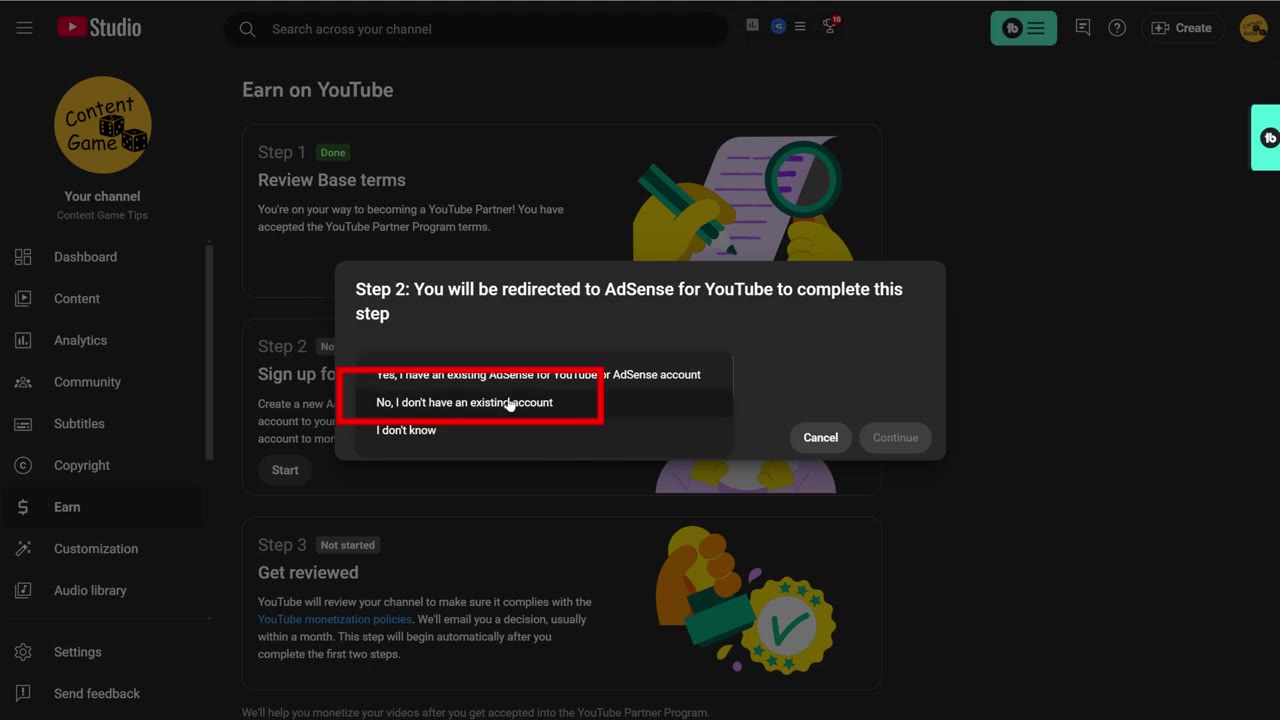
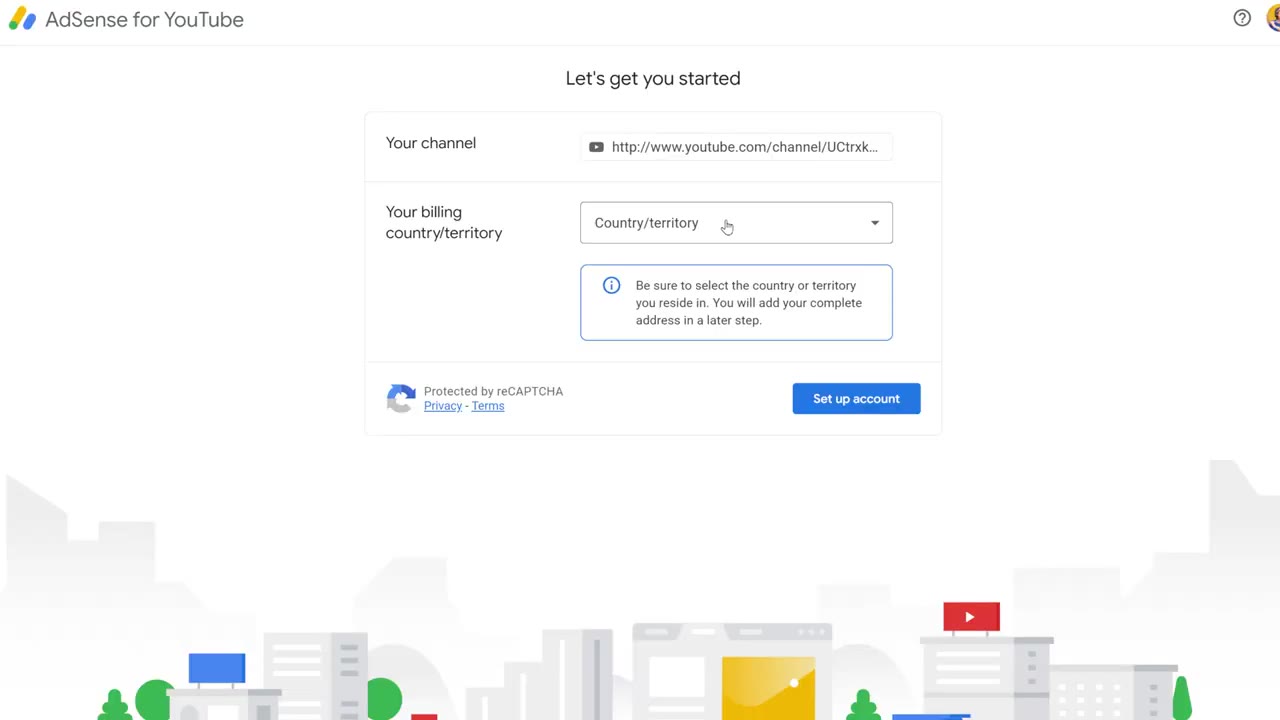
Choose the country where you’re a citizen (it matters for tax, so be accurate), accept the terms and create the account. Then confirm your personal details. You can change them later.
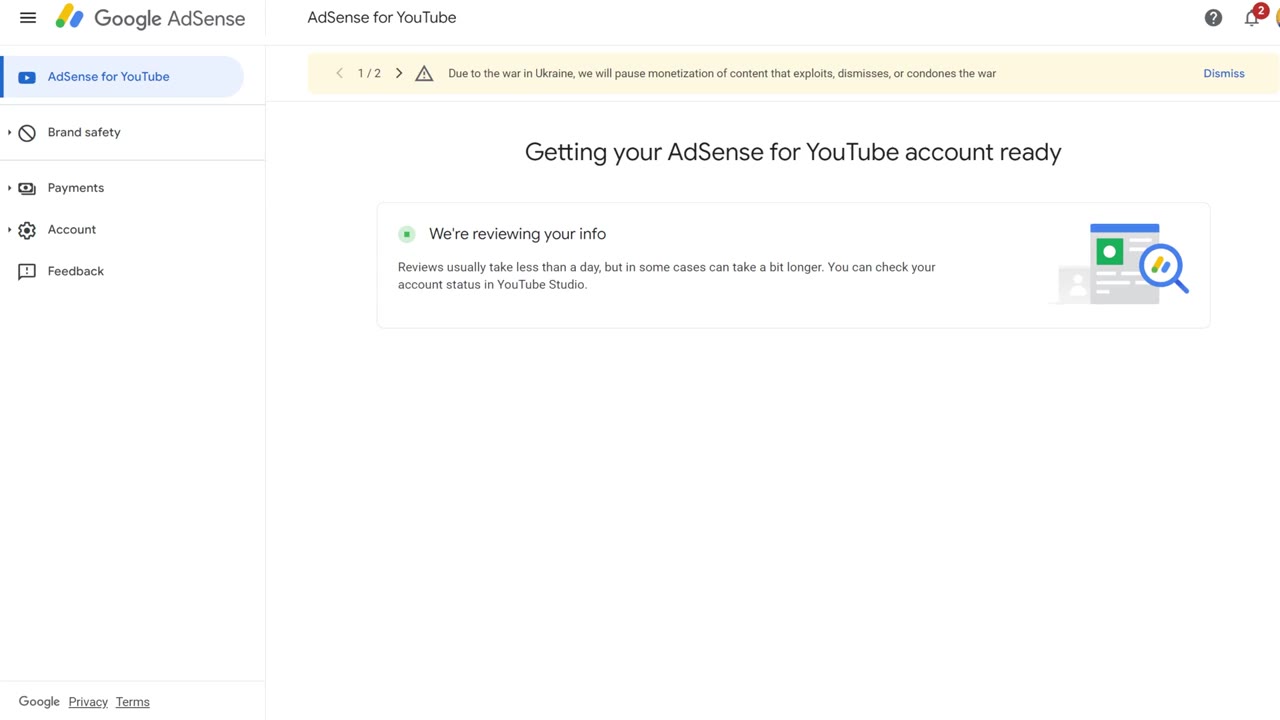
Now wait for the review. It’s said to take about a day but can take longer. You can keep using YouTube Studio as usual.
Step 3: Add your US tax info
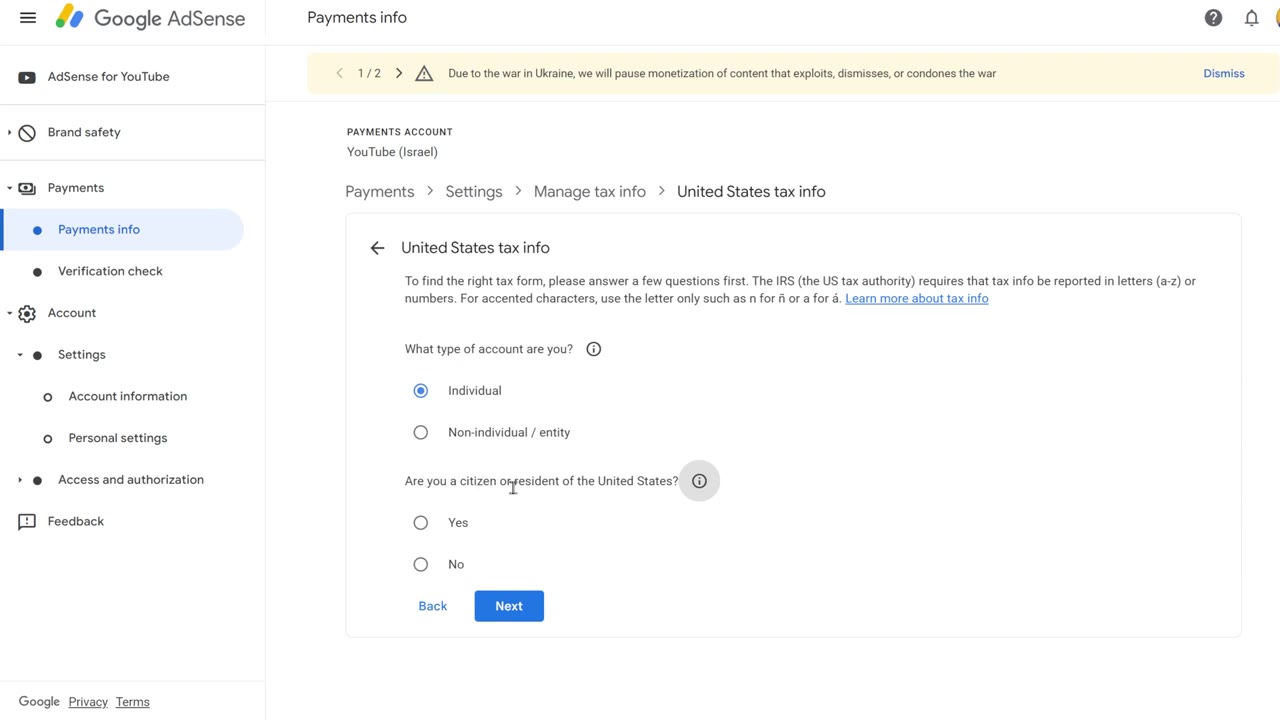
Don’t wait for the approval to do this. Open AdSense with the email you connected. In Payments > Payments info click Add tax info and then start the form. Google asks you to sign in again.
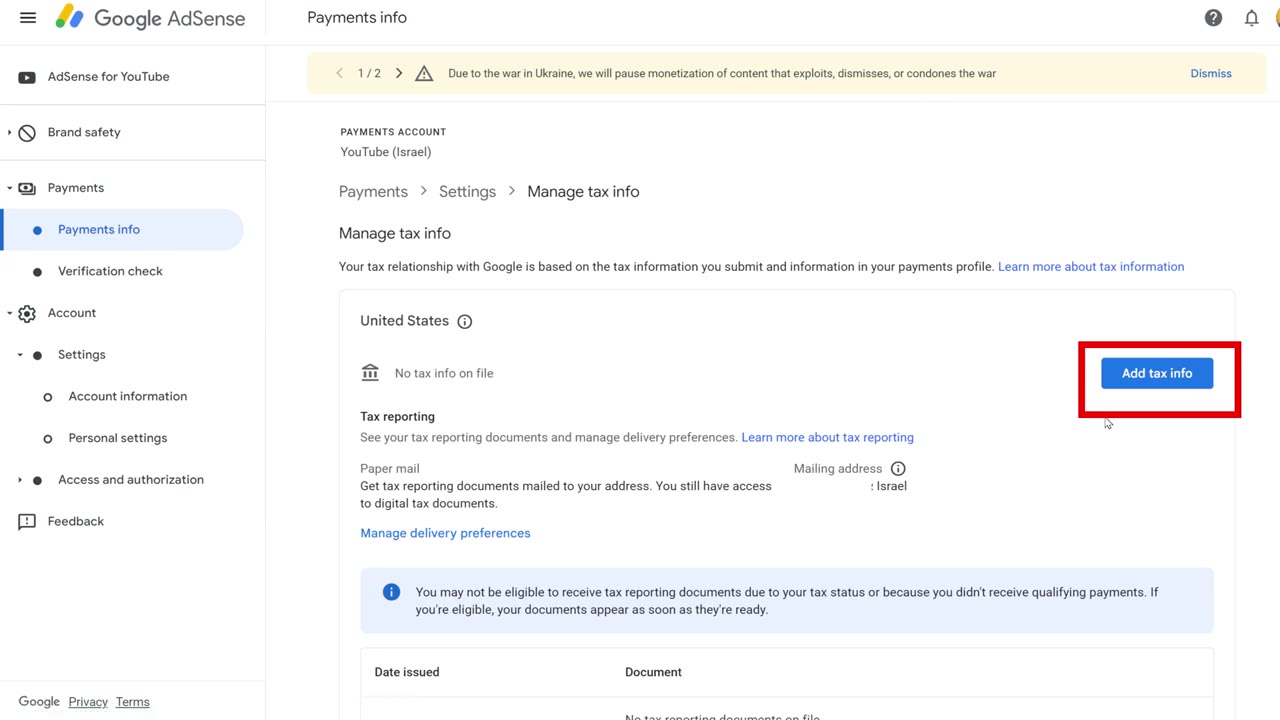
Answer whether you’re an individual or a business and whether you’re a US citizen. If you’re not in the US, have no US business and aren’t a US citizen, the form is usually W-8BEN. Your name and address must match your AdSense account. Add your tax ID from your country (or a US one) and your address.
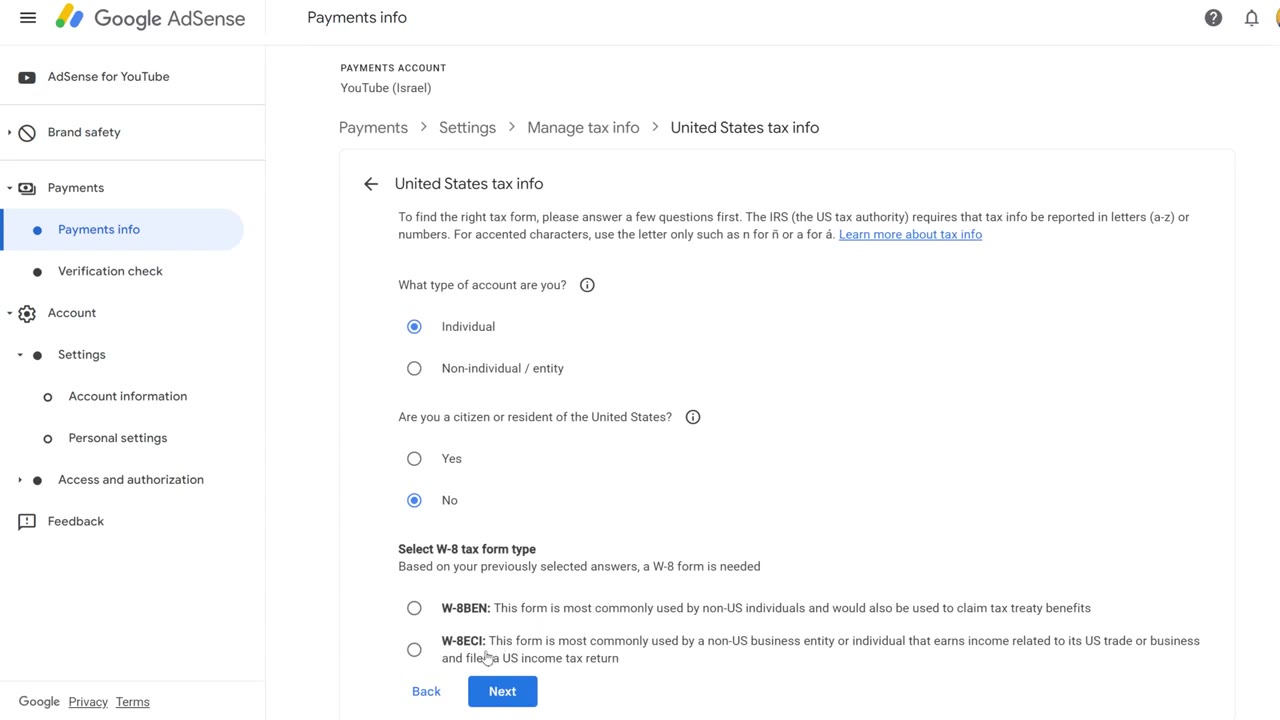
Claim the tax treaty rate if your country has one
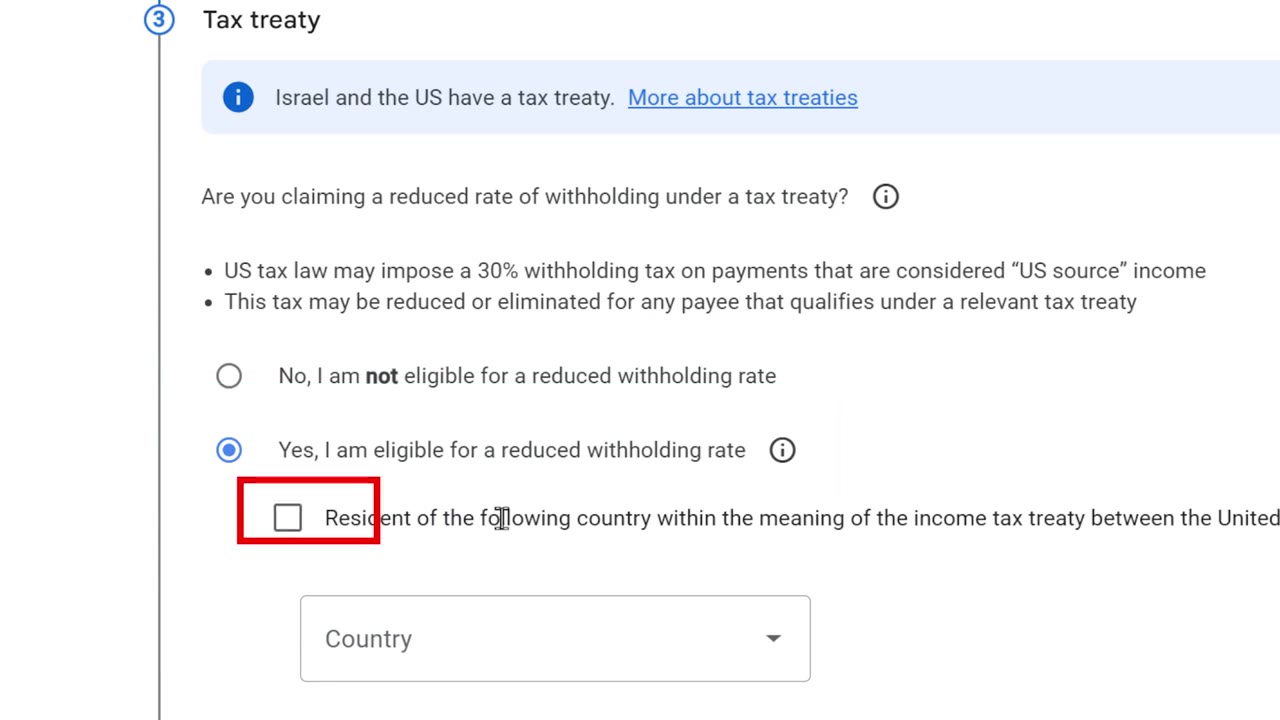
Many countries have a tax treaty with the US that lowers the withholding on YouTube earnings. For me, in Israel, it reduces the withholding from 30% to 10%, which is why this form is so important. Check that you’re eligible, choose your country, and for YouTube income choose the royalties option with the article and the lowest rate shown for your country. Check the box for the explanation that Google writes for you.
Next you’re asked about activities in the US. Viewers in the US watching your videos don’t mean you do business in the US. Then choose paperless delivery, review the documents, confirm and sign.
Upload an ID if Google asks
If the name on the form doesn’t exactly match your Google account, Google may ask for an ID to confirm your legal name. Upload it right away so you don’t forget. The tax info then goes under review, which for me was quick.
Next steps: turn on ads and add your bank account when you reach the payment threshold. All steps: the full YouTube monetization guide.
Keep learning
This guide is part of the complete guide: Make Money as a Content Creator.