How to Add a Bank Account for YouTube Payments (AdSense)
You can only add a bank account to AdSense for YouTube after you reach the payment threshold of 100 dollars (or the same in your currency). Here’s how to add it and verify it so the money reaches you.
Step 1: Open the payments page
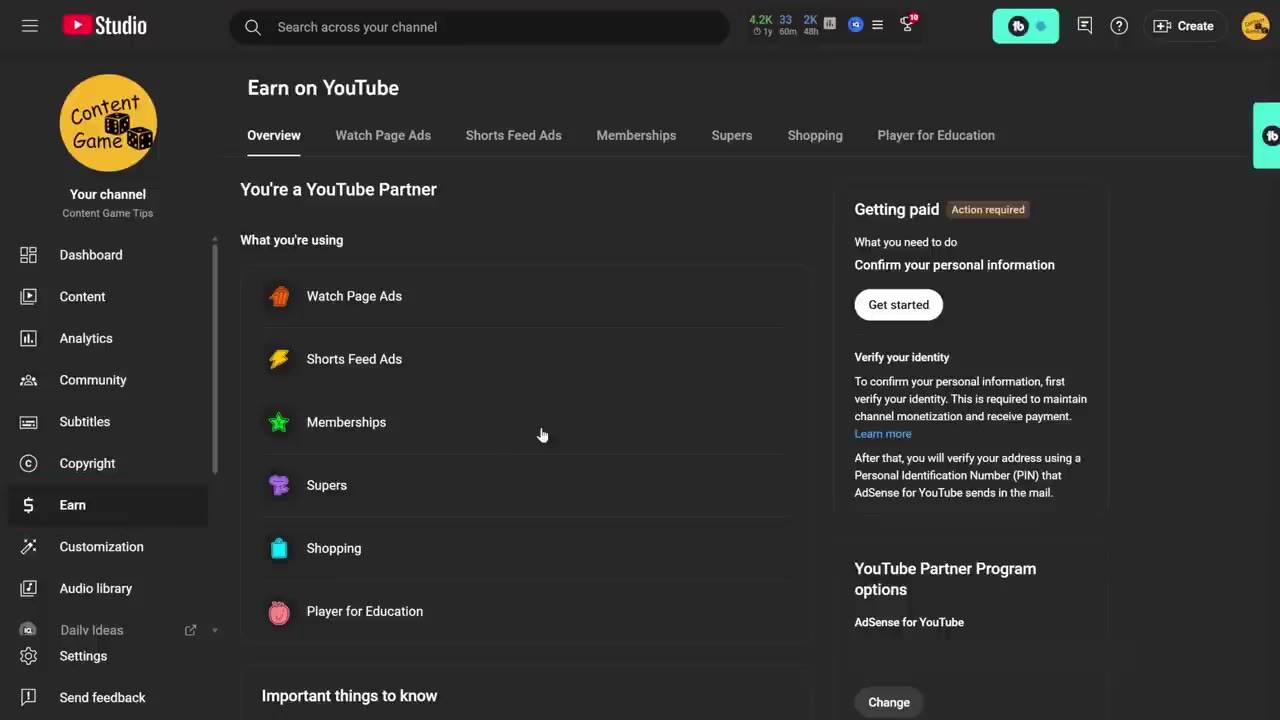
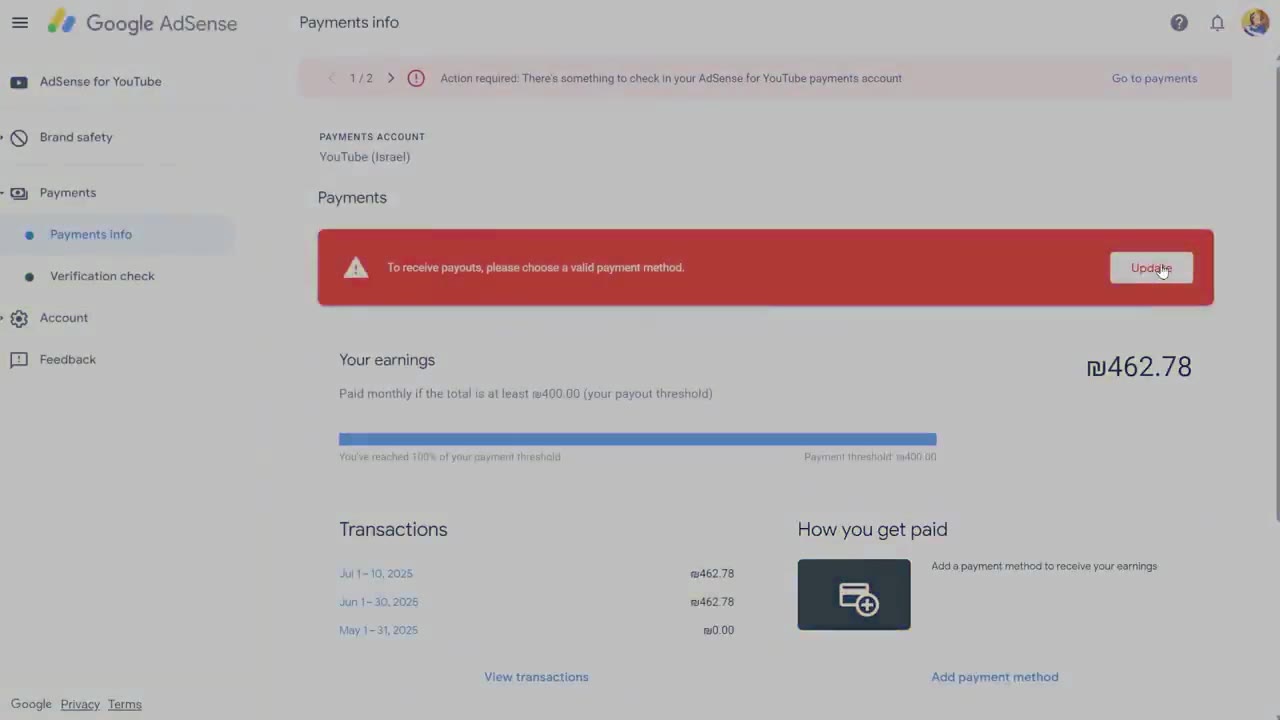
When you reach the threshold, a notice appears in the Earn tab of YouTube Studio. Click it to go to AdSense. You’ll see a red message asking for a payment method. Click it, or go to Payments info on the left.
Step 2: Add the bank account
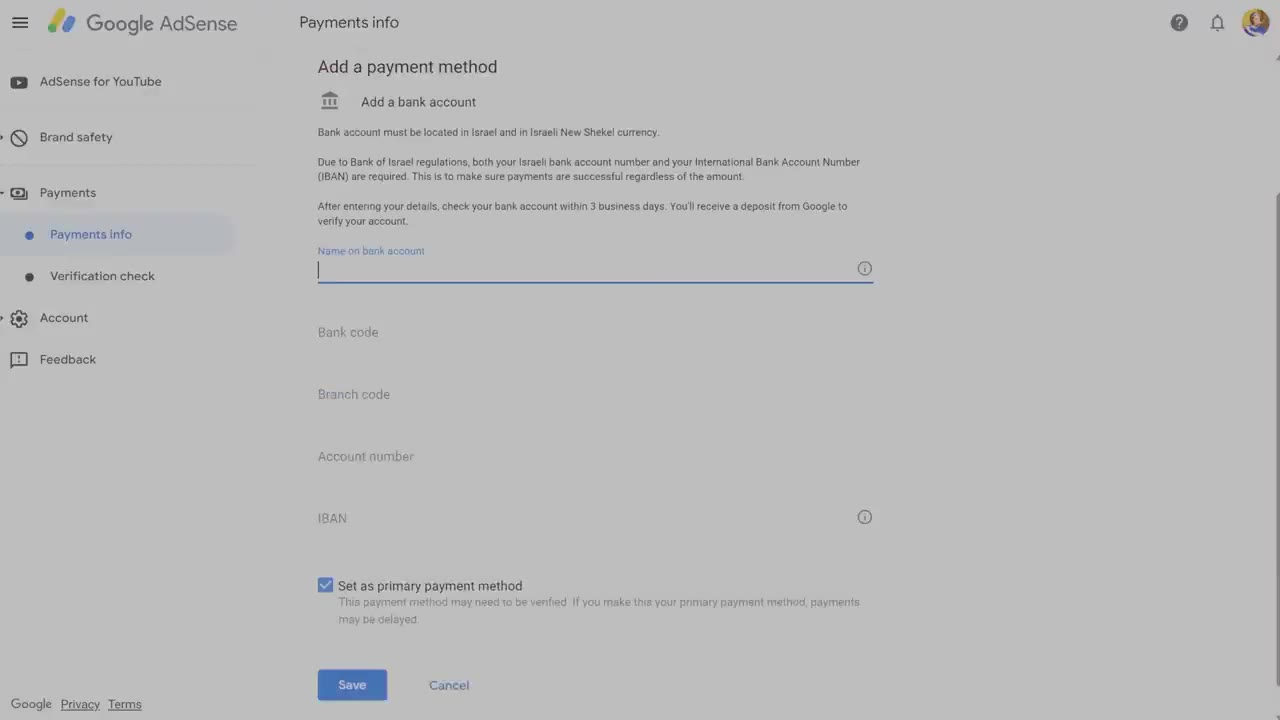
Click Add payment method and fill in the bank account details. Get the exact numbers from your bank. They differ by country and bank, but every bank has them. Confirm.
Step 3: Verify the test deposit
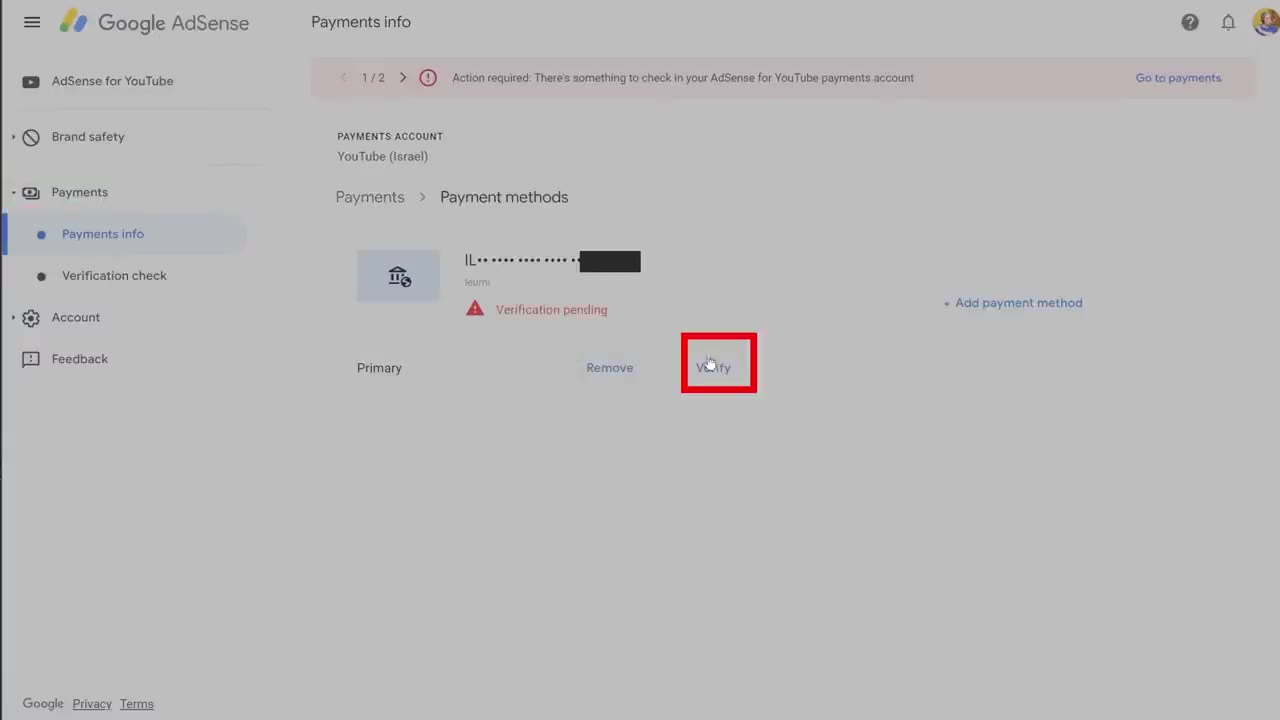
Google sends a small deposit to your account within a few days. When you see the amount, go back to AdSense, open Payments > Manage payment methods and click Verify next to the bank account.
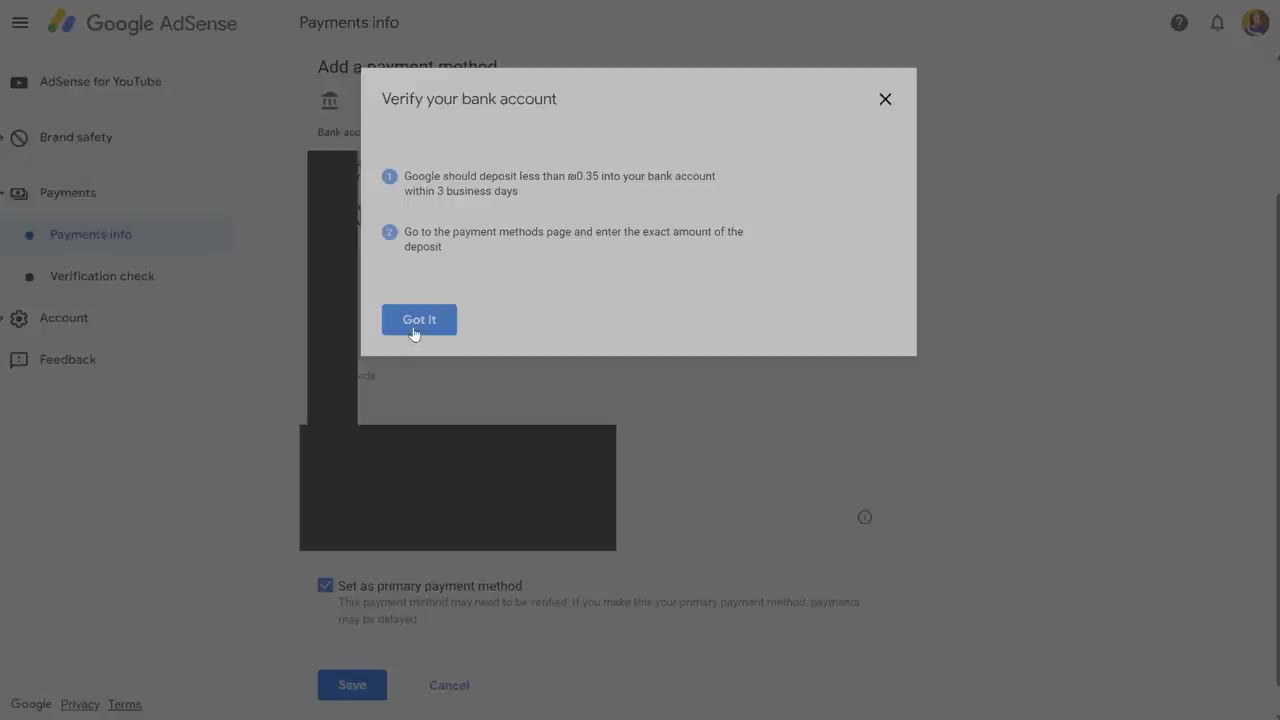
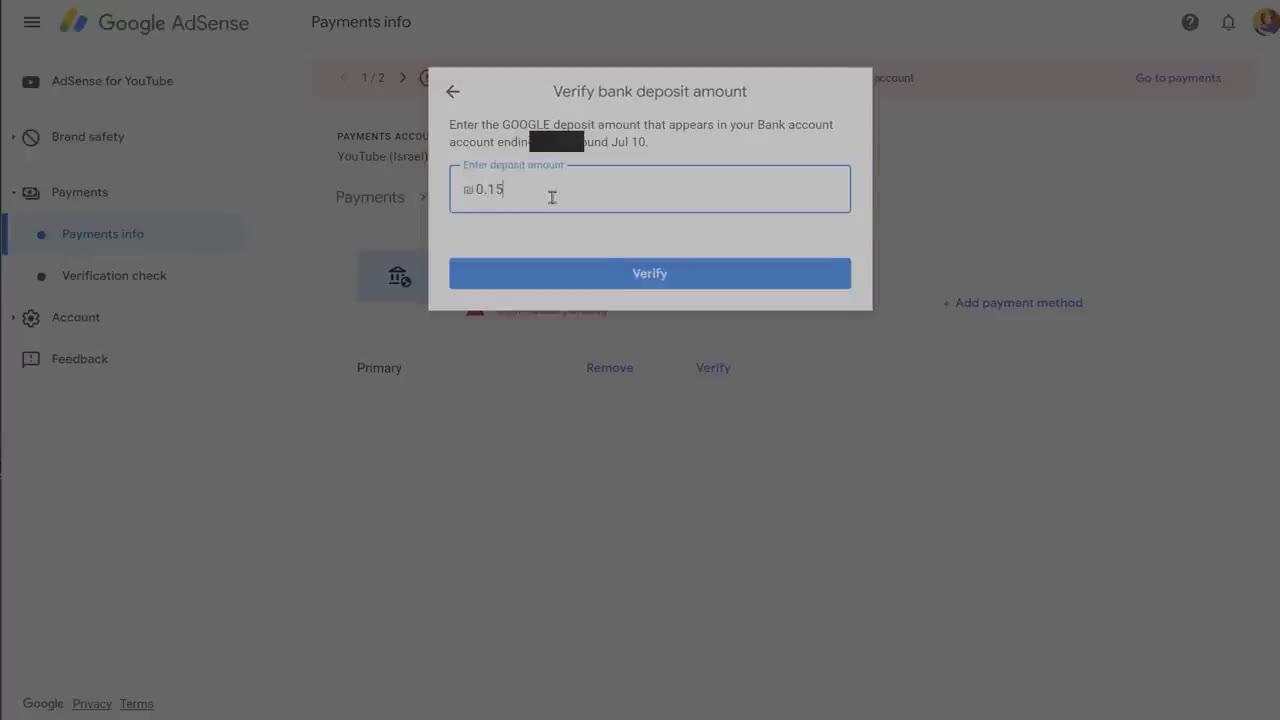
Enter the exact deposit amount. This is how Google knows the account is yours.
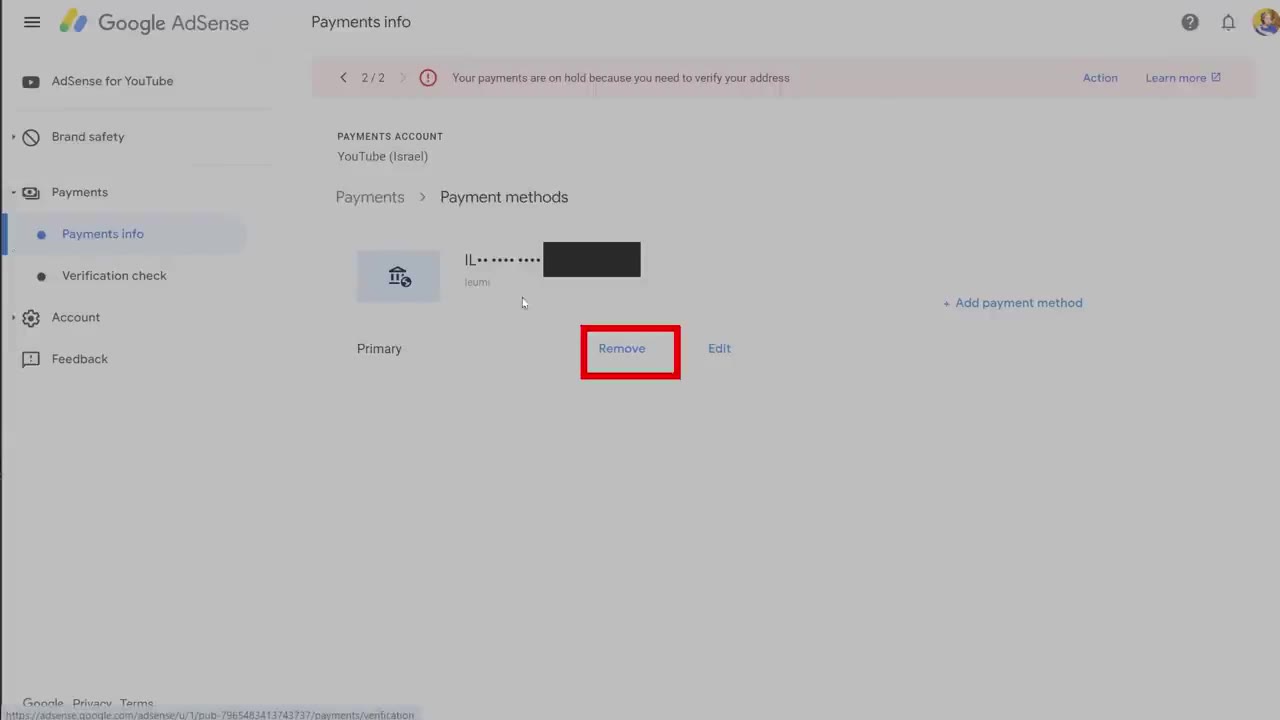
Change or remove the bank account
To switch banks, use the remove and add buttons. If money is still waiting in your account, add the new bank account first so you don’t miss a payment.
Before this step: set up AdSense and tax info. All steps: the full YouTube monetization guide.
Keep learning
This guide is part of the complete guide: Make Money as a Content Creator.