How to Cancel Your Adobe Subscription (Step by Step, 2026)
I canceled my Adobe Premiere plan and recorded the whole process. Adobe shows you four steps and a few offers before it lets you go, so here’s exactly what each screen is and what to click if you really want to cancel.
Why I canceled: I didn’t use Premiere enough to pay for it every month, and I now edit my videos with Claude, which I already pay for. For what I need it’s good enough, and I still have Canva.
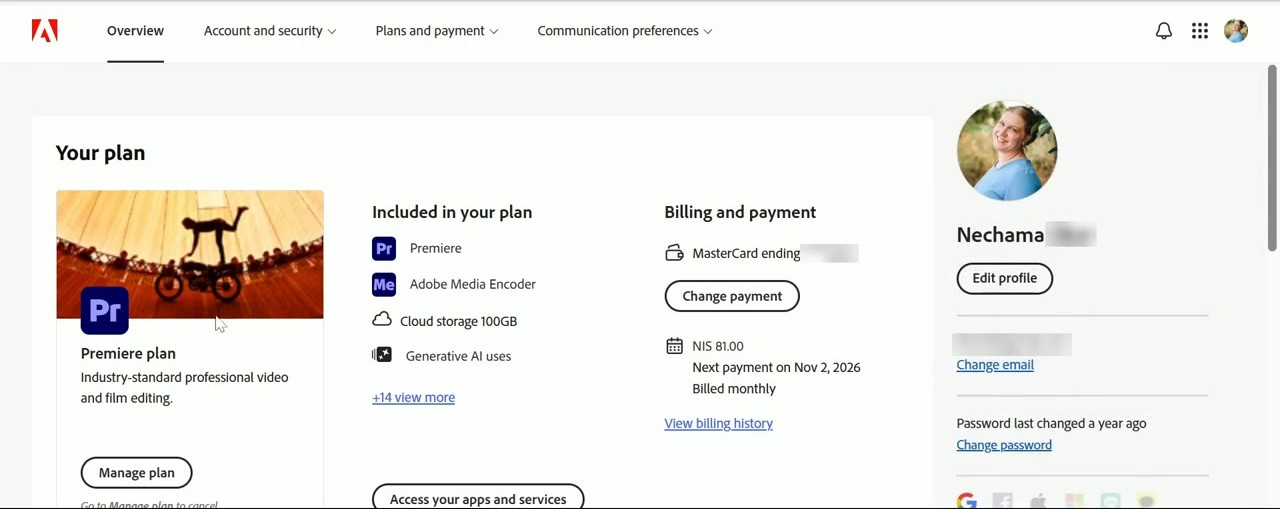
Step 1: Open Manage plan
Log in to your Adobe account and go to the Overview page. Under your plan click Manage plan. A window opens with a few options. Scroll down to End your service and click Cancel your plan.
Step 2: Read what canceling means
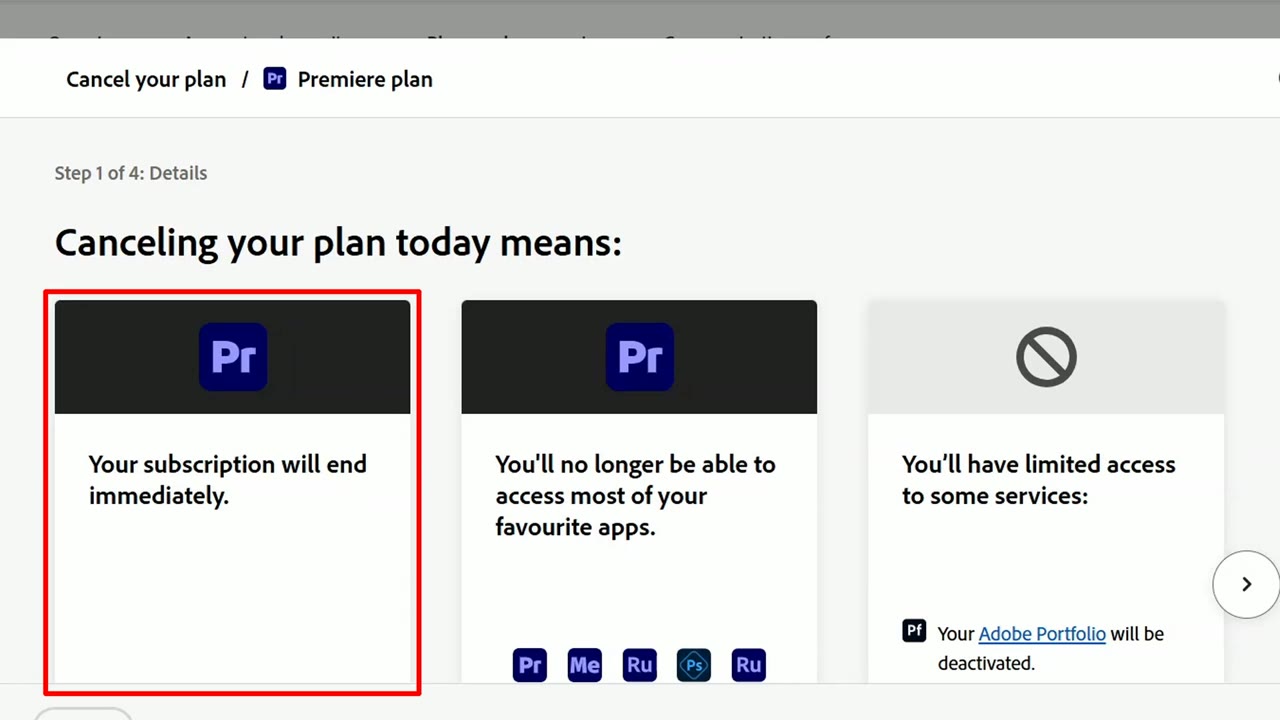
The first step explains that the subscription ends right away, you lose access to most of the apps, and some services like Adobe Portfolio become limited. Click Continue.
Step 3: Choose a reason and skip the switch offer
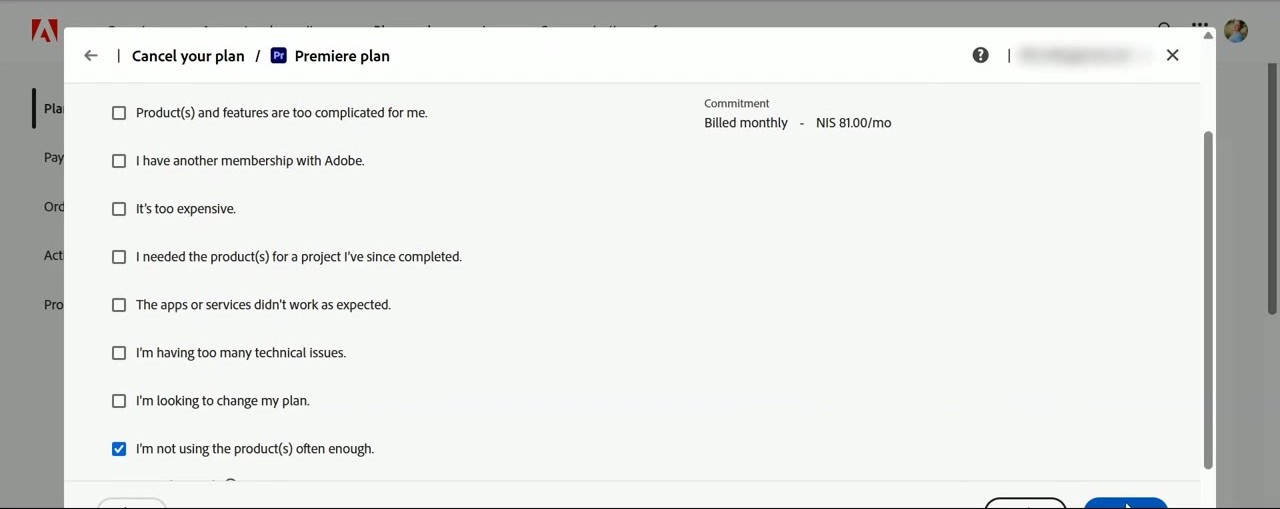
Adobe asks why you’re leaving. I chose I’m not using the products often enough and clicked Continue. Then the first offer pops up, asking if you’d like to switch products or change your plan instead. If you really want to cancel, click No thanks.
Step 4: Skip the offers
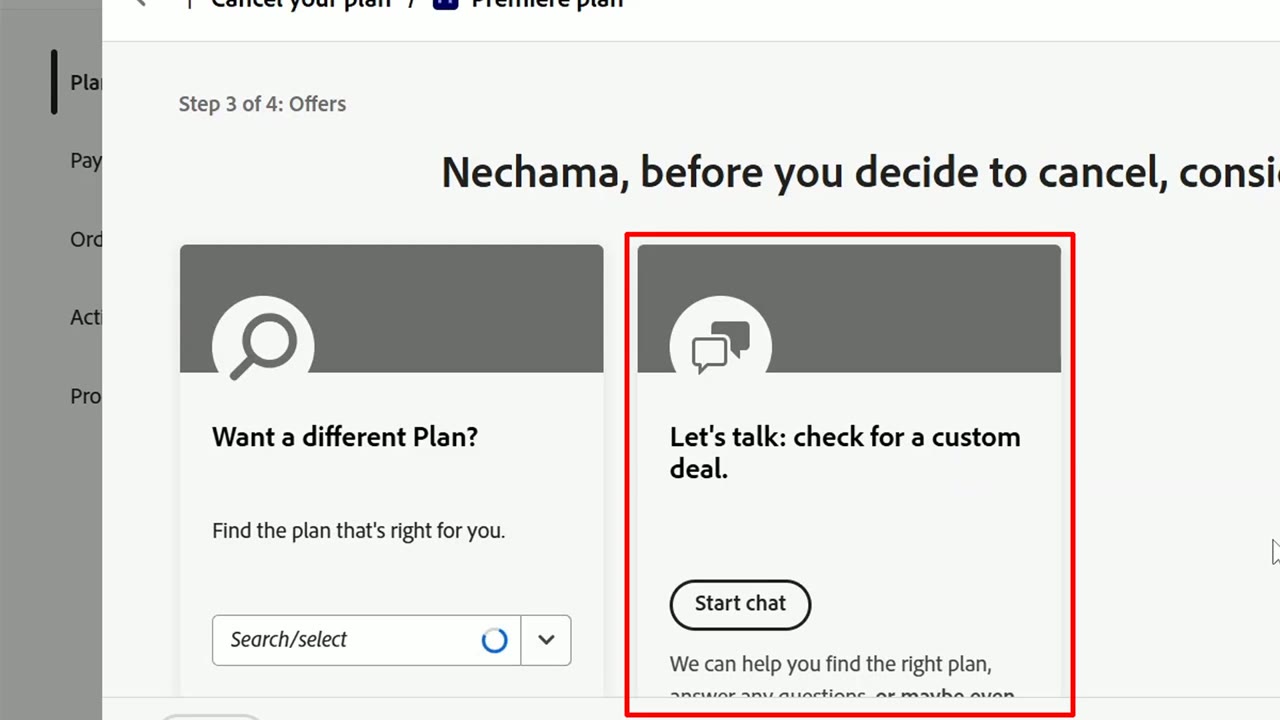
The next step shows more offers: a different plan or a chat to check for a custom deal. Don’t click them if you want to cancel. Click Continue.
Step 5: Read the review screen before you confirm
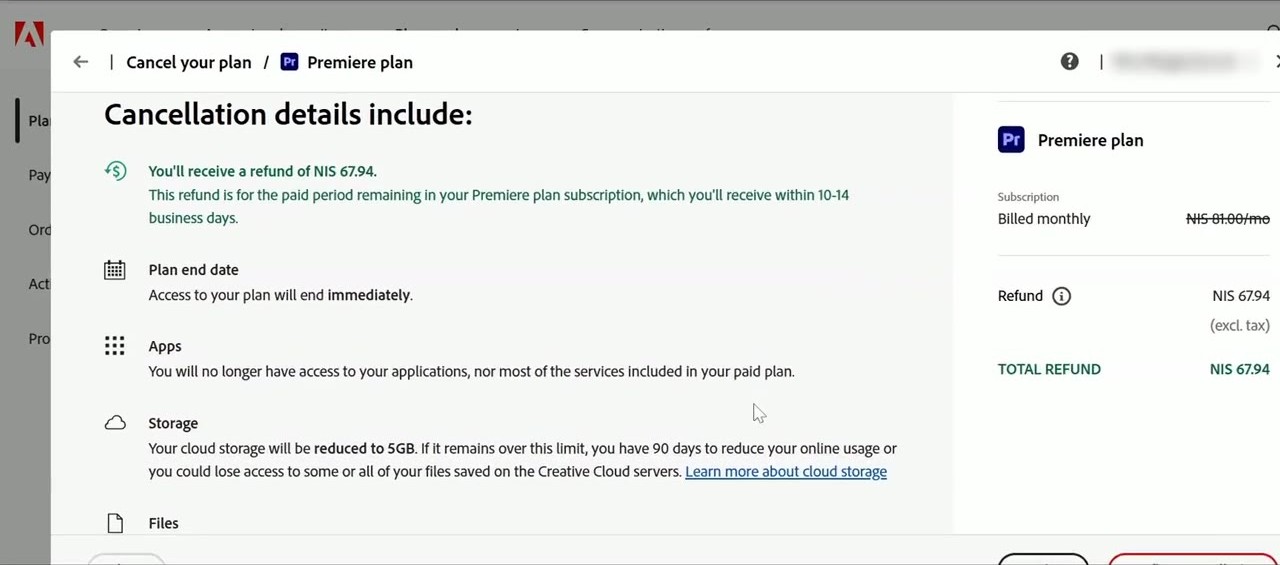
This is the important part. The review screen shows your refund, when access ends and what happens to your storage. In my case I got a refund for the rest of the month I had already paid, returned within 10 to 14 business days. Access to the apps ends right away and the cloud storage drops to 5GB.
Fees, refunds and yearly plans
In Israel Adobe moved us to a month-to-month plan and gives a refund if you cancel in the first 14 days of the month, so I got money back and paid no fee. I don’t know if it works the same in other countries. On a yearly plan, canceling in the middle may cost a fee, or you may keep paying until the plan ends. Check how your plan works and cancel before the yearly renewal. When you’re ready, click the red confirm button.
Step 6: Subscription canceled, now check your files
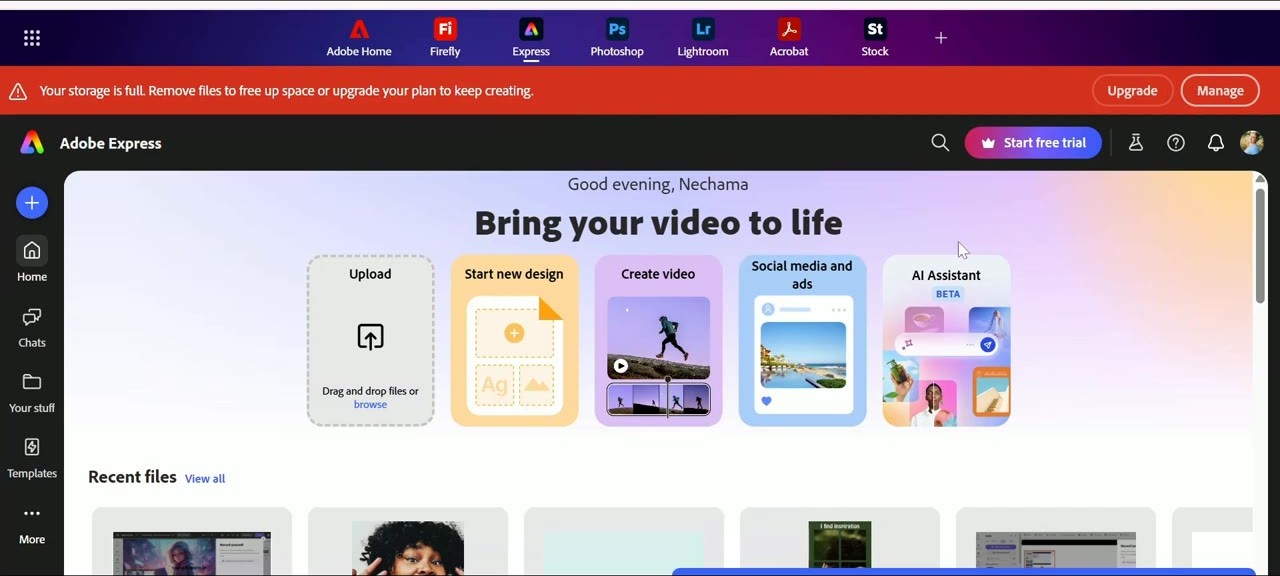
Adobe shows a green message and opens Adobe Express, which you can keep using for free. If you see a red bar at the top saying your storage is full, it’s because the storage went down to 5GB. You have 90 days to delete or download what’s above that, or you could lose those files. Files saved on your computer stay on your computer. Open Your stuff and clean up what you don’t need.
Still using Adobe Express?
Adobe Express stays free after you cancel. If you design with it, these guides may help: team t-shirts in Adobe Express and stickers in Adobe Express.