YouTube Partner Program: How to Accept the New YPP Terms and Fix Your Payment Method
YouTube updated its Partner Program agreements, and creators who are already monetized need to accept the new terms to keep getting paid from February 1st, 2027. It takes a few minutes. While doing it I also found that YouTube had removed my payment method, so here’s how to check yours too.
I’m not a lawyer. This is what I found in my own YouTube Studio and how I understood the agreements.
Step 1: Open the message in YouTube Studio
Go to YouTube Studio. At the top you should see a message saying that you need to accept the new terms. Click it. A popup explains that the terms for views on long videos and Shorts change from February 1st, 2027. You can do it later, but don’t forget. Click Continue.
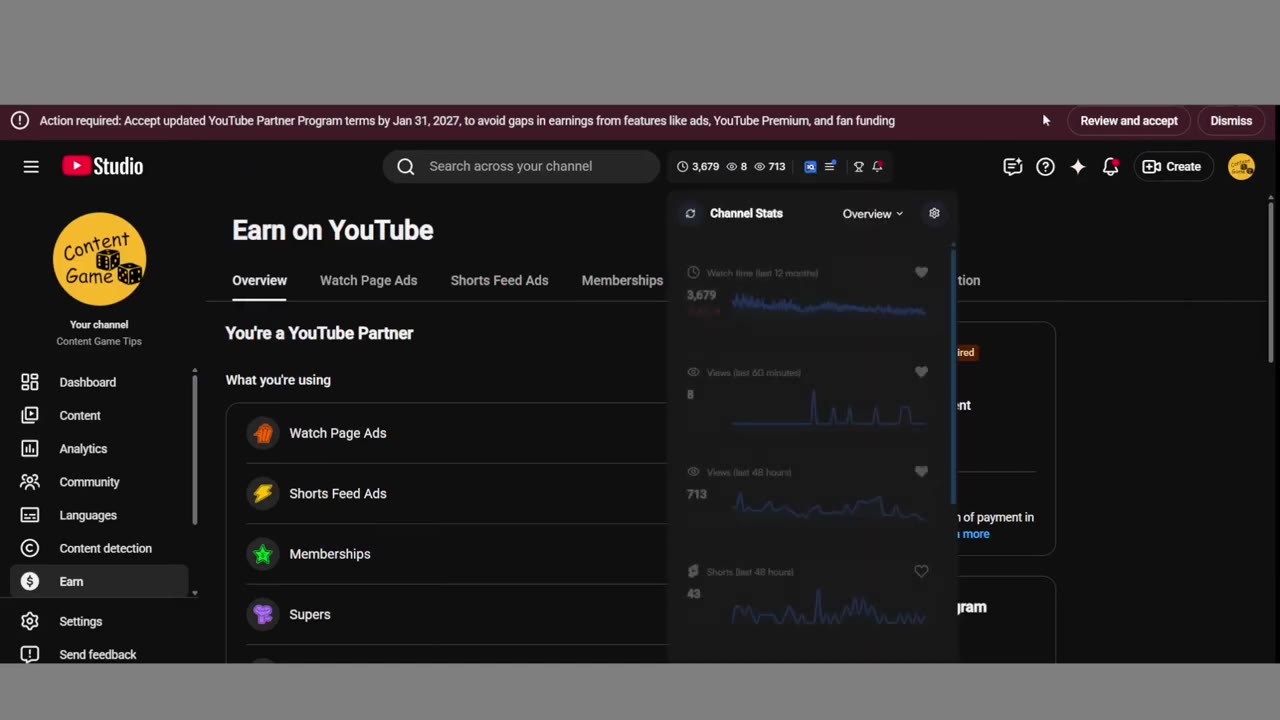
Step 2: Accept the main agreement
The first agreement explains revenue sharing from ads and YouTube Premium and what percentage you get. From what I read, the percentages didn’t change. The agreement mainly updates the eligibility rules and asks you to sign again. If you’re already in the program, you stay in. Click Agree.
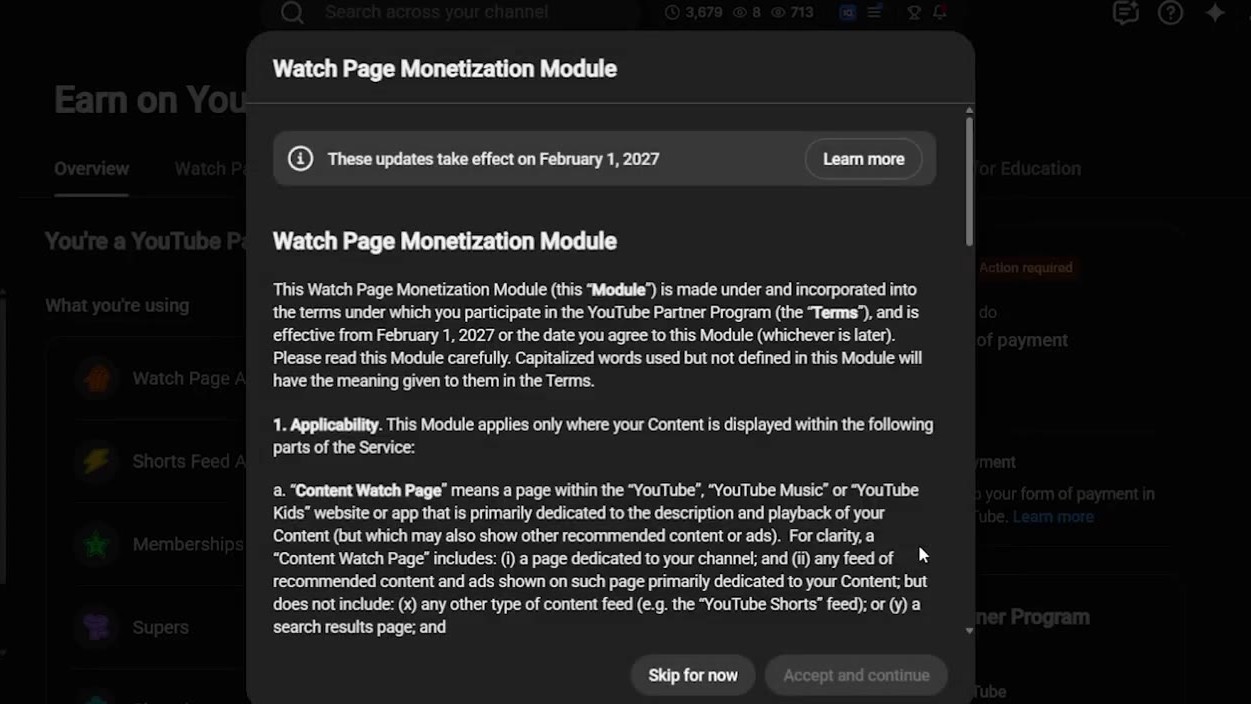
Step 3: Accept the Shorts agreement
The second agreement is about revenue sharing from Shorts. The big change is that Shorts revenue sharing depends on reaching YouTube’s Shorts views requirement, while long videos keep earning as before. Check the current numbers on YouTube’s help page, then confirm this agreement too.
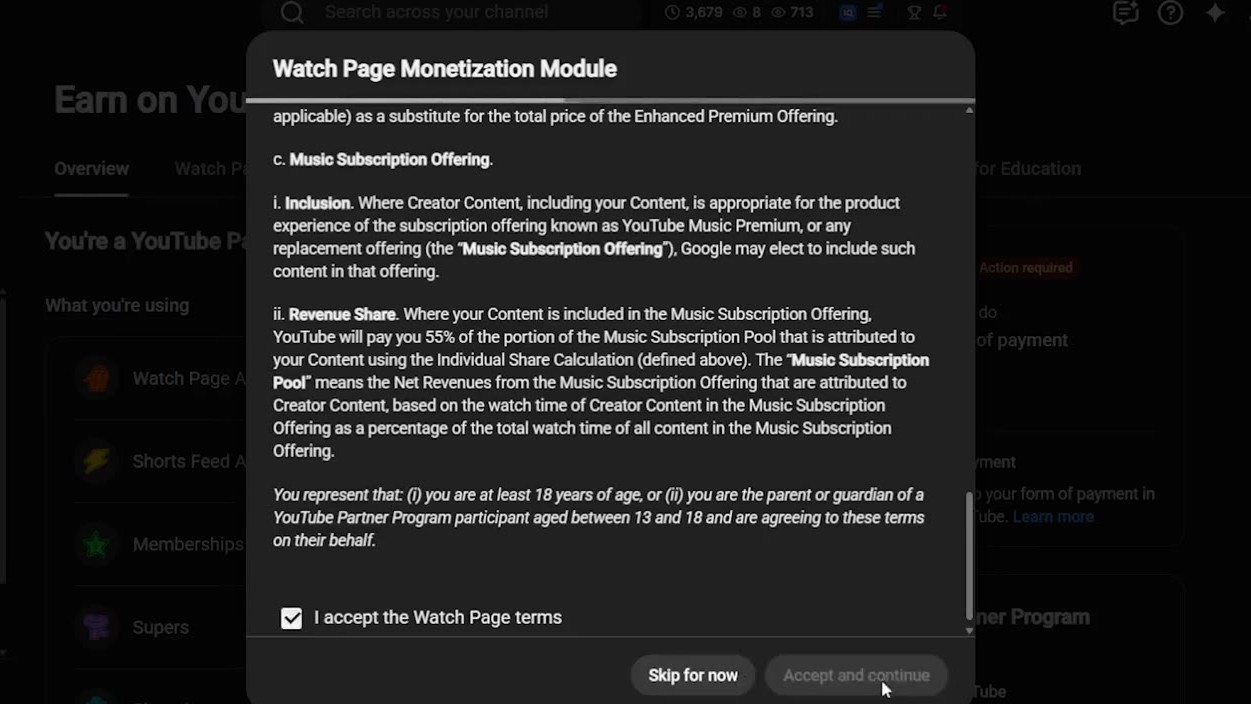
Step 4: Check your payment method
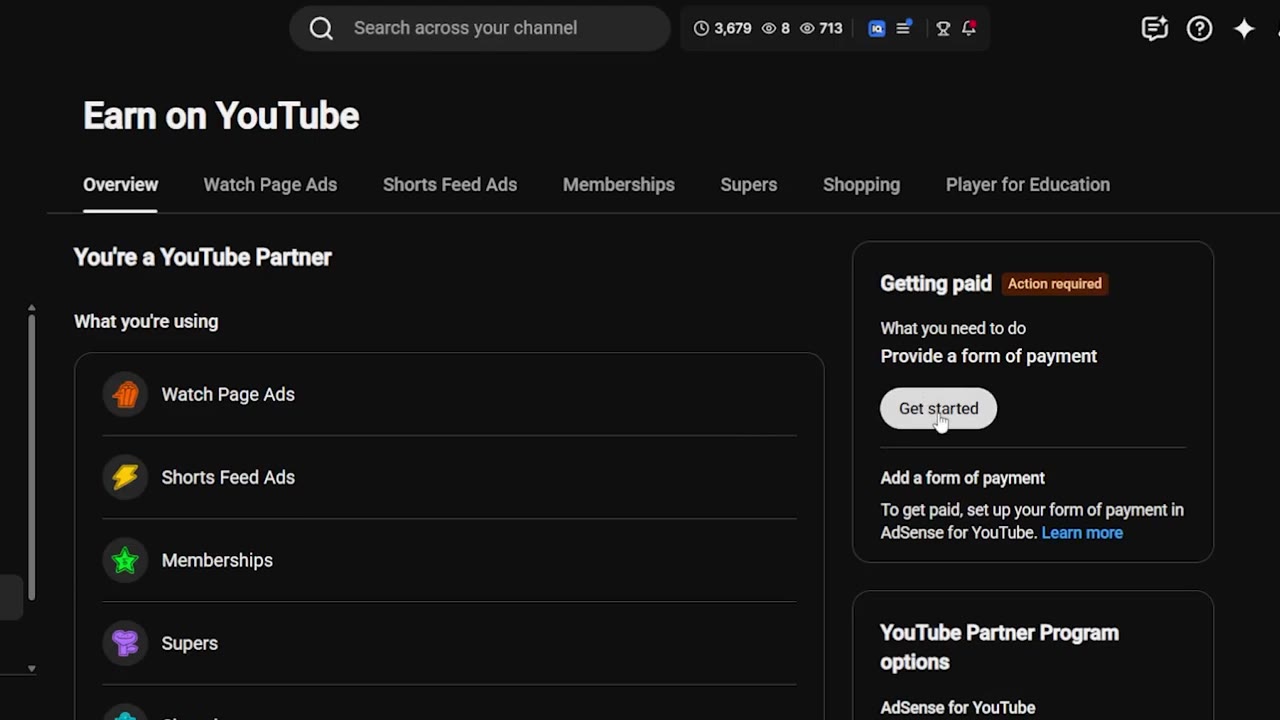
In my case YouTube had removed my payment method, so if money is waiting for you, check yours even if you added it in the past. Open the Earn tab in YouTube Studio. On the top right you’ll see a message if you need to add a payment method. If there’s no message, your payment method is probably fine.
Step 5: Add your bank account again in AdSense
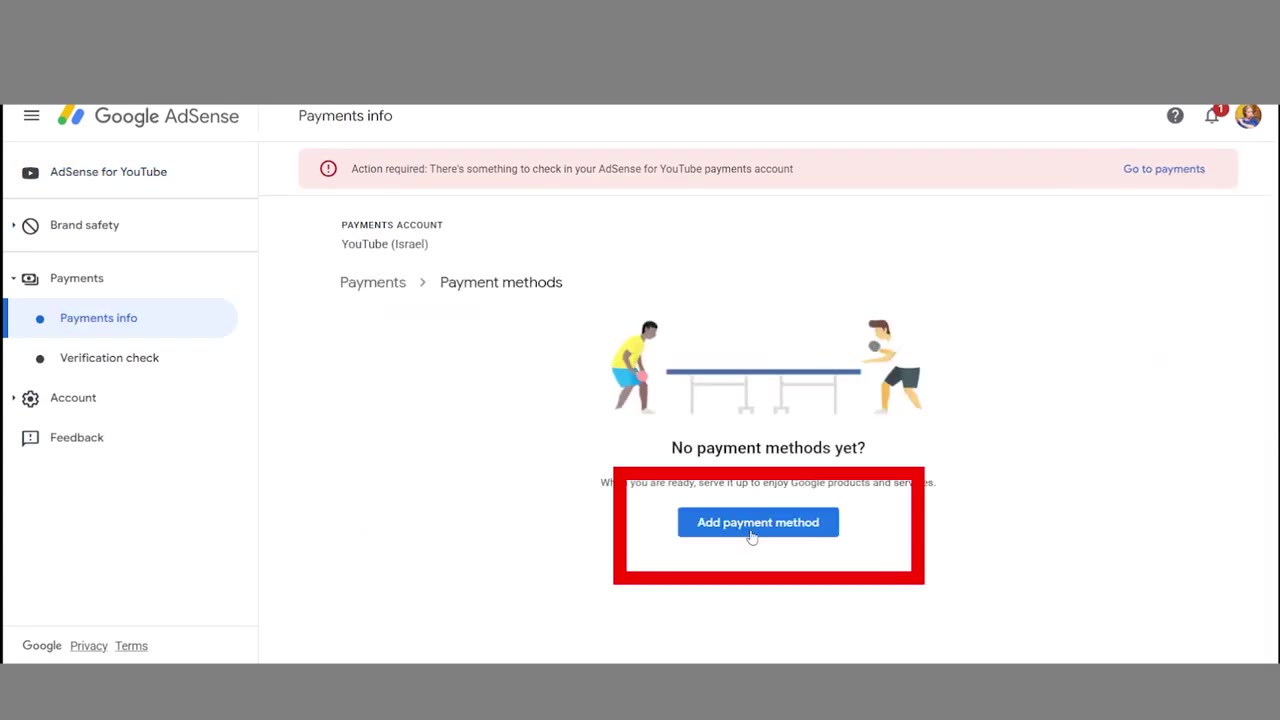
Go to Google AdSense. You’ll see a message at the top. Click the button and it takes you to the right section. Click Add payment method and fill in your bank account details. AdSense then makes a small test deposit to your account. It takes a few days. Find the exact amount in your bank statement, enter it in AdSense, and your account is verified.
Step 6: See the agreements you signed
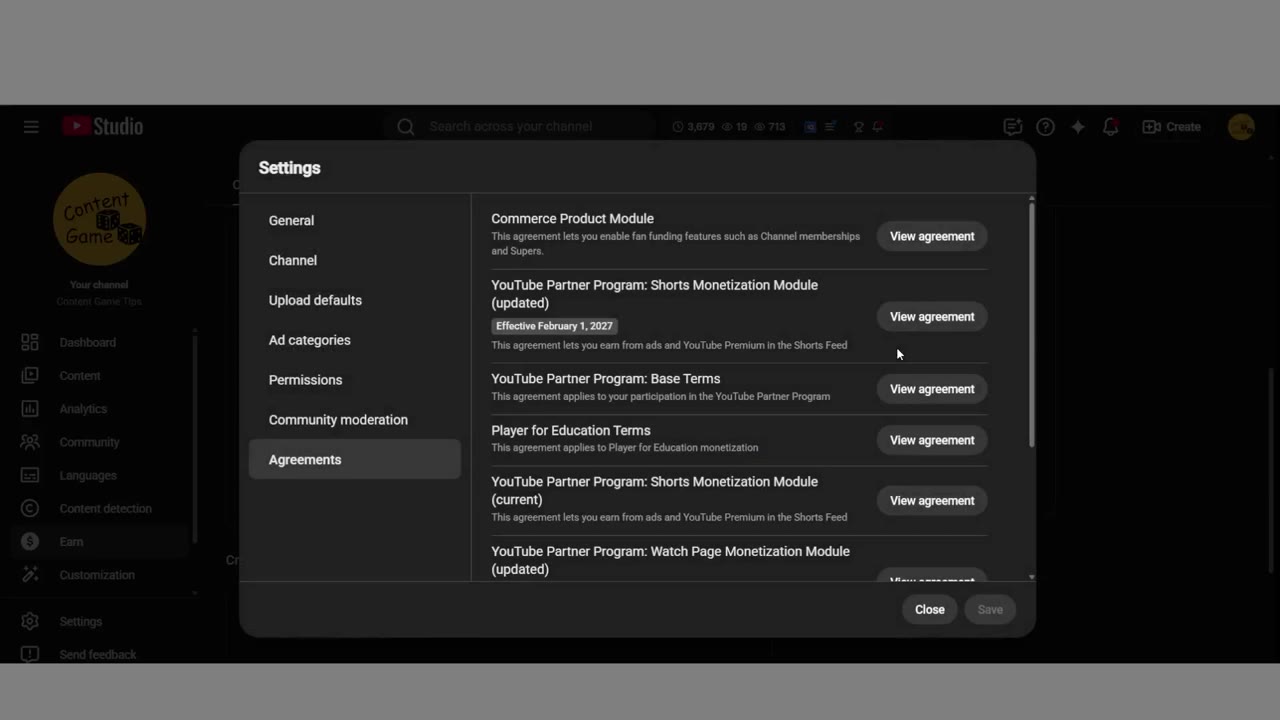
To see your agreements again, scroll all the way down in YouTube Studio and click the button to view your agreements. The popup lists everything you signed, from joining the Partner Program to extra features. The two new agreements are at the bottom, marked with the date they take effect.
Keep learning
This guide is part of the complete guide: YouTube Channel Guide.
Free download: get the New YouTube Channel Checklist, every step on one page.