Delete, Archive and Restore Pinterest Boards (and What Happens to Your Pins)
Before you delete a Pinterest board, it’s worth knowing what happens to the pins on it, because deleting the wrong board can remove your original pins from your whole account. Here’s how deleting, restoring and archiving work on a business account.
Delete a board
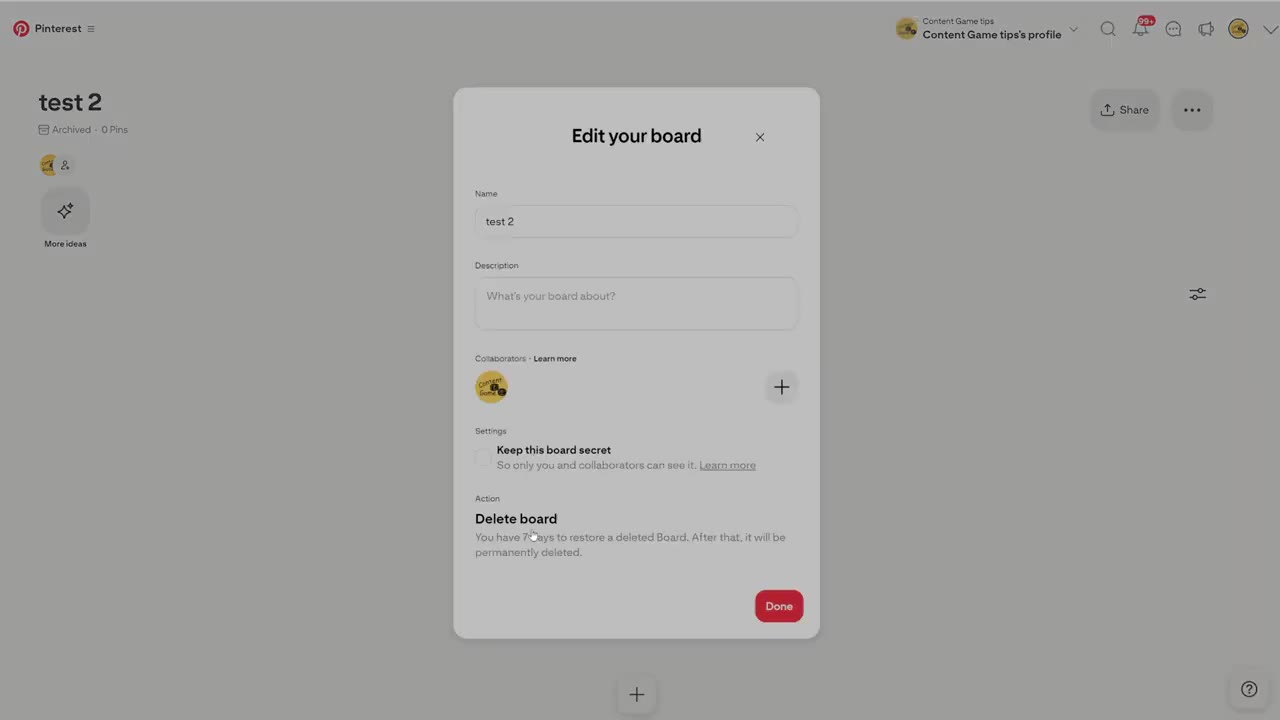
Open the board, click the three dots and choose Edit board. At the bottom click Delete and confirm that you want to delete the board and all its pins.
Restore a deleted board within 7 days
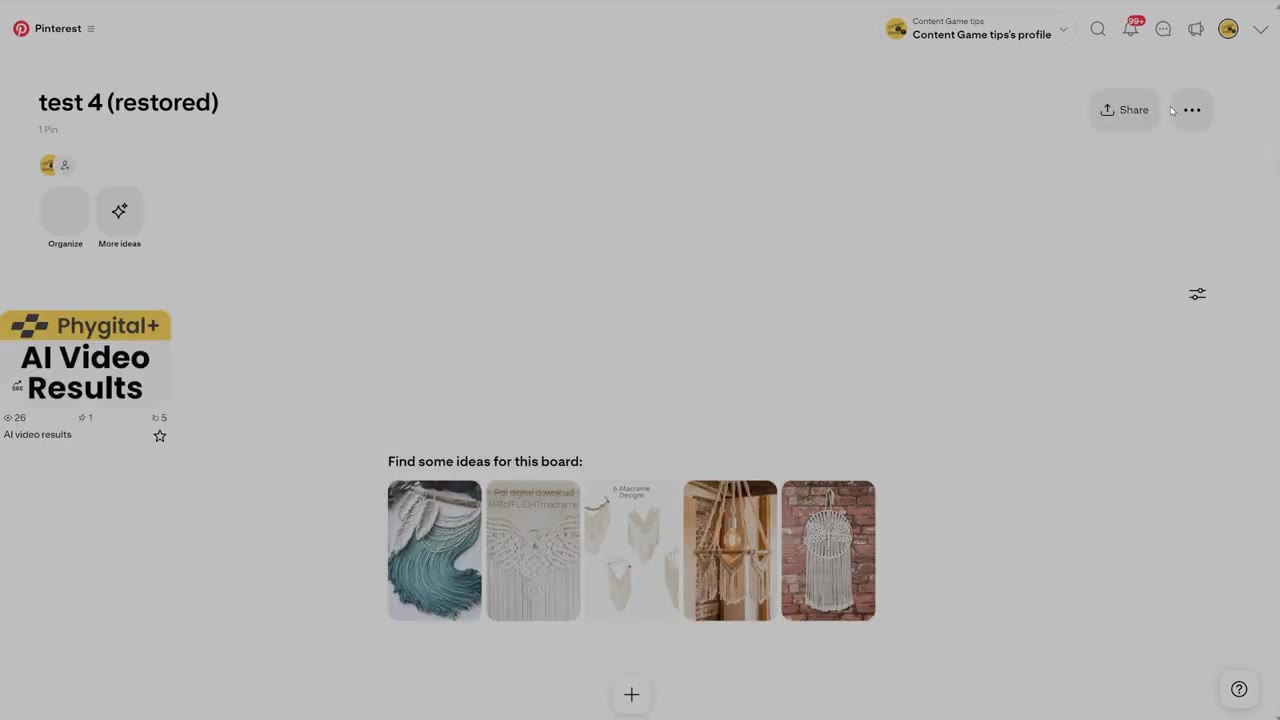
A deleted board stays recoverable for 7 days. In the Saved tab, scroll to the very bottom. A section for deleted boards appears only if you deleted one. Click Restore on the board you want back.
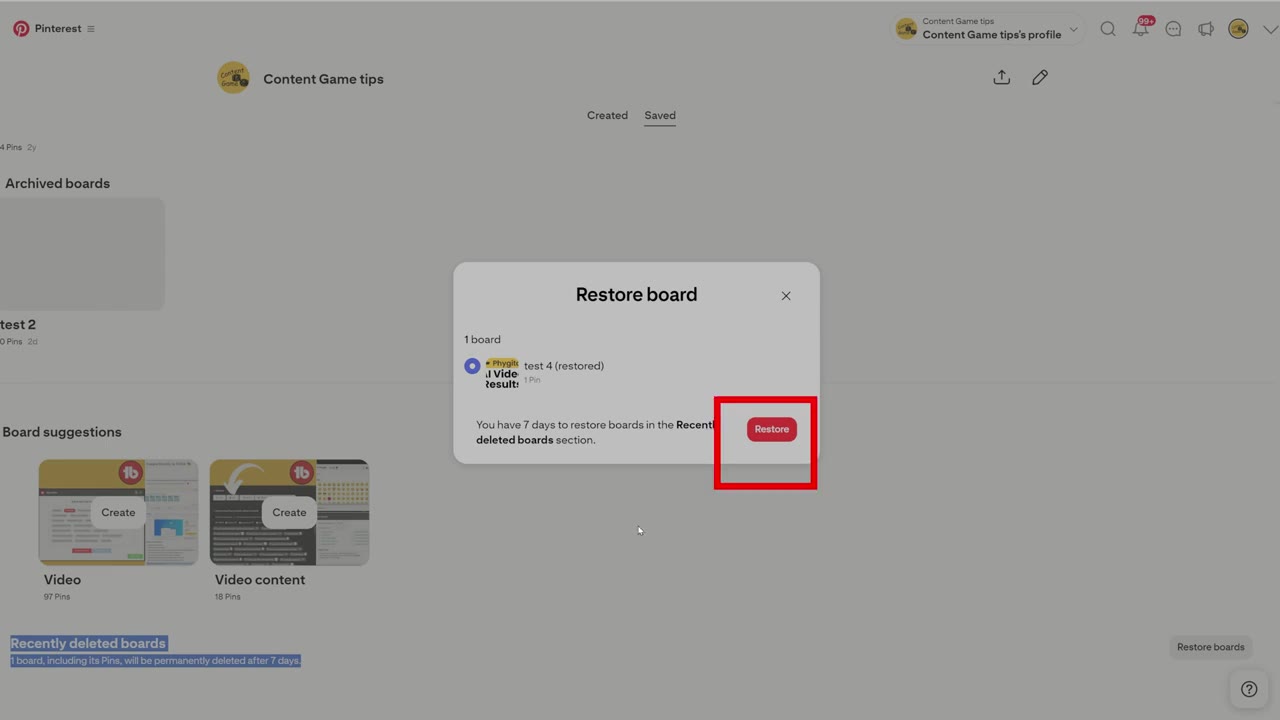
The restored board gets a note in parentheses on its name. To remove it, open the board, click Edit, fix the name and click Done.
Archive instead of deleting
Archiving is the safest way to clear a board while keeping it in case you forgot to save something. Open the board, click the three dots, choose Archive and confirm. Archived boards appear in their own section on your boards page, are visible only to you, and can’t get new pins. Open one and click to unarchive it when you need it again.
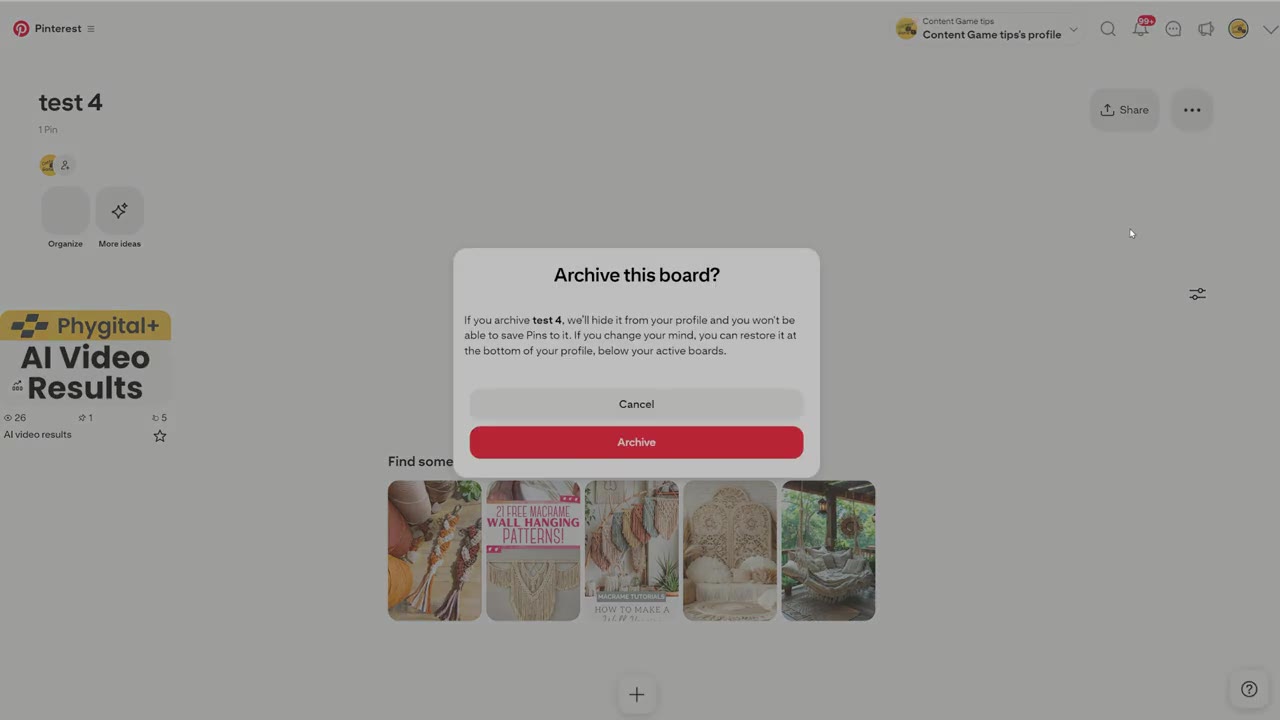
To delete an archived board for good, click Edit, then Delete and confirm. You still have 7 days to restore it.
What happens to the pins on a deleted board
- Your own original pins on the board are removed from your account everywhere, even if you saved copies to other boards.
- Pins you saved from other people are only removed from your profile. The original pins and other people’s saves aren’t affected.
Moving, copying and deleting single pins
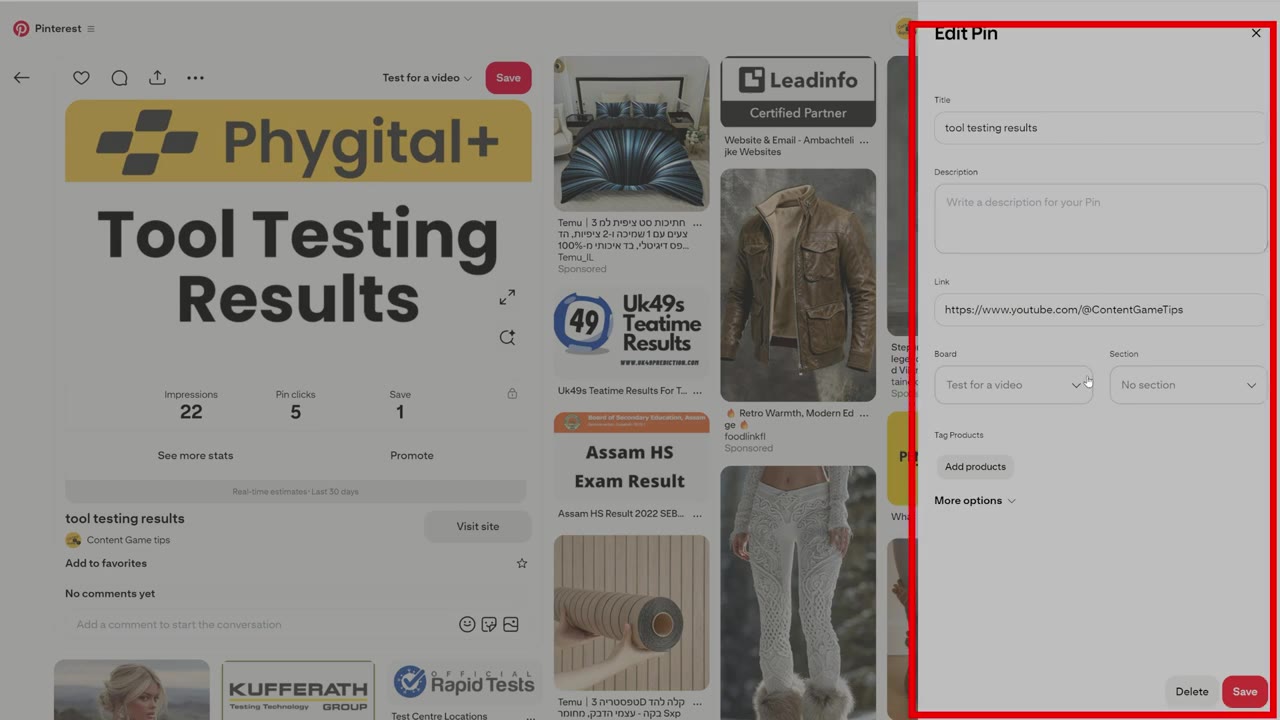
Open a pin, click the three dots and choose Edit Pin. On your original pin the edit panel lets you change the link and description or move the pin to another board. On a copy, some options like the link aren’t available.
- To copy a pin to another board, click Save and choose the board. The original stays where it is.
- To move the original pin, open it in its original board, click Edit Pin and choose a different board.
- Deleting a pin from the board where you first created it deletes it everywhere.
- Deleting your pin from another board where you saved it later leaves it on the original board.
The full board guide: how to organize Pinterest boards.
Keep learning
This guide is part of the complete guide: Pinterest and Social Media Guide for Creators.