How to Turn On Supers on YouTube (Super Chat, Super Stickers, Super Thanks)
Once you join the YouTube Partner Program at the first level (500 subscribers and the watch hours or Shorts views), you can earn from your fans with Supers and memberships. Here’s how to turn on Supers.
The Earn tab after you join
After you’re accepted, the Earn tab shows what you can set up, how far you are from full monetization, and the Partner Program options, including the terms and the option to leave the program. You can turn off each earning feature separately and stay in the program.
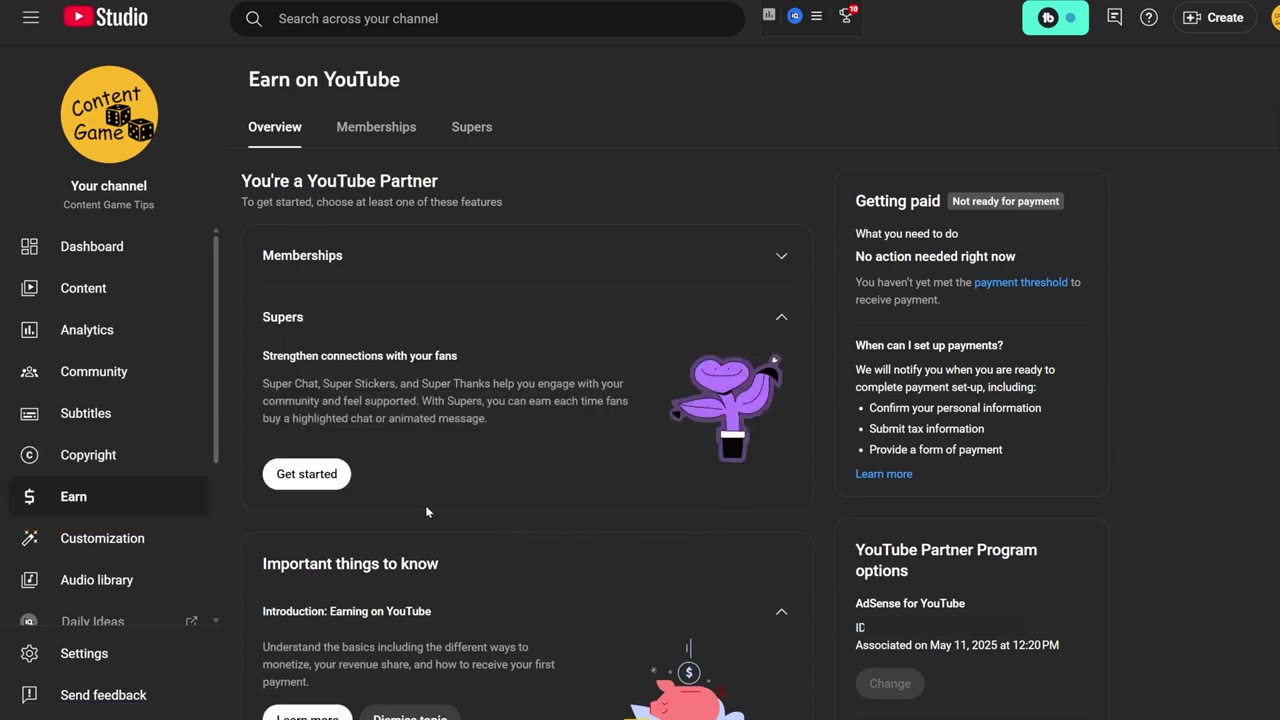
Turn on Supers
Click Get started under Supers, or open the Supers tab. Read the agreement, sign it and click Accept. Note that YouTube can refund a purchase to a viewer.
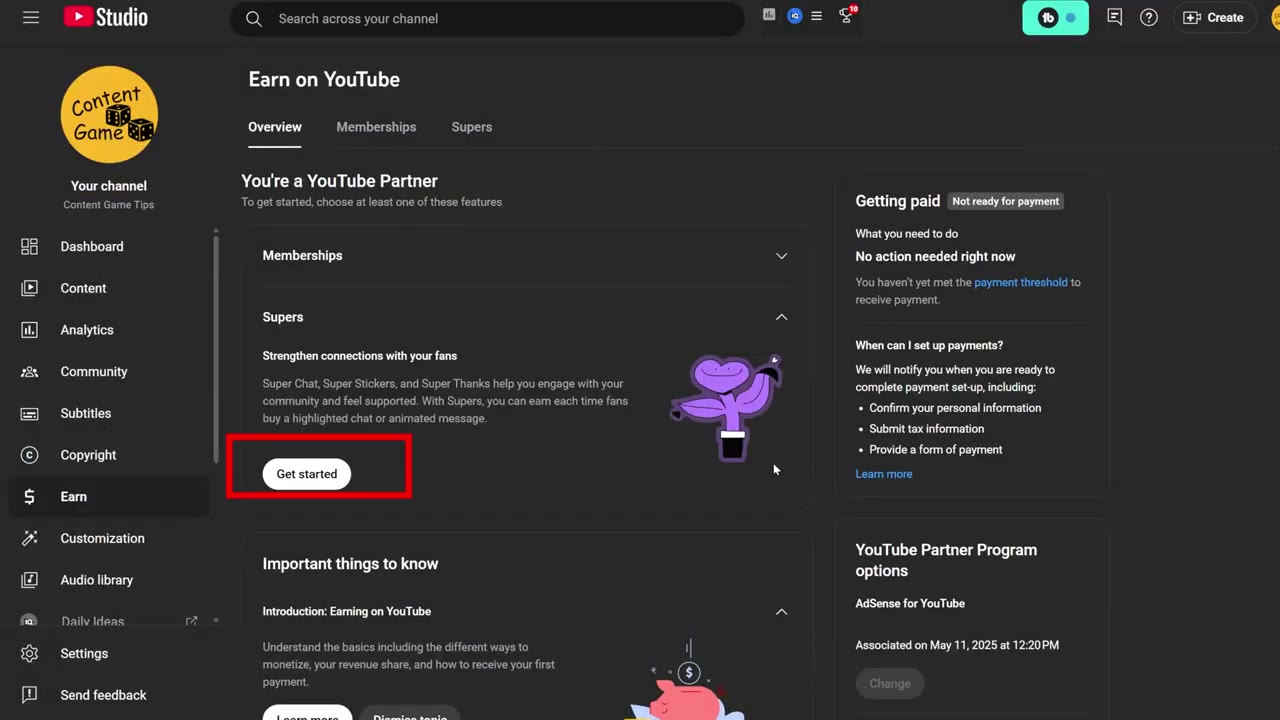
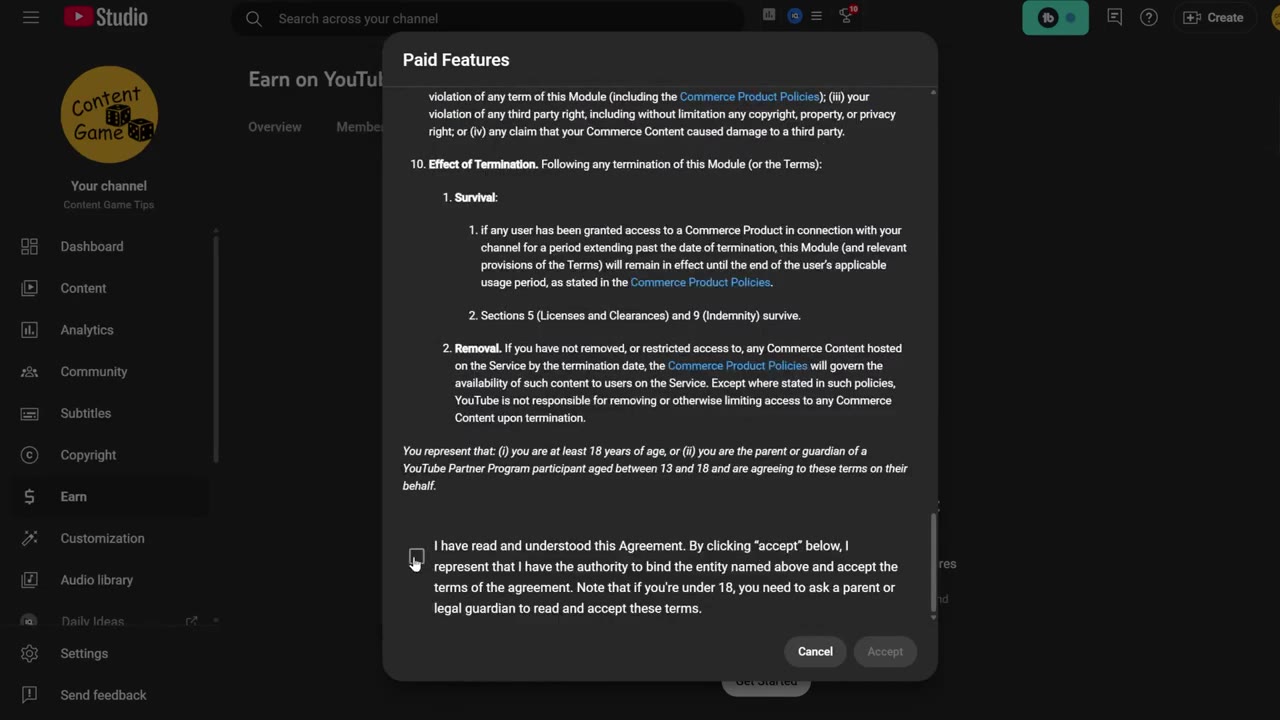
All three Supers turn on together. To turn one off, open Earn > Supers and use its toggle.
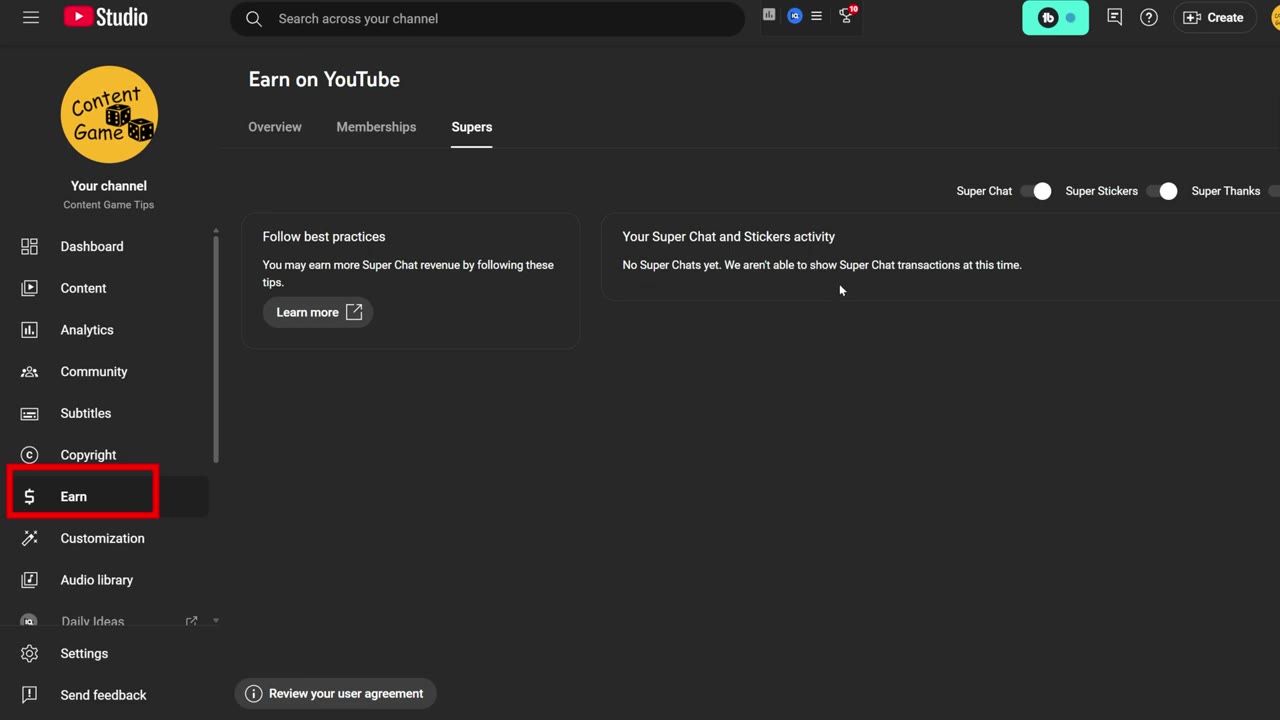
What each Super does
- Super Chat: for live streams and premieres. Viewers pay to highlight their message in the chat. Works best with a busy chat.
- Super Stickers: also for live streams and premieres. Viewers buy an animated sticker to support you.
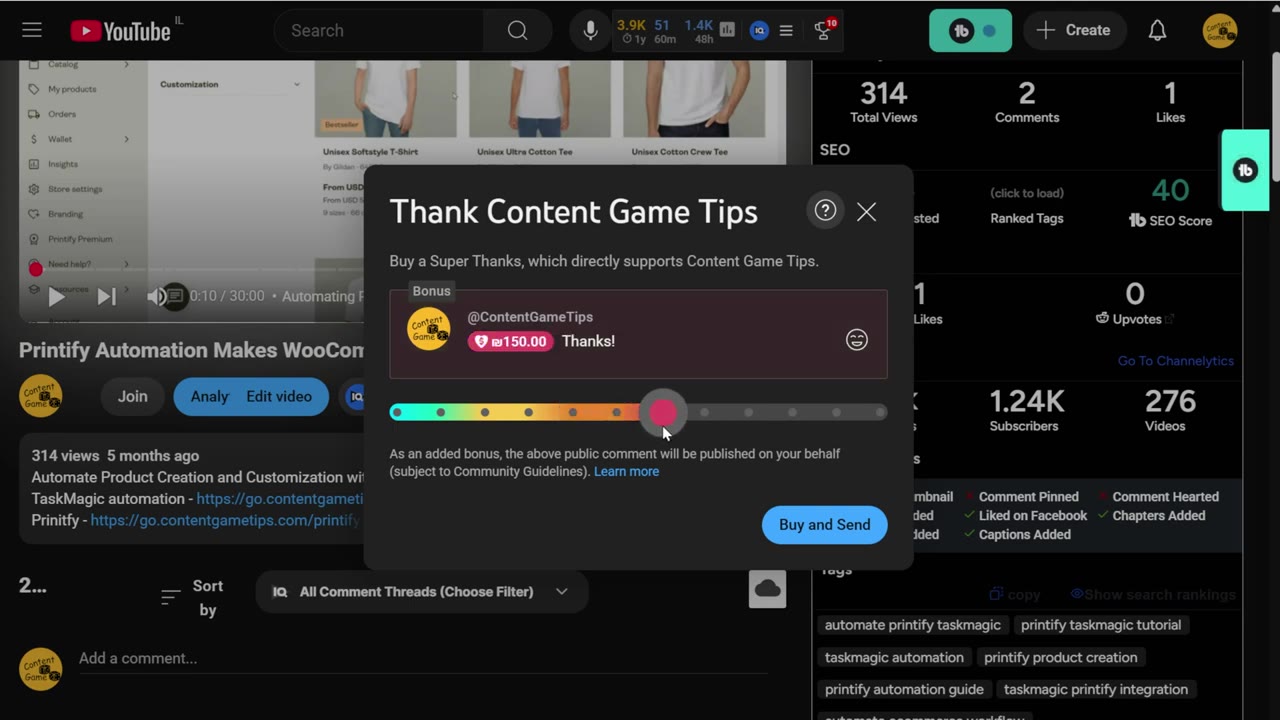
- Super Thanks: works on all your videos right away. Viewers pay a small amount (starting around 2 dollars) to thank you for a video, and their comment is highlighted.
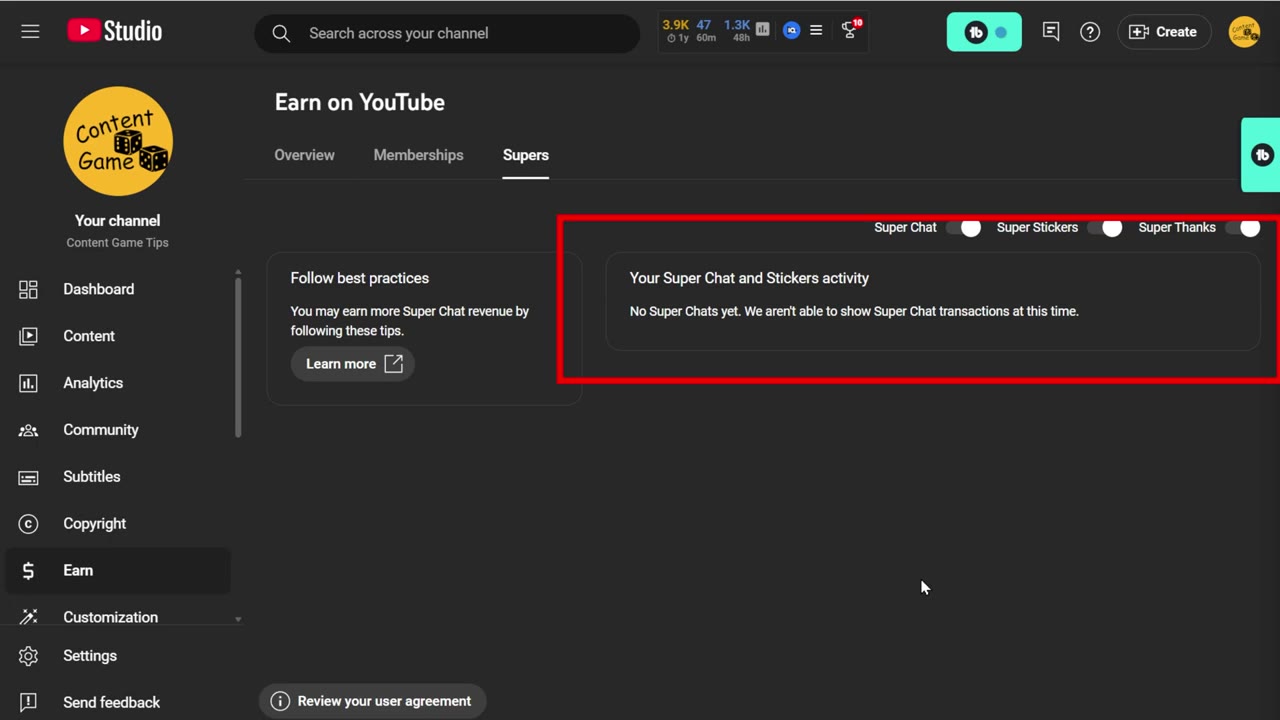
YouTube takes a cut of every Super. You’ll see who paid, how much and on which video in the Supers tab.
More: set up channel memberships and the full YouTube monetization guide.
Keep learning
This guide is part of the complete guide: Make Money as a Content Creator.