How to Upload a Video to YouTube the Right Way (with ChatGPT for Titles and Tags)
A good upload routine saves time and helps every video get found. Here’s the process: set your upload defaults once, use ChatGPT for the description, title and tags while the video uploads, add a Canva thumbnail, put the video in a playlist and send viewers to the next video with the end screen.
Step 1: Set default upload settings (once)
In YouTube Studio click Settings > Upload defaults. Add the text you put in every description (links to your website, socials and tools), default tags, category and other settings. Every new upload starts with them filled in, which saves time and keeps your descriptions consistent.
Step 2: Upload the video
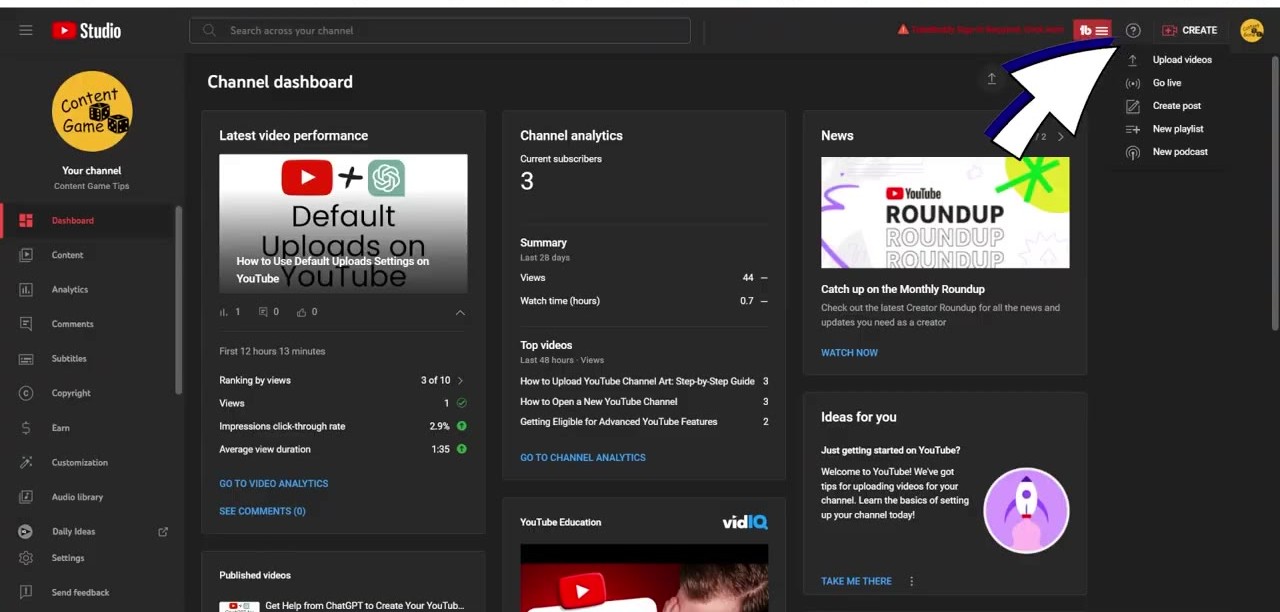
Click Create > Upload videos at the top right of YouTube Studio and select your file. Your default description is already in place.
Step 3: Ask ChatGPT for the description, title and tags
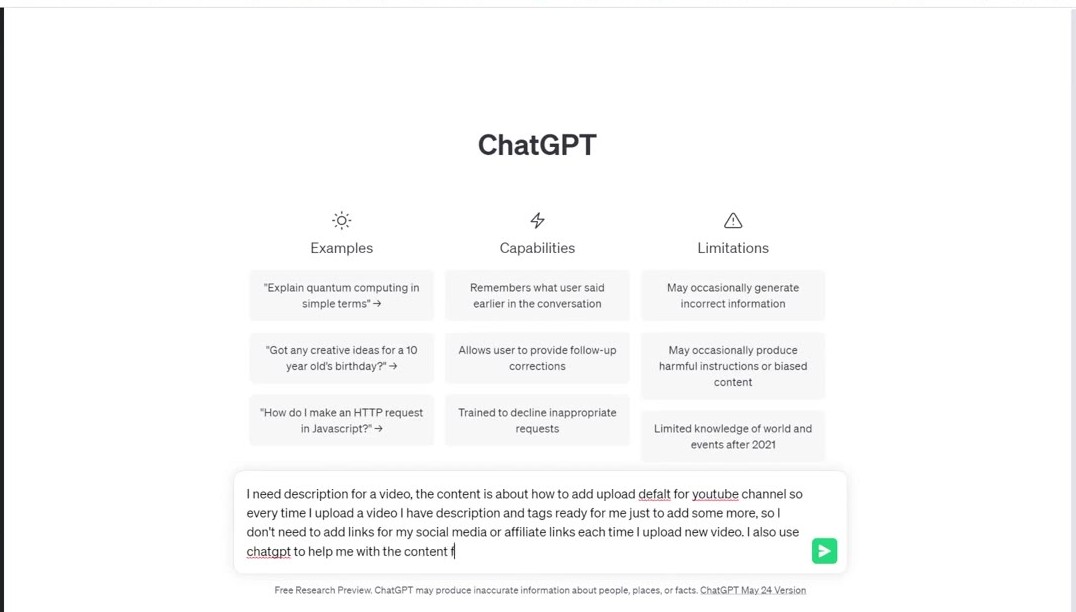
While the video uploads, describe exactly what the video shows to ChatGPT and ask for a description. Give specific instructions so it doesn’t add anything that isn’t in the video.
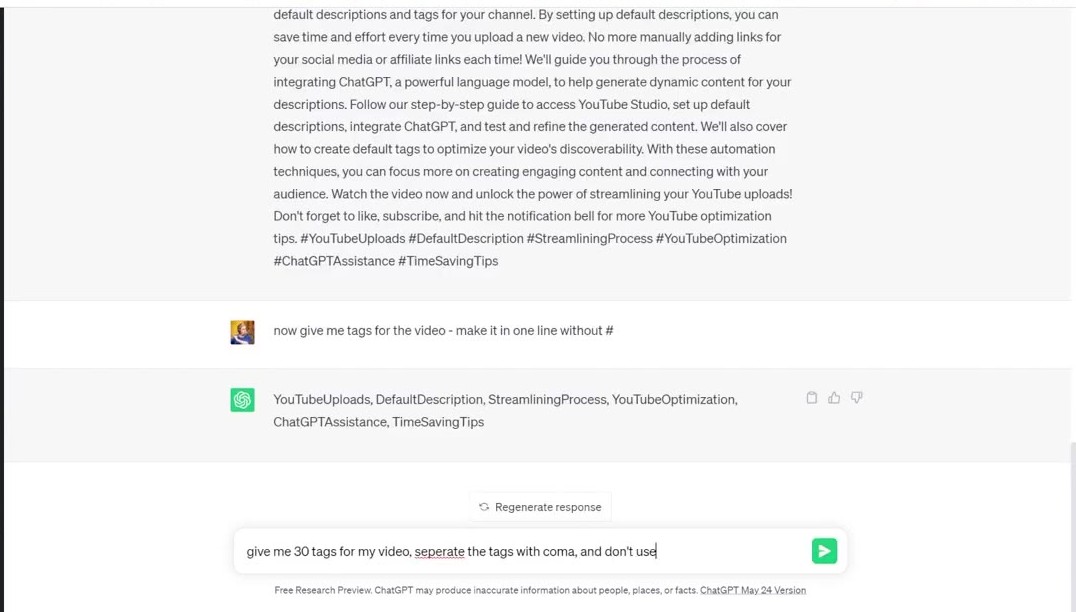
Then ask for 15 title ideas, and keep refining until you get one you like. For tags, ask for 30 relevant tags separated by commas and without the hashtag symbol, so you can paste them straight into YouTube.
Step 4: Fill in the details
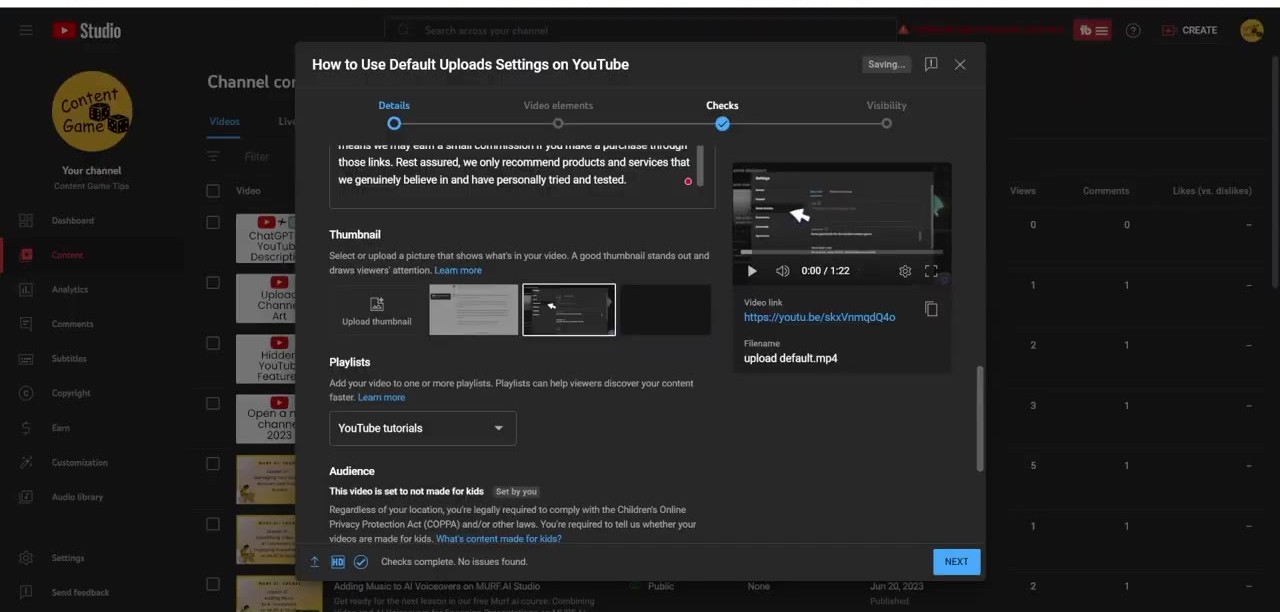
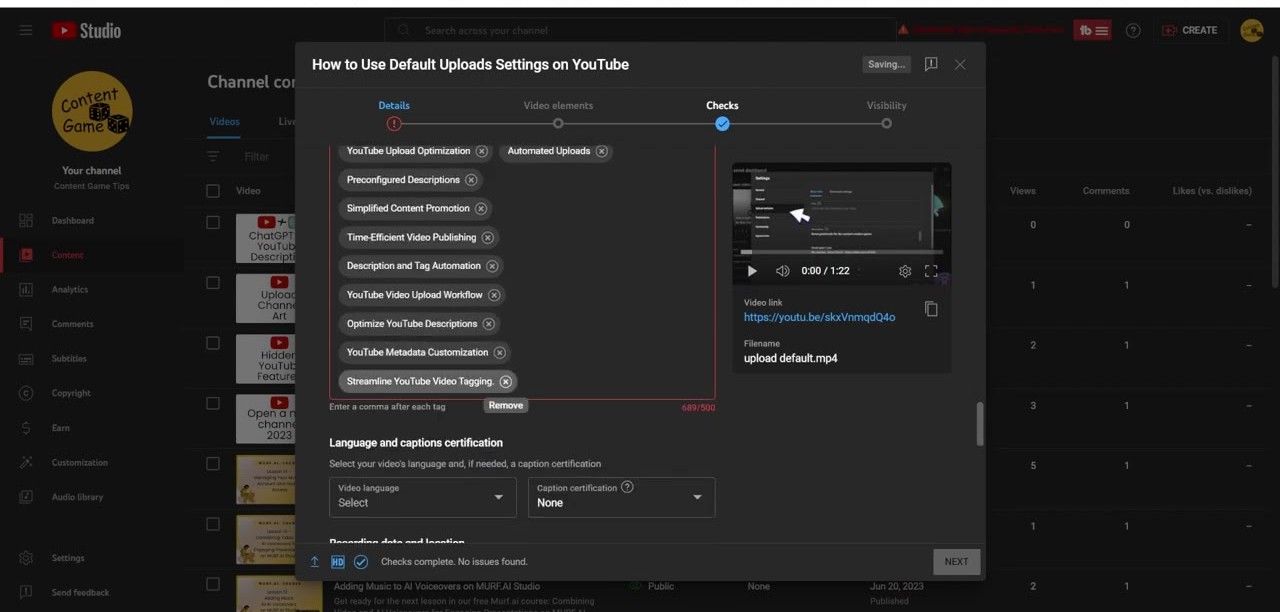
Back in YouTube, add the title and description and choose a playlist, so viewers can easily find the other videos in the series. Paste the tags and remove any that aren’t relevant to the video.
Step 5: Make the thumbnail in Canva
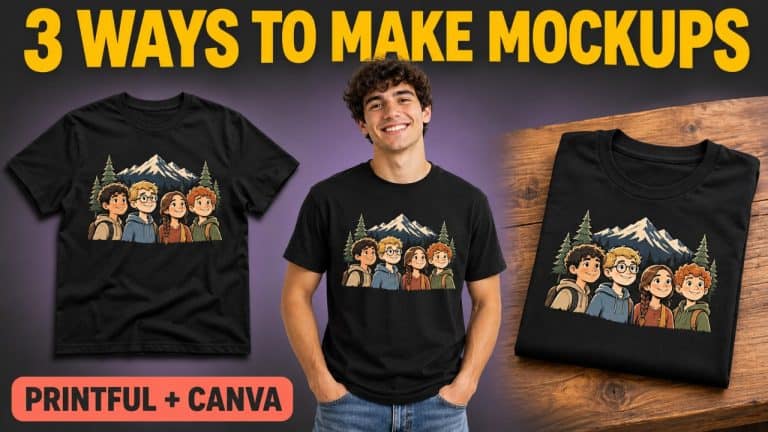
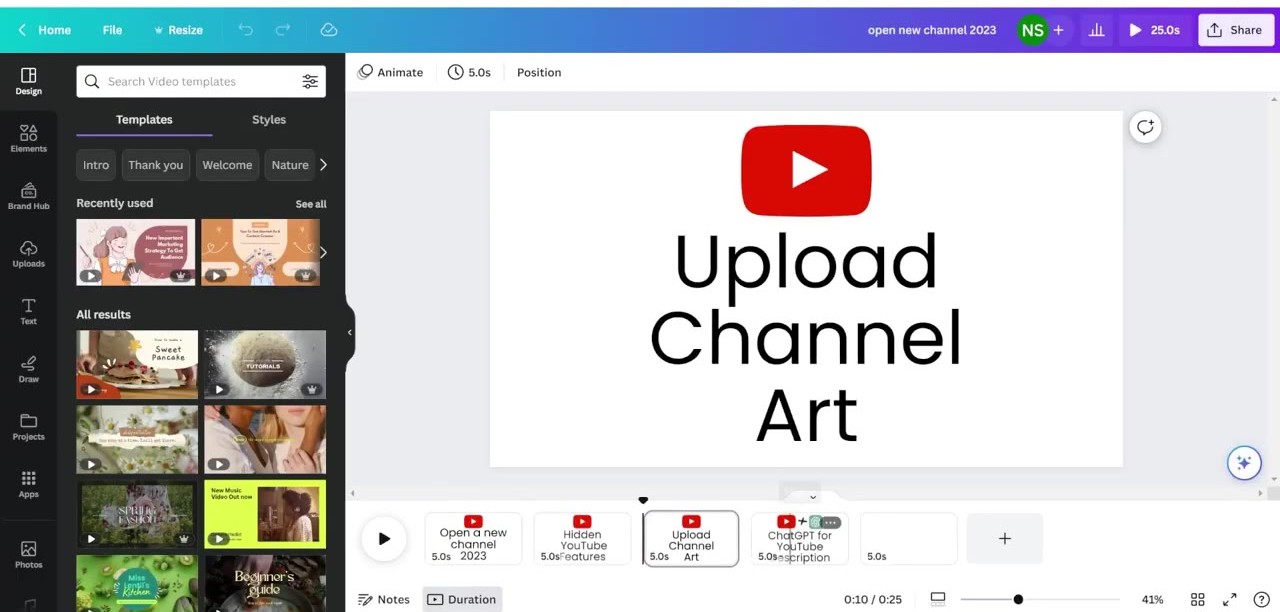
Using a template for your series keeps thumbnails consistent. Keep the text short and clear: pick three words from the title ideas or ask ChatGPT for three words for the thumbnail. Download it as PNG and upload it on the details page.
Step 6: End screen and publish
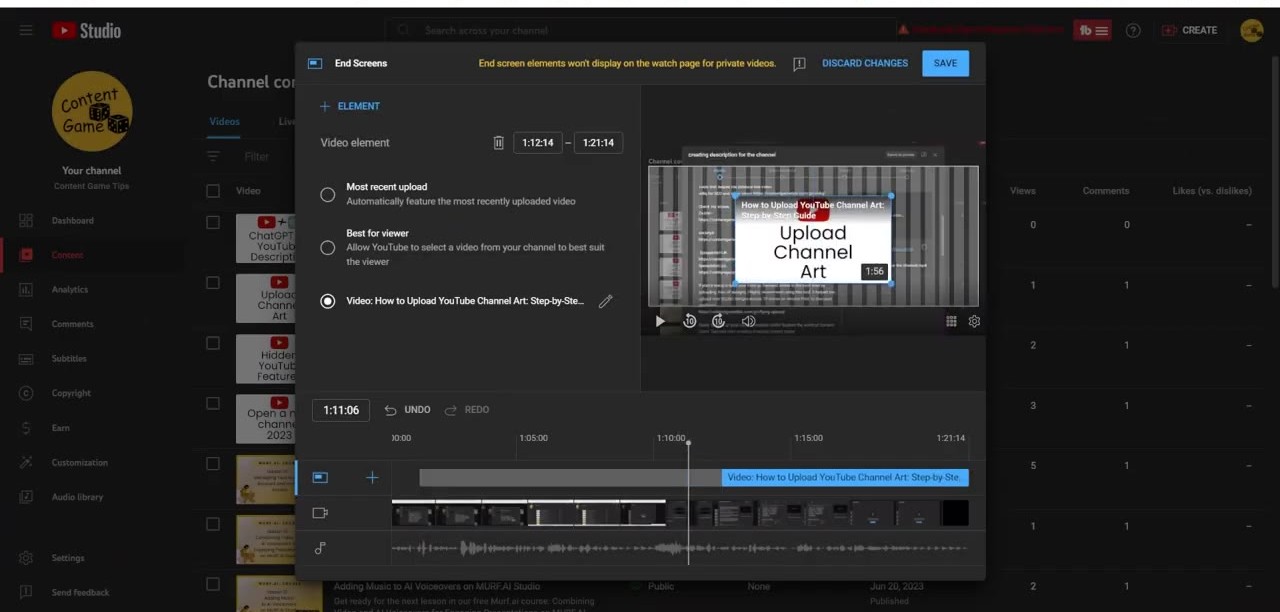
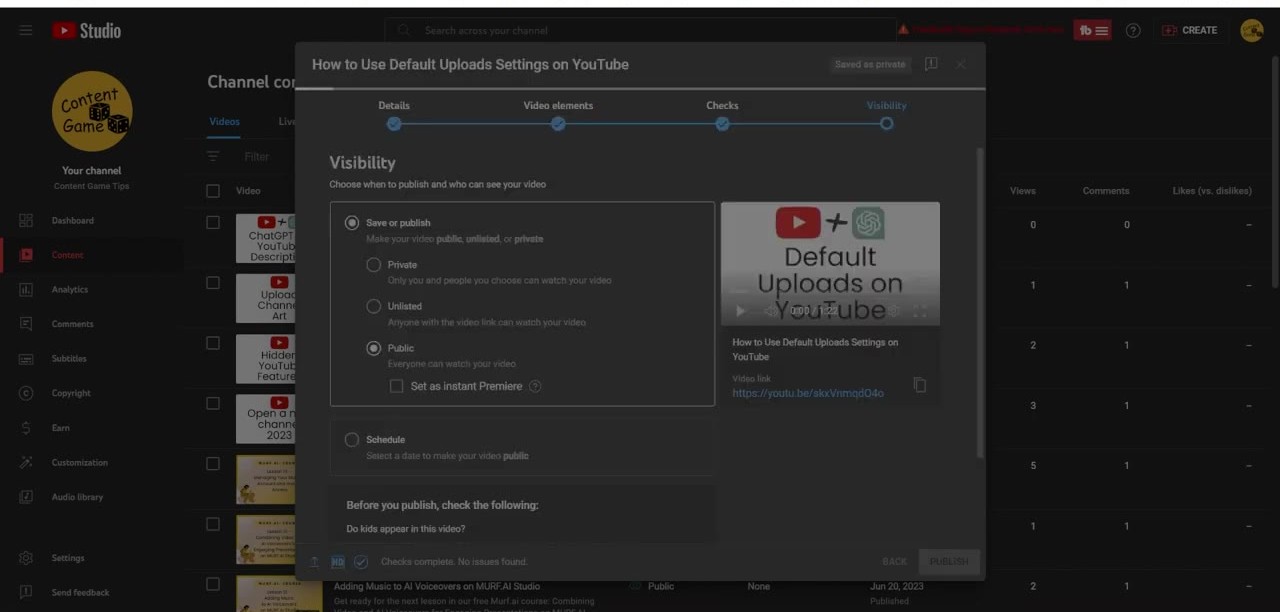
On the Video elements step, add an end screen that sends viewers to the next video in the series. On the last step choose the visibility and publish.
More: YouTube playlist tips, public vs unlisted vs private and how to A/B test thumbnails. The video uses transitions and music from Envato Elements.
Keep learning
This guide is part of the complete guide: YouTube Channel Guide.
Free download: get the New YouTube Channel Checklist, every step on one page.