You Opened a YouTube Channel. Now What? Settings, Verification and First Steps
Creating a YouTube channel takes a minute. Setting it up right takes a few more steps, and some of them affect which features you can use and whether you can get monetized later. Here’s what to do first.
Open your channel
If you haven’t created the channel yet, this short shows how.
Check your channel settings
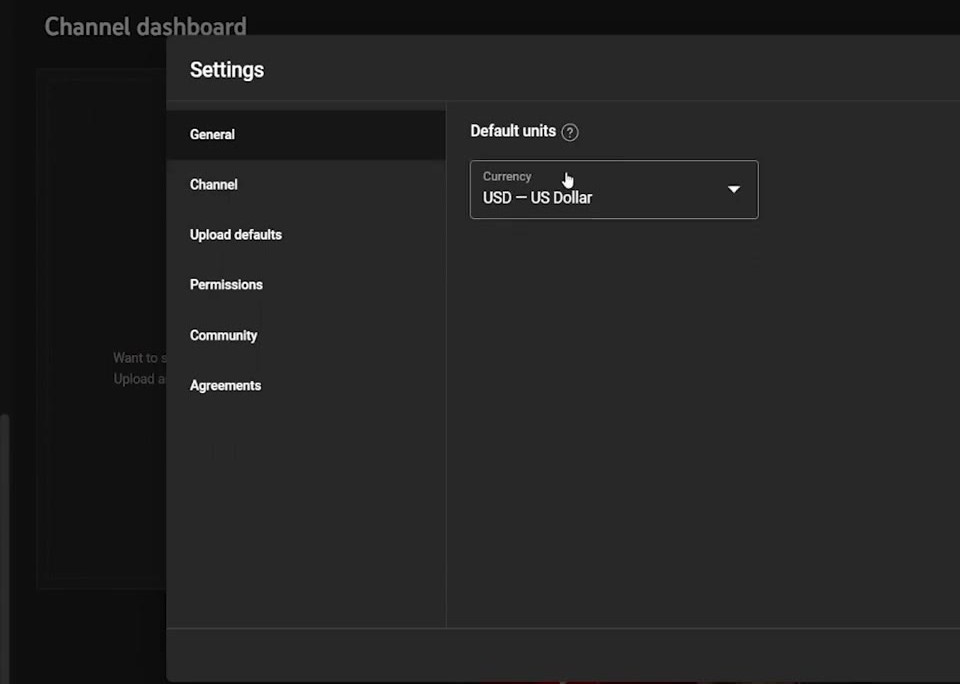
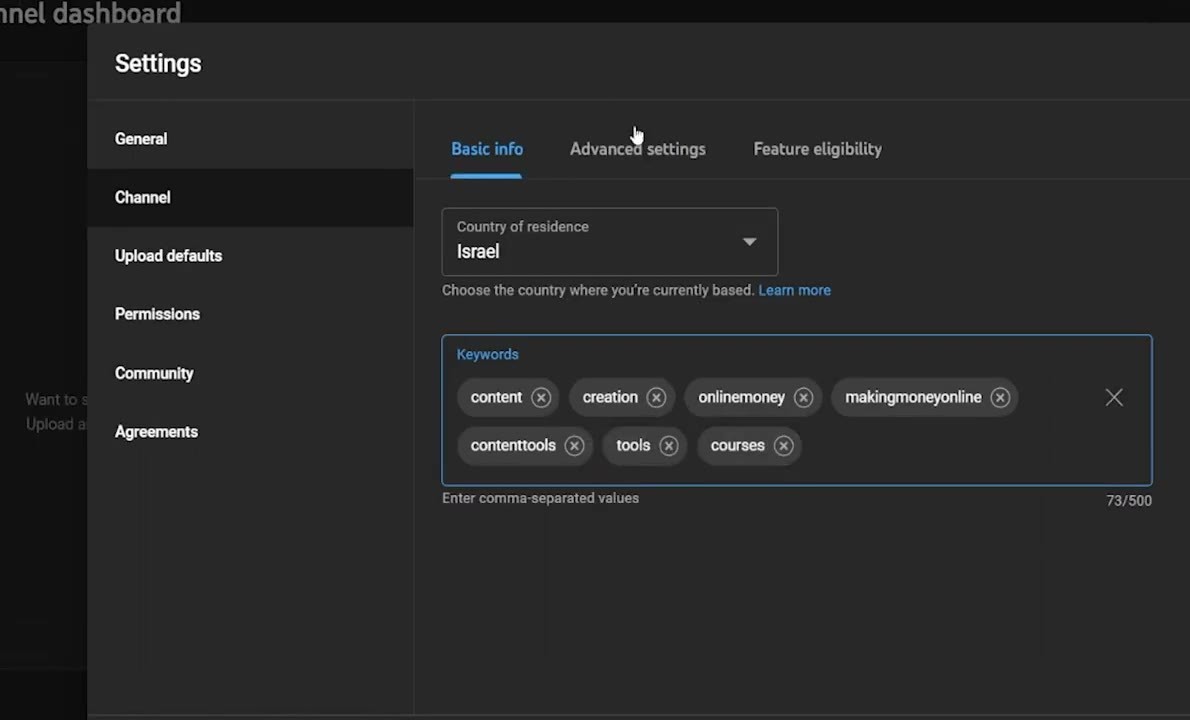
In YouTube Studio click Settings. On the General tab you can change the currency. On Channel > Basic info, make sure your country of residence is your real country, since it matters for approvals later. You can add channel keywords too, though it’s not required at the start.
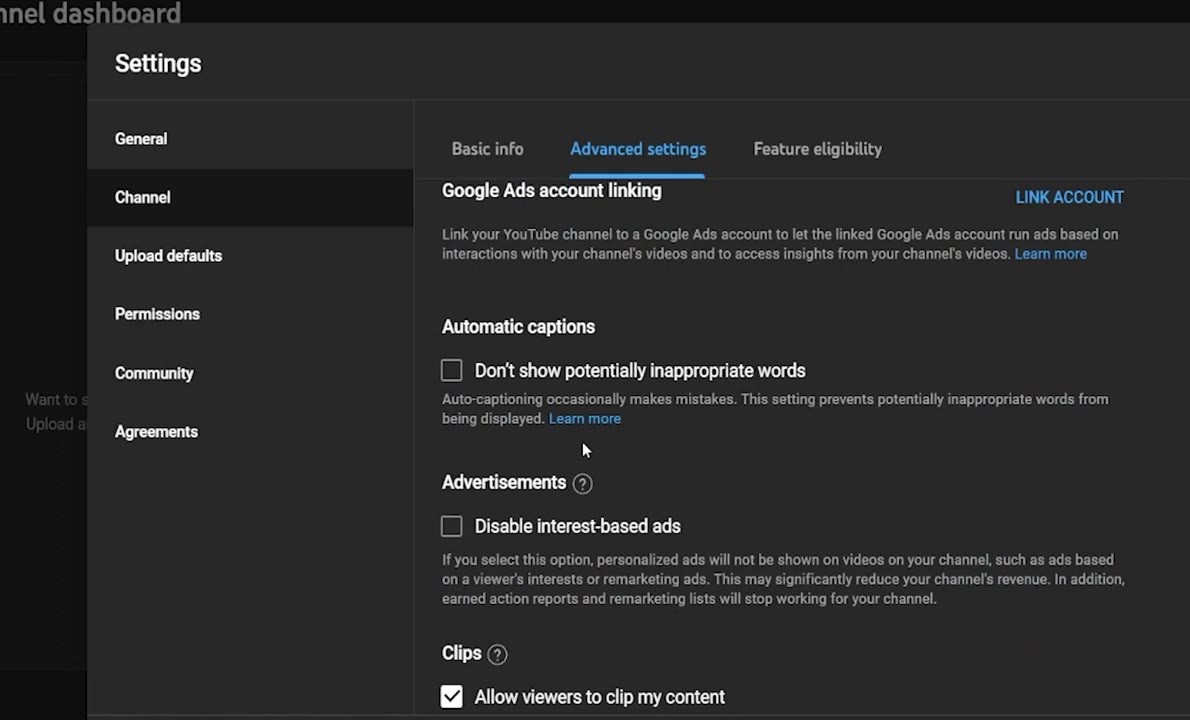
On Advanced settings, set your audience. Only choose made for kids if your content is aimed at children under 13, because it turns off features like comments.
Unlock features with Feature eligibility
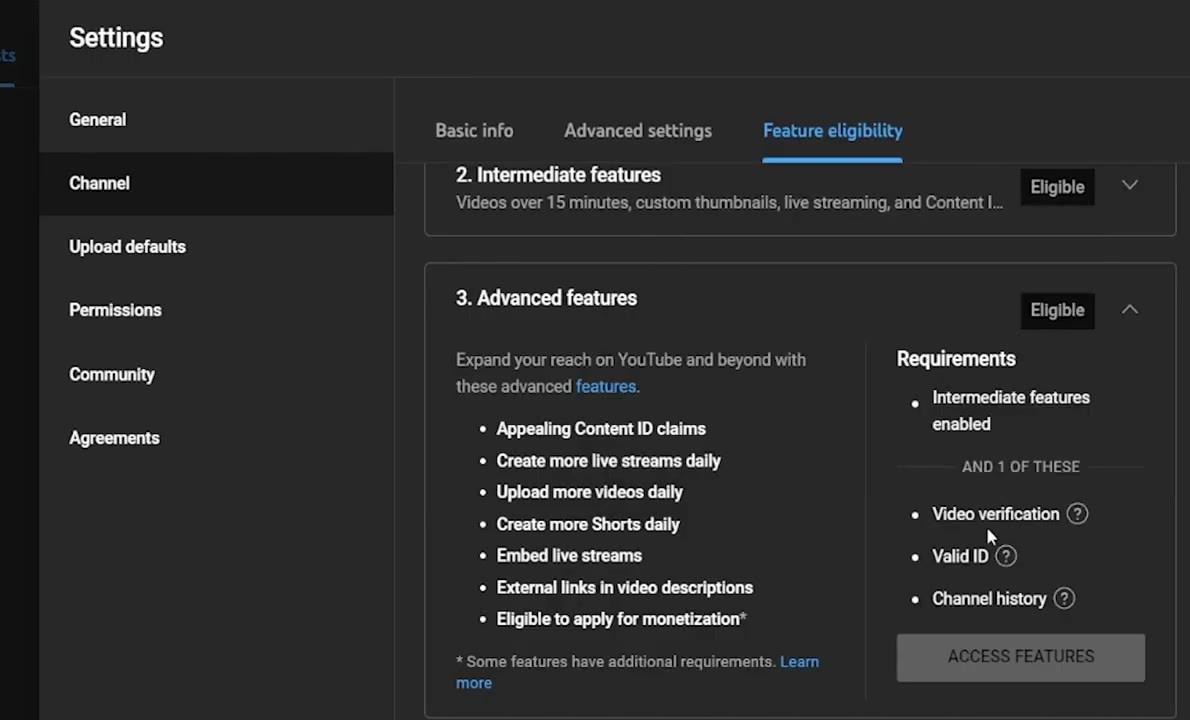
This is the most important step. Open the Feature eligibility tab. Standard features are on for everyone. The other two levels need verification.
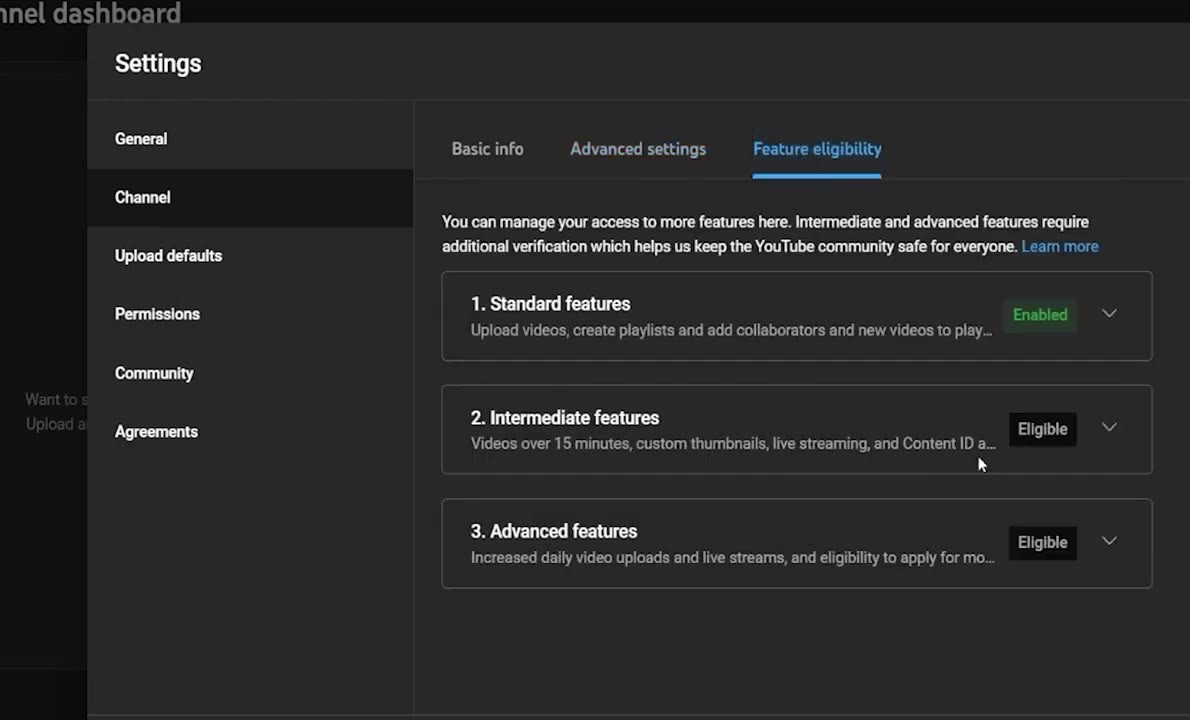
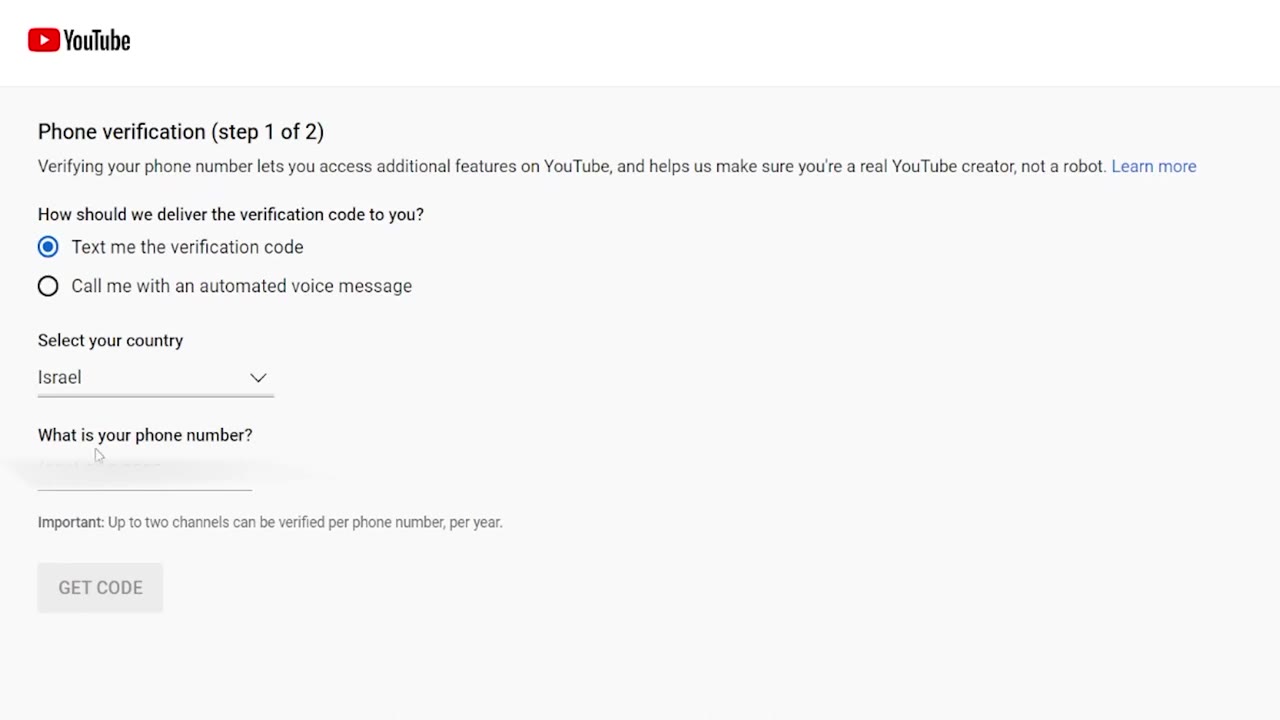
Intermediate features: phone verification
Verify your phone number to unlock videos longer than 15 minutes, custom thumbnails and live streaming. Choose a text message or a voice call, enter your number and then the code you get. One phone number can verify only two channels a year.
Advanced features: video, ID or channel history
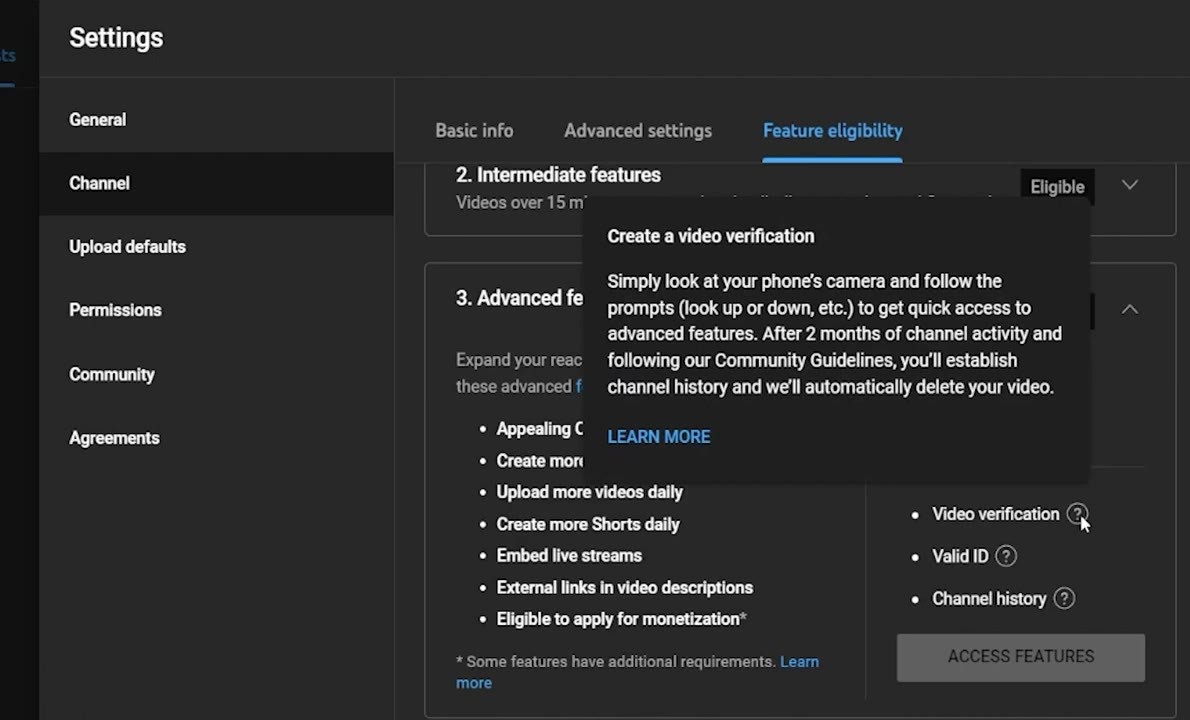
Advanced features include appealing Content ID claims, more daily uploads, embedding live streams, clickable links in descriptions, and eligibility to apply for monetization. To unlock them you can wait about two months of channel history, or speed things up with a short video verification (scan the QR code and follow the steps on your phone) or by uploading an ID like a driver’s license or passport. Approval usually takes a day or two.
Upload channel art
Add your profile picture and banner so the channel looks professional.
Write your channel description with ChatGPT
Tell ChatGPT what your channel is about and who it’s for, and ask for a channel description. Edit it so it sounds like you and includes the words people search for.
Customize your channel homepage
Click Customize channel on your channel page to arrange the homepage sections: a channel trailer, videos, shorts, playlists and featured channels. Since this video, YouTube has moved some of these options around, but the idea is the same.
Next: how to upload a video the right way and YouTube playlist tips.
Keep learning
This guide is part of the complete guide: YouTube Channel Guide.
Free download: get the New YouTube Channel Checklist, every step on one page.