How to Set Up Channel Memberships on YouTube (Levels, Perks, Badges and Emojis)
Memberships let fans pay you monthly for perks. Before you start, plan carefully: every perk you promise is work you’ll have to deliver every month. Here’s how to set it up, with tips from creating several membership programs.
Think before you create
Memberships work best for channels with a real community, where people talk in the comments even without you. A tutorial channel may get members mostly from people who want to support the free help. Keep the perks simple, because you can’t change a level’s price after it’s live, and deleting a level removes its members.
Step 1: Open Memberships and choose a template
In YouTube Studio open Earn > Memberships and click to get started.
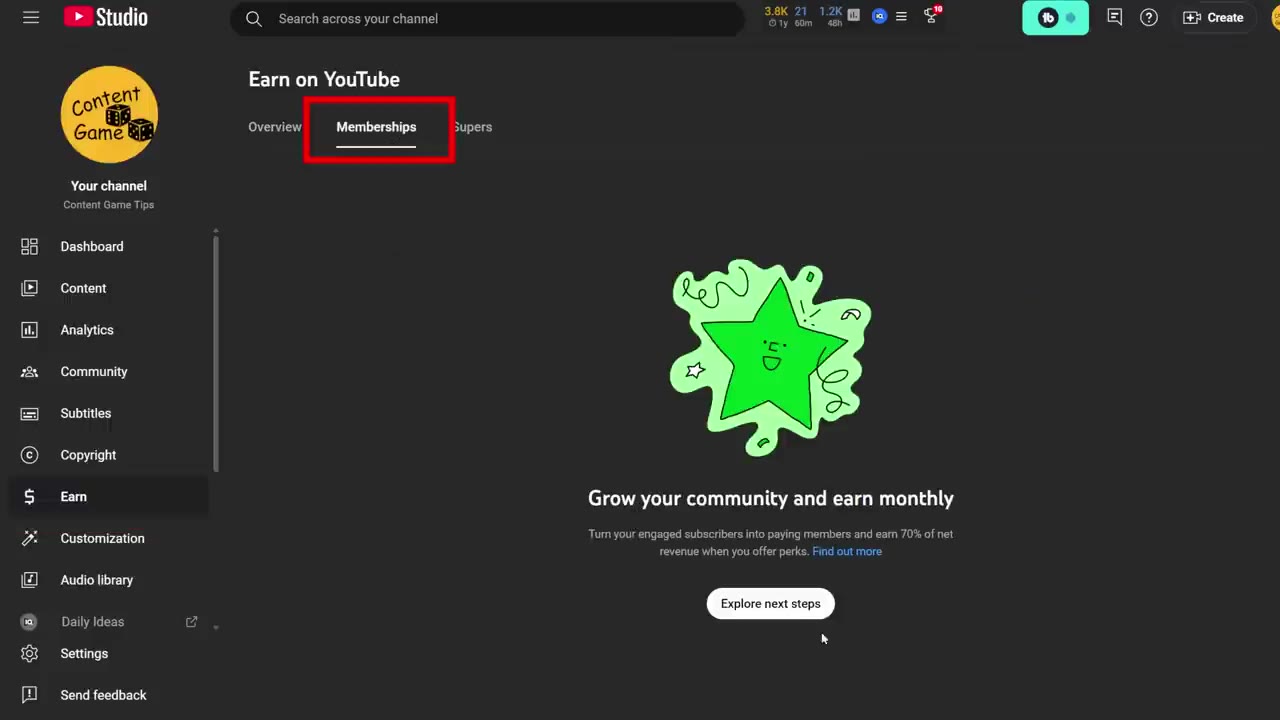
Choose a template with one, three or four levels, or start from scratch. Each level includes the perks of the levels below it.
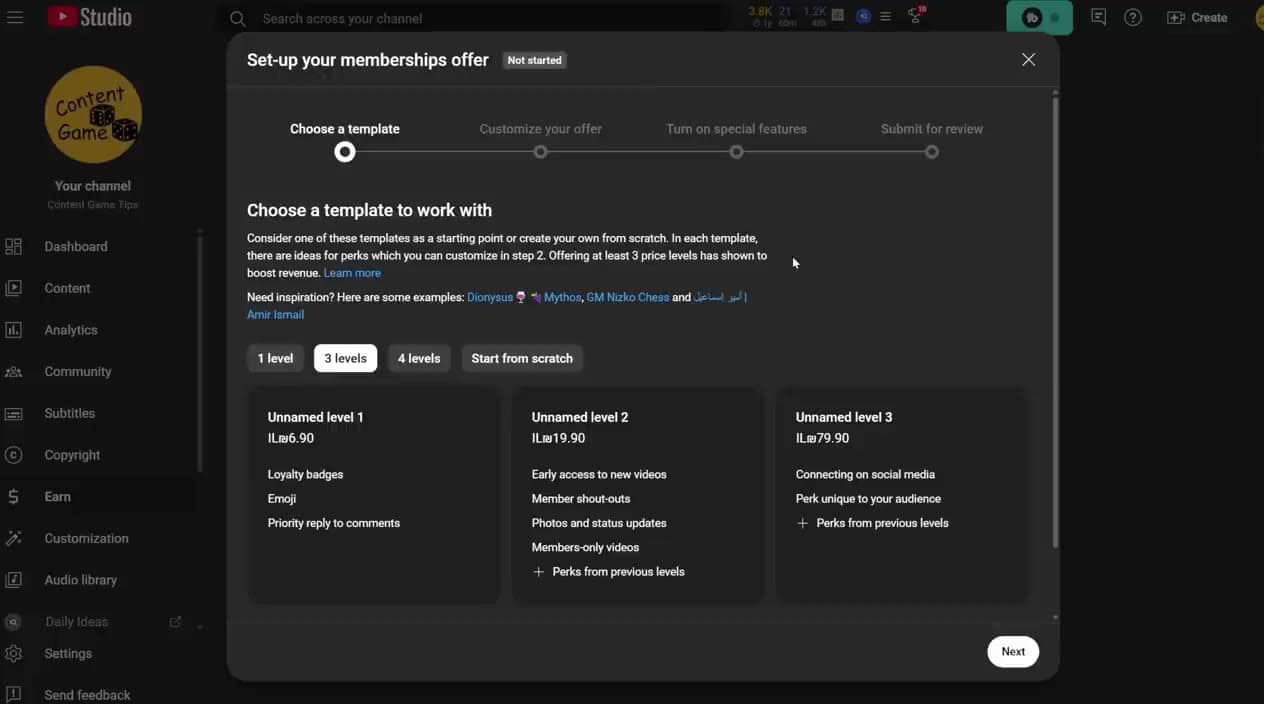
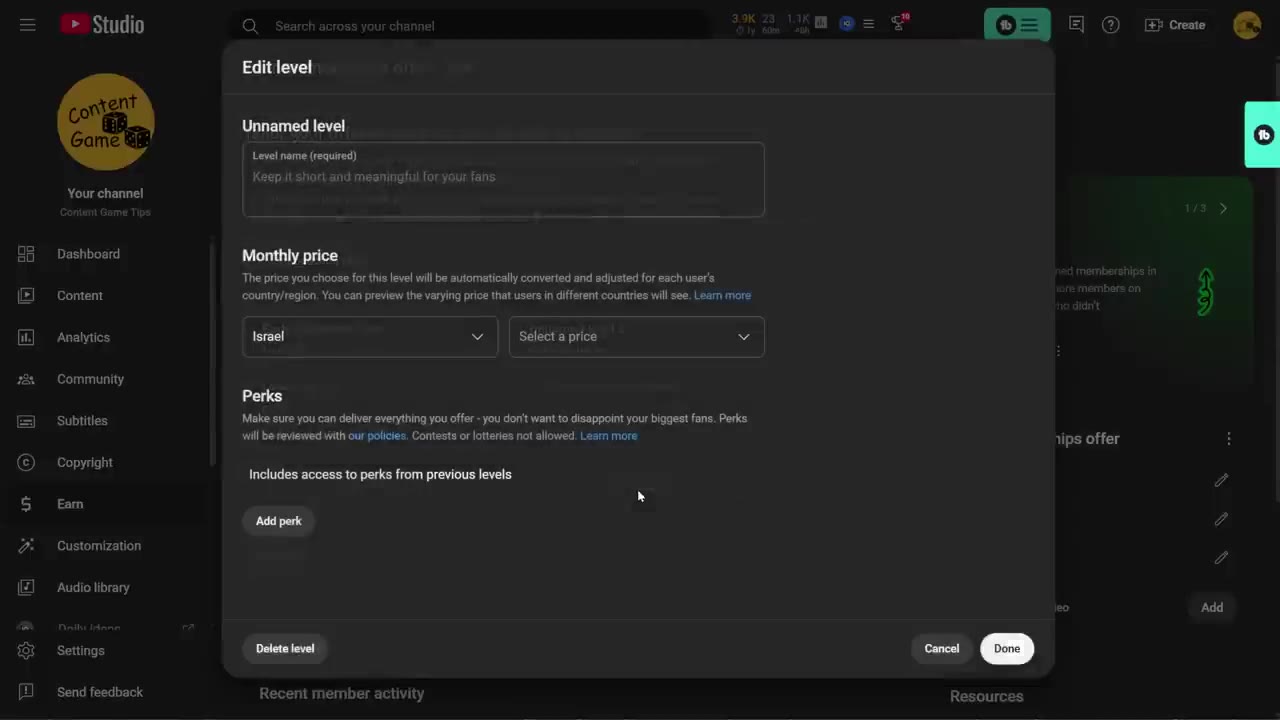
Step 2: Set the price and perks
Name the level, choose the currency and the price. YouTube shows the popular prices, which is useful data. I chose one low level with three perks: loyalty badges, custom emojis and early access to videos.
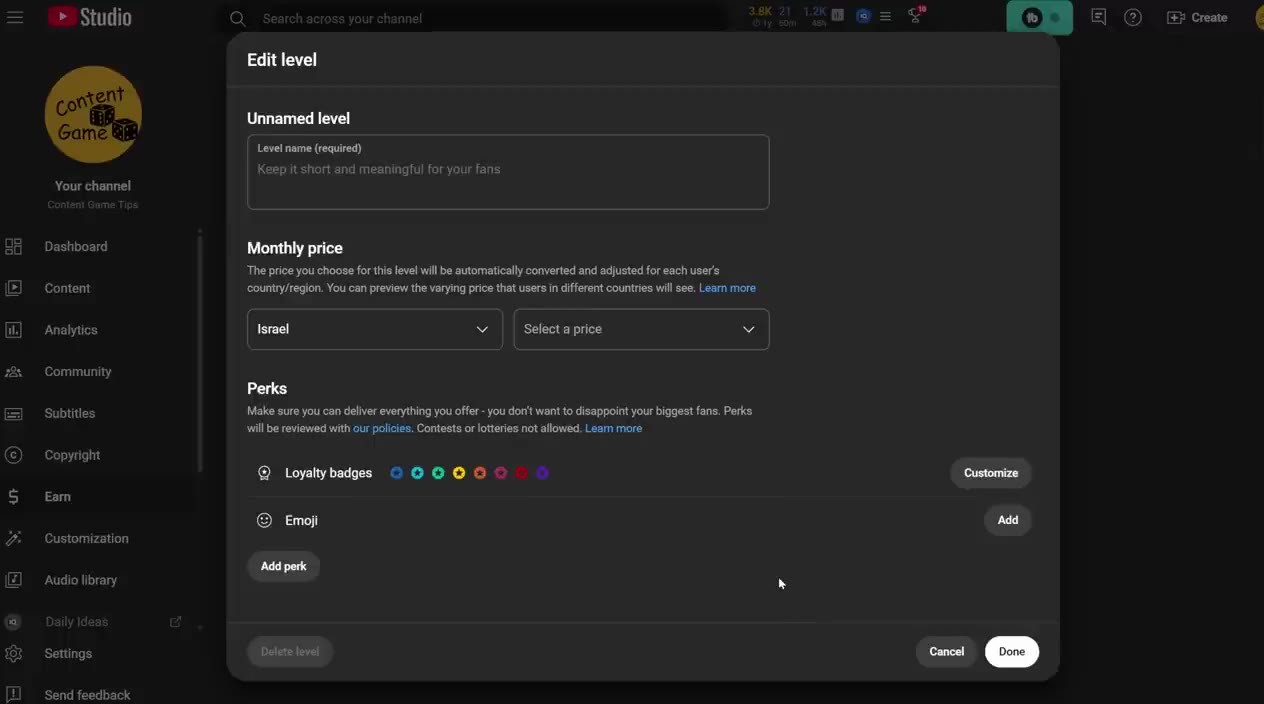
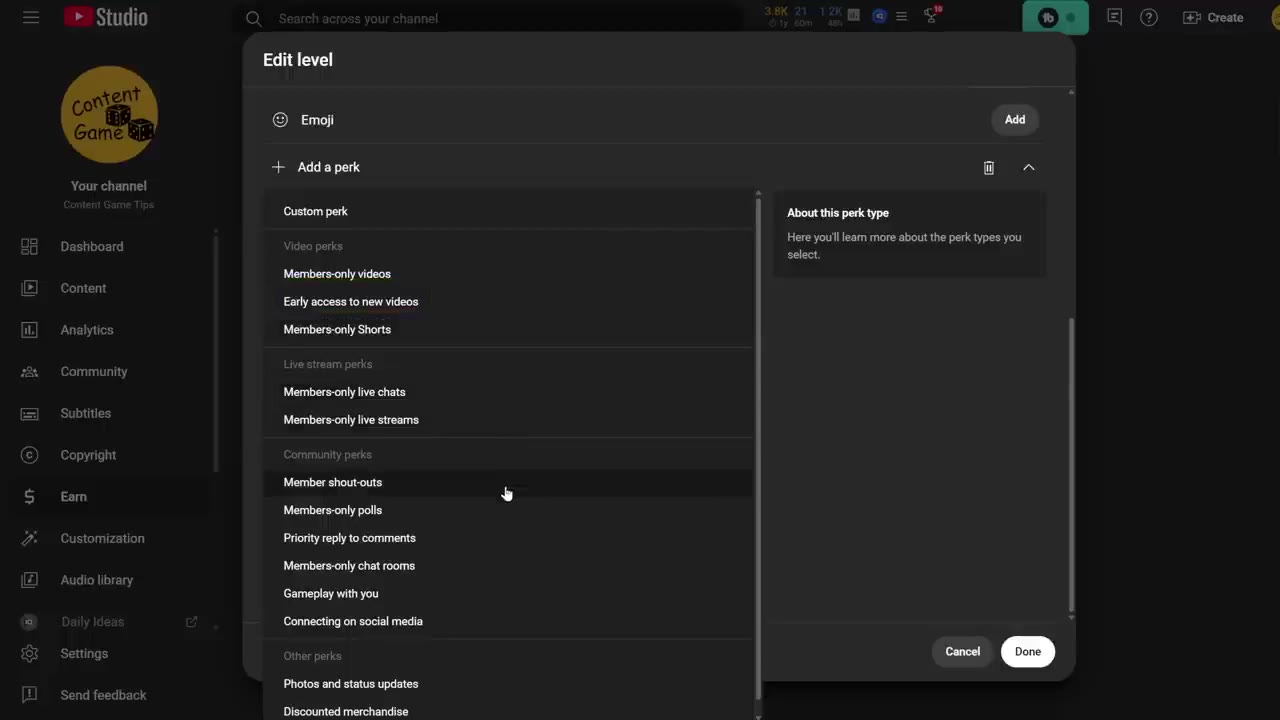
Add perks from the list (videos, live streams, community and more). Each perk needs a short title and description. ChatGPT helps keep them short. You can save and exit at any time.
Step 3: Design badges and emojis in Canva
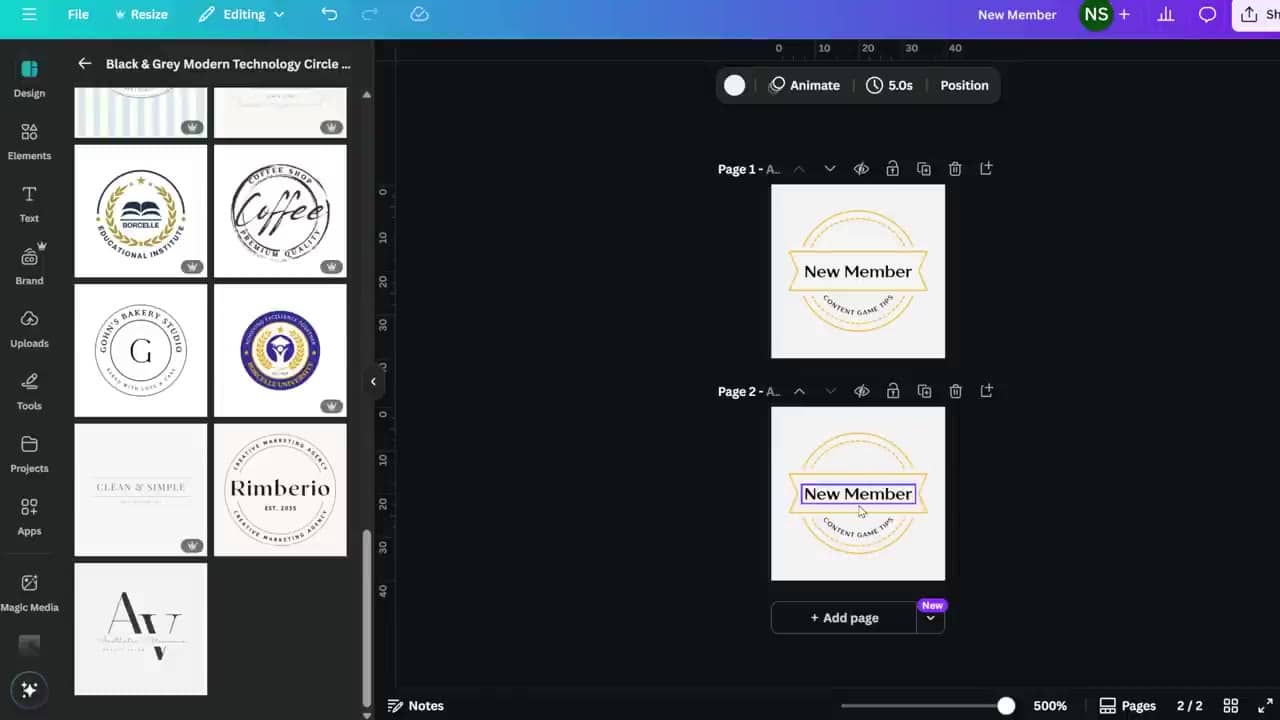
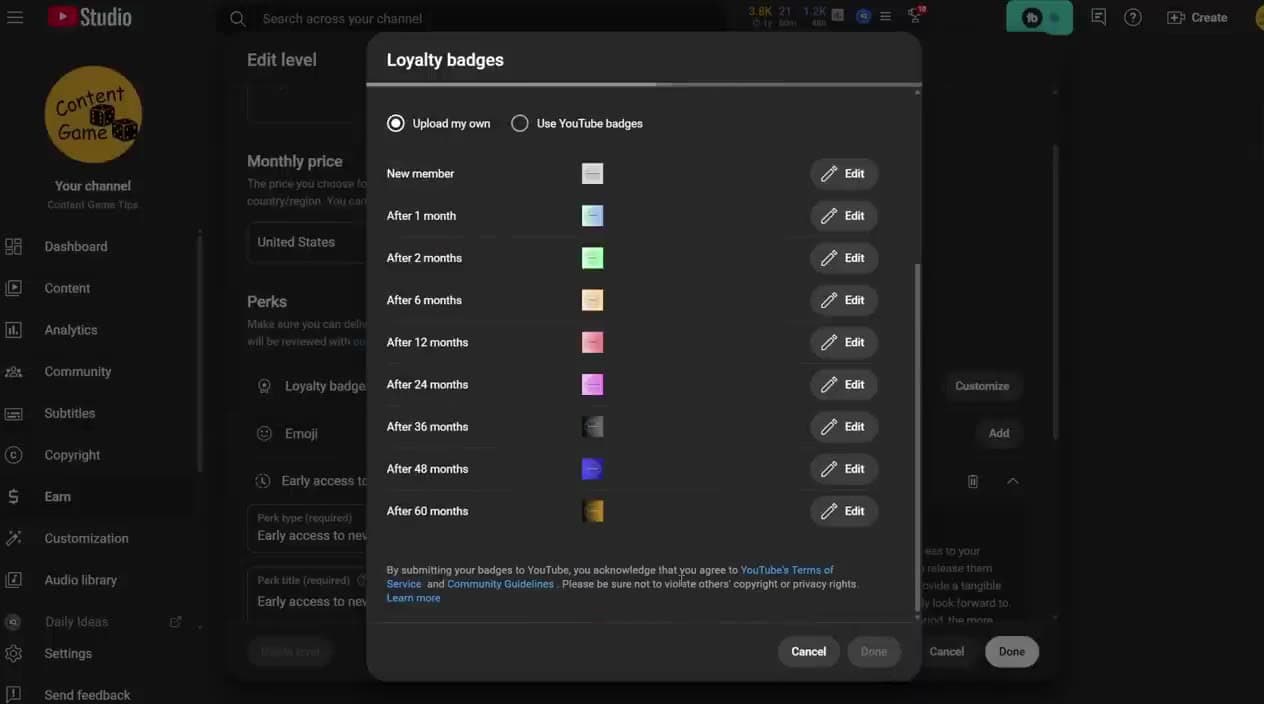
Create a Canva design at the small custom size YouTube needs. I used a simple template and only changed the color and name for each badge level. Download the images and upload each badge next to its month.
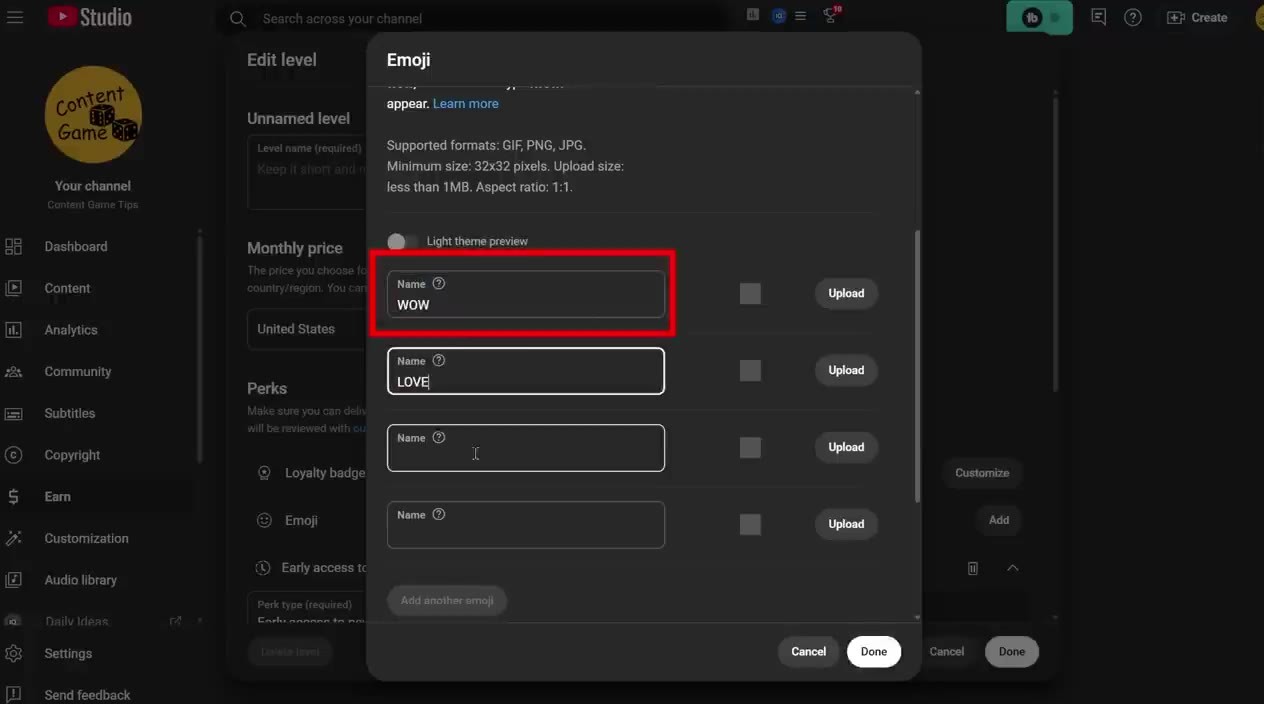
Members can use custom emojis in comments. You can start with a few, give each one a name (the word members type to use it) and upload it. Canva elements need to be changed a little before you use them.
Step 4: Submit, launch and share
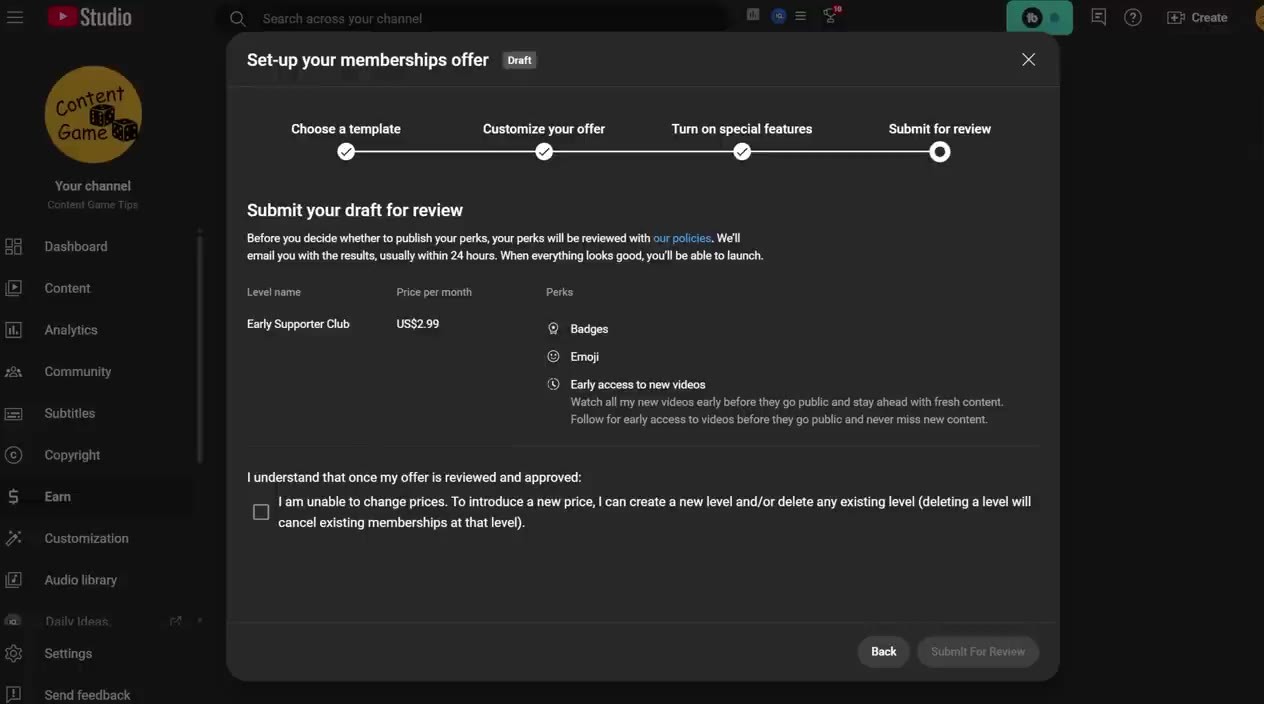
Choose the member highlights you want, confirm the details and submit for review. Approval took me one day. Then go back to Earn > Memberships and click Launch.
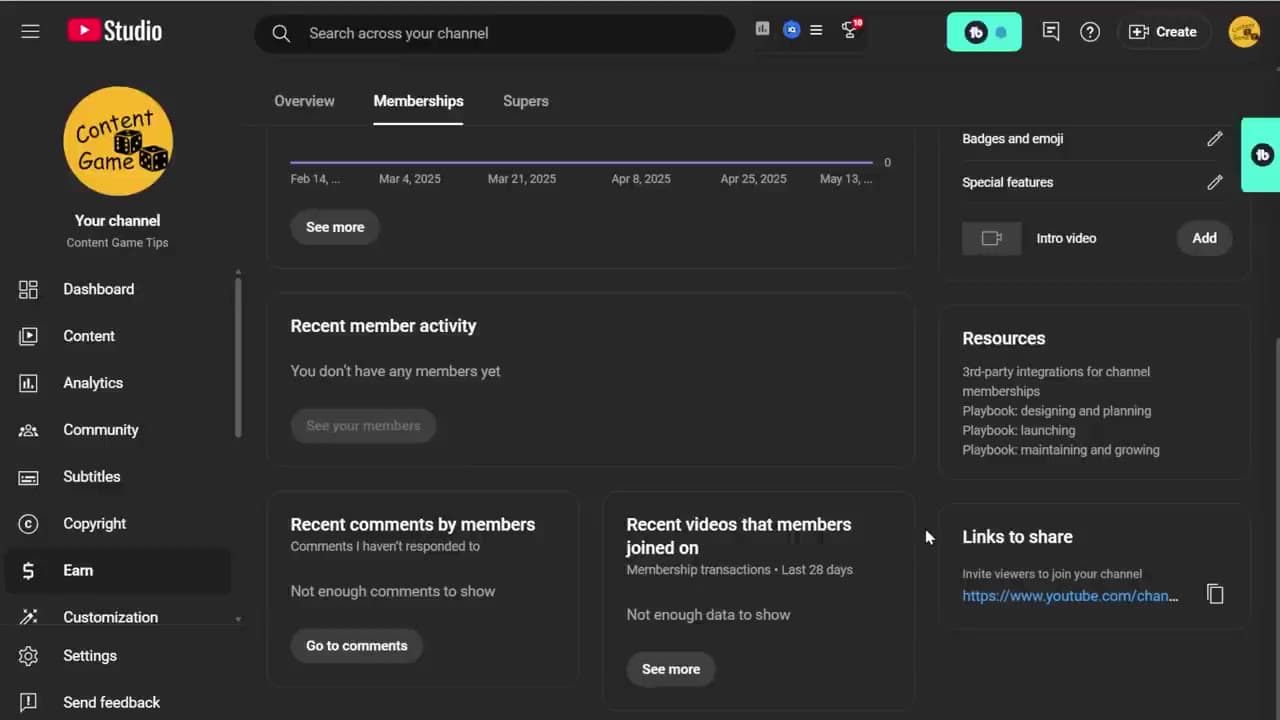
The memberships page shows earnings, members who joined or left, member comments, editing options, an optional intro video, and a direct join link you can share anywhere.
Members-only and early-access videos
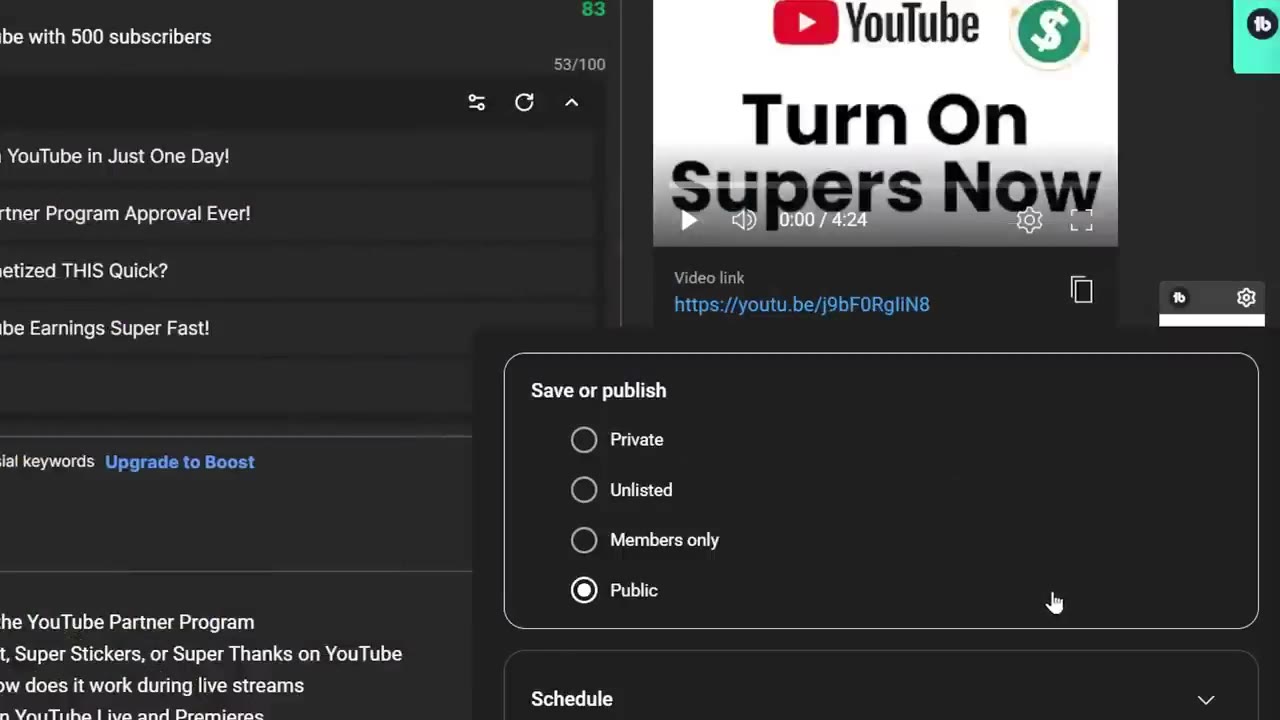
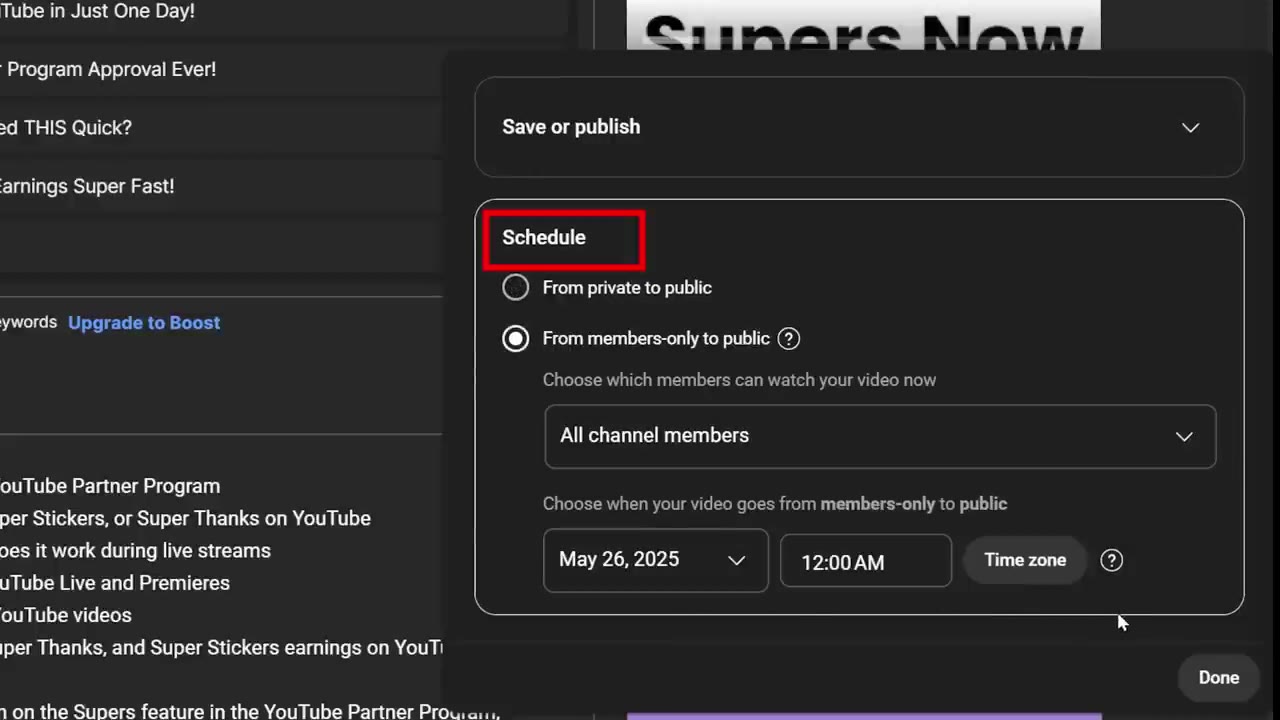
When you publish, choose Members only and pick the level. For early access, schedule the video from members only to public and choose the date it opens to everyone.
More: turn on Supers and the full YouTube monetization guide.
Keep learning
This guide is part of the complete guide: Make Money as a Content Creator.