How to Add External Links to YouTube Cards and End Screens
When your channel is in the YouTube Partner Program, you can add external links to cards and end screens, not only to the description. Use them for your course, your merch or an affiliate link. You can add them during upload or later in the video details.
Add a link card
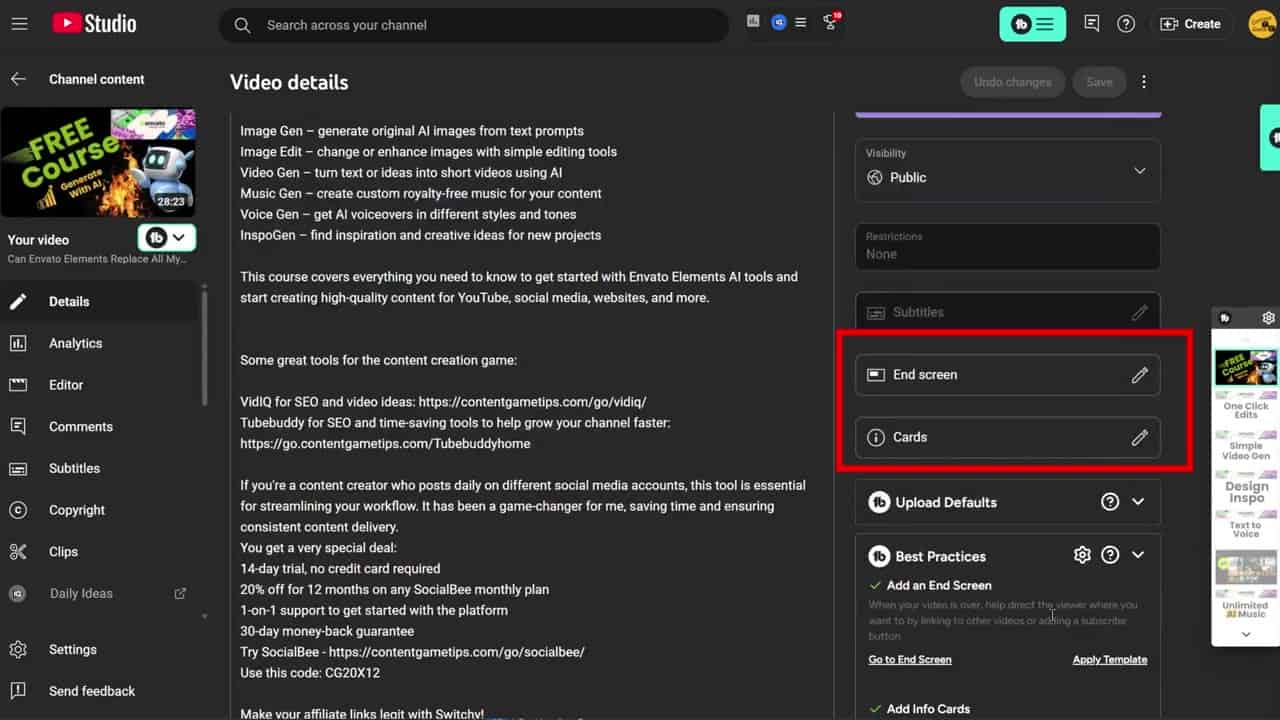
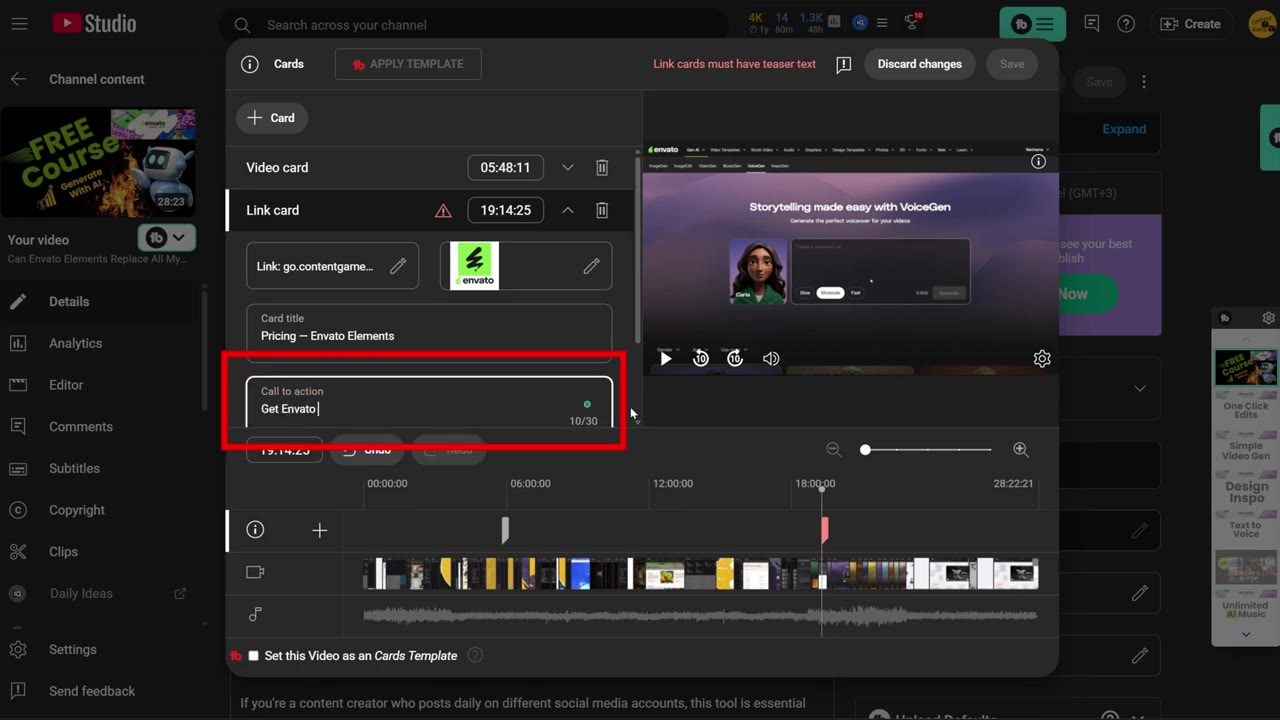
In the video details, open Cards. Move the playhead to the moment you want the card, click to add a card and choose Link.
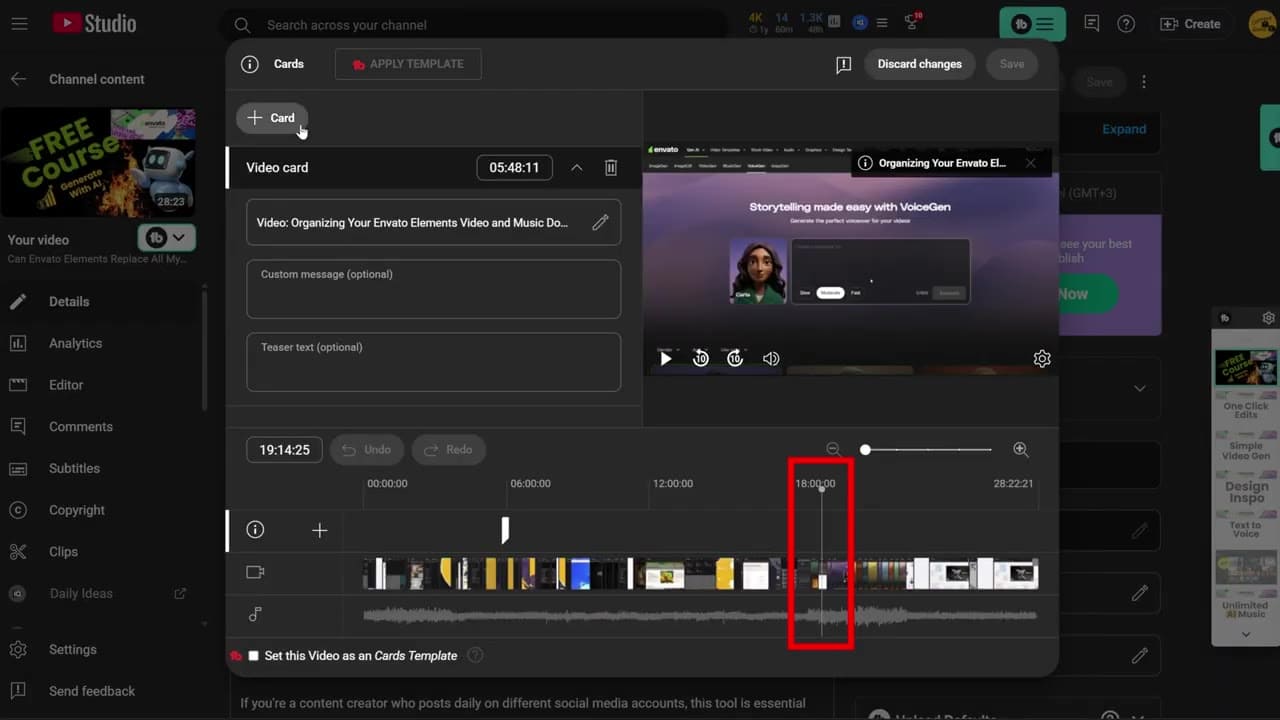
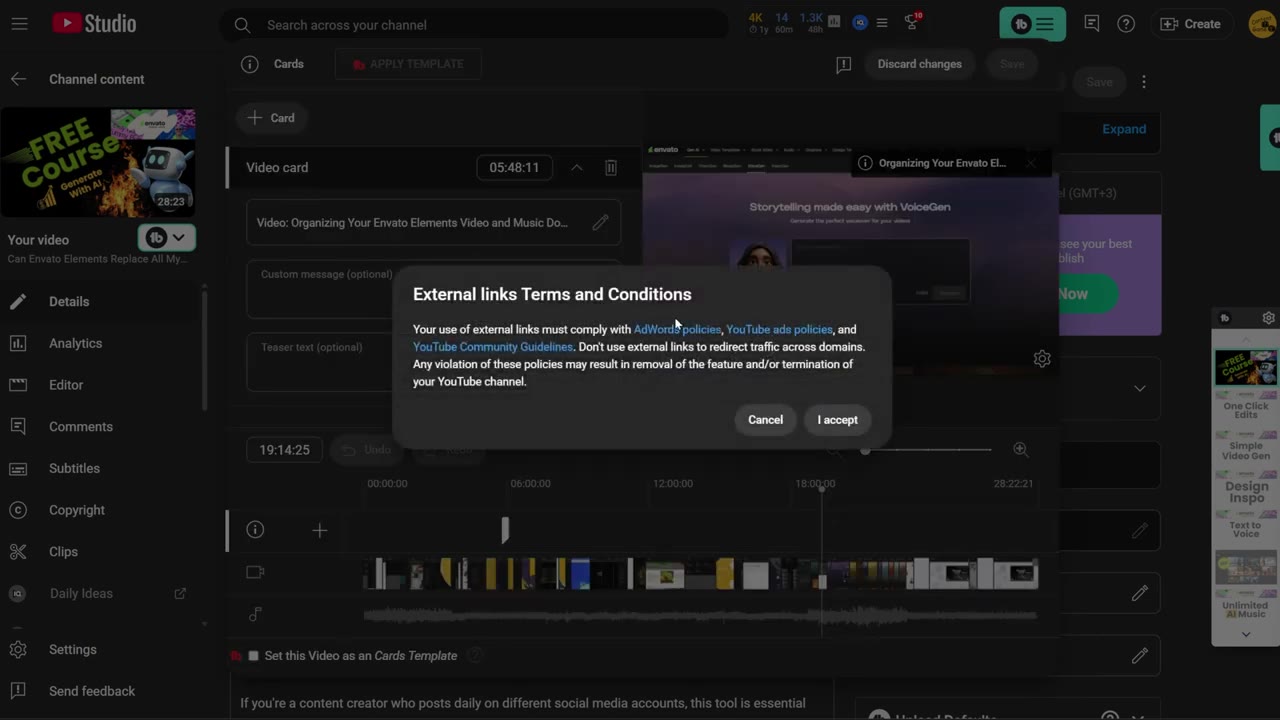
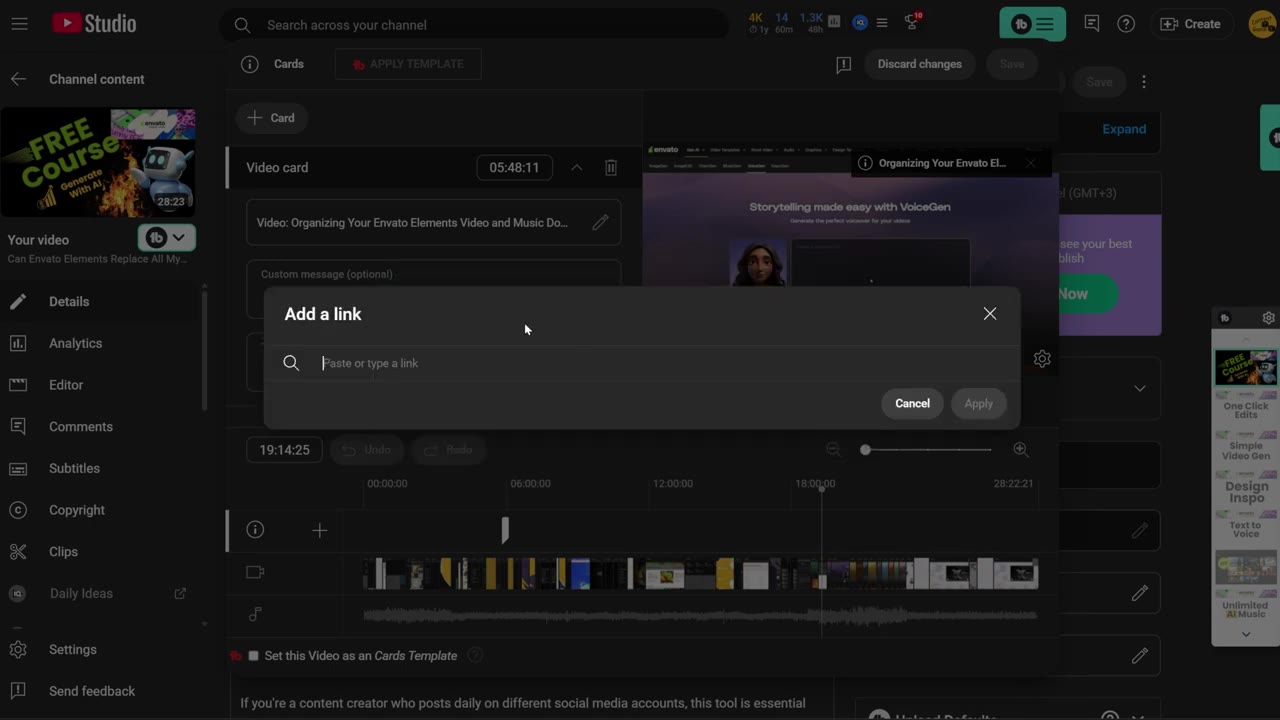
The first time, accept the external links terms. Then paste the URL. I keep my affiliate links organized in Switchy, for example my Envato Elements link.
Make the card image in Canva
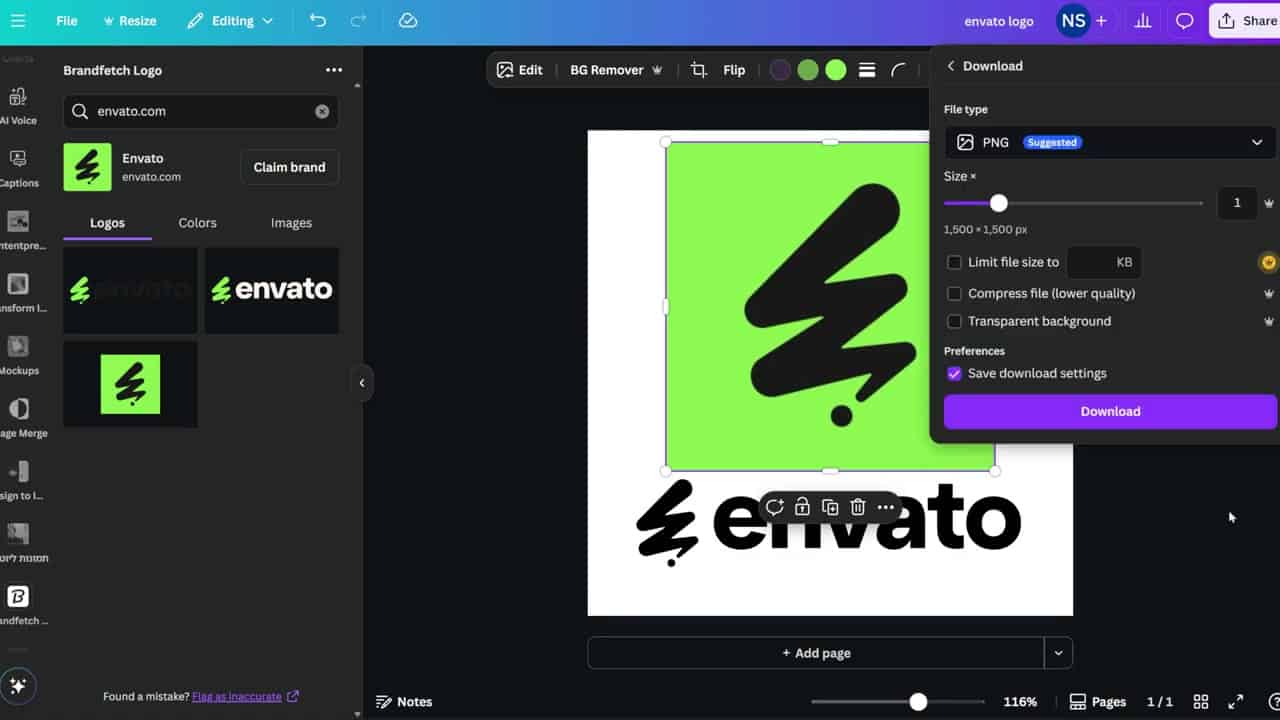
Create a small square design in Canva and use the free Brandfetch app to add the brand’s logo. Download it and upload it as the card image. Keep all these small logo images in one folder for next time.
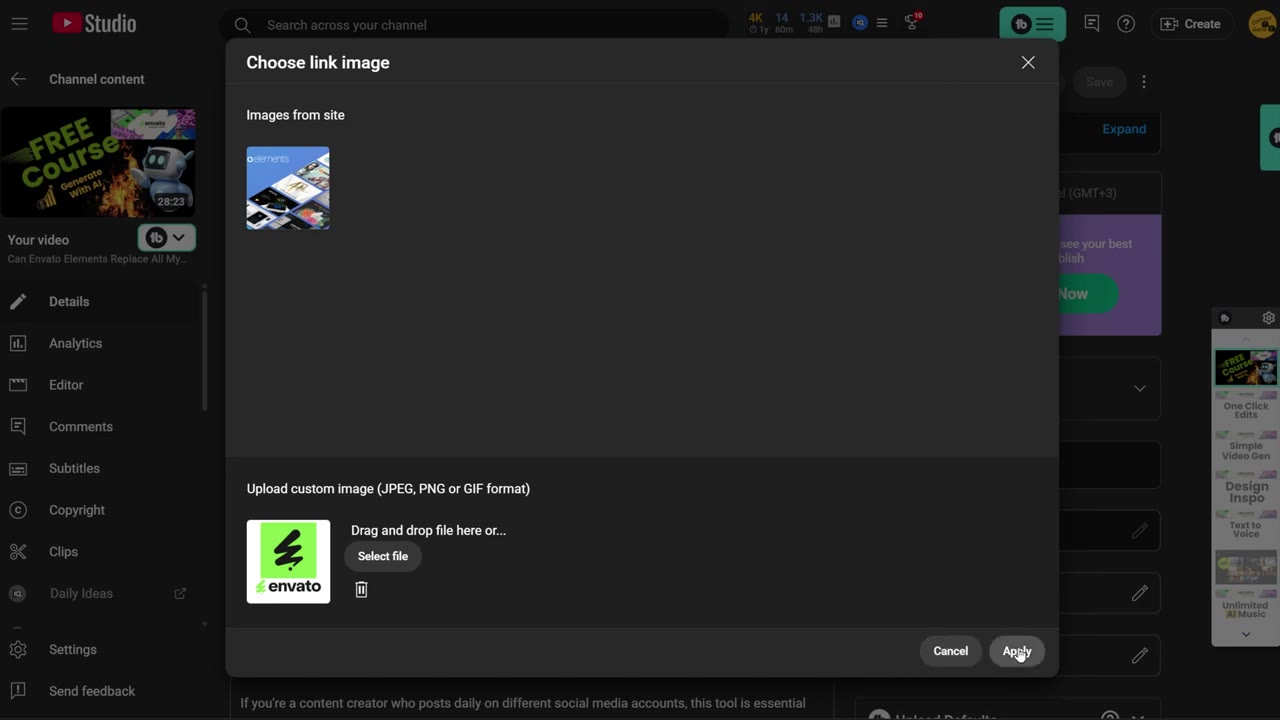
Add a call to action and a teaser text (up to 30 characters) and save. You can add up to five cards and repeat the same link.
Add a link to the end screen
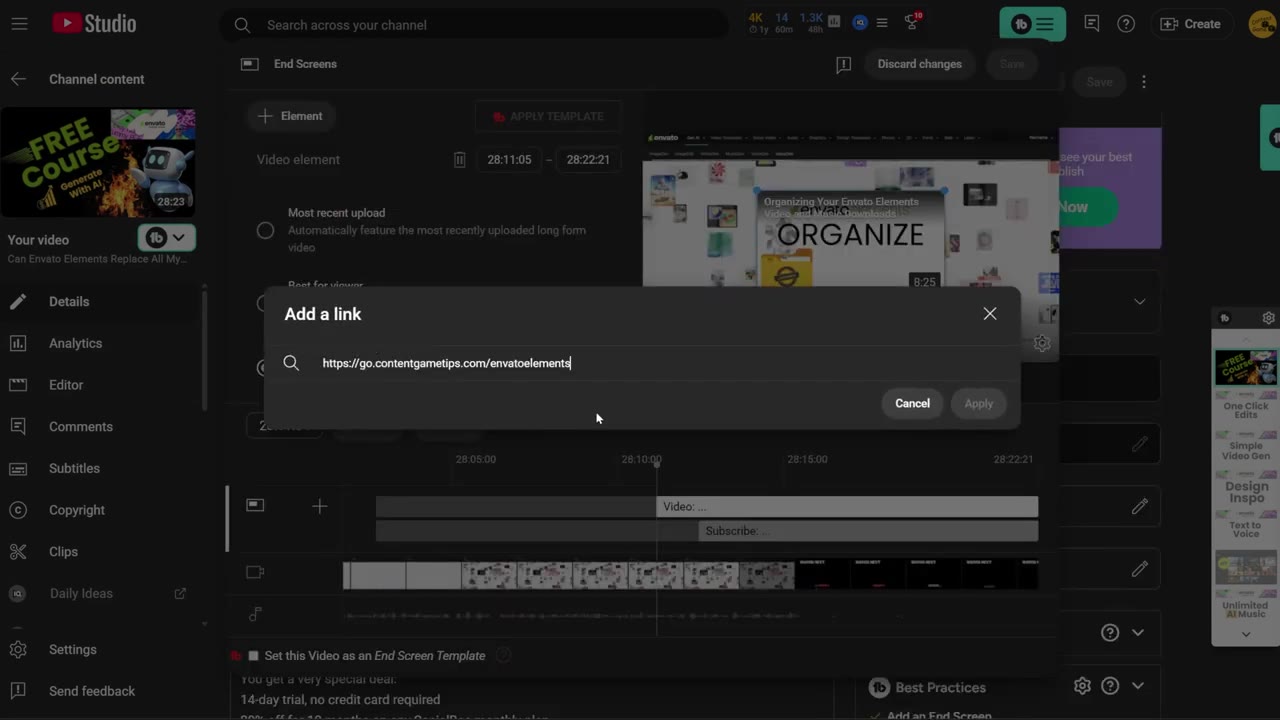
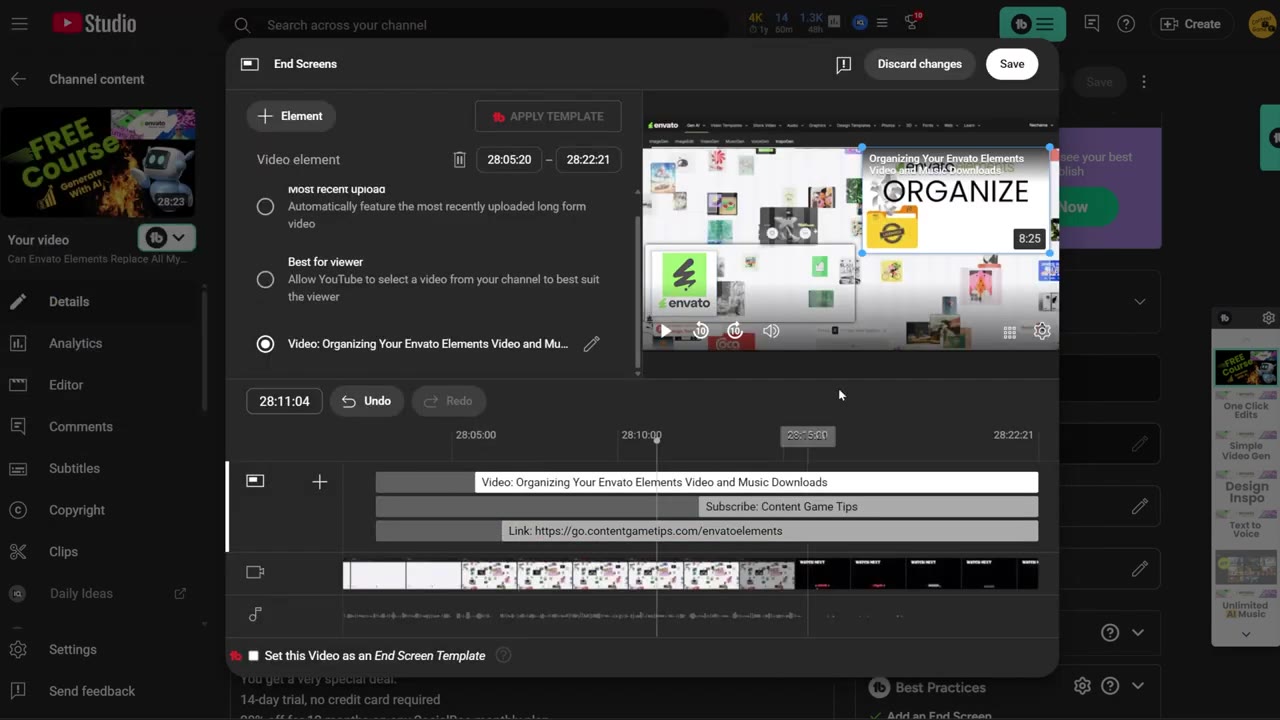
Open End screen, click Element and choose Link. You can use one link element per end screen, next to a video and the subscribe button. Paste the URL, add the same logo image, and arrange the elements.
More: the full YouTube monetization guide.
Keep learning
This guide is part of the complete guide: Make Money as a Content Creator.