How to Upload Your Own Fonts to Canva
Canva has a big font library, but sometimes you need your own font, one you bought or one that matches your brand. Here’s how to upload it from your computer and find it in your designs. Uploading fonts needs a Canva Pro (or Teams) account, and you should only upload fonts you have the license to use.
Open your Brand Kit
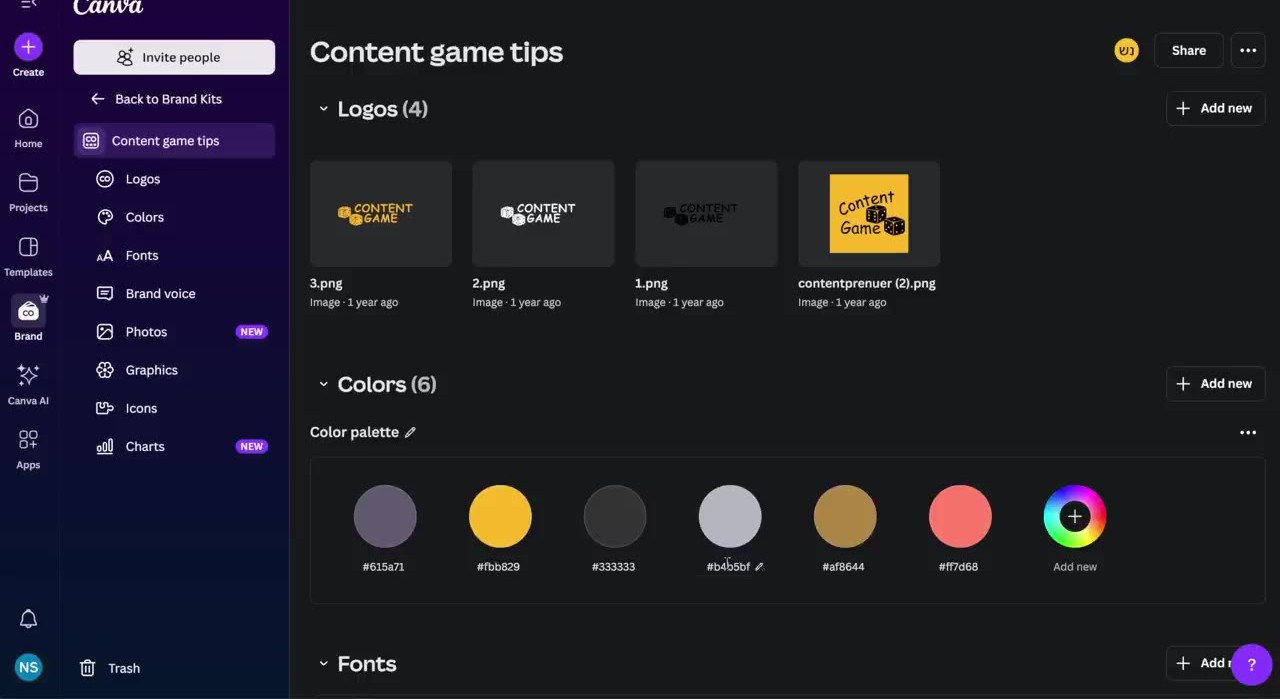
From the Canva home page click Brand on the left and choose Brand Kits. Open your brand, and scroll down to the Fonts section, under the logos and colors.

Upload the font
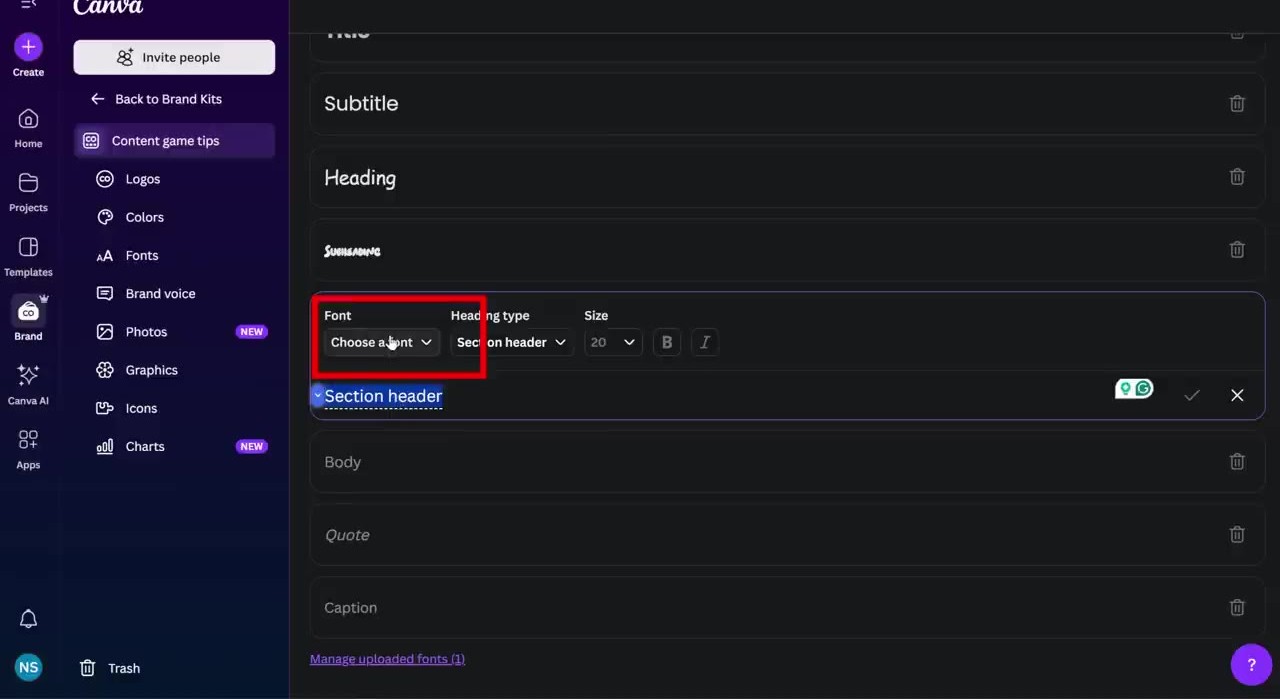
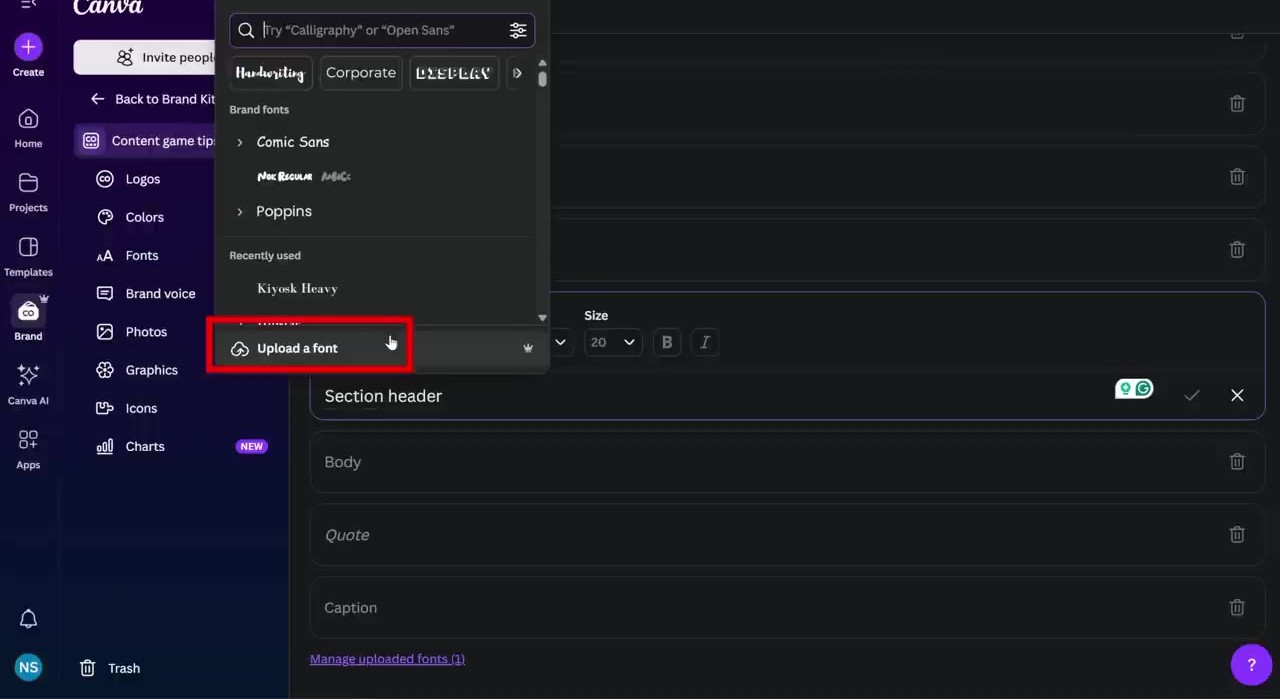
Click Choose a font next to a text style (Title, Heading, Body and so on). At the bottom of the font list click Upload a font and pick the font file from your computer. Canva accepts OTF and TTF files, and also WOFF.
Canva asks you to confirm that you have the right to use the font. Click Yes, upload away! and wait for the upload to finish.


Find your font in a design
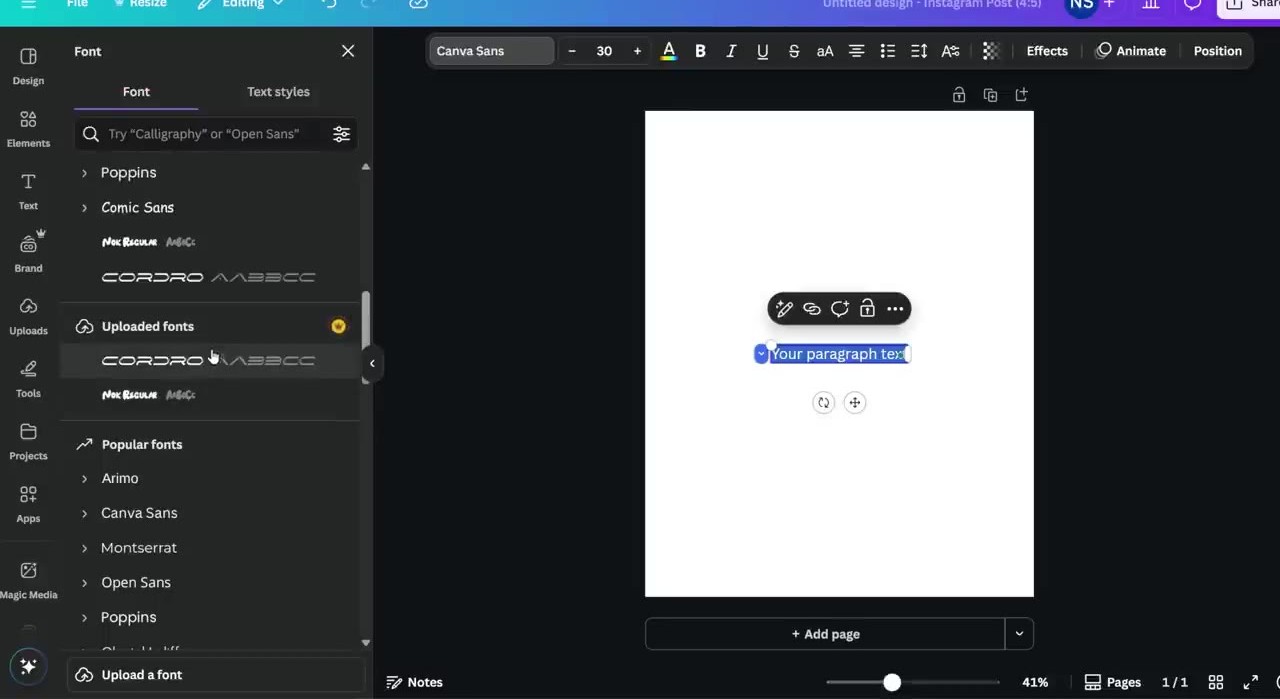
In any design, select a text box and open the font list. Your Brand Kit fonts appear at the top, and the fonts you uploaded are under Uploaded fonts. You can also click Manage uploaded fonts in the Brand Kit to see or delete them.
Keep learning
This guide is part of the complete guide: Canva and Design Guides for Creators.