How to Upload a Kids Book to Amazon KDP: Free ISBN, Price and Publish
This is the last step for a paperback children’s book: uploading it to Amazon KDP. Here’s what to prepare before you start and what to choose on each screen.
Prepare the book details first
Prepare the text in advance, so you have time to make it searchable:
- Title: exactly as it appears on the book.
- Subtitle: one sentence with the age group and the main idea.
- Description: the story, any activities like coloring pages or games, the page count and anything special. AI can help you write it.
- Up to three categories.
- Keywords: the words that best describe your book. Ask ChatGPT if you’re not sure.
Paperback details
In KDP go to Bookshelf and click to create a new title. You can add up to three titles a day. Choose Paperback for a short book. Books over 75 pages can also be hardcover.
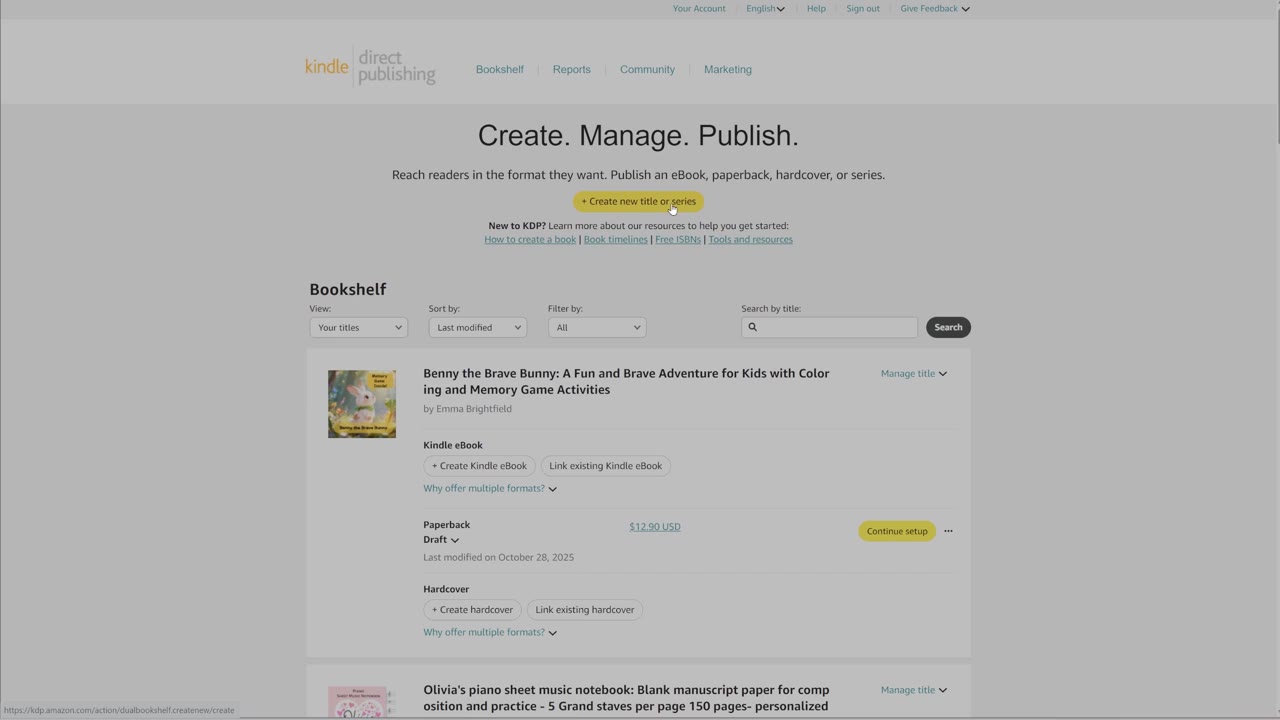
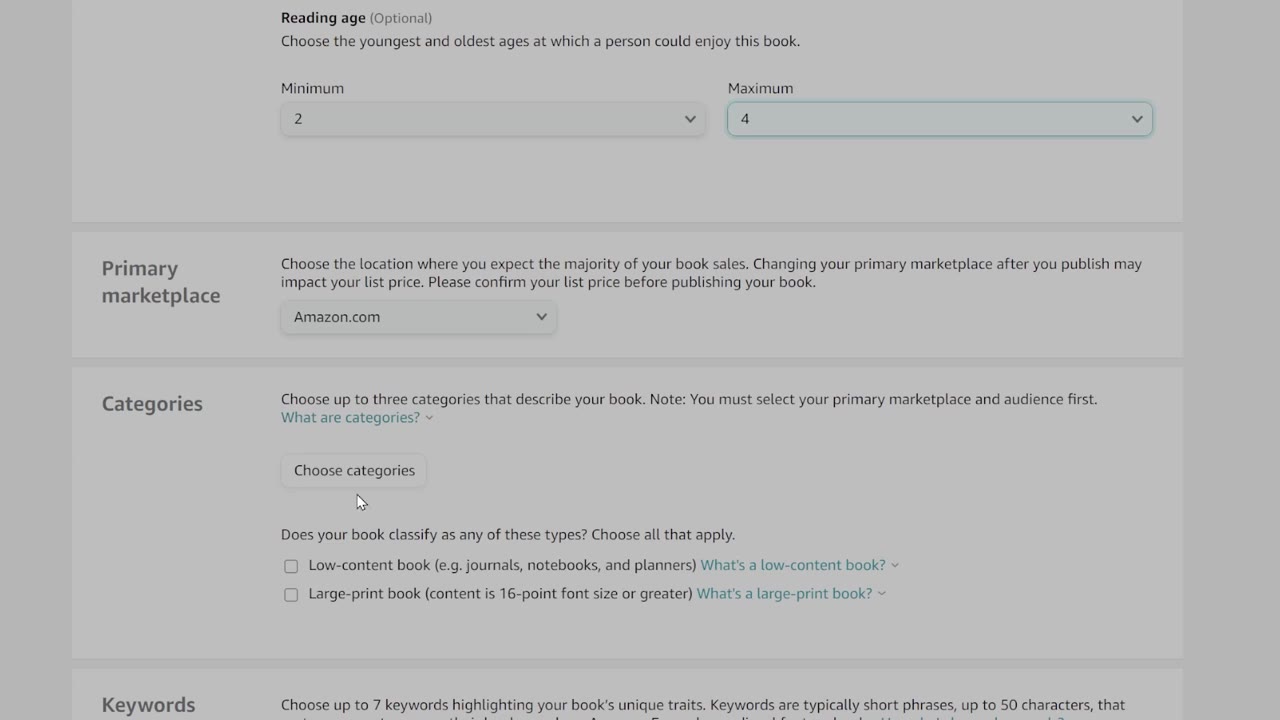
Add the title and subtitle. If the book is part of a series, connect it to the series. Add the author name, real or pen name, and check the public domain box only if you used a public domain story.
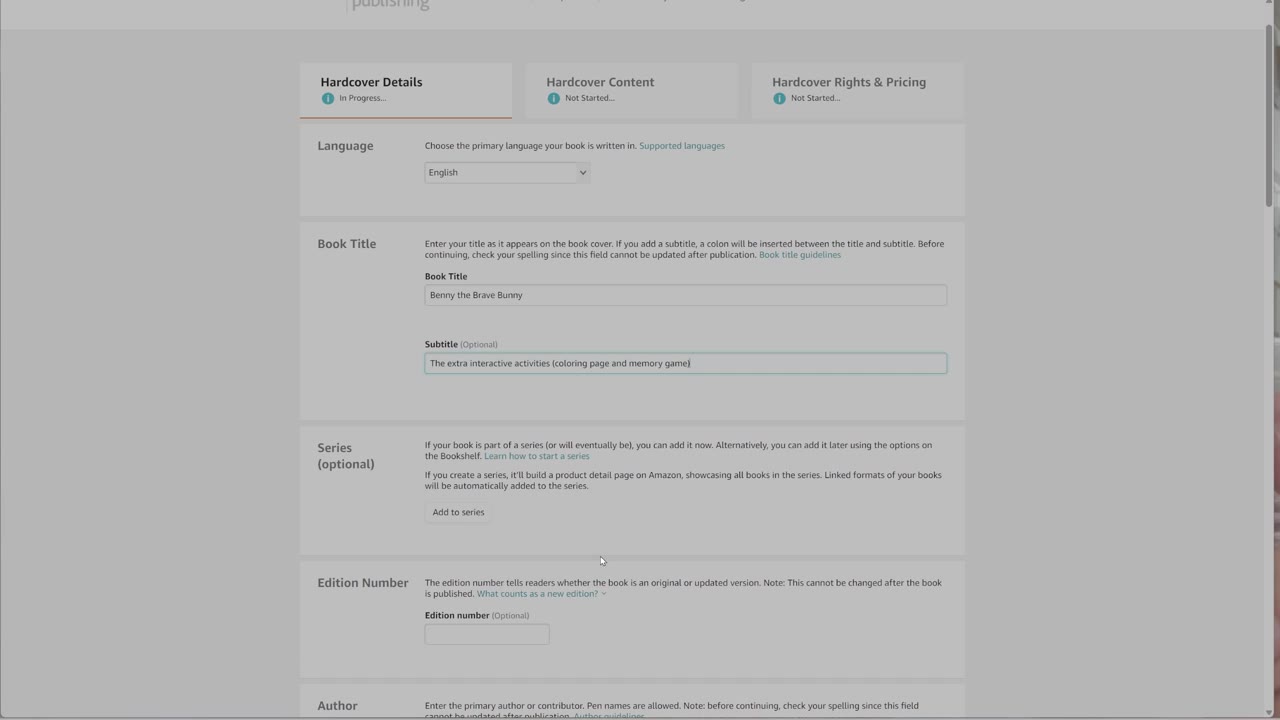
In Primary audience, the sexually explicit content question gets No for a children’s book. Then set the reading age, as specific as you can.
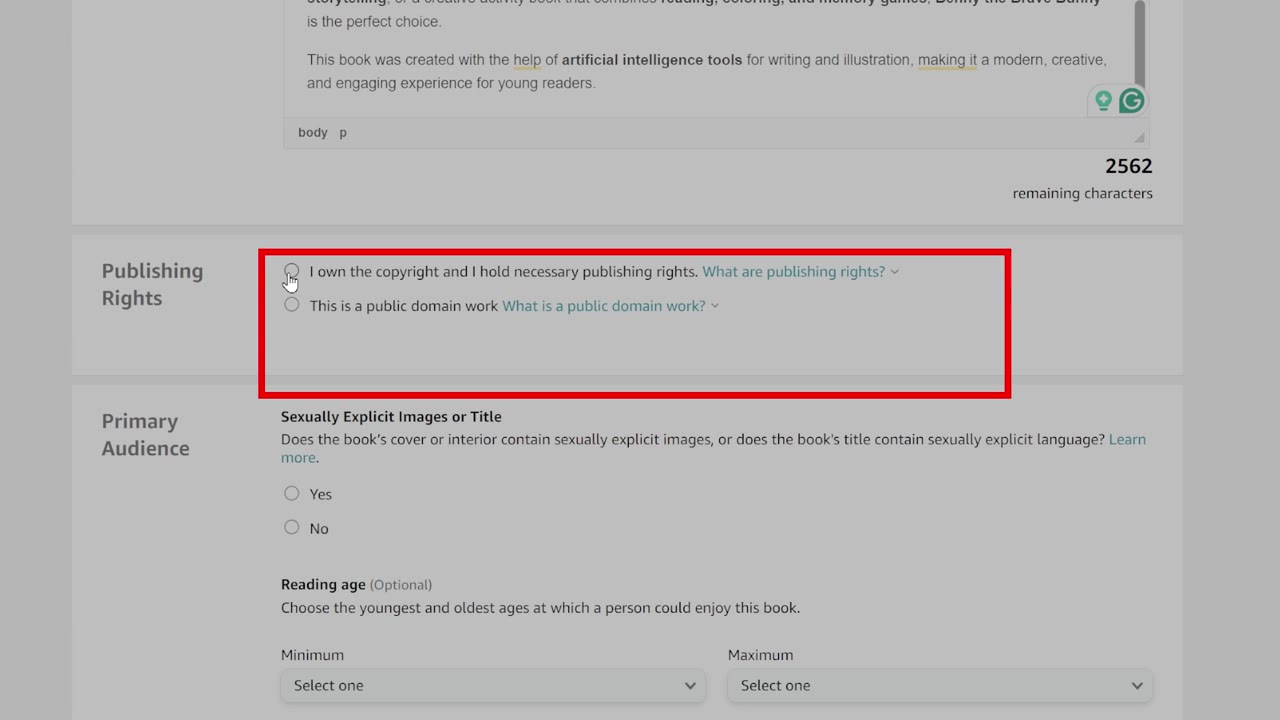
Click Categories and choose up to three. Use all three if you can. Check low-content only if the book is mostly lines to write on, and large print only if the text really is large print. In the keywords you can write more than one word in each box, as long as the phrase makes sense.
Choose whether to release now or schedule a date. A future date gives you time to promote and collect pre-orders. Click Save and Continue.
Paperback content: ISBN, ink, trim and bleed
Click the button to get a free KDP ISBN. Copy the number to the copyright page of your book and download the book again. If you have your own ISBN, choose that option and type it.
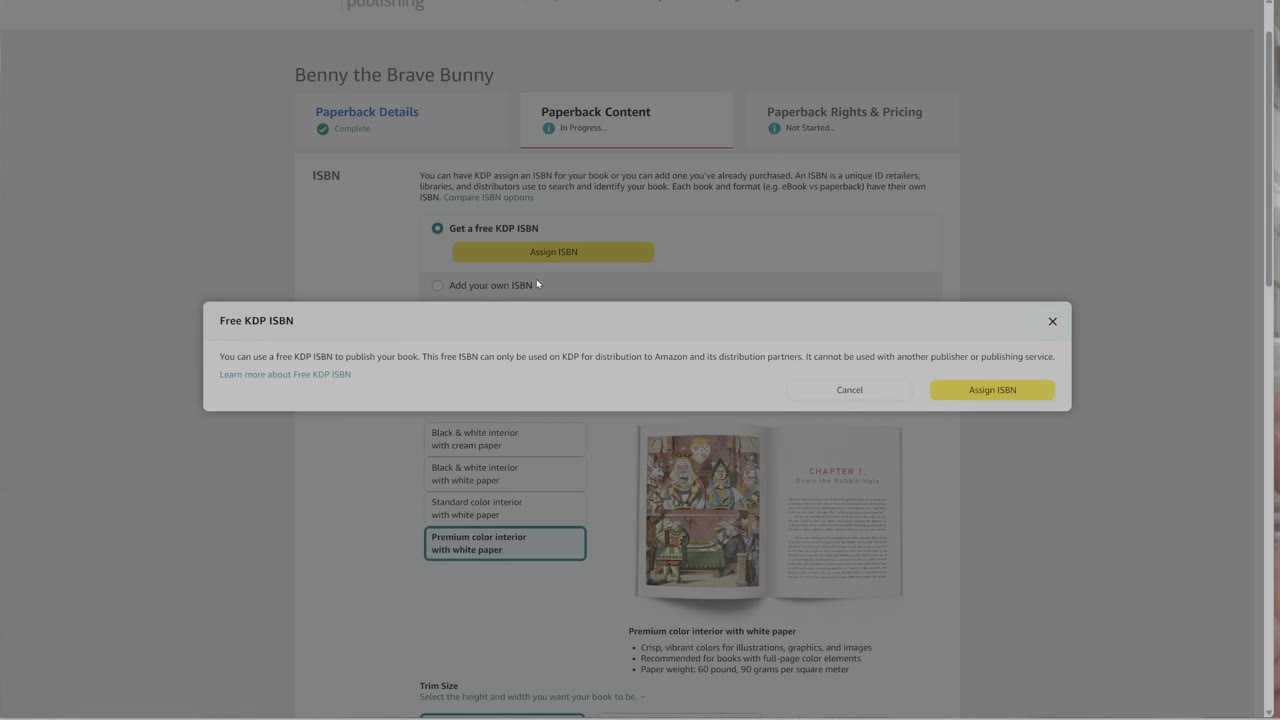
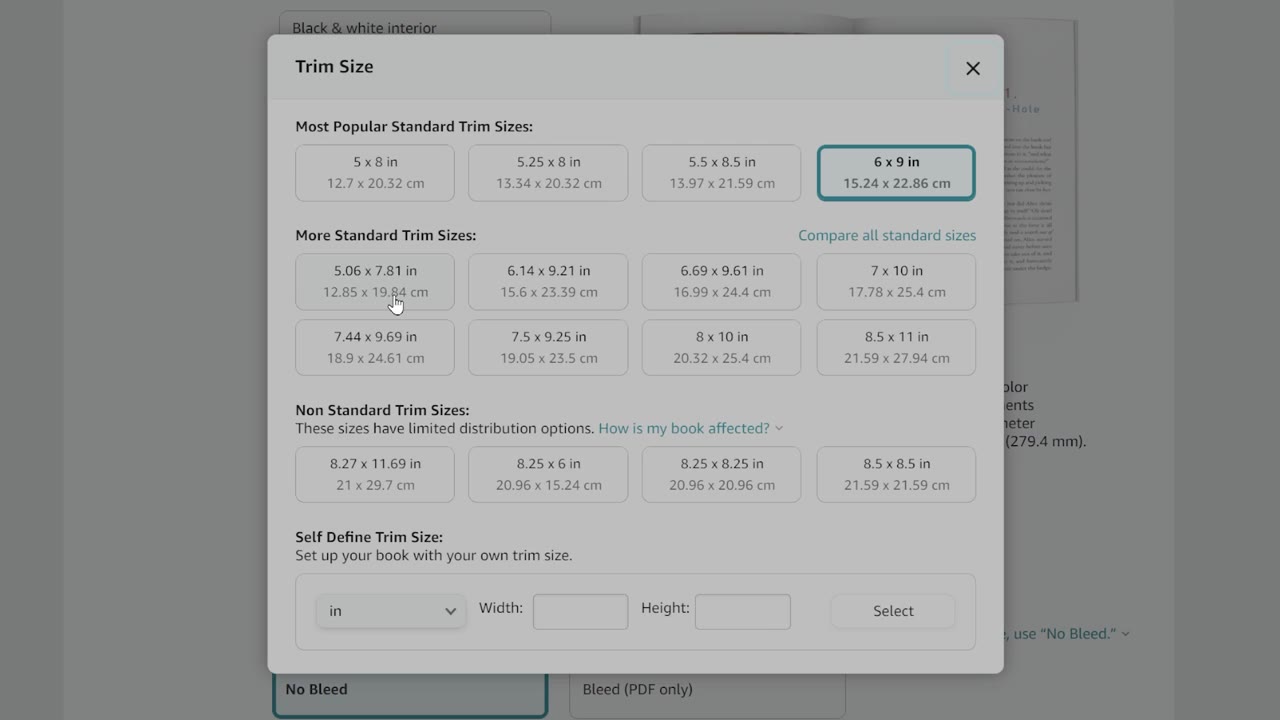
Choose the ink and paper. A kids book needs color: standard color is cheaper, premium color is brighter. Pick the trim size you designed the book in. Choose Bleed if the images go to the edge of the page, and No bleed if they don’t. Choose a matte or glossy cover. I chose glossy for a kids book.
Upload the manuscript and cover
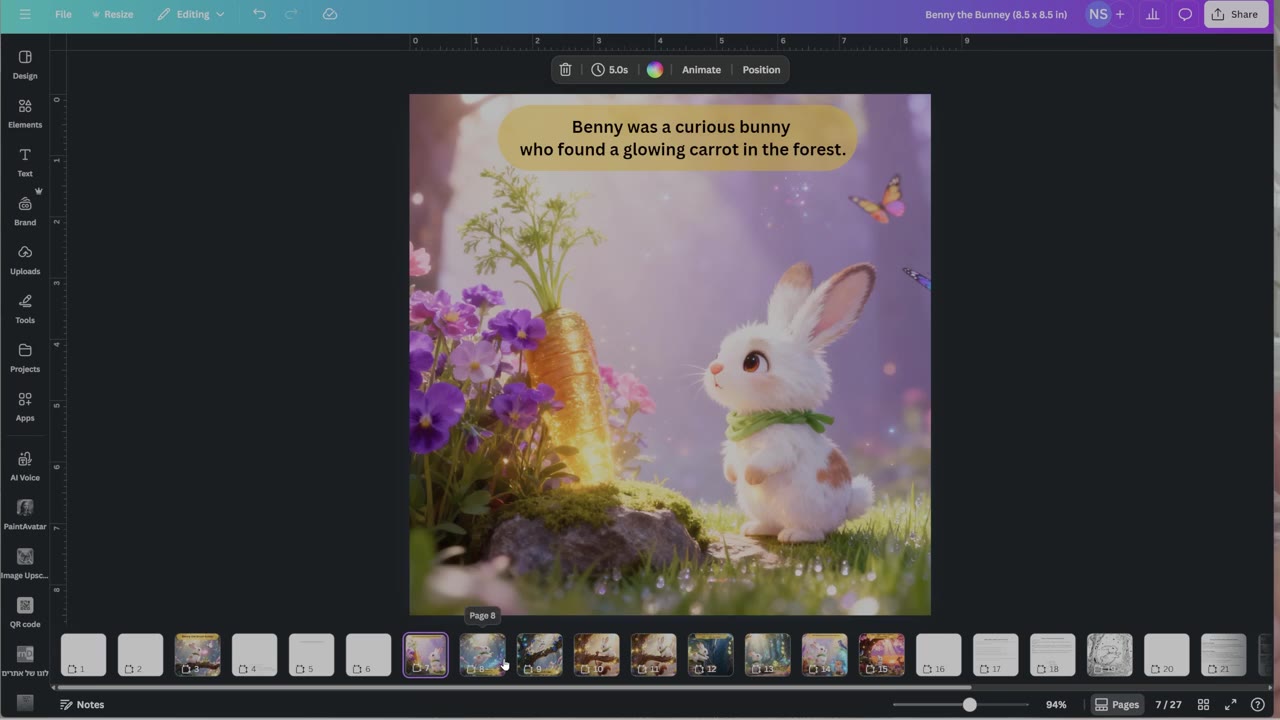
Click Upload and choose the PDF. From Canva, download as PDF Print and check Flatten PDF, so nothing shifts on Amazon’s side.
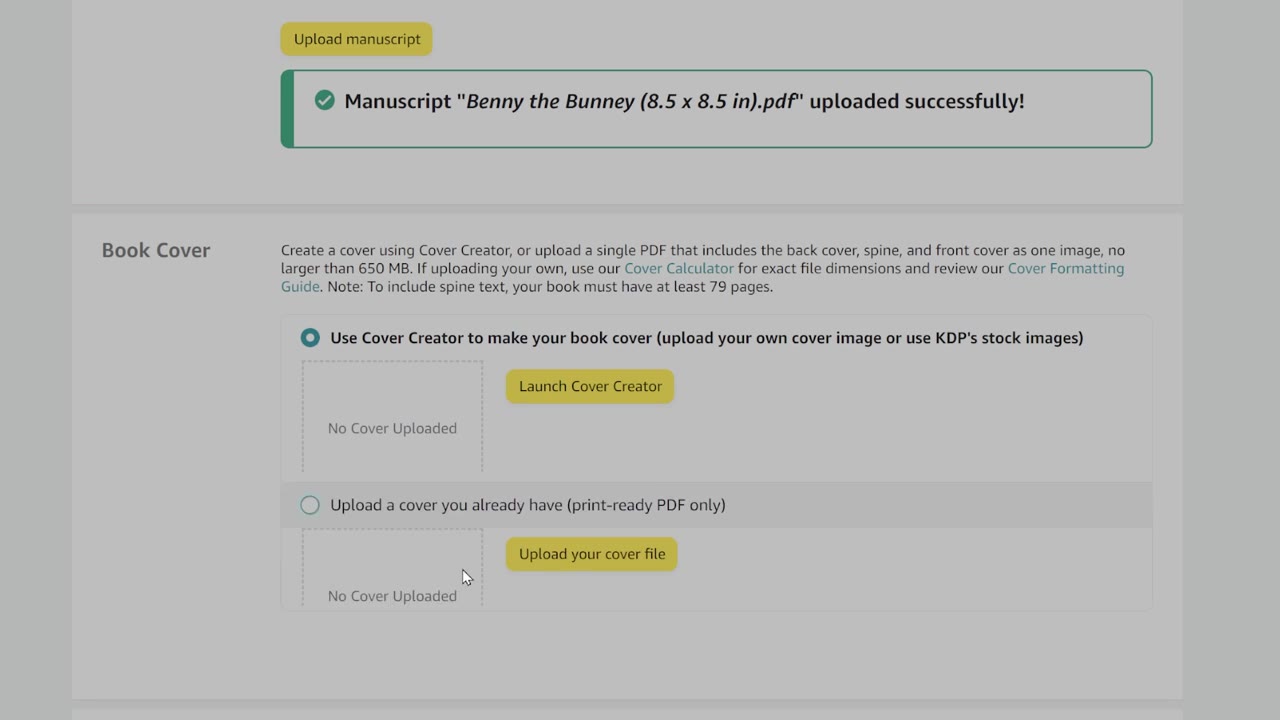
For the cover you can use KDP’s Cover Creator, but I prefer Canva. Get the exact size from the KDP cover calculator, design the cover, download it as a flattened print PDF and upload it with the second option. Full steps: how to make a KDP paperback cover in Canva.
AI-generated content
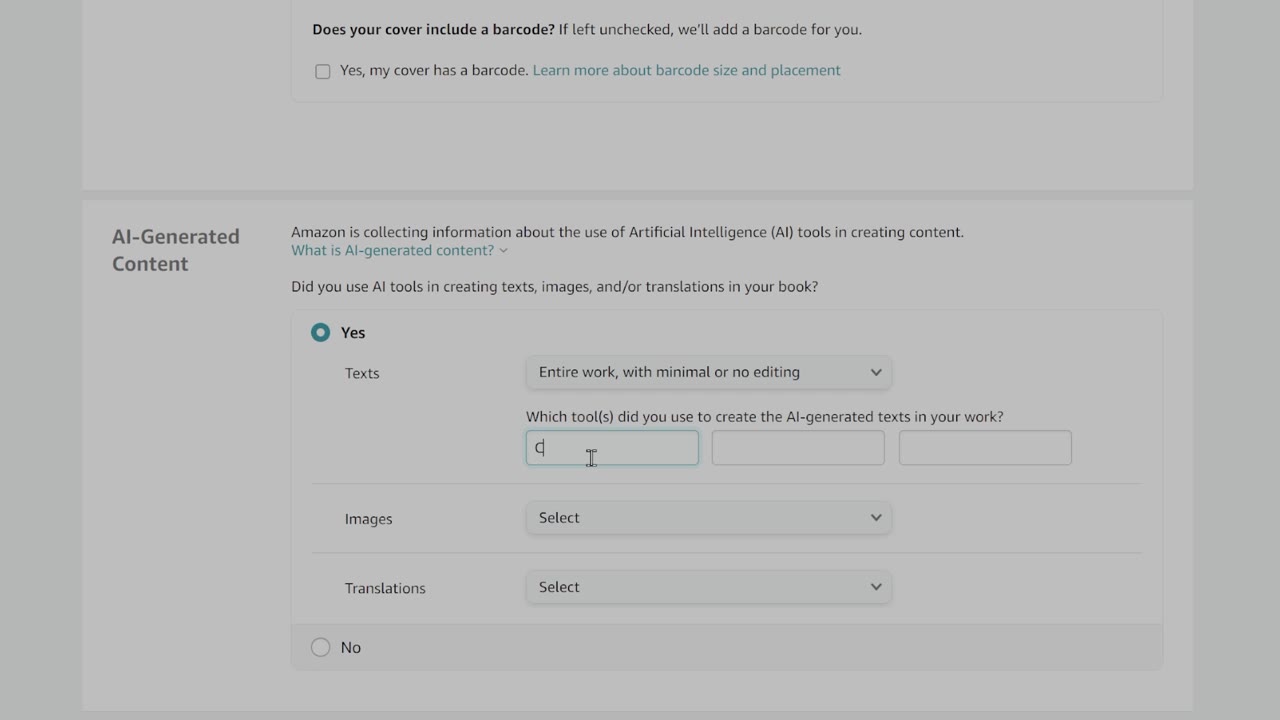
If you made the book with AI, choose Yes. Then for text, images and translations, name the tool and how much of the content the AI created.
Check the previewer
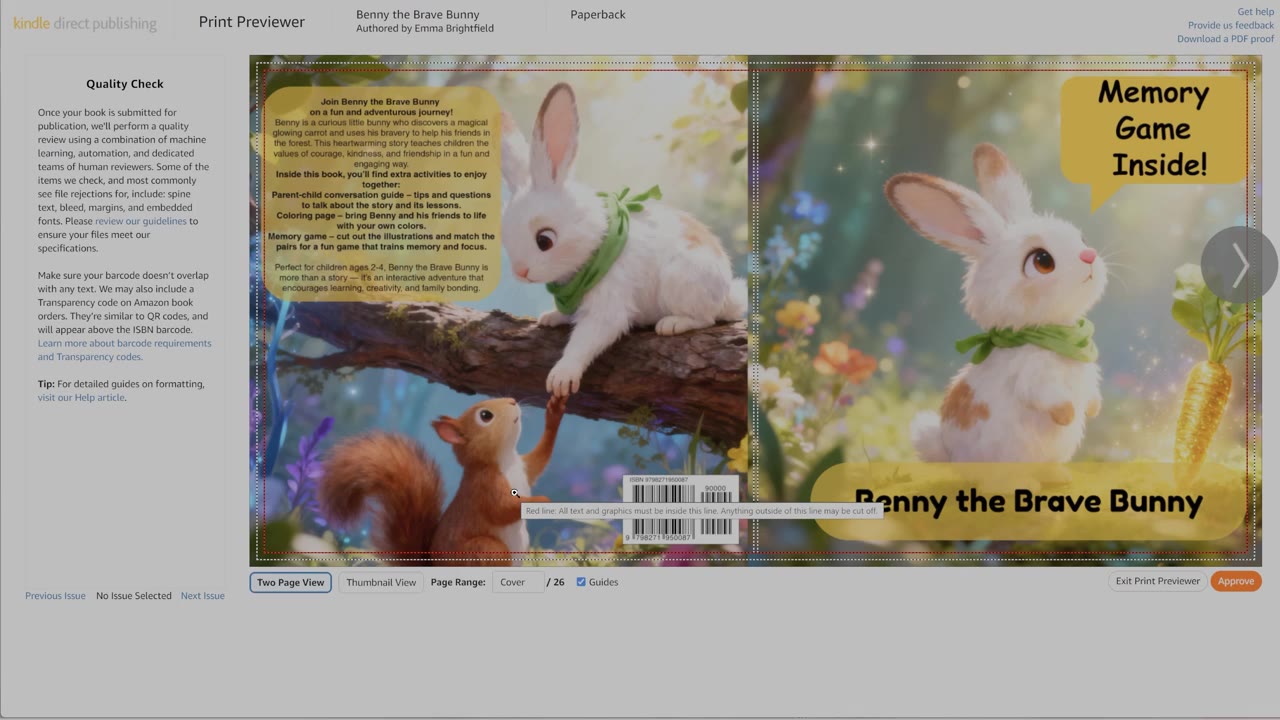
Open the Launch Previewer and go through every page. Make sure each page is on the correct side, especially coloring pages and games. If something is off, fix it in Canva, upload again, confirm that it’s the same book and check the preview again. You can save as a draft at any point.
Pricing
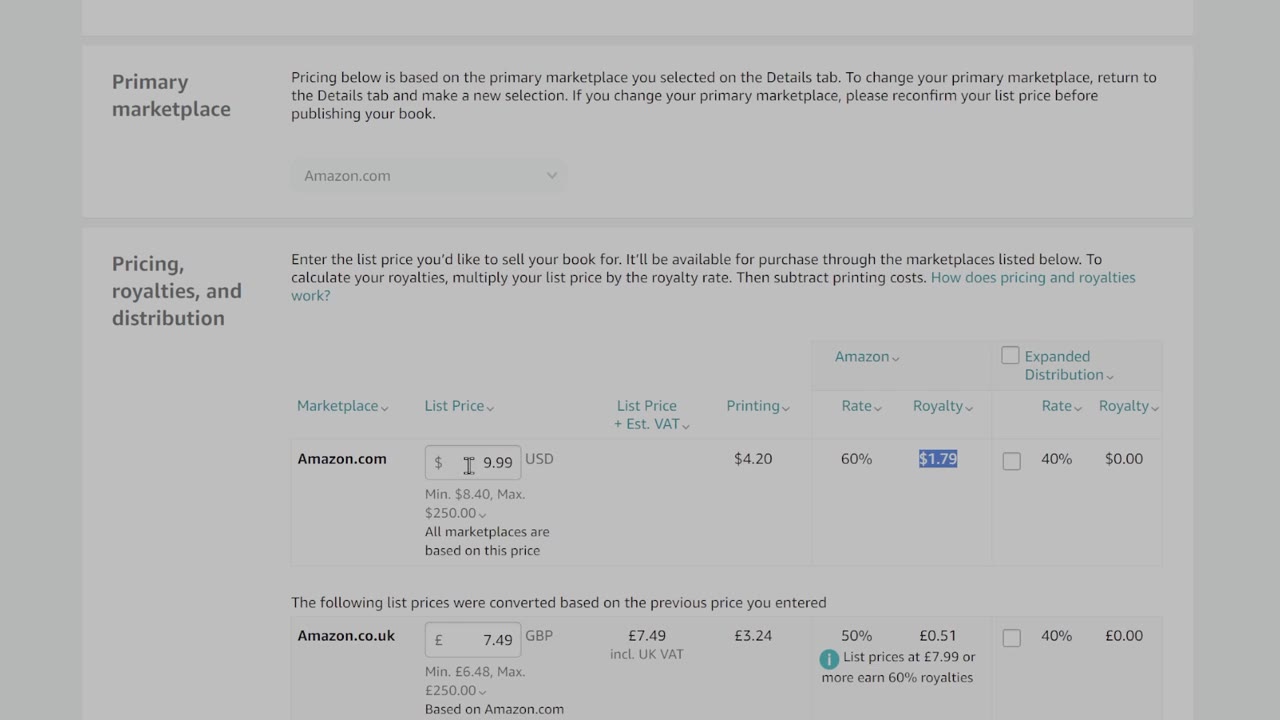
On the last page you see your printing cost. Choose the marketplaces, set the price for Amazon.com (it can’t be below the minimum shown) and leave yourself a profit. Then publish and wait for approval. If something needs fixing, Amazon will tell you.
KDP will also offer a Kindle eBook. A square picture book needs different formatting for Kindle, and coloring pages and games don’t work there, so I didn’t publish this one as an eBook.
The full process: how to write and design a children’s book with AI. To promote it: make a read-aloud video of your kids book.
Keep learning
This guide is part of the complete guide: Publish Books on Amazon KDP with AI.