How to Set Up YouTube Shopping with TeePublic and Spreadshop
If your channel is in the YouTube Partner Program, you can connect an online store and show your products on your channel and under your videos. Print on demand stores like TeePublic and Spreadshop are perfect for selling merch to your audience without holding stock. Here’s how to set it all up.
Who can use YouTube Shopping
You need to be in the YouTube Partner Program (the first level needs 500 subscribers and 3,000 watch hours). Then open the Earn tab in YouTube Studio. A Shopping tab appears next to Memberships and Supers, sometimes only a few days after you’re accepted. Click Get started and then Set up.
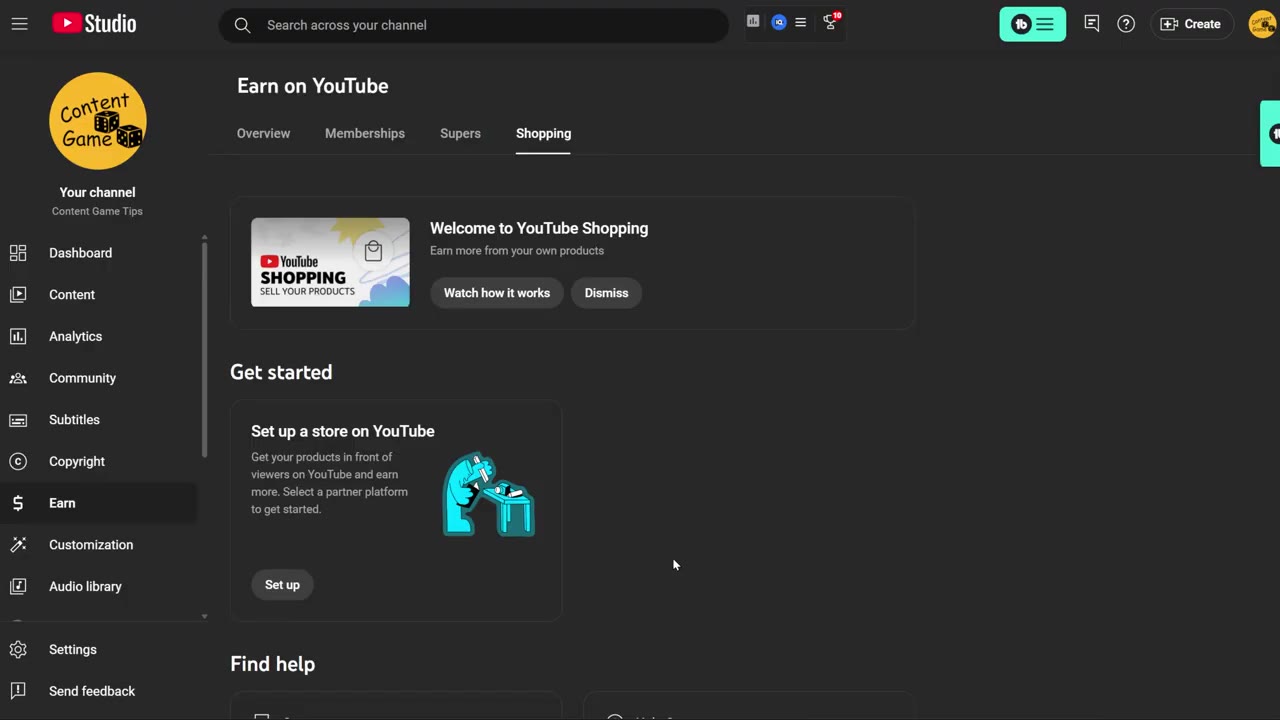
You’ll see the store platforms you can connect. WooCommerce isn’t on the list, but Shopify, Wix, Spreadshop and TeePublic are.
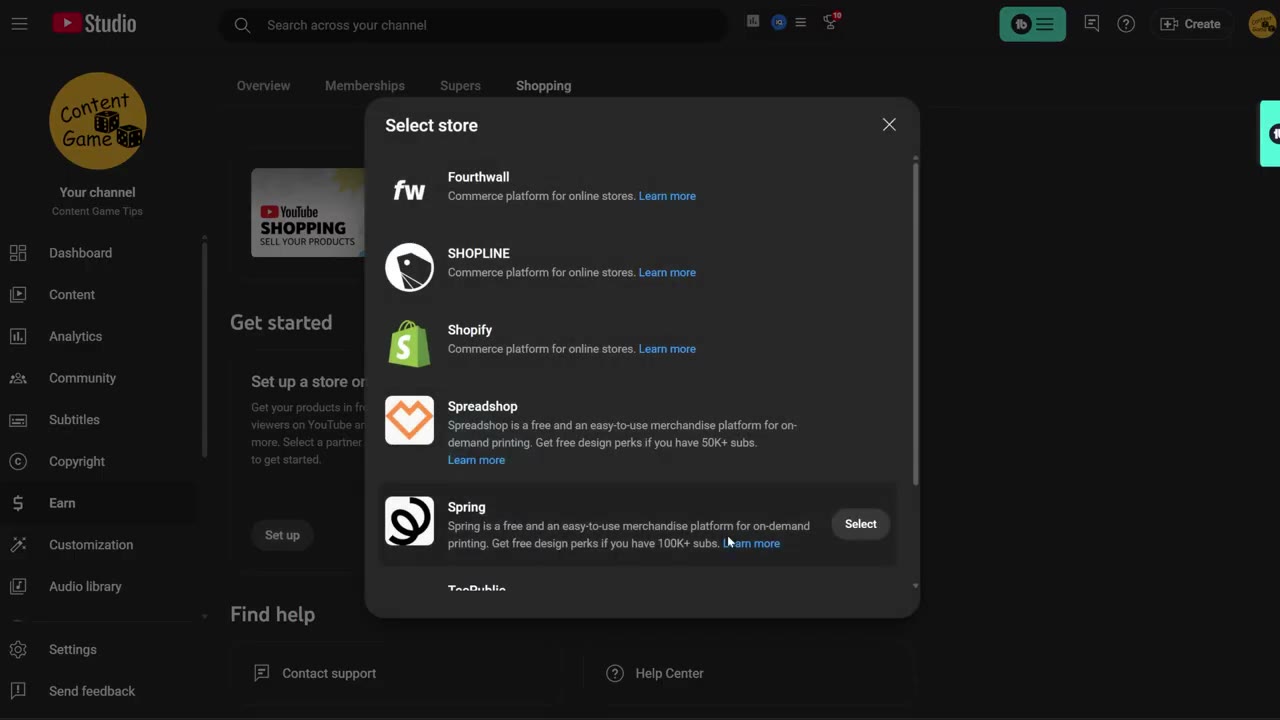
Connect your TeePublic store
First allow offsite selling in TeePublic: open your store settings, go to Settings, find Offsite preferences, check the box and save. You can see an example TeePublic store here.
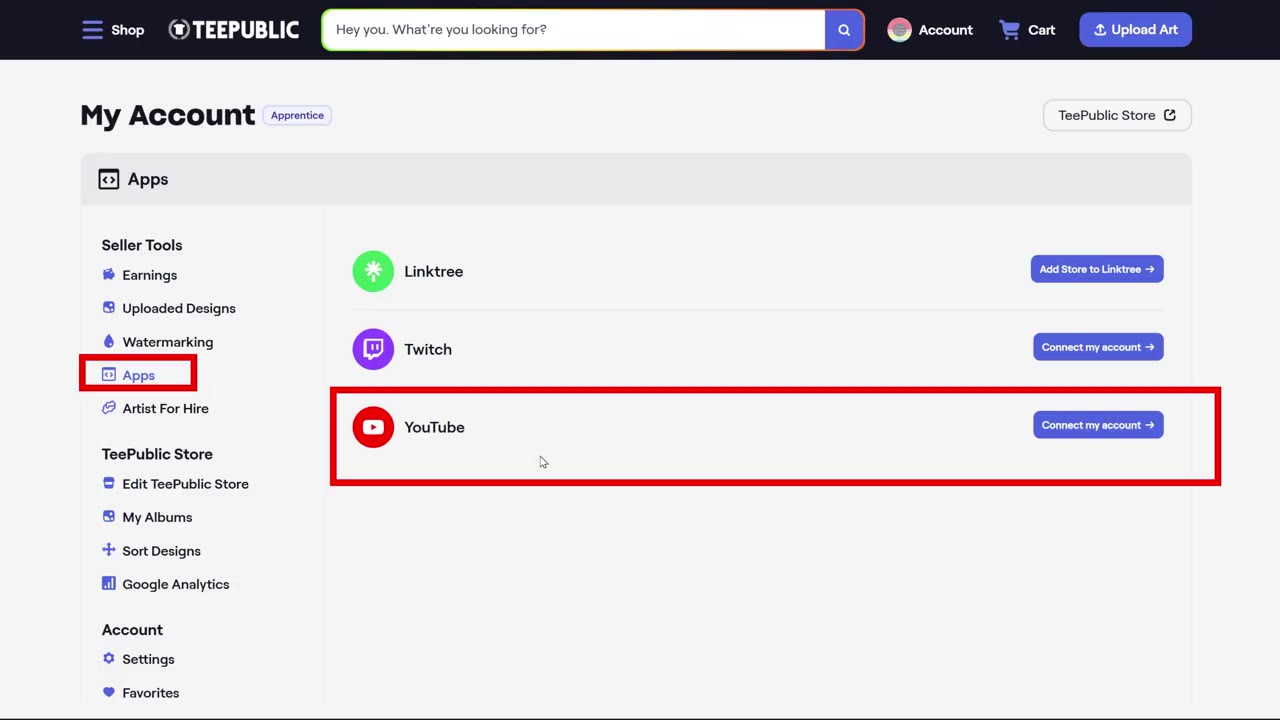
Then in TeePublic open your store settings, click the Apps tab and choose YouTube. Pick the Google account and the channel, allow TeePublic to share your store information and click continue. (Starting from TeePublic worked better than starting from YouTube Studio.)
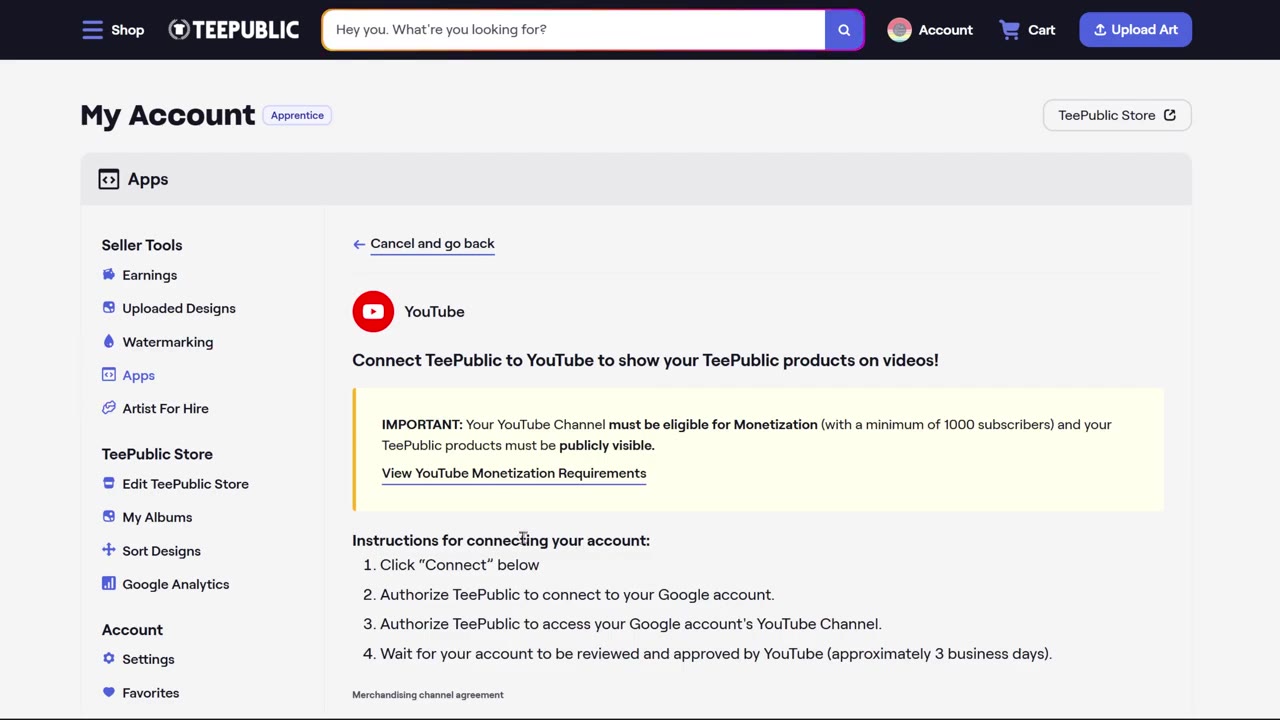
Note: TeePublic picks the products it sends to YouTube by itself. You can’t choose them, and you can’t see which ones YouTube rejected.
Add a Spreadshop store
In the Shopping tab click the three dots next to your store and choose to add another store. Choose Spreadshop, agree to the terms and pick the EU or US shop (they’re separate). Log in to Spreadshirt, choose your shop, click Log in with YouTube, pick the monetized channel and allow Spreadshop to share your store information.
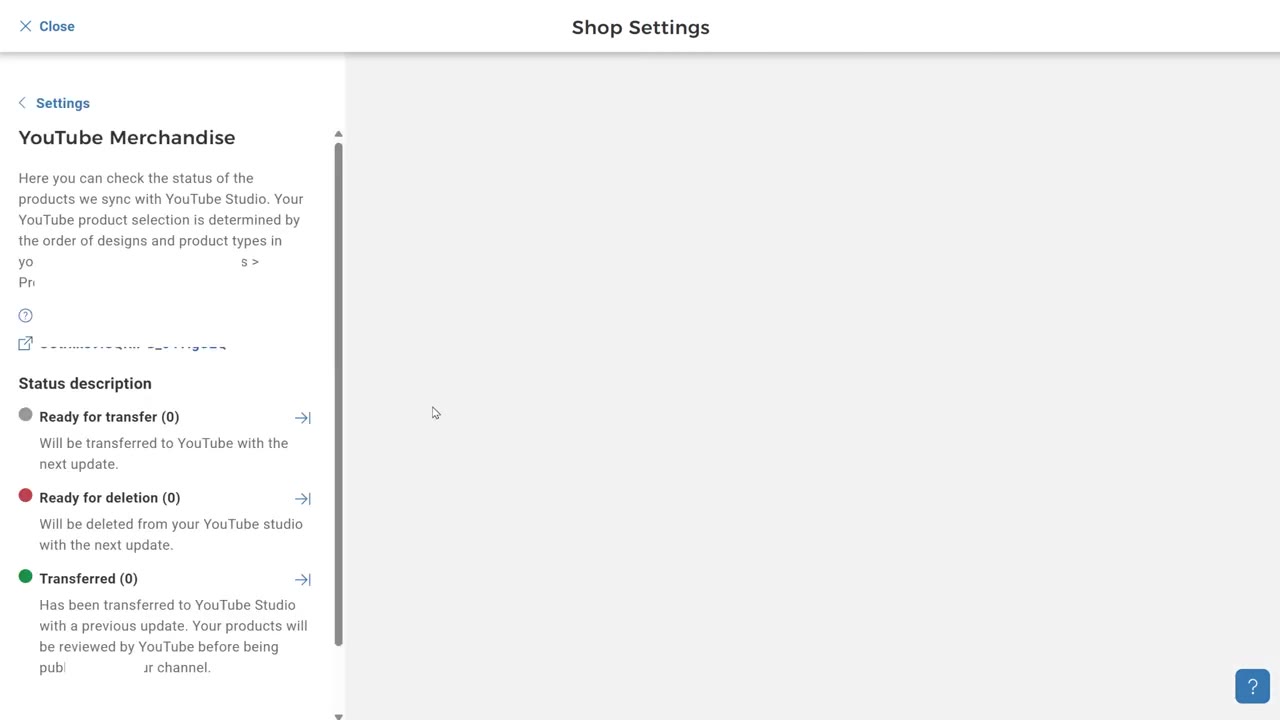
Unlike TeePublic, Spreadshop lets you choose which products go to YouTube. In your Spreadshop settings open YouTube Merchandise in the side menu and select the products.
See your store and analytics
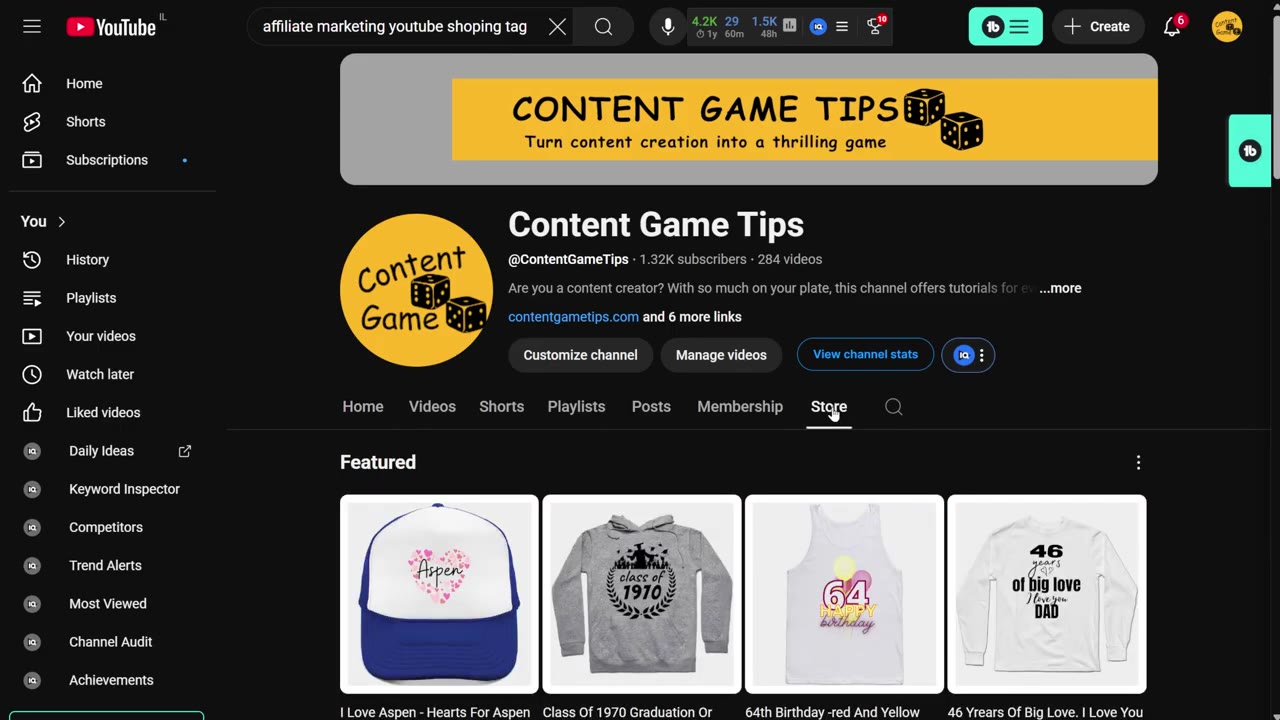
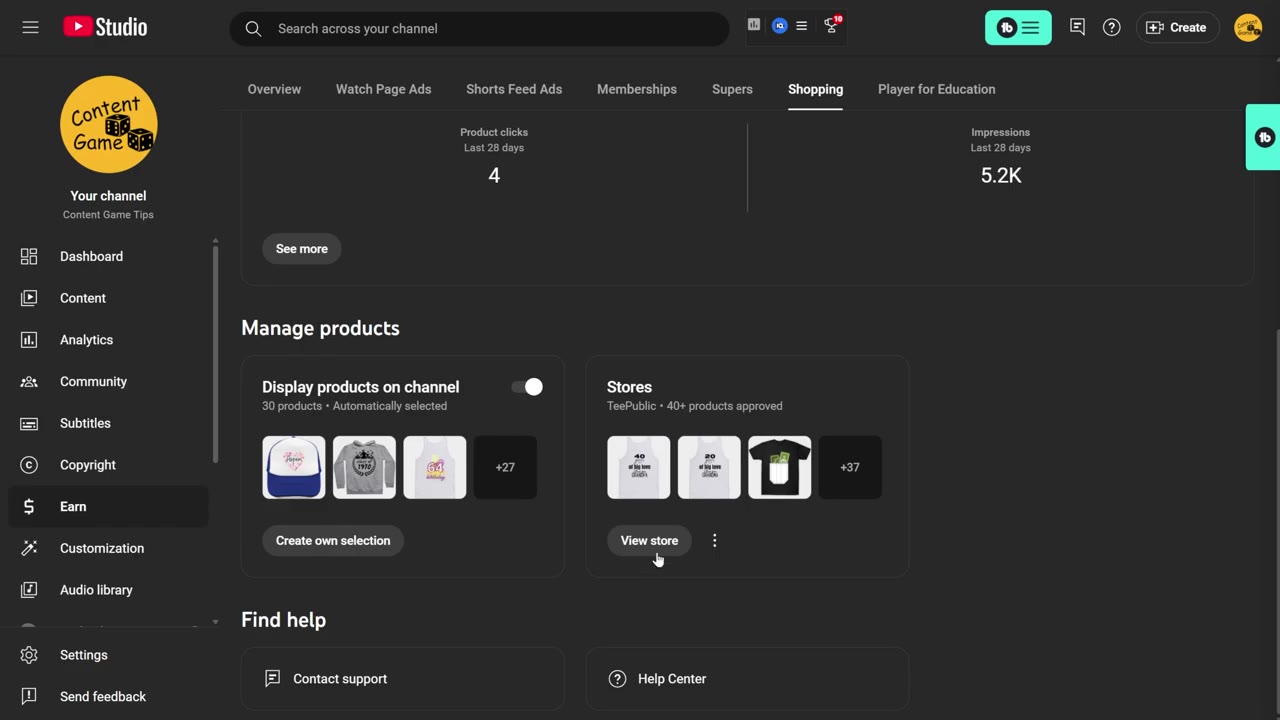
Your products now show in the Store tab of your channel. For analytics, open the Shopping tab in the Earn section for clicks and impressions, or go to Analytics > Revenue to see which products people clicked.
Choose the products on your channel
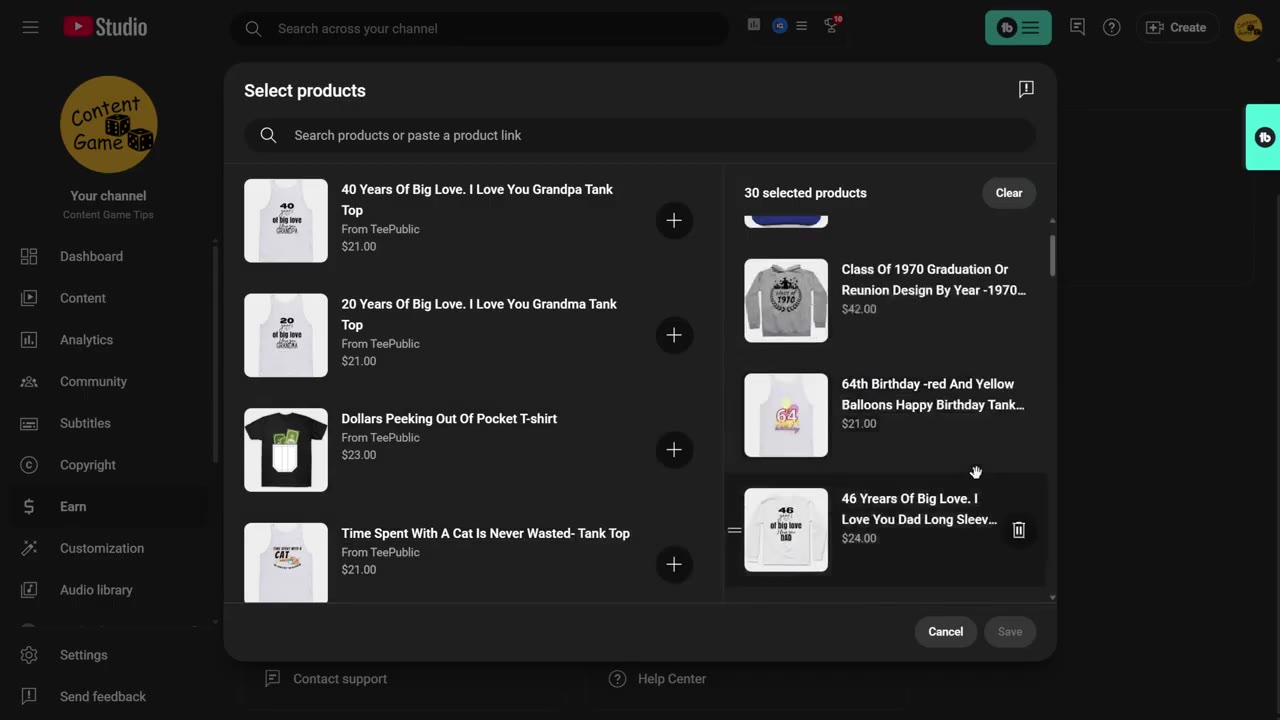
By default YouTube picks 30 products. In the Shopping tab click Create your own selection, remove products from the right side, add products from your store on the left with the plus button (up to 30), drag them into order and save. You can go back to auto select anytime, turn products off temporarily, or manage and disconnect stores.
Tag products in a video
Open the video’s page in YouTube Studio and click Shopping under the description. Click the pencil to add products from your store. They show under the video and as a tag inside the video.
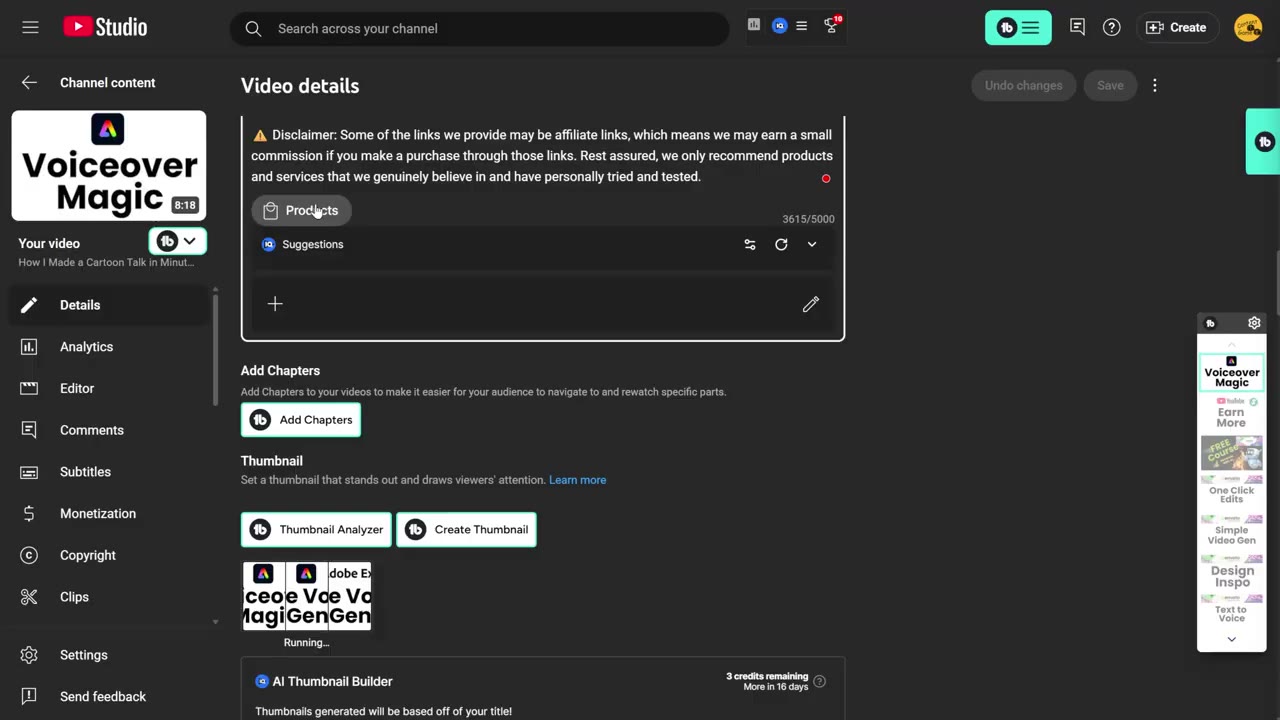
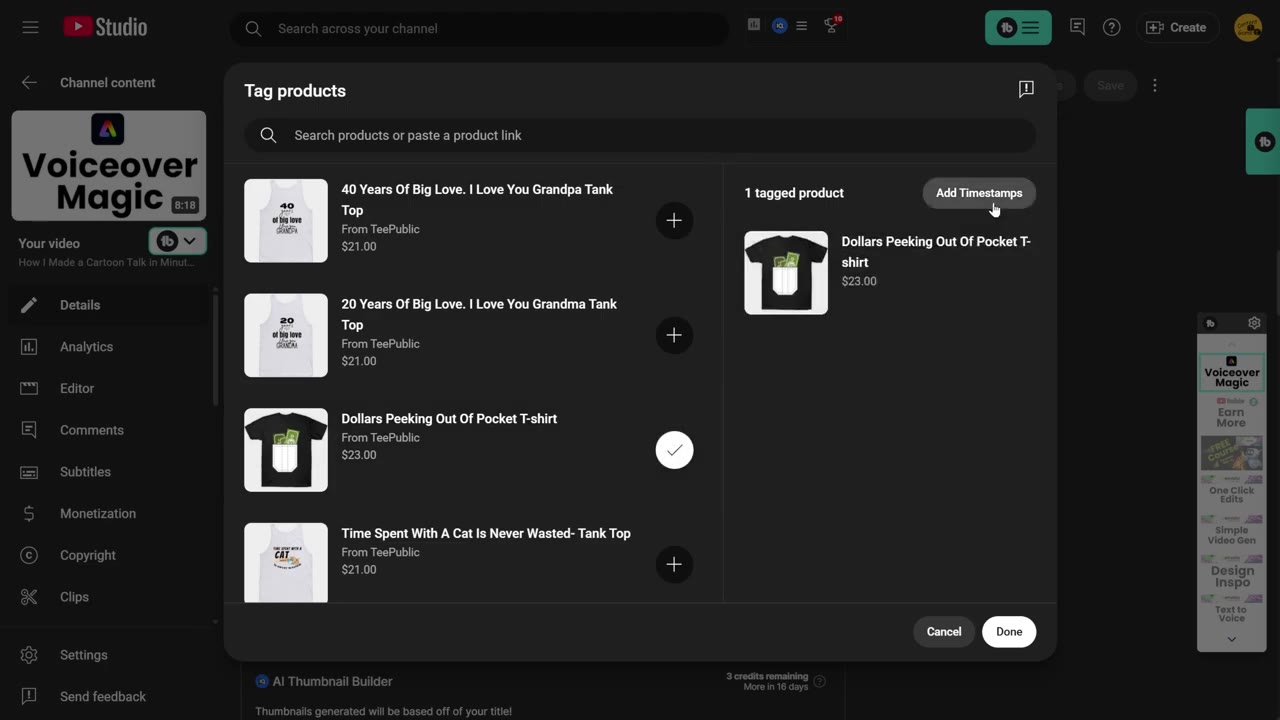
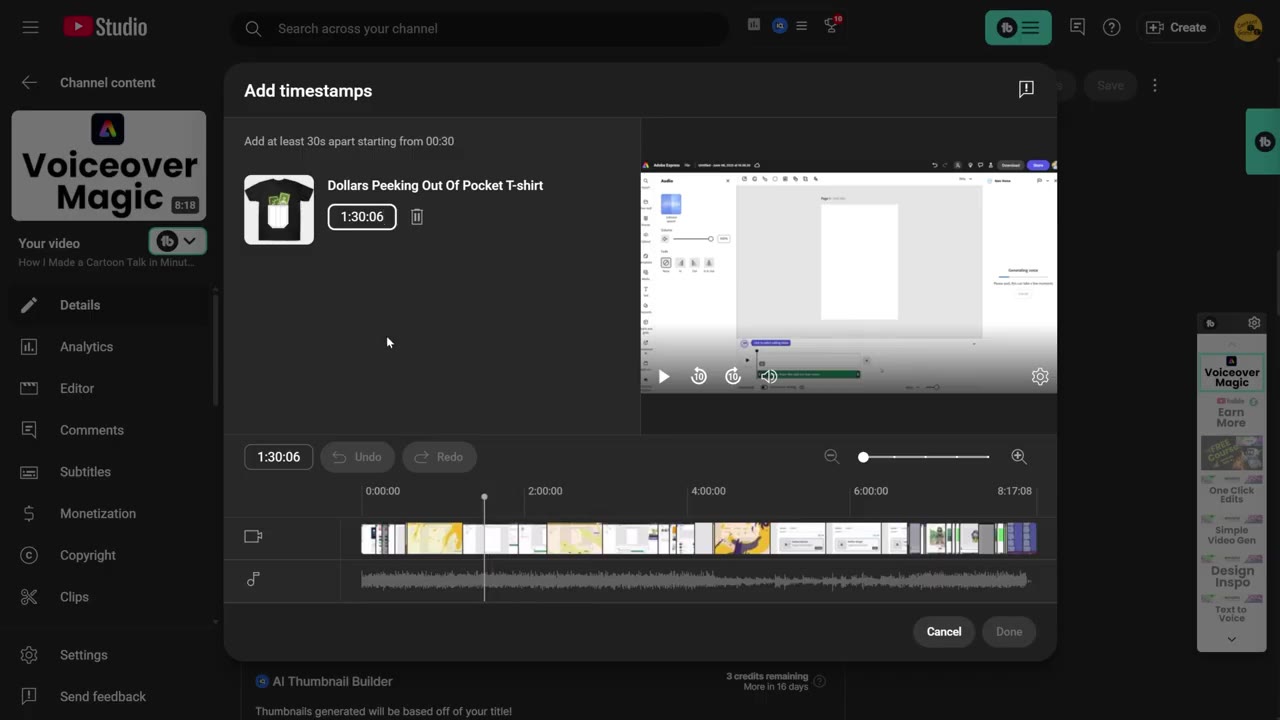
Click Timestamps, place the cursor where a product should appear and click the product. Leave a few seconds between products, and click done and then save the video.
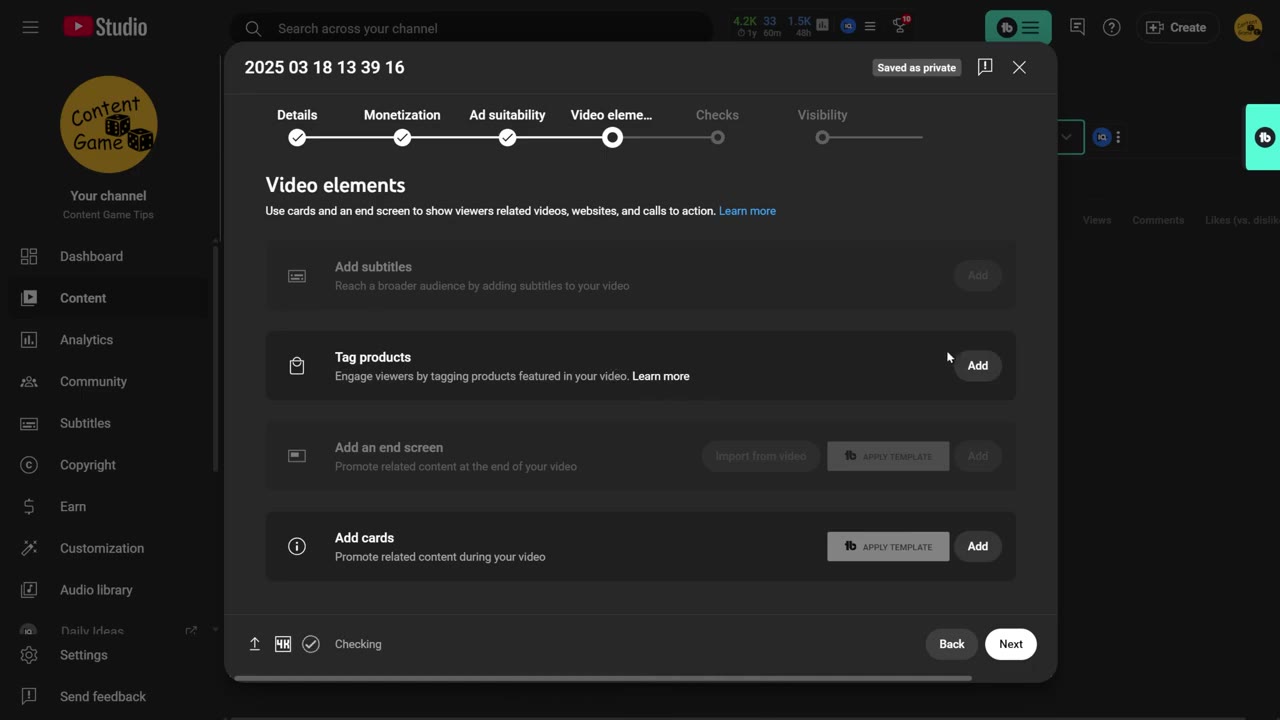
You can also tag products while uploading, on the Video elements step. Timestamps can only be added after the upload finishes.
More: the full YouTube monetization guide.
Keep learning
This guide is part of the complete guide: Print on Demand with Printful and Make Money as a Content Creator.