Got a Copyright Claim on Your YouTube Video? What It Means and How to Fix It
Getting a copyright claim on a video is stressful, but it’s usually not a big deal. Your channel won’t be banned and the video keeps playing. Here’s how to find the claim and choose the right way to handle it. (This is practical experience, not legal advice.)
What a copyright claim means
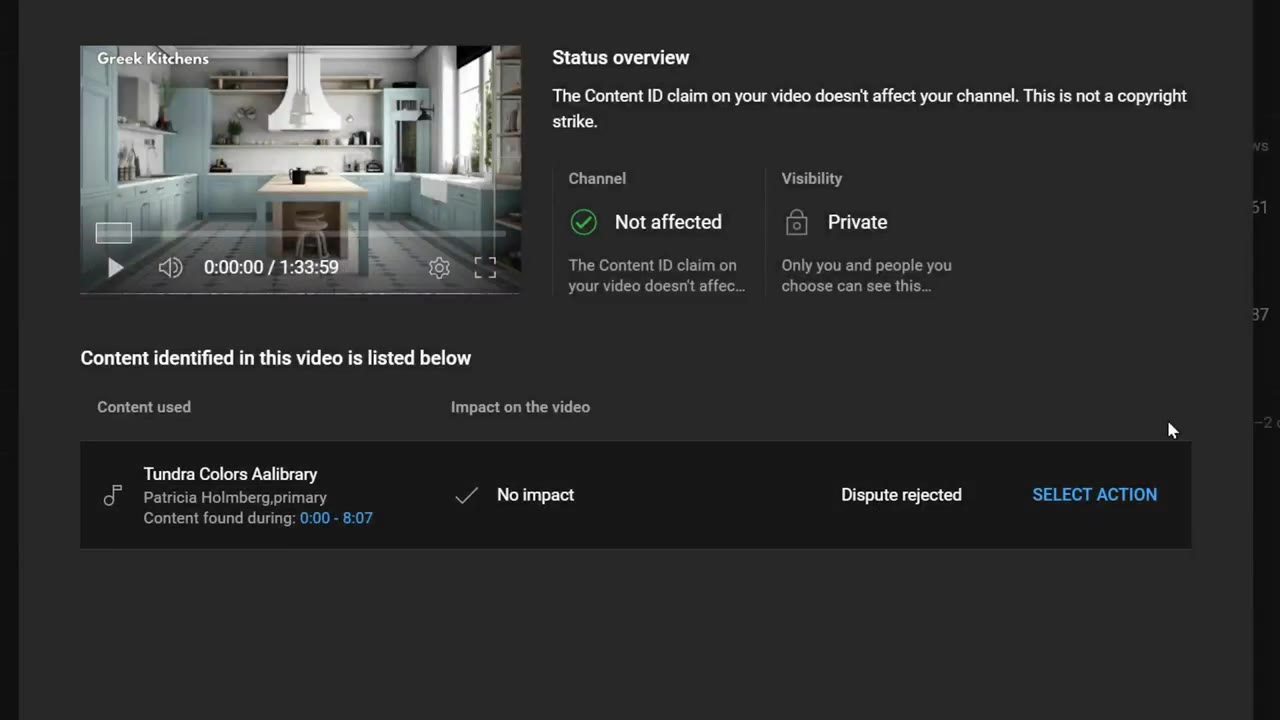
A Content ID claim is not a copyright strike. The video stays up, but if your channel is monetized, the money from that video goes to the music owner instead of you. Remember that royalty-free music isn’t free: you need a license to use it, and with the right license you keep your revenue.
Find the videos with claims
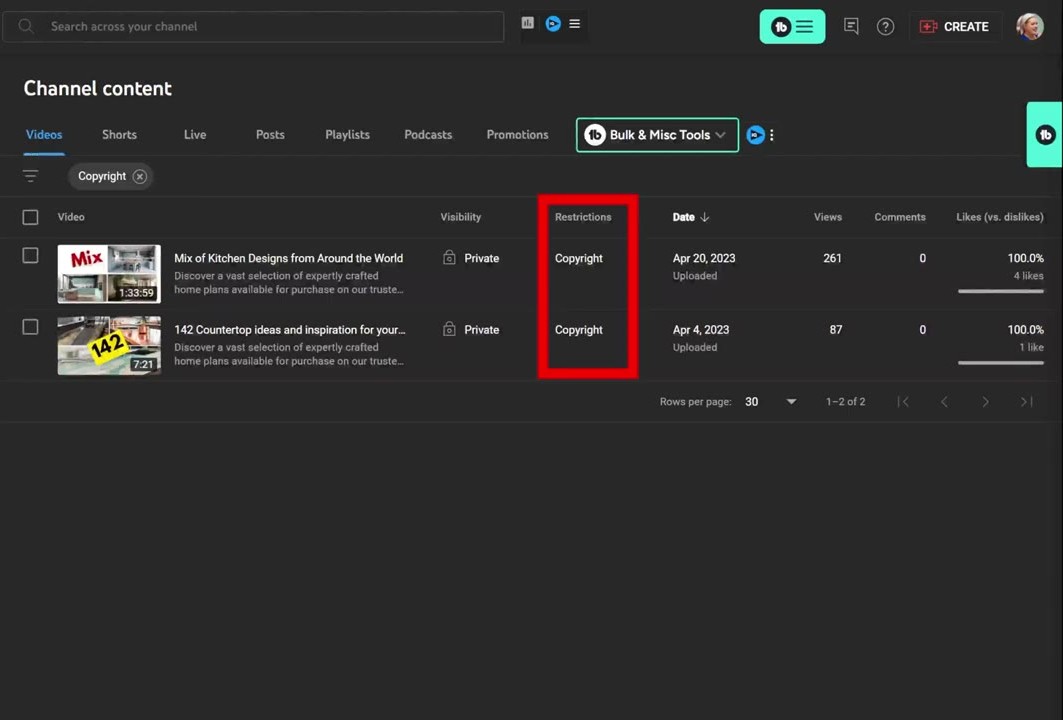
You get an email, but you can also open the Content tab in YouTube Studio and filter by copyright. Click the word Copyright in the Restrictions column, then See details, to open the video with a list of every claimed track.
Choose an action
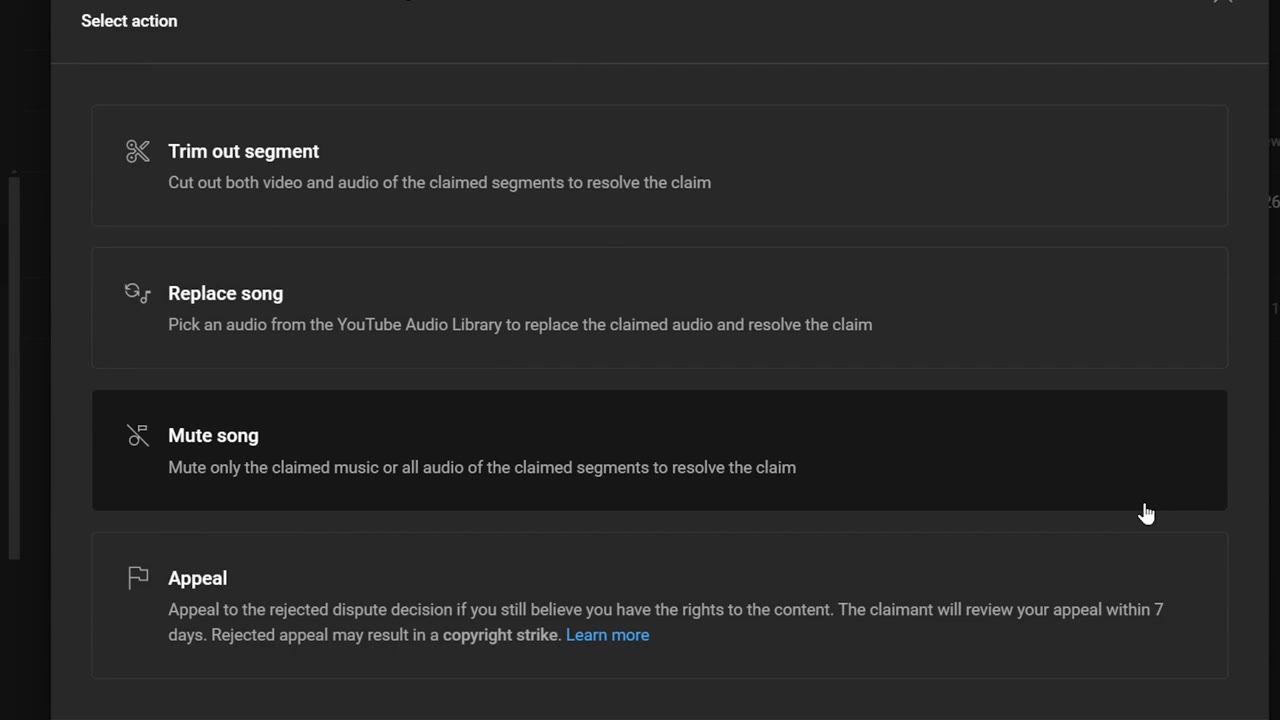
Click Select action next to a claimed track. You have four options:
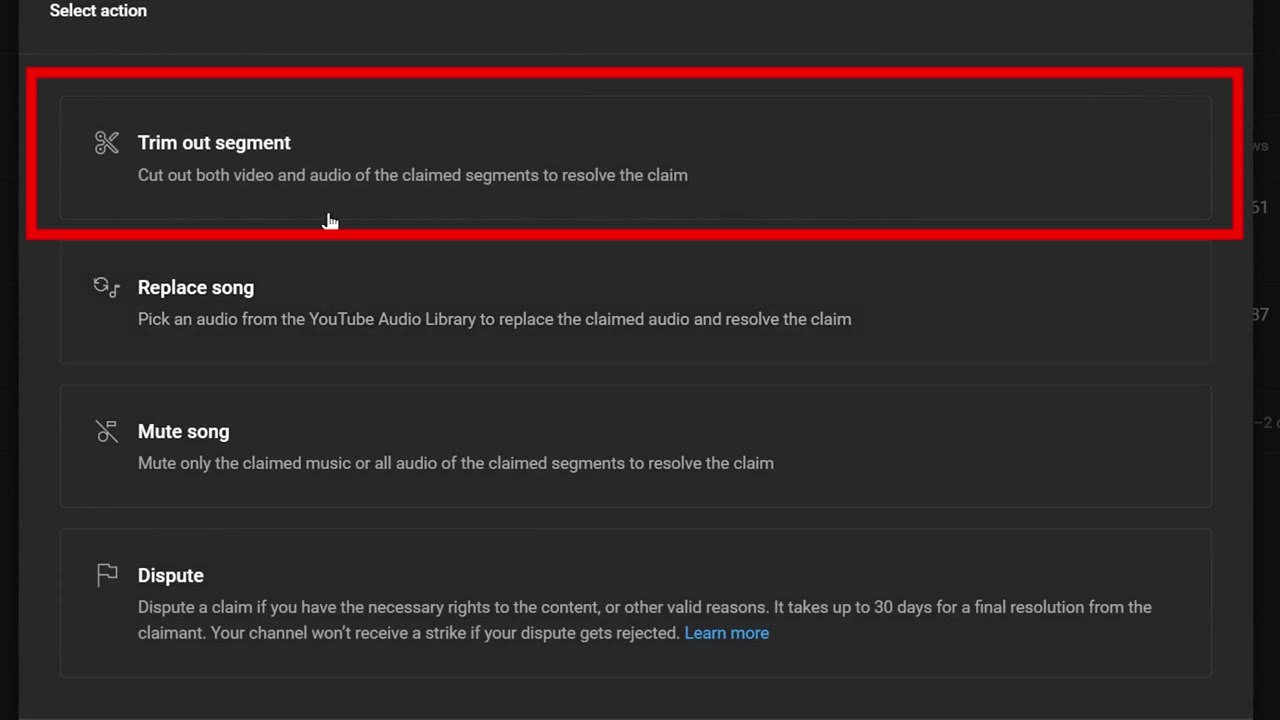
1. Trim out the segment
YouTube cuts the part where the music plays. Use Preview to check what will be removed. Good when that part isn’t important.
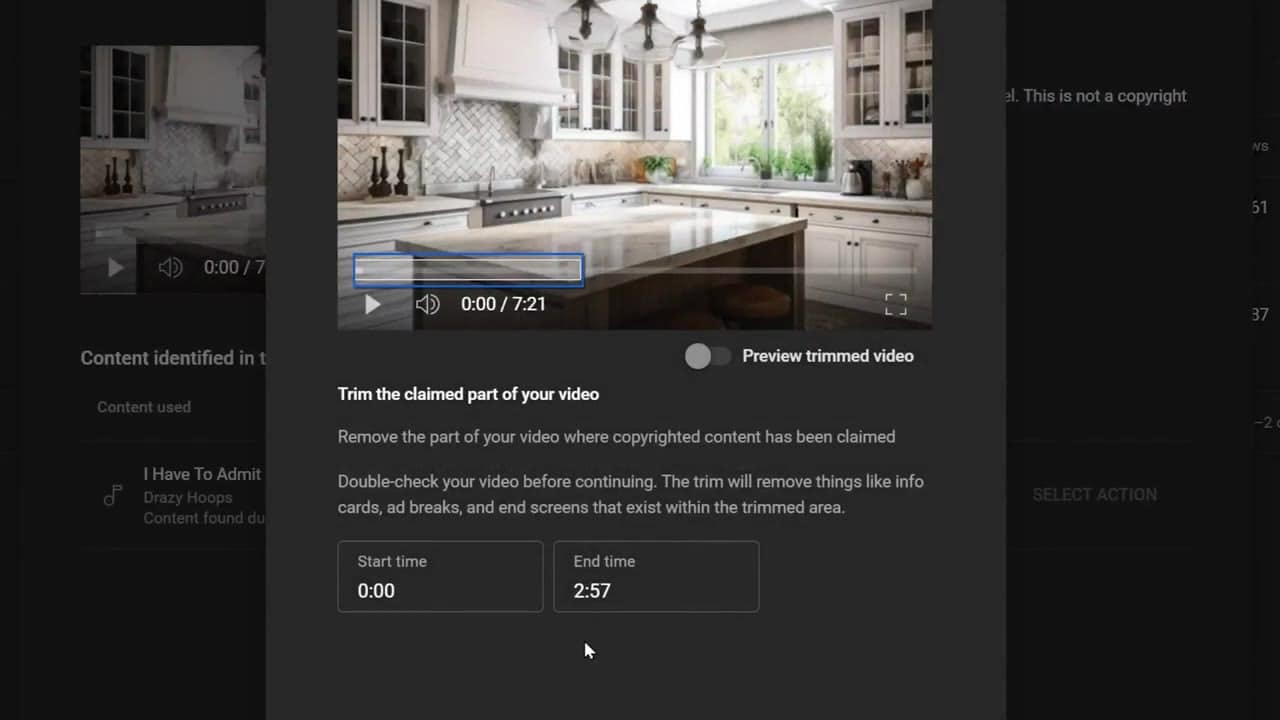
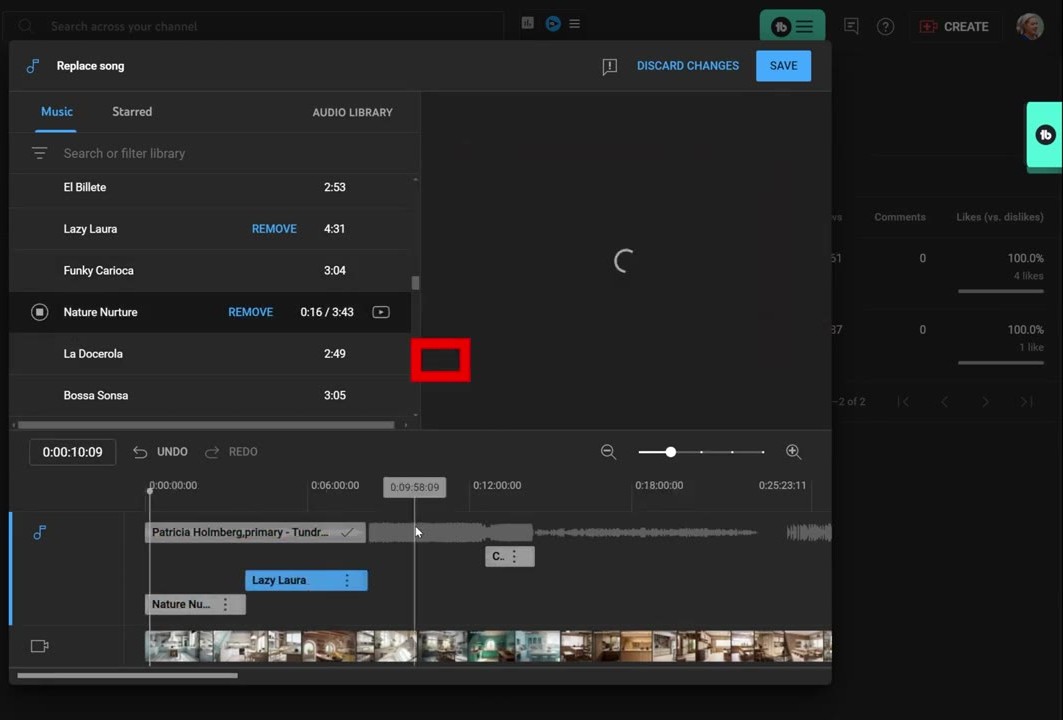
2. Replace the song
Pick a track from the free YouTube Audio Library to cover the red claimed part. Choose music with the same vibe that’s long enough to cover the whole part, since there’s no fade between tracks.
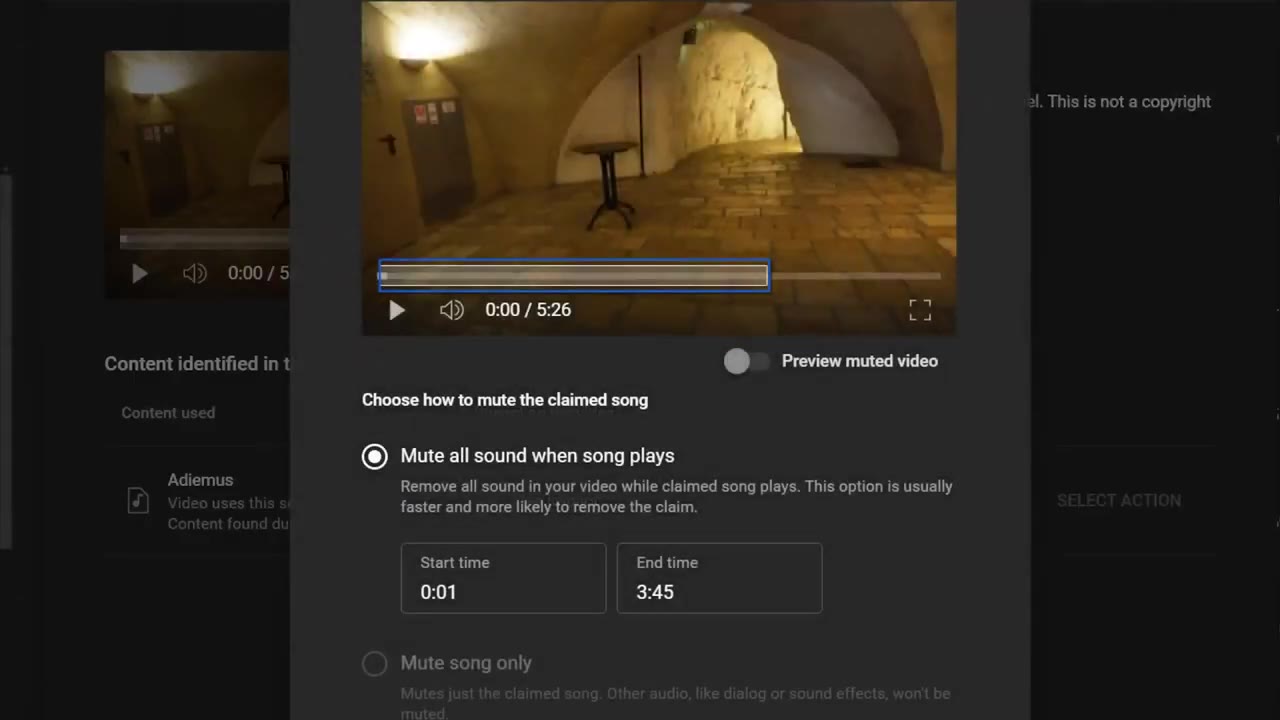
3. Mute the song
Mute all sound in that part, or mute only the song and keep your narration. Note that YouTube recognizes music even under narration, so royalty-free background music still needs its license.
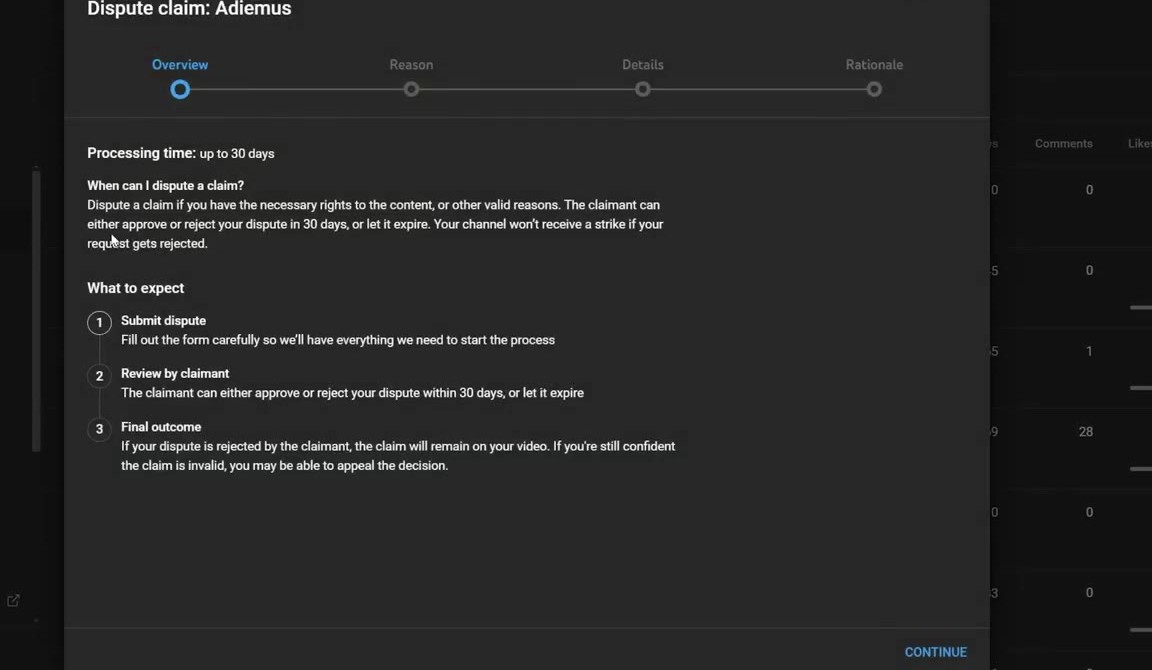
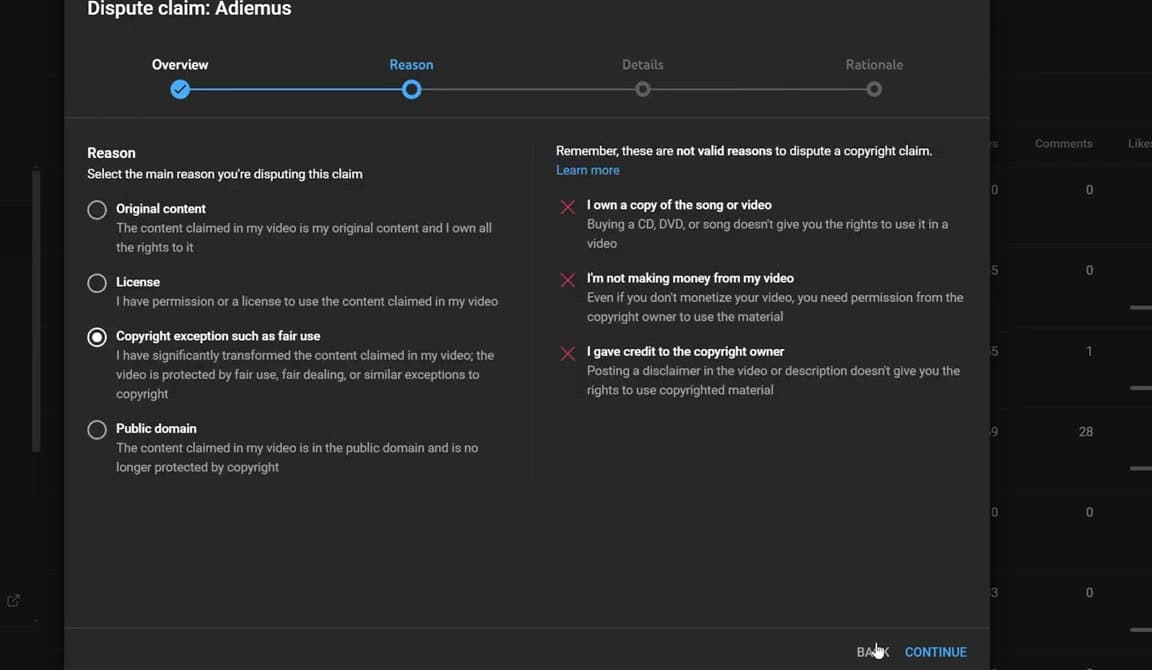
4. Dispute the claim
If you have a license, file a dispute. You won’t get a strike if it’s rejected. YouTube says it can take up to 30 days, but with a license from a big music site it’s often removed in a day or two. Choose the reason (original content, license, fair use or public domain), confirm, add your proof (like the license certificate and where you got the music), and sign with your legal name.
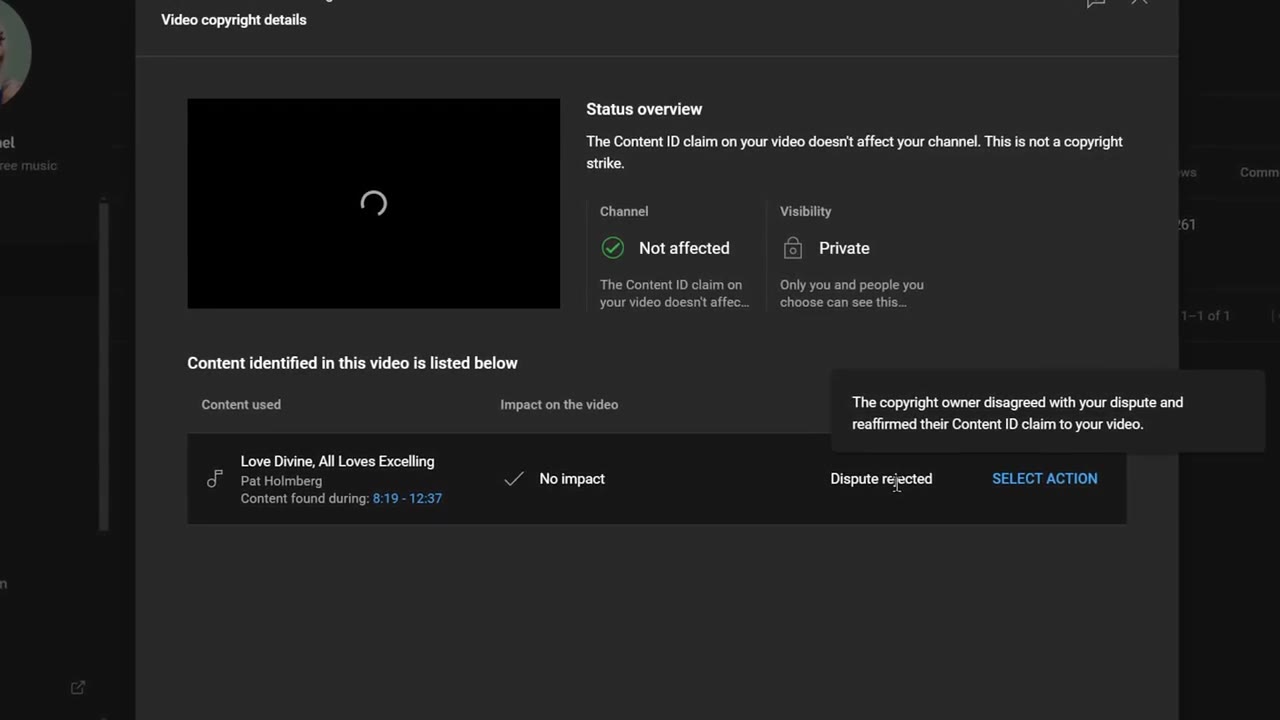
If the dispute is rejected
Find out why, so you know what to avoid next time. You can always replace, mute or trim the music, or publish the video with the claim (the revenue just goes to the music owner). If you have a license and still got rejected, ask the site you got the music from. Sometimes the license doesn’t cover your use, for example a full track playing with no narration.
An Appeal uses the same steps but asks for your contact details, and a rejected appeal can lead to a copyright strike. Only appeal when you’re sure.
Avoid claims before you publish
- Use music you have a clear license for, and read the license terms.
- Keep your license certificates where you can find them.
- Upload as unlisted first, check for claims, and only then publish.
More: how to use the YouTube Studio editor and what to do when someone copies your video.
Keep learning
This guide is part of the complete guide: YouTube Channel Guide.
Free download: get the New YouTube Channel Checklist, every step on one page.