How to Edit Your Shorts in Klap AI: The Full Editor Guide
This post contains affiliate links. If you buy through them, I may earn a commission at no extra cost to you.
Klap AI takes one long video and cuts it into vertical shorts with captions. The shorts are a good start, but usually you’ll want to fix a few things before posting. This guide goes over every tool in the Klap editor so you know what each one does and where its limits are. When the video was made, the coupon CGT30 gave 30% off the first payment.
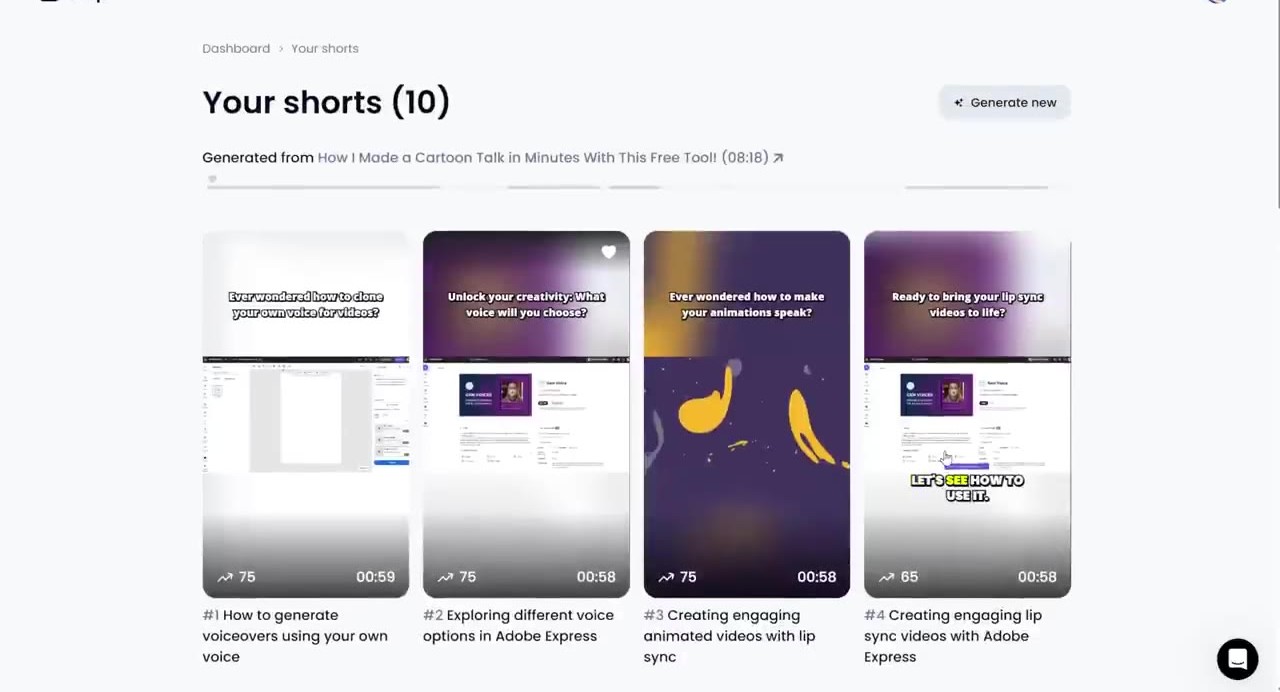
Your shorts and the editor screen
After Klap generates the shorts, they appear under Your shorts for that video. Click one to open the editor. The main monitor in the middle plays the short, the timeline is at the bottom, and the editing tools are in the tabs at the top of the left panel.
The Media tool: add and replace clips
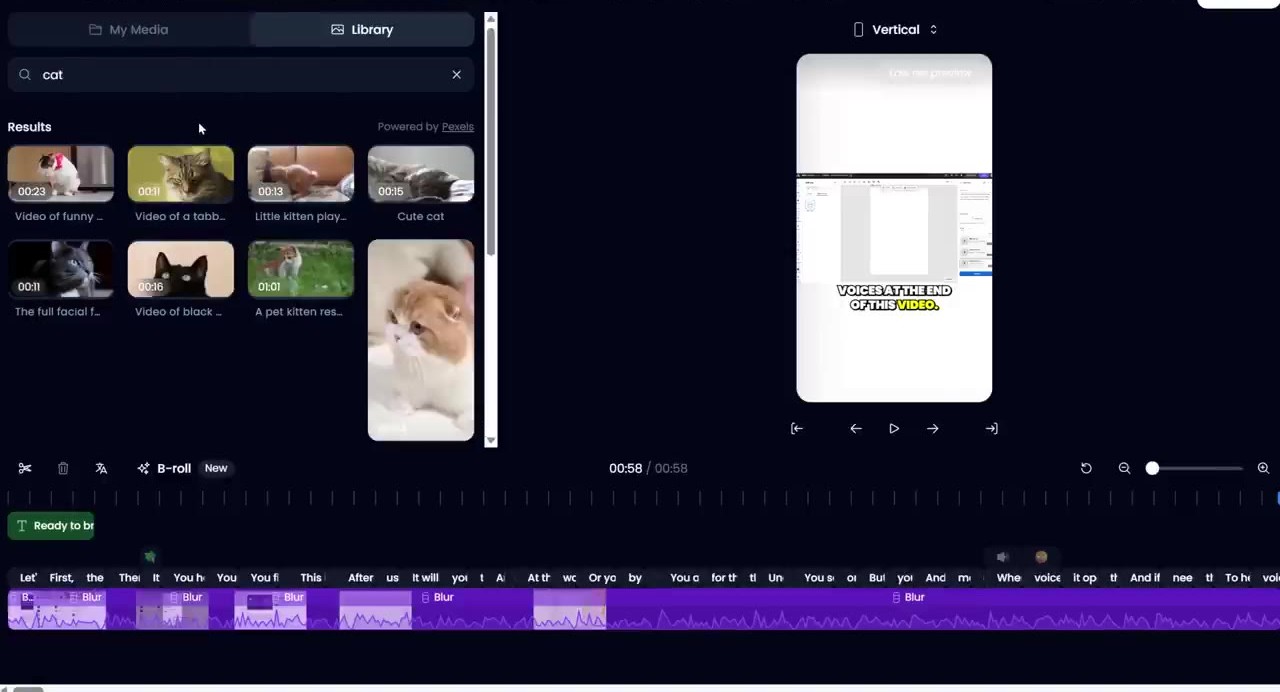
In Media you can upload your own clips and images, or search the stock library, and drop them on the timeline over the part of the short where they fit.
Generate B-roll automatically
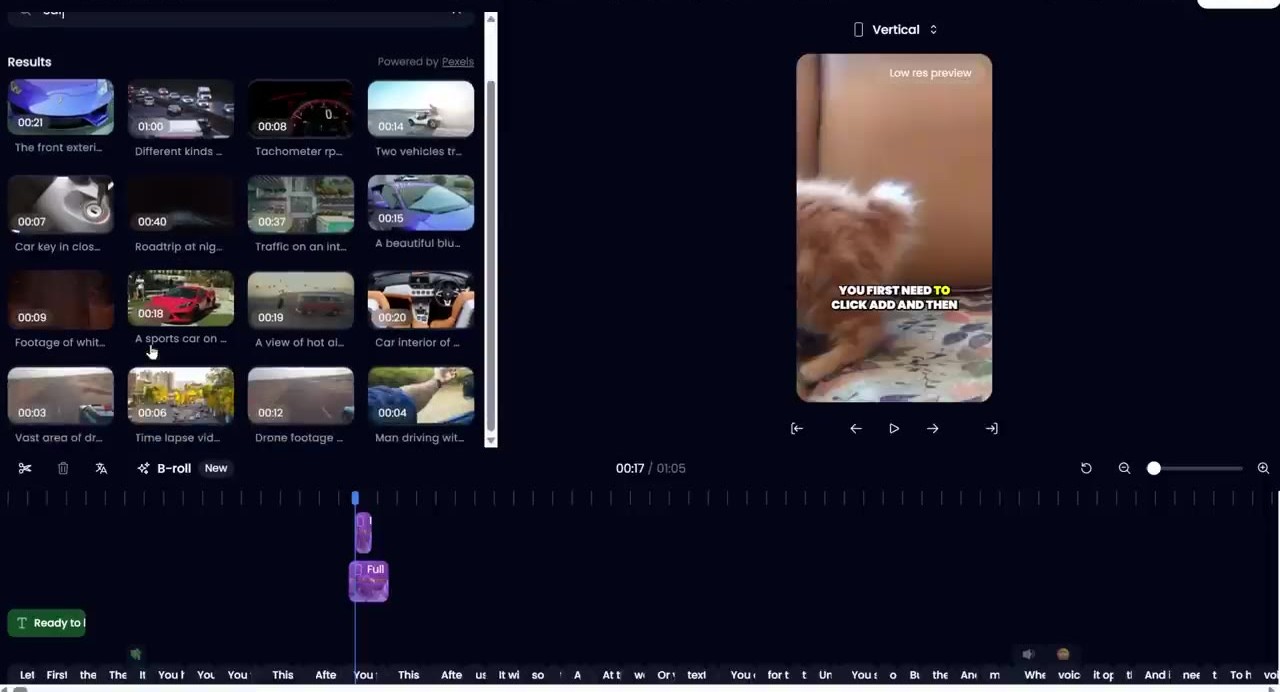
Klap can also pick B-roll for you based on what is said in the short. Check what it chose, because the automatic picks don’t always match the topic, and replace the ones that don’t fit.
Trim with the transcript
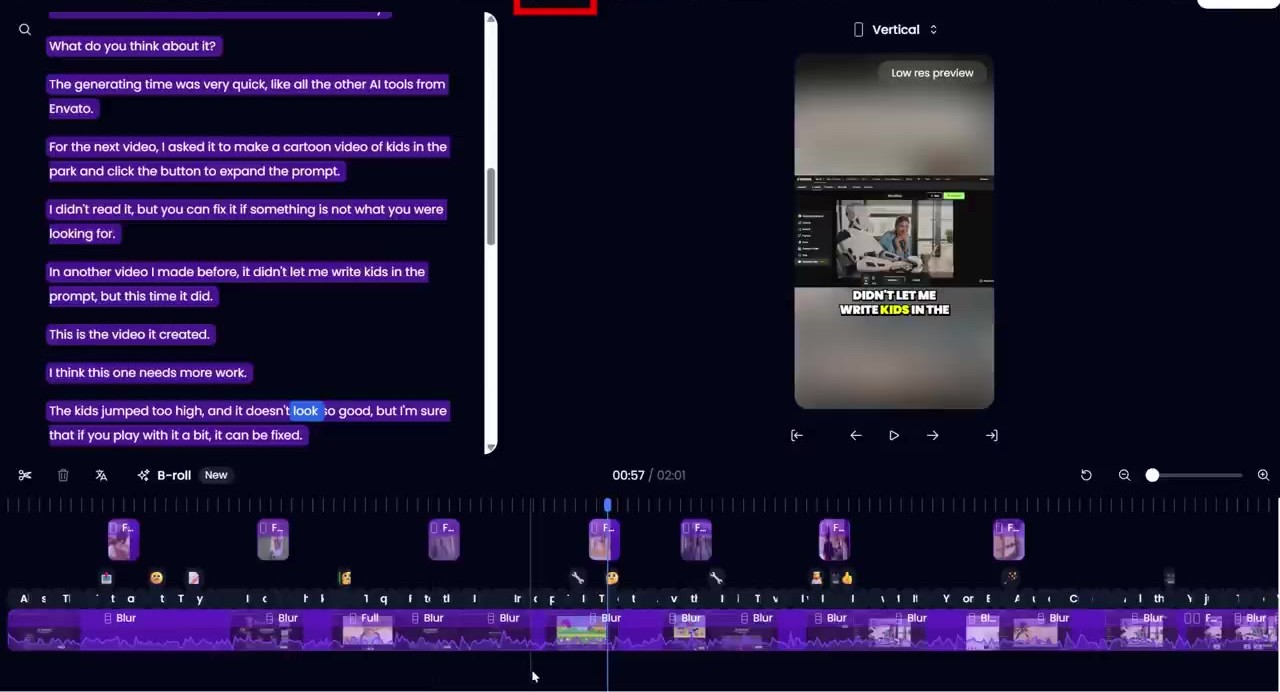
Open Trim to see the transcript of the short. Select the sentences you want to cut and remove them, which is much faster than finding the exact spot on the timeline.
Crop and split screen
The Crop tool sets what part of the original horizontal video shows in the vertical frame. You can also switch to a split screen layout, for example a screen recording on top and the speaker below. On some shorts cropping is disabled, and you need to change the layout first.
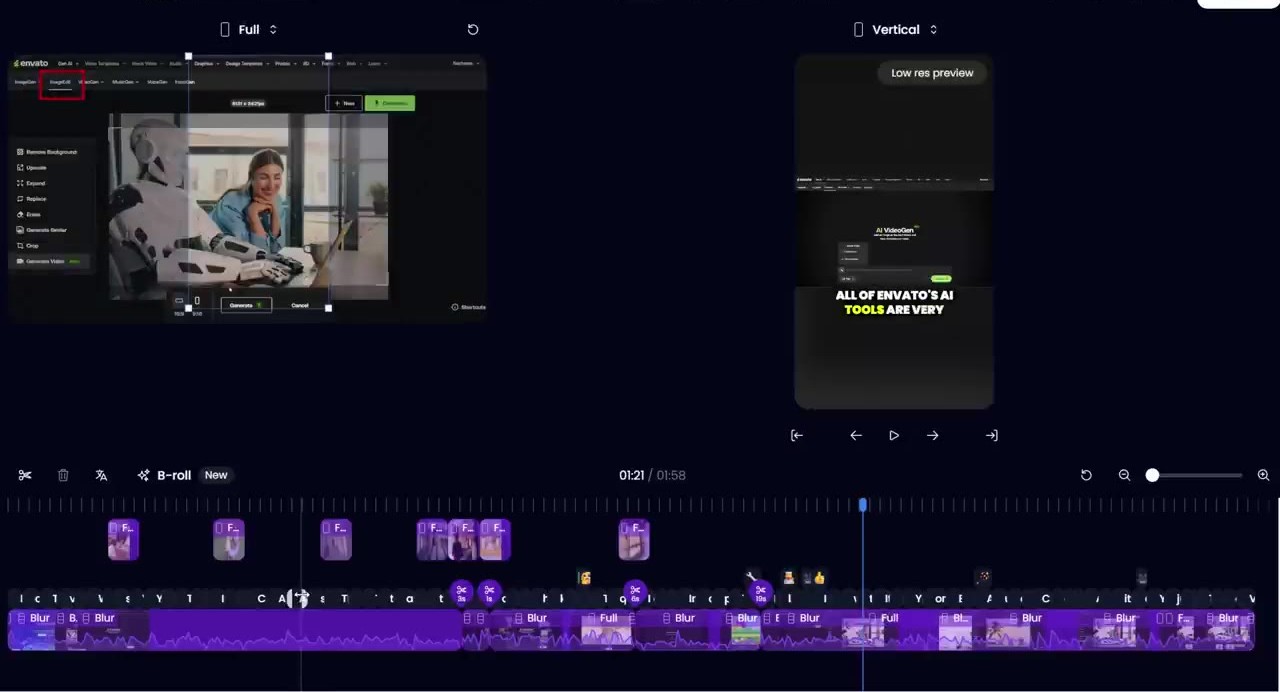
Fix your captions
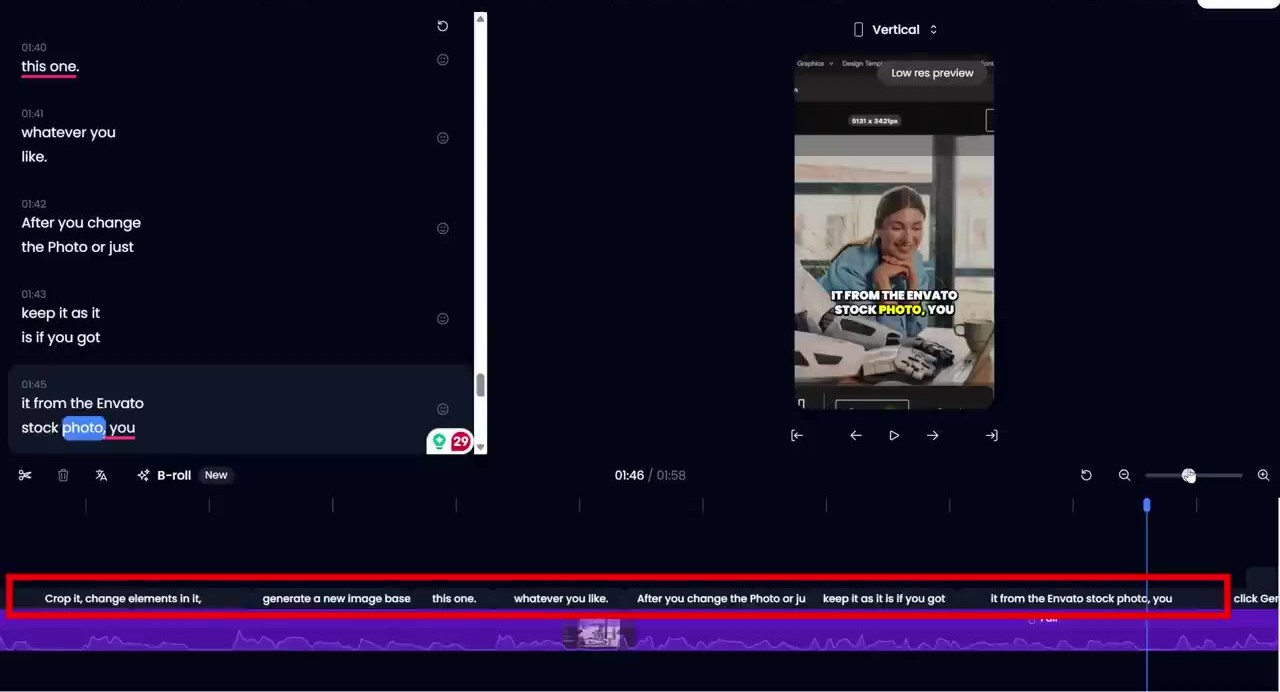
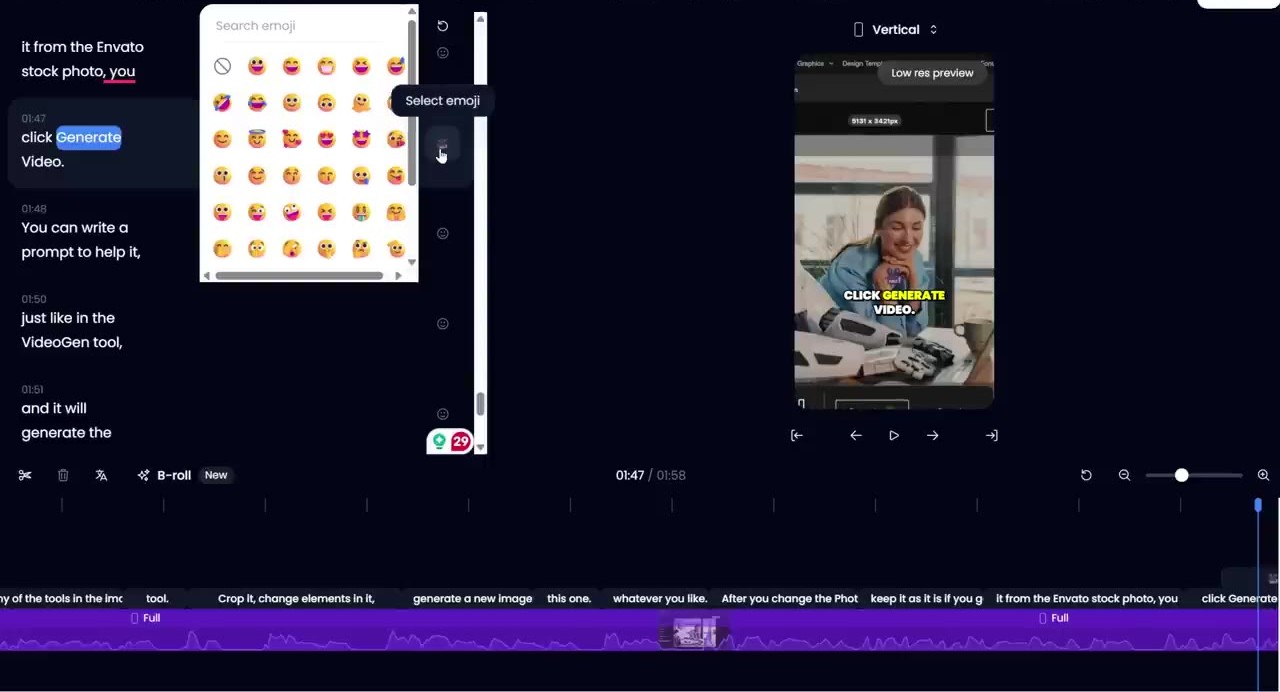
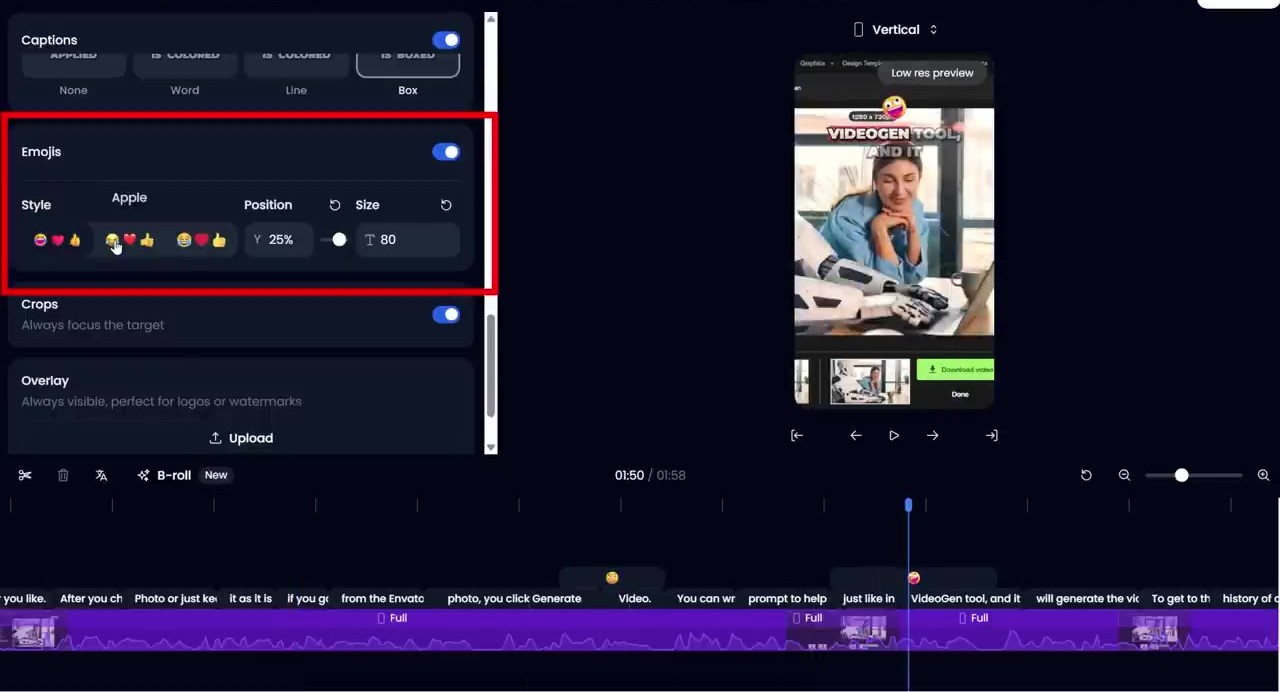
In Captions you can correct words the AI got wrong, which matters most for names and tool names. You can also add or change emojis that appear next to the words.
Style: fonts, colors and branding
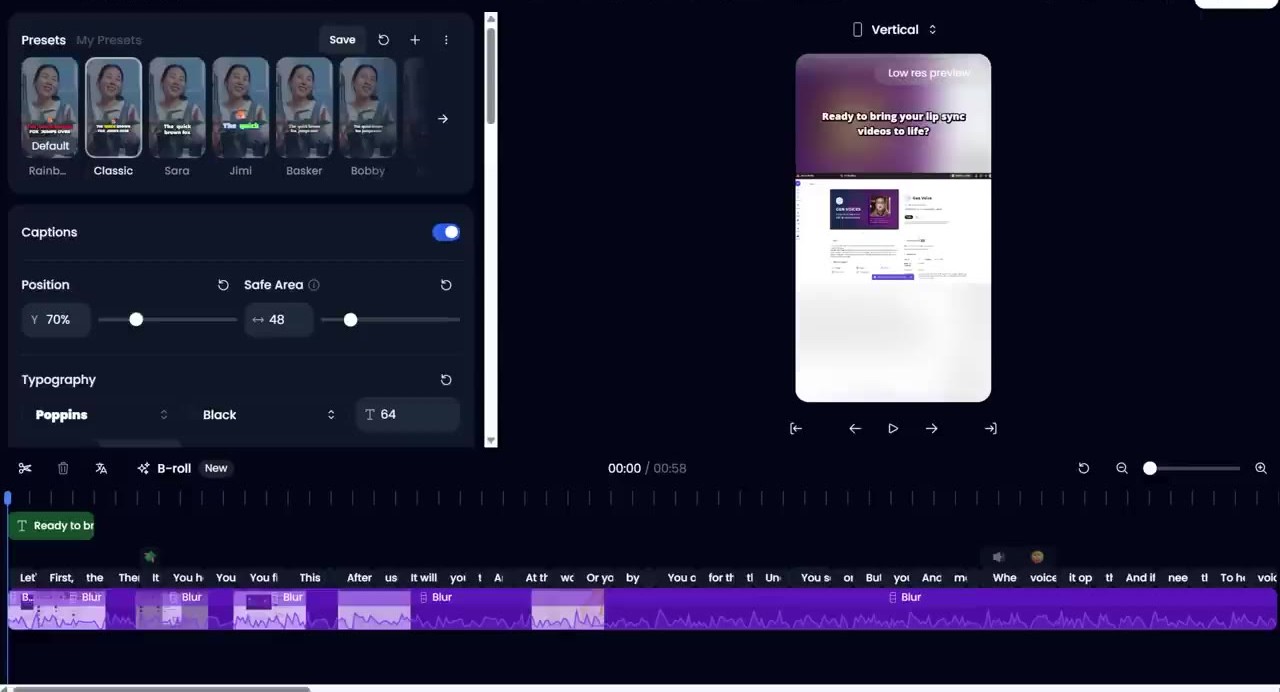
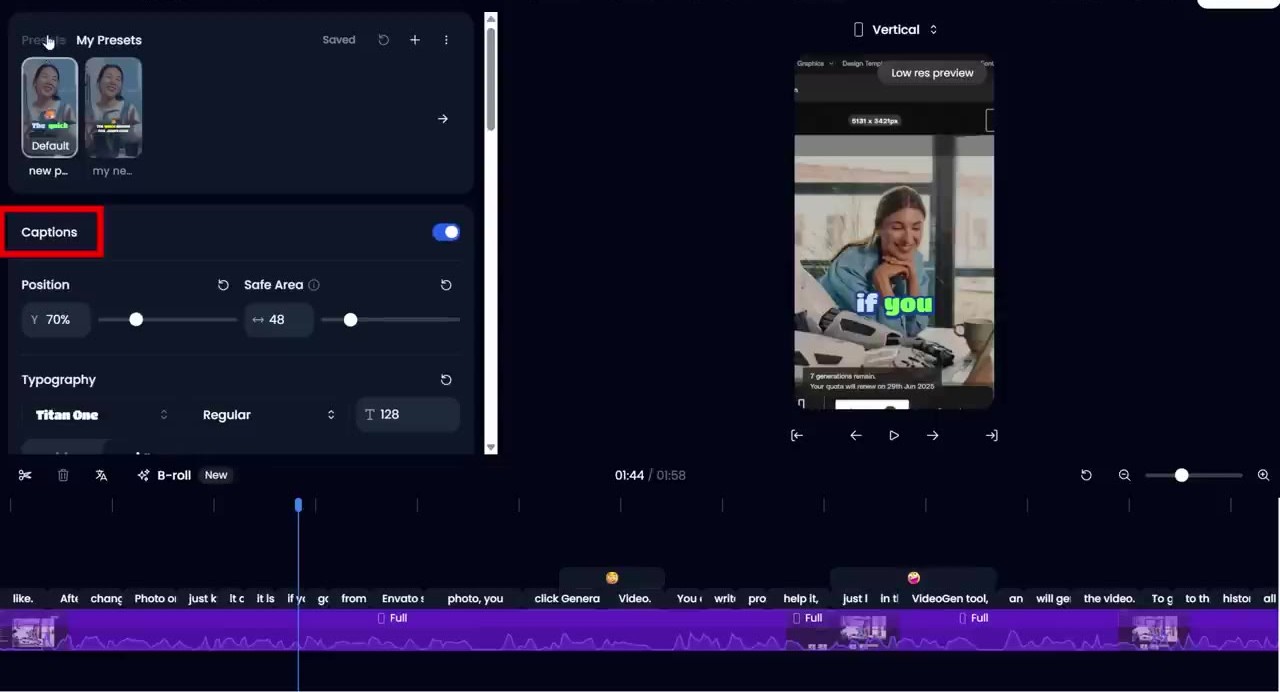
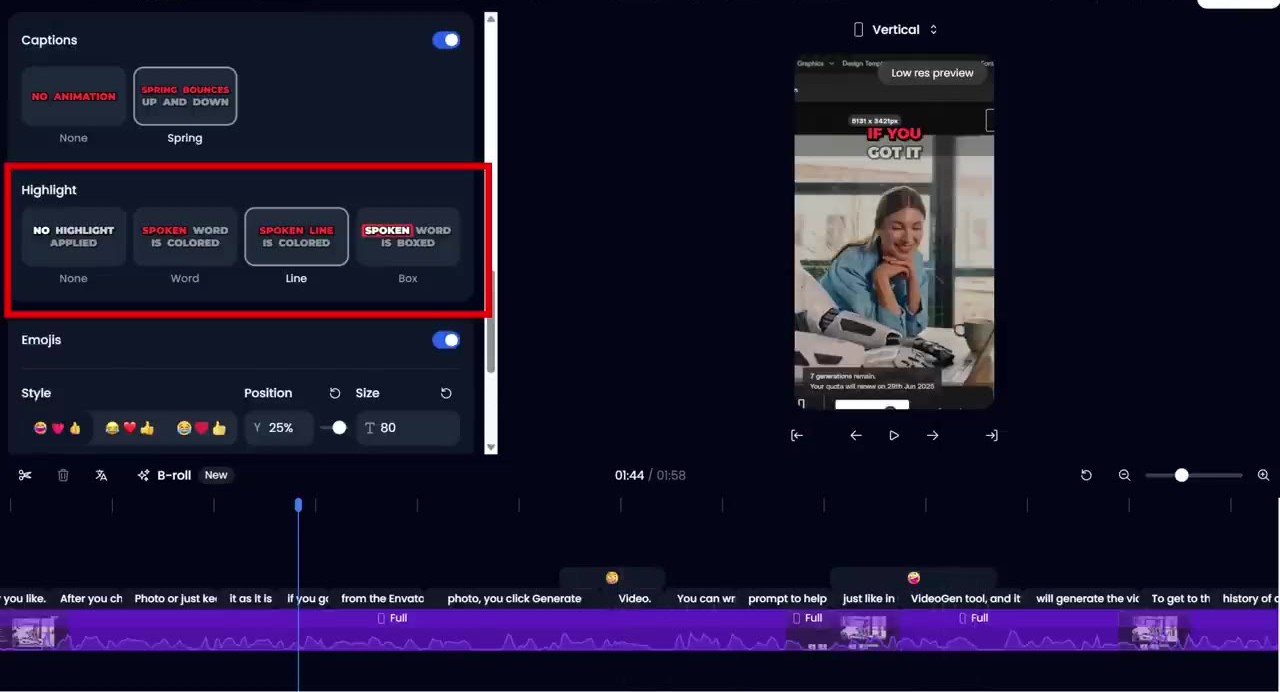
The Style tab controls how the captions look: font, size, colors, highlight color for the current word, position and animation. Save your choices as a preset so all your shorts look the same.
When you’re done, export the short and post it, or use Klap to schedule it.
More Klap AI videos
These short videos show single parts of Klap:
Klap changes its interface from time to time, so a button may look a bit different from the video, but the tools are the same.