How to Permanently Delete a TikTok Account (Step by Step)
If you don’t use TikTok anymore and want to close your account for good, you can do it from the app in a couple of minutes. Here’s every screen on the way and what to choose.
Step 1: Open Manage account
Go to your profile and tap the gear icon next to Promote post. This opens the settings. Tap Manage account, and under Account control tap Deactivate or delete account.

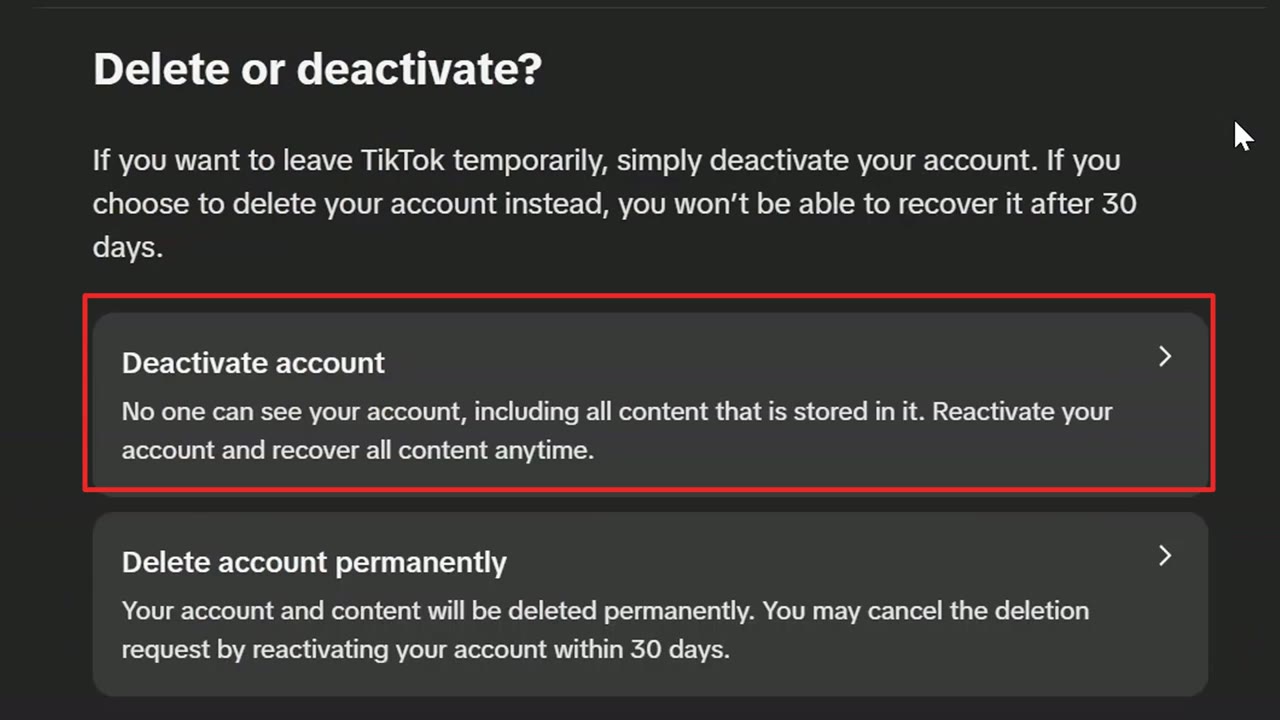
Step 2: Choose delete, not deactivate
You get two options:
- Deactivate account hides your account, and you can come back anytime.
- Delete account permanently deletes the account and everything in it.
Tap Delete account permanently.
Step 3: Choose a reason or skip
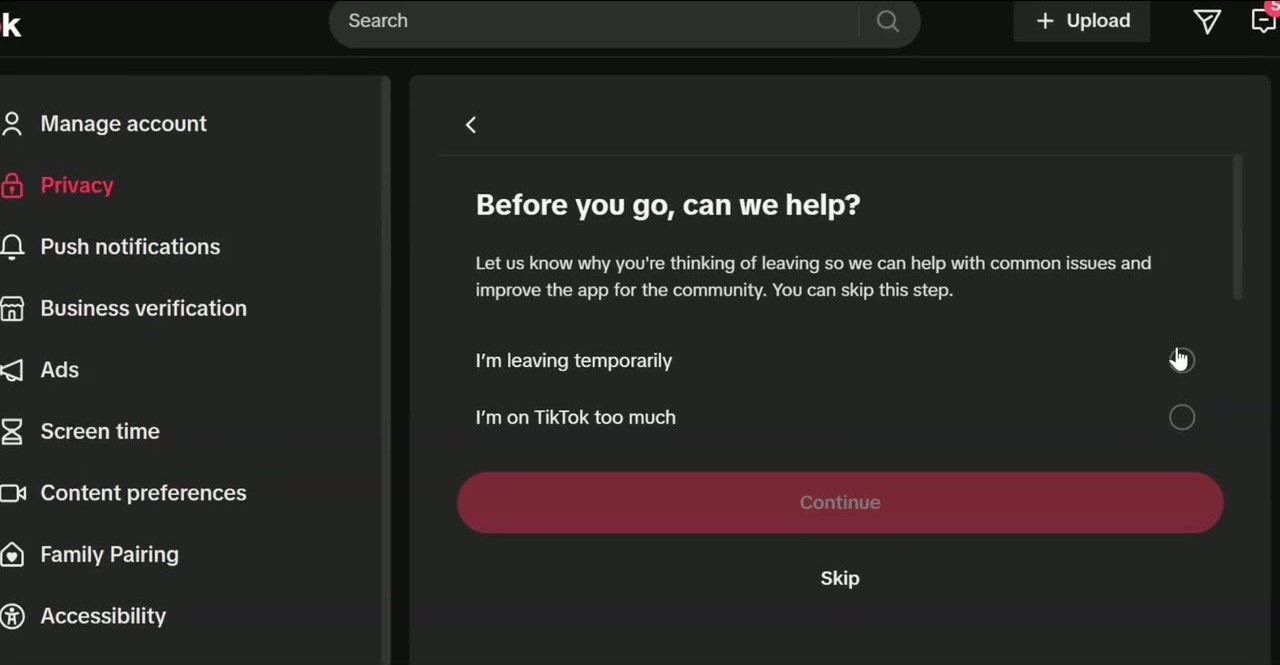
TikTok asks why you’re leaving. You can pick a reason or tap Skip. If you choose I’m leaving temporarily, TikTok suggests deactivating instead. To delete, just tap Continue.
Step 4: Check what you’ll lose
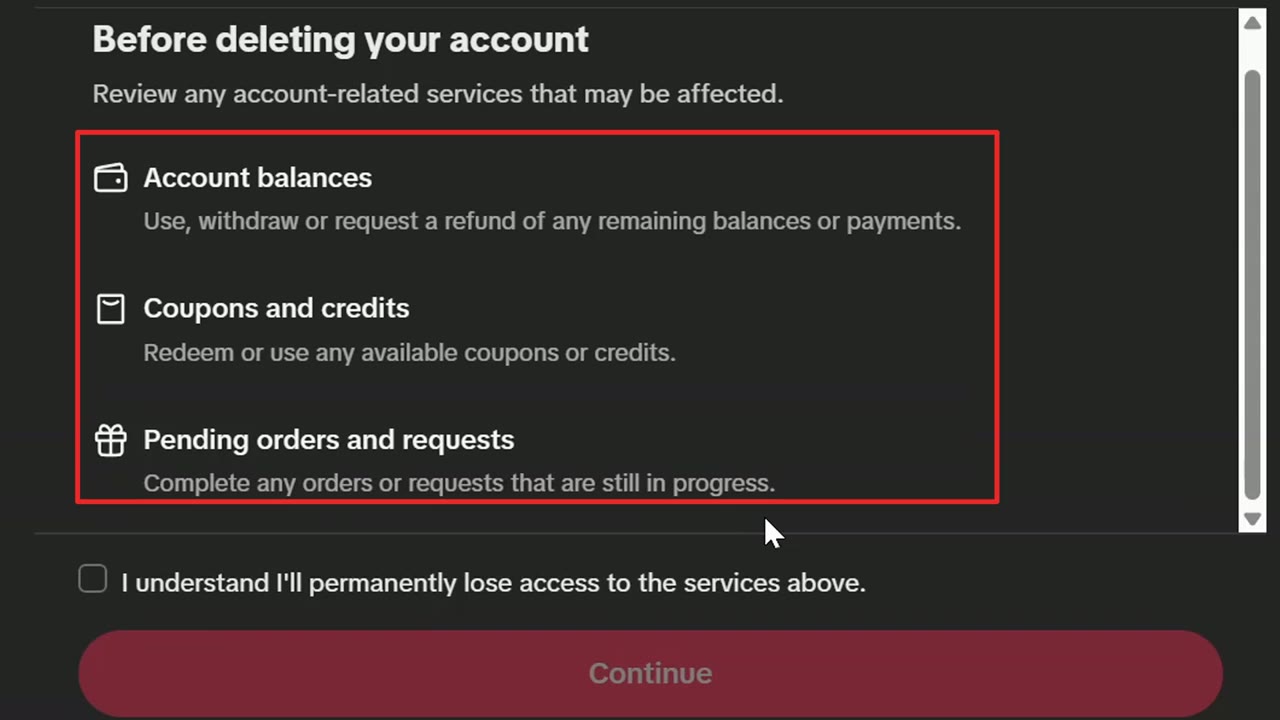
This screen lists what goes away with the account: account balances, coins and credits, and pending orders. If you have money or coins in the account, use them or withdraw them first. Then check the box and tap Continue.
Step 5: Download your data if you need it
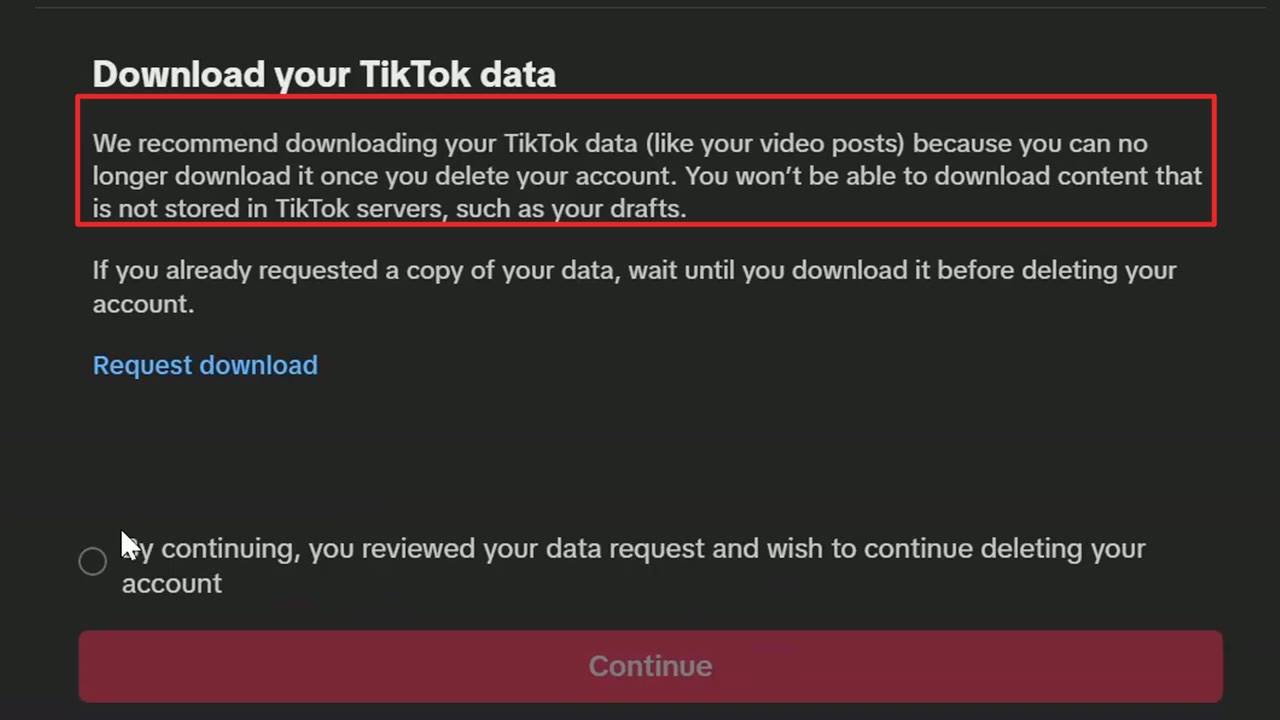
TikTok recommends downloading your data, like your videos, because you can’t do it after the account is deleted. If you want a copy, tap Request download and wait until it’s ready. If you don’t need anything, check the box and tap Continue.
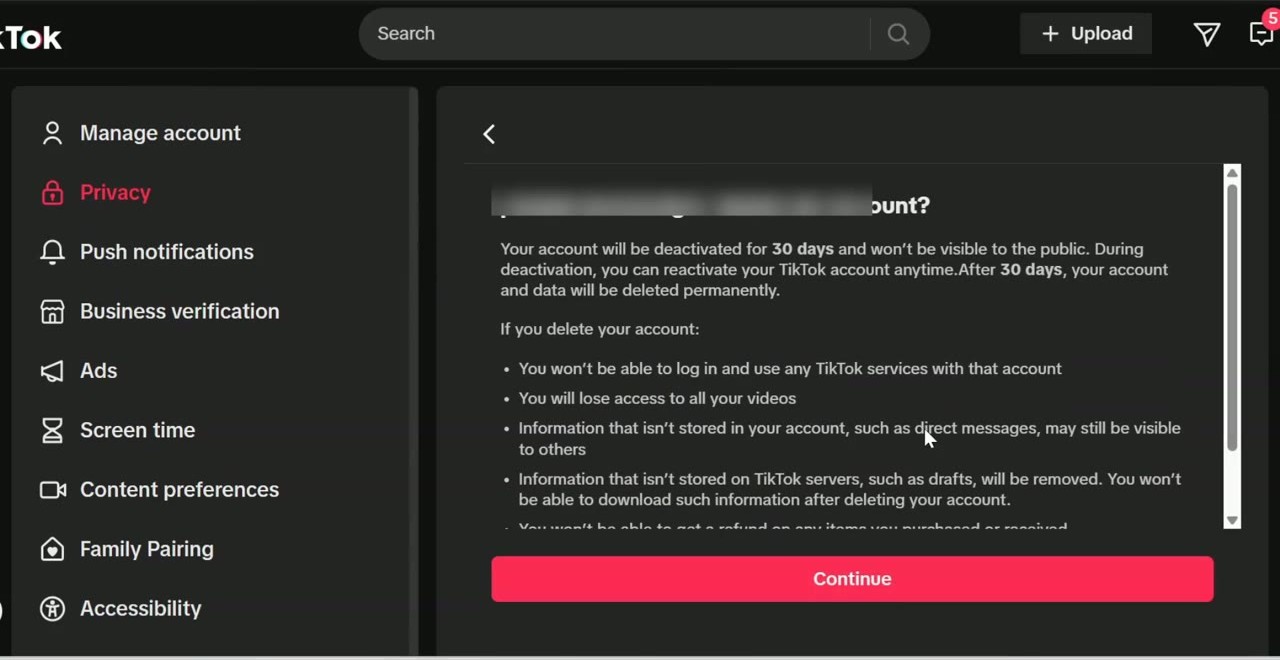
Step 6: Read the 30-day warning
Your account is deactivated for 30 days and nobody can see it. After 30 days it’s deleted permanently. Tap Continue.
Step 7: Verify it’s you and delete
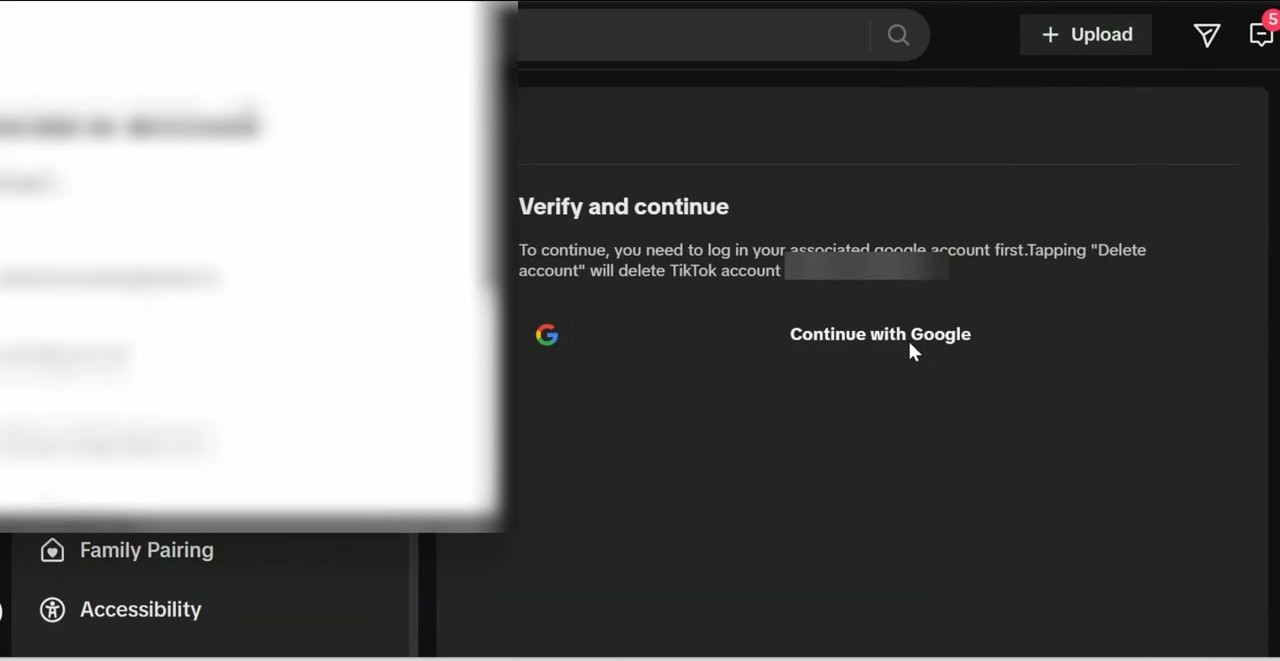
My account is connected to Google, so I tapped Continue with Google and chose my account. If you signed up with a phone number or email, you’ll probably get a code instead. Then tap Delete account and confirm with Delete.
That’s it, TikTok logs you out. If you change your mind, you have 30 days to log in again and cancel the deletion.
Keep learning
This guide is part of the complete guide: Pinterest and Social Media Guide for Creators.