How to Turn On Ads for YouTube Videos and Shorts After Monetization
When you reach full monetization, a few settings decide whether you actually earn from ads, including on the videos you already uploaded. Here’s how to set them all up.
Turn on Watch Page ads
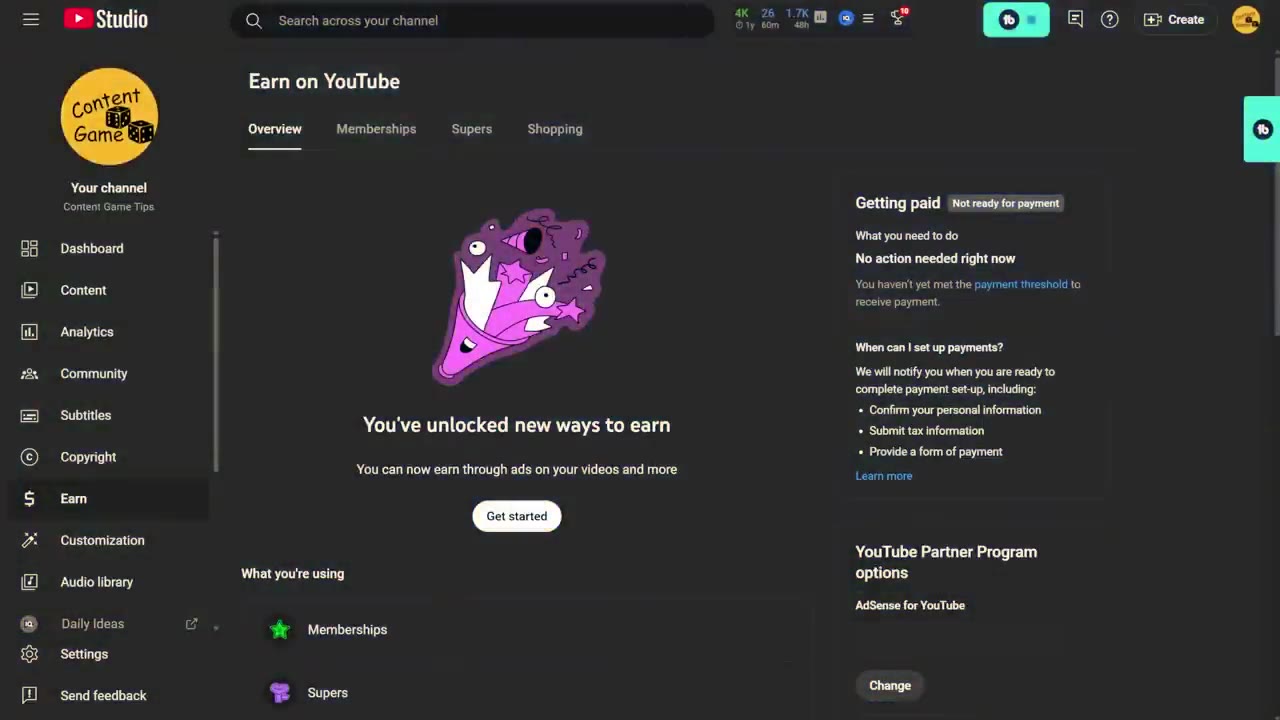
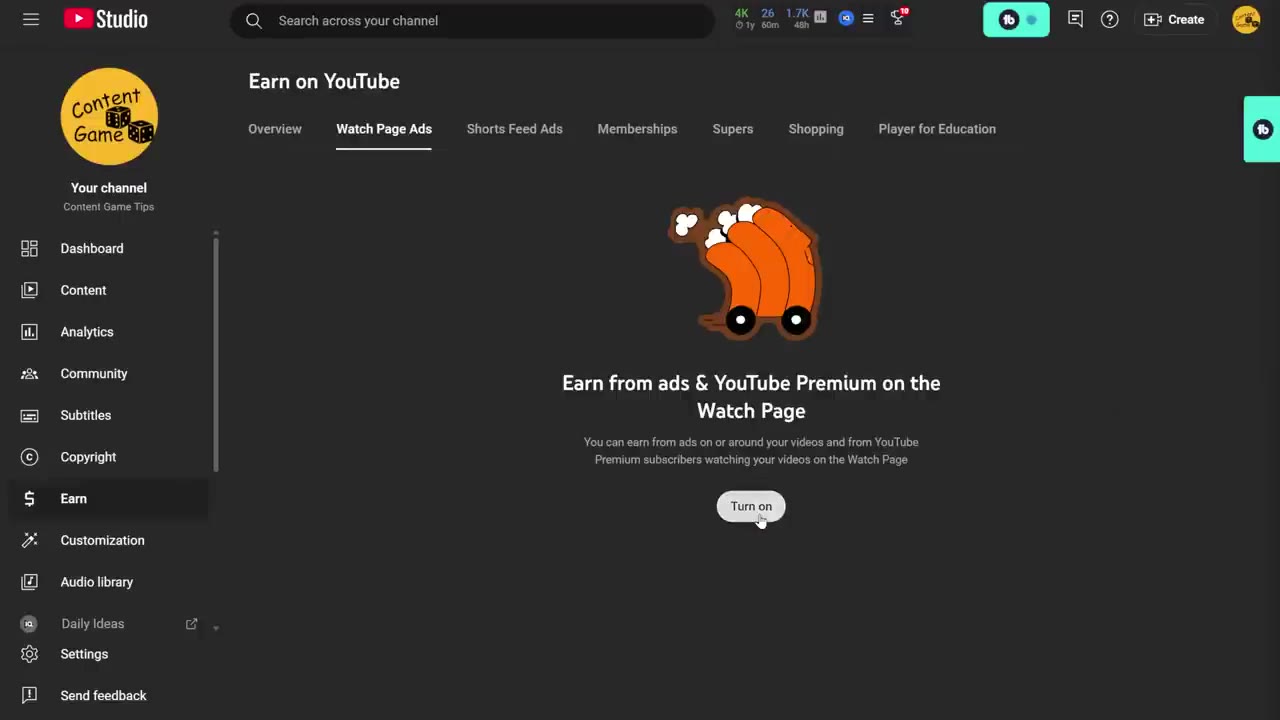
Open the Earn tab in YouTube Studio and click the button to start earning. Find the ads part and click to get started, then Turn on.
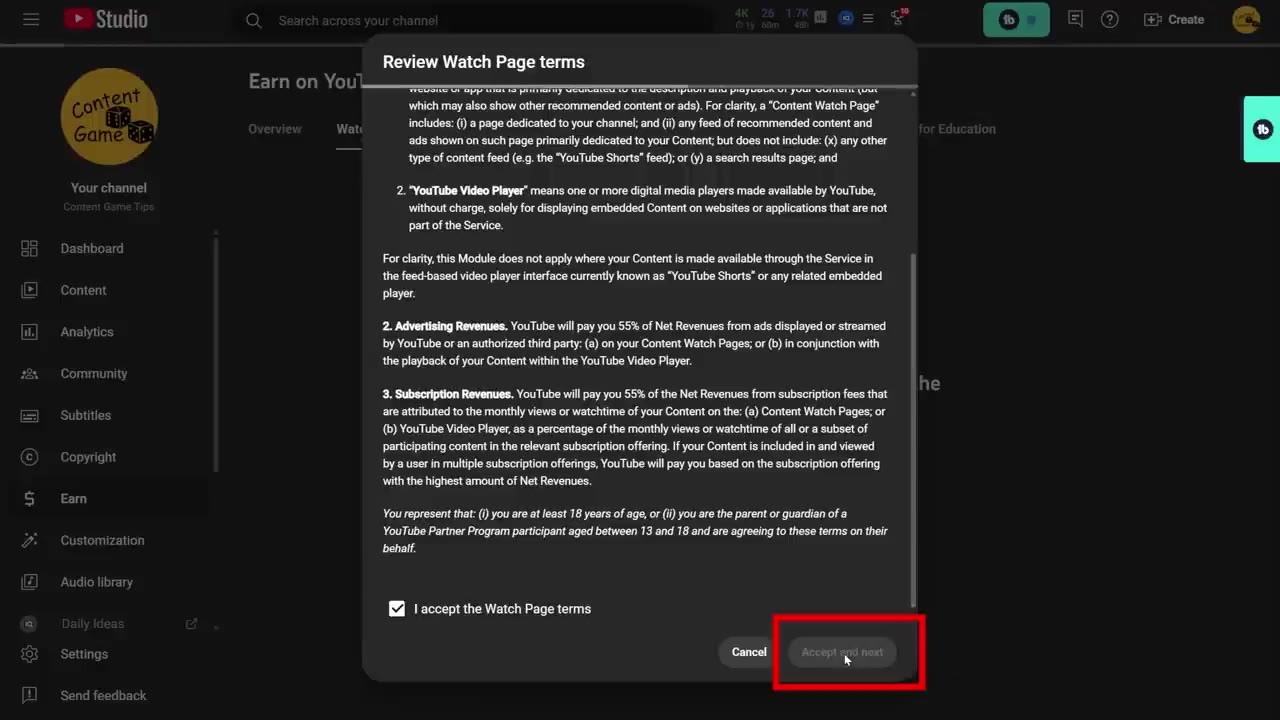
Read the terms, check the box and accept.
Monetize the videos you already have
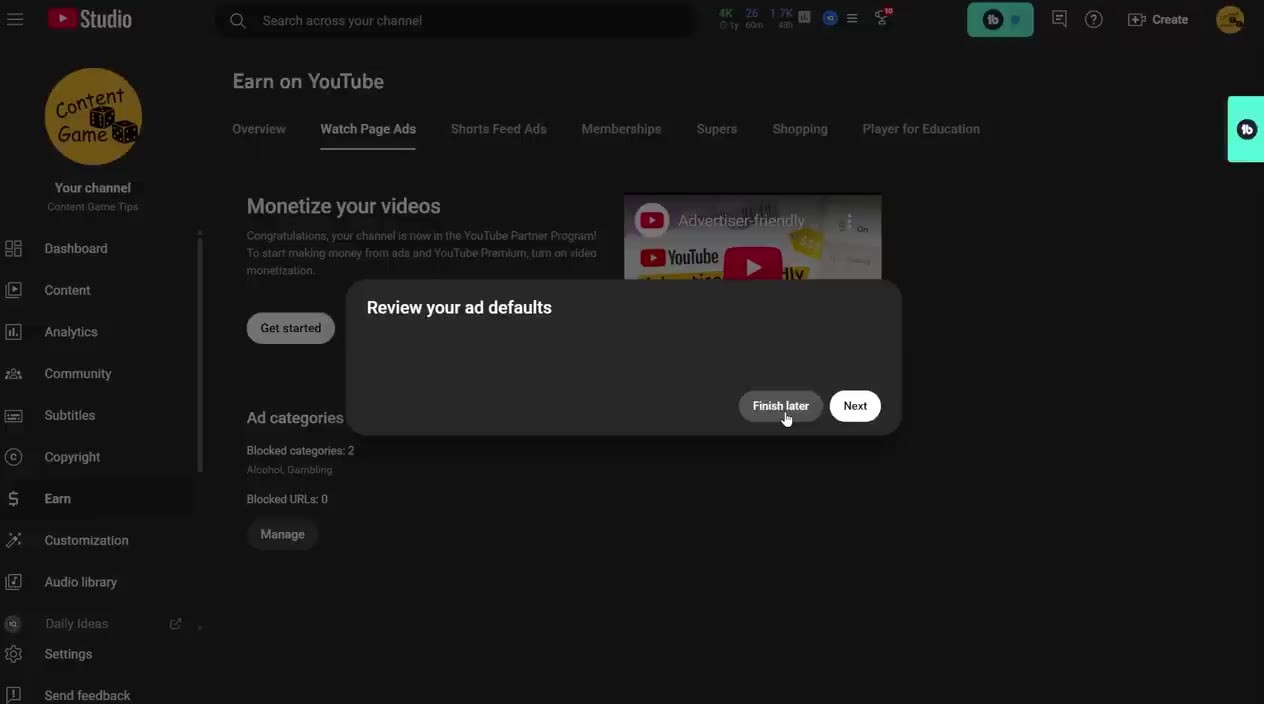
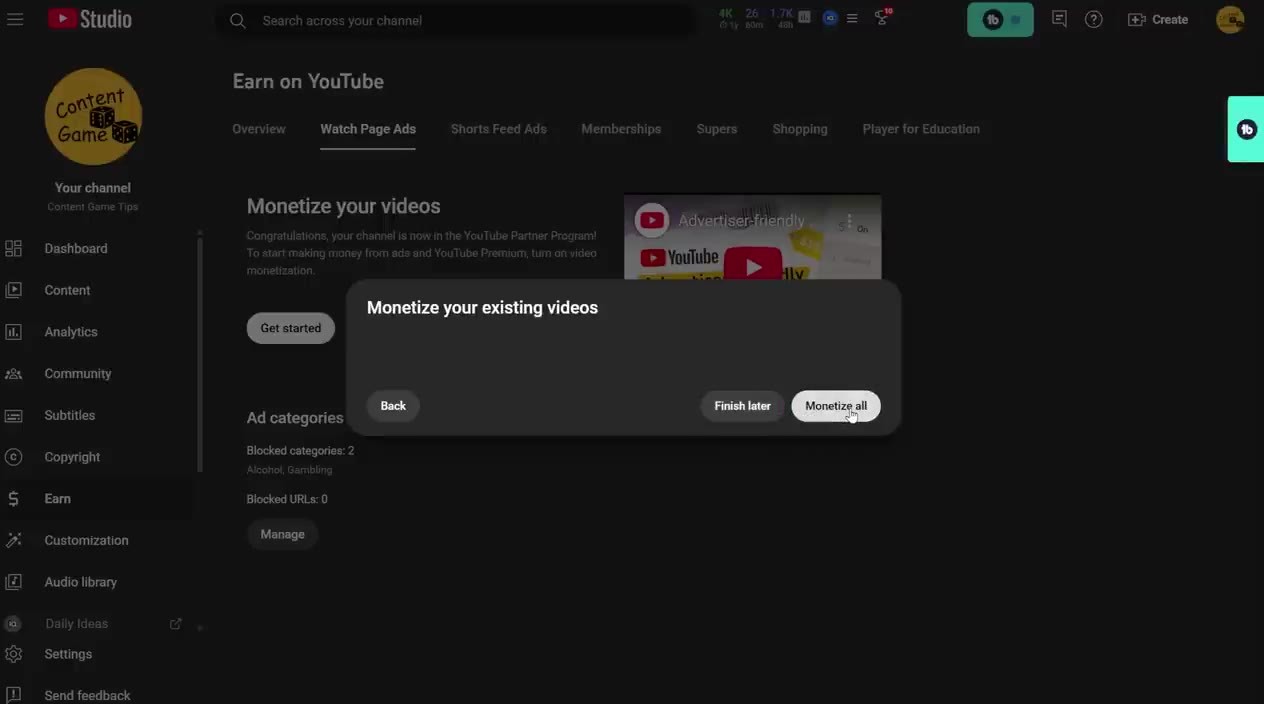
Next you’ll review your ad defaults. You can finish later, but then your existing videos won’t earn from ads, so do it now. Click Next and choose Monetize all.
Block ad categories (optional)
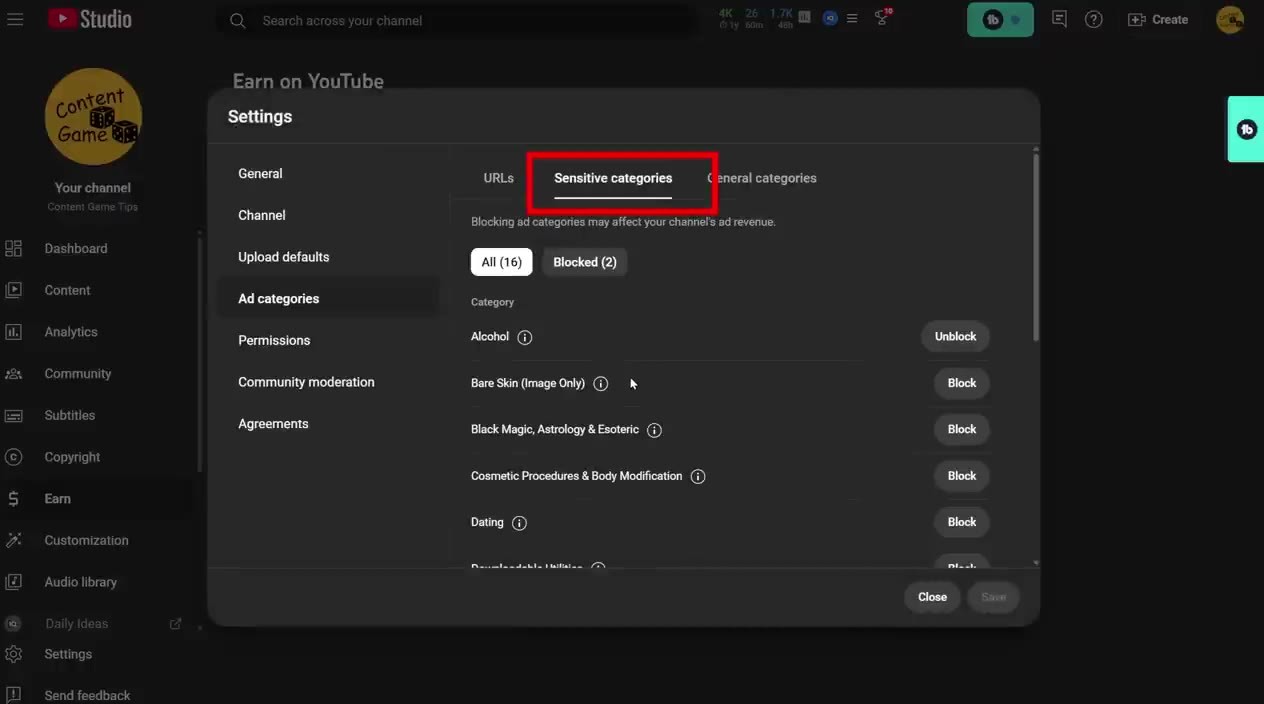
Click Manage in the ads section to open the settings, then the Sensitive categories tab. Hover over the info icon to see what each category means, and block the ones you don’t want on your videos. You don’t have to change anything. Click Save if you did.
Turn on Shorts Feed ads and Player for Education
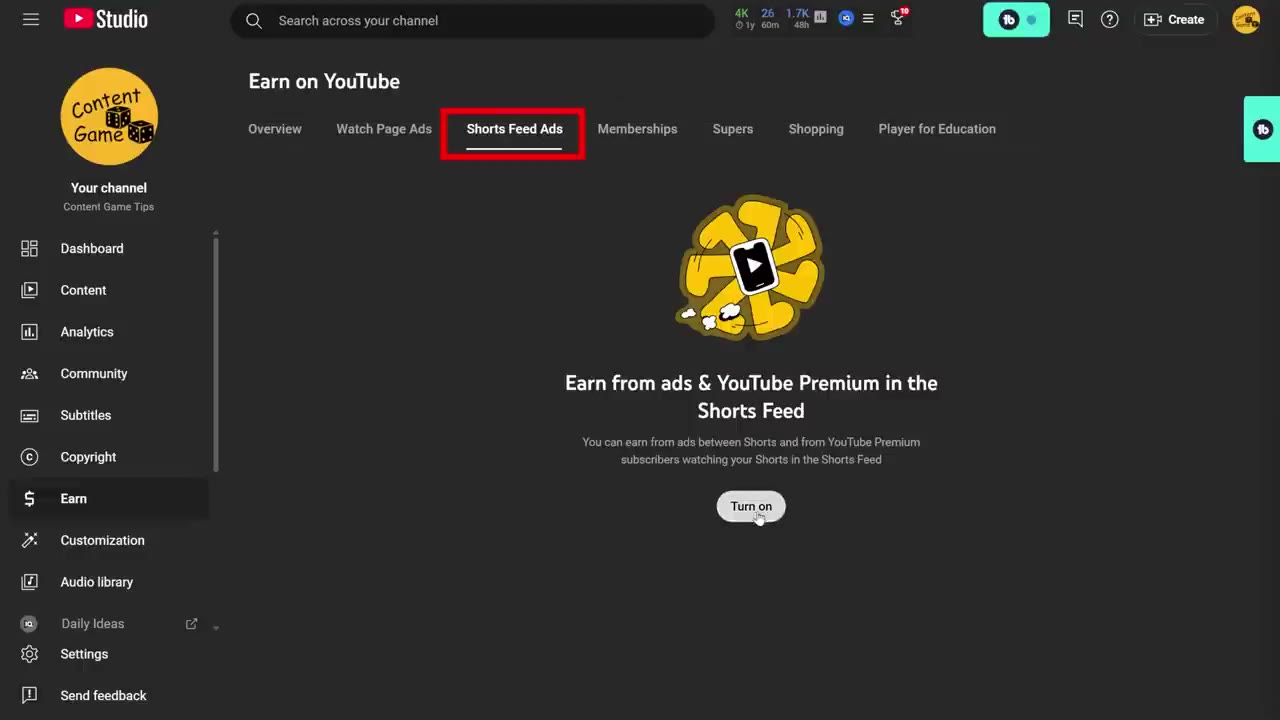
Back in the Earn tab, open Shorts Feed Ads, click to start, turn it on and accept the terms. Do the same in the Player for Education tab. Earnings show in Analytics after about two days.
What changes when you upload a monetized video
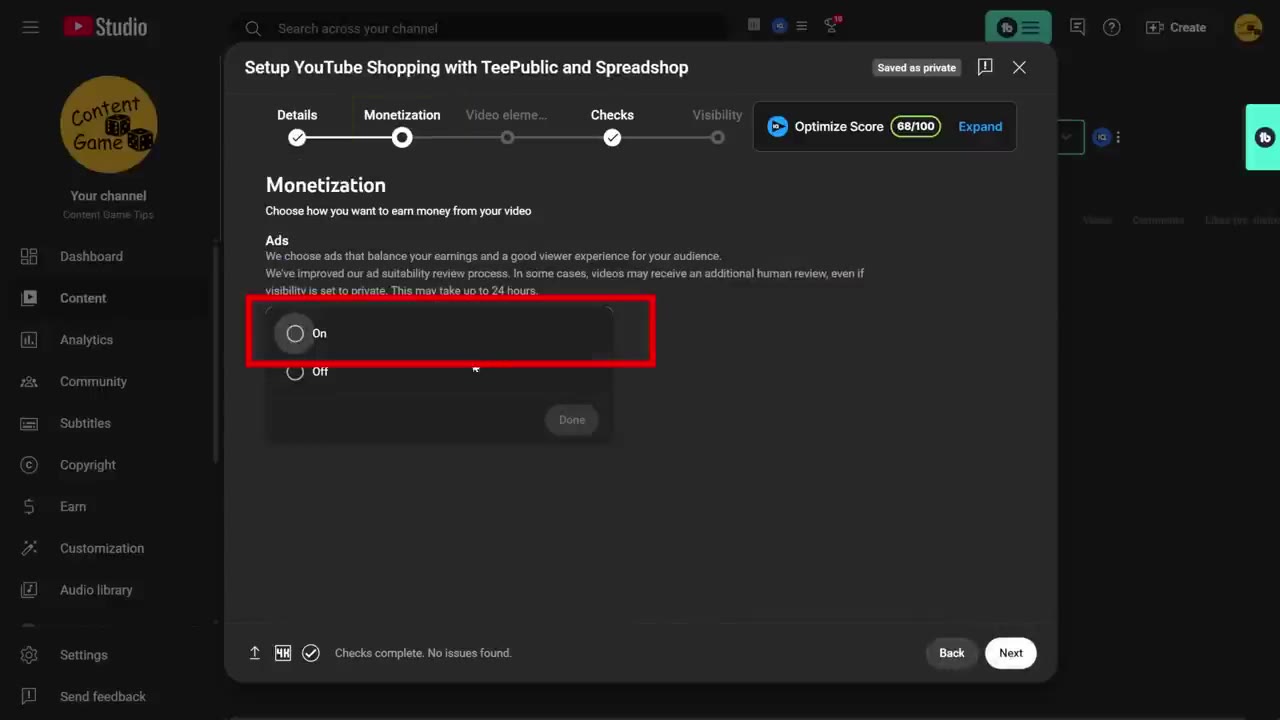
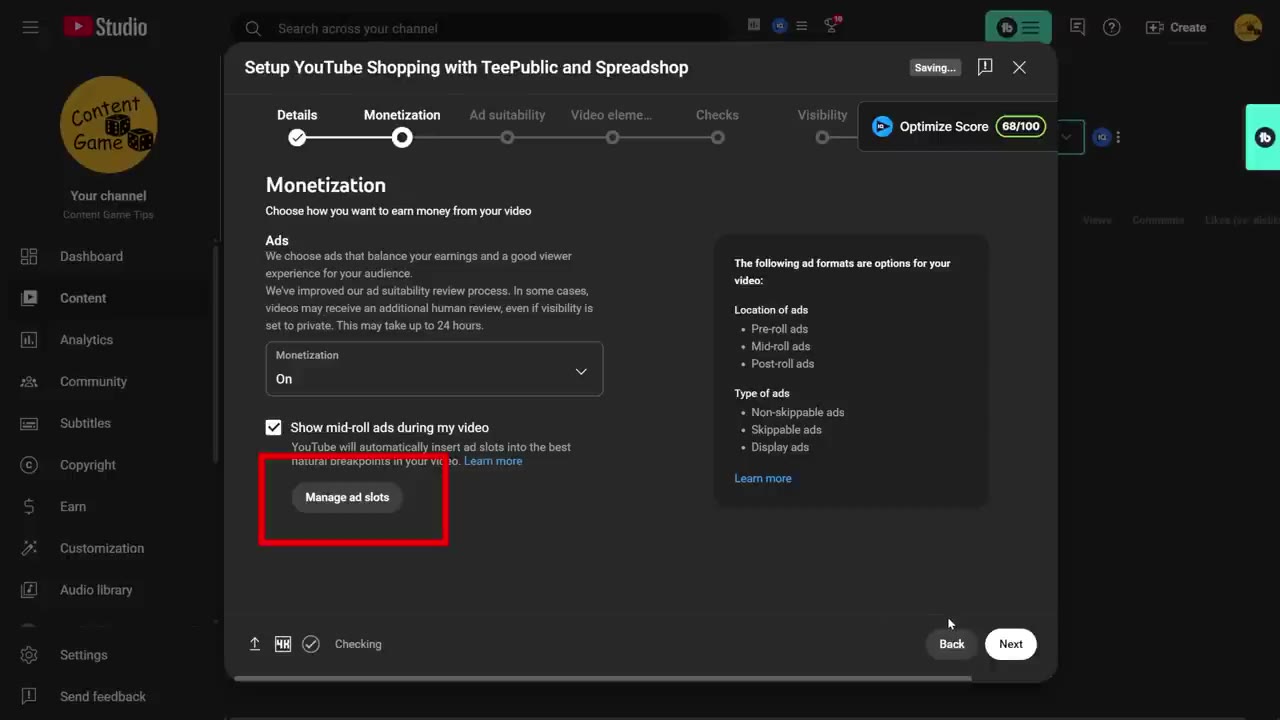
On the monetization step of the upload, set monetization to On. On videos longer than 8 minutes you can add mid-roll ads. YouTube can place them automatically, or you can open Manage ad slots to move them.
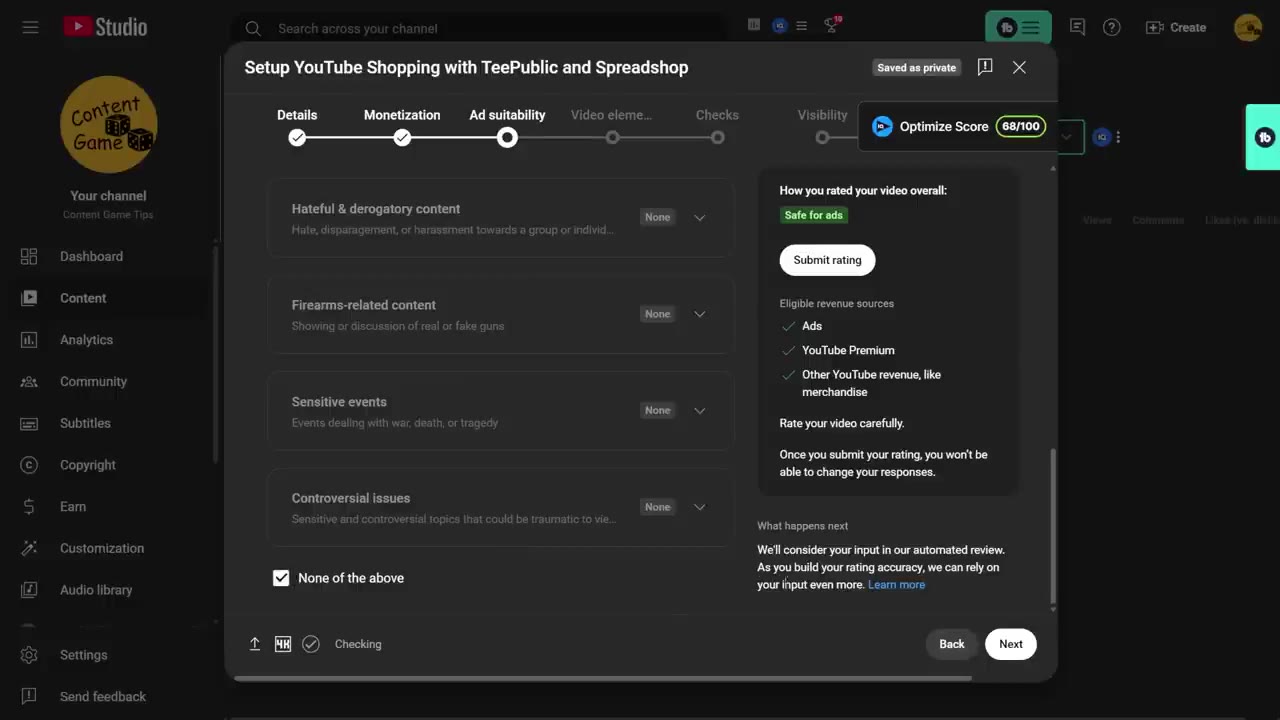
On the ad suitability step, mark honestly whether your video has any of the listed content. If it doesn’t, check that none of the above apply and submit the rating. Wrong answers can mean manual reviews later.
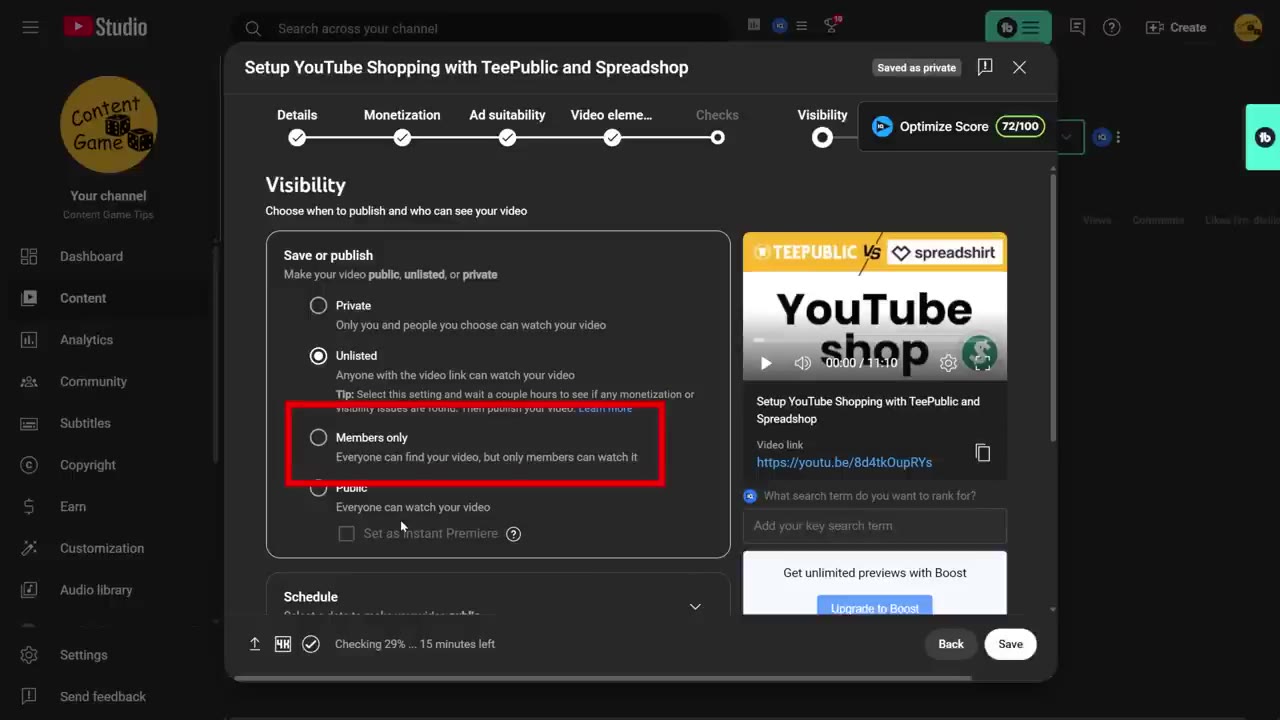
If you have a store or memberships, you’ll also see options to tag products and to publish the video for members only, or for members first and public on a later date.
Wait for the checks before you publish
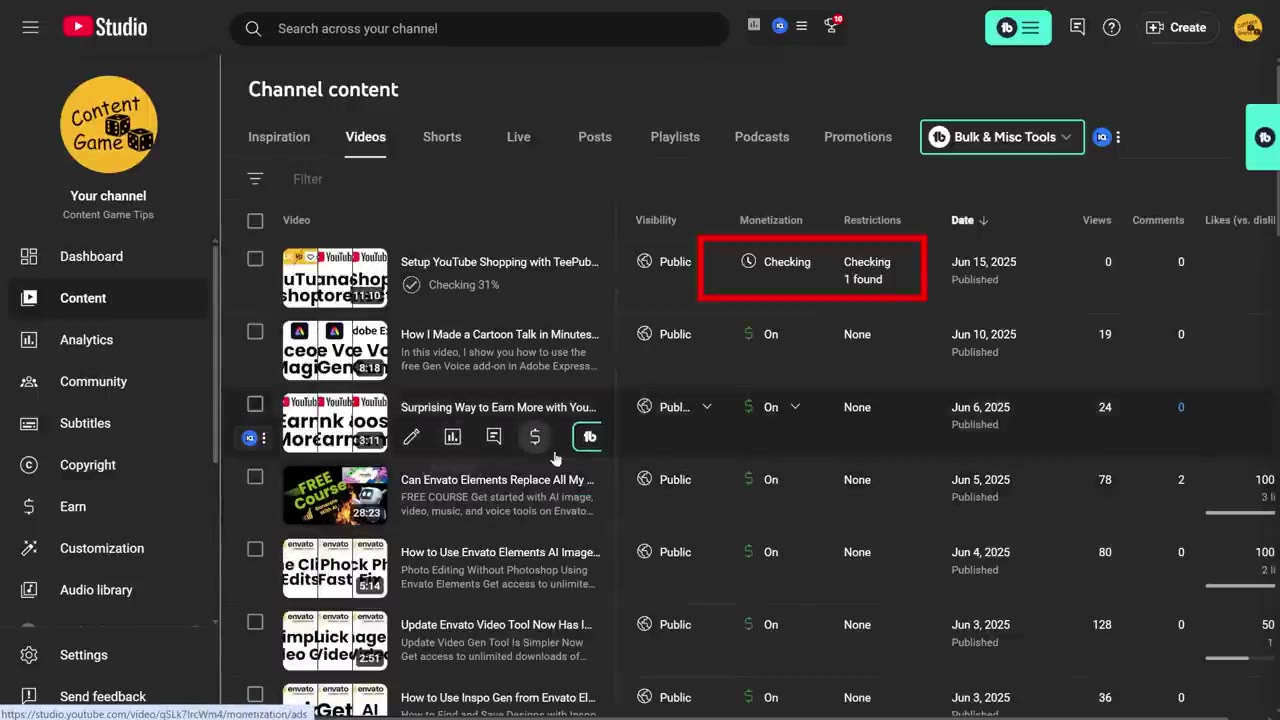
If the checks aren’t finished, the video may not get ads. Videos with music especially can get copyright claims, so save the video as unlisted or schedule it, wait for the checks, and fix any claim before it goes live.
More: set up AdSense and tax info, set up memberships and the full YouTube monetization guide.
Keep learning
This guide is part of the complete guide: Make Money as a Content Creator.