How to Write and Design a Children’s Book with AI (Phygital+ and Canva)
In this tutorial I make a short children’s book only with AI tools. The story and the illustrations come from Phygital+, and the book itself is designed in Canva. I made this book as an example, so the story is the minimum needed to publish. If you want a book that sells, give the story a lot more attention.
Step 1: Write the story
Phygital+ has a ChatGPT chat on the right side of the workspace. Write what the story should be about and let it help you. It’s better to come up with the idea yourself, or even write the story yourself, so it really is a nice story.
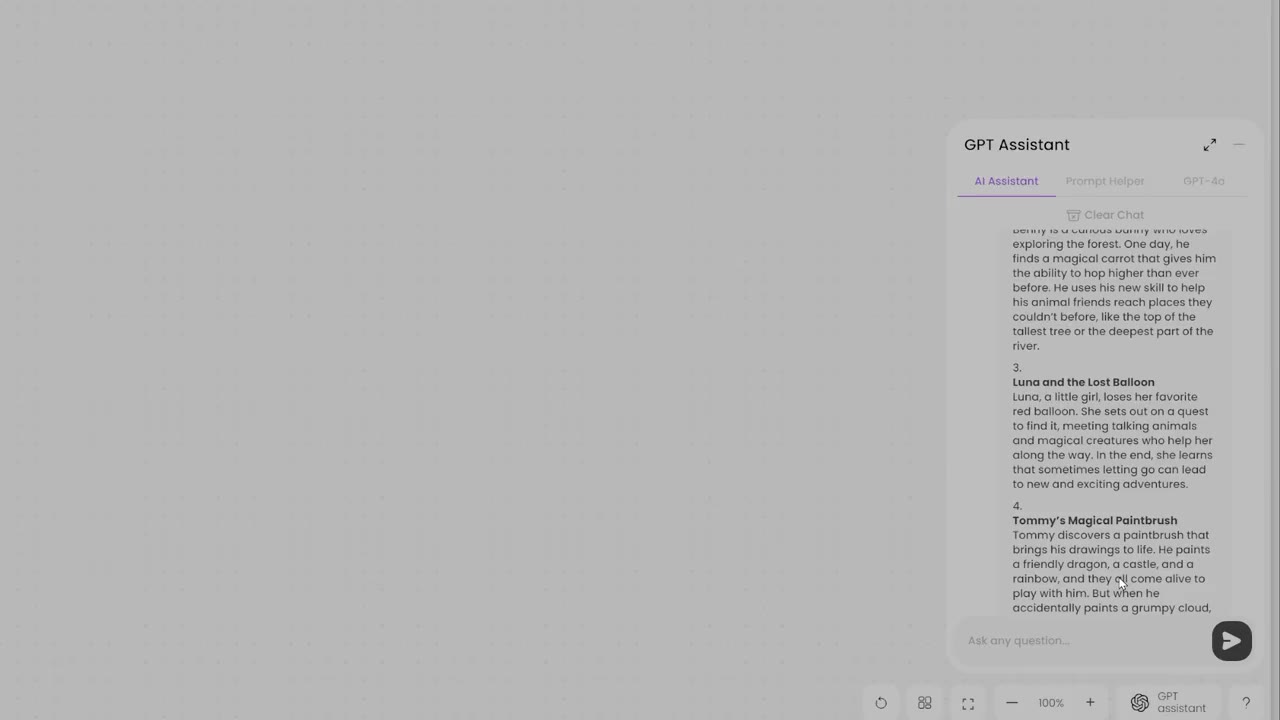
Step 2: Create the main character
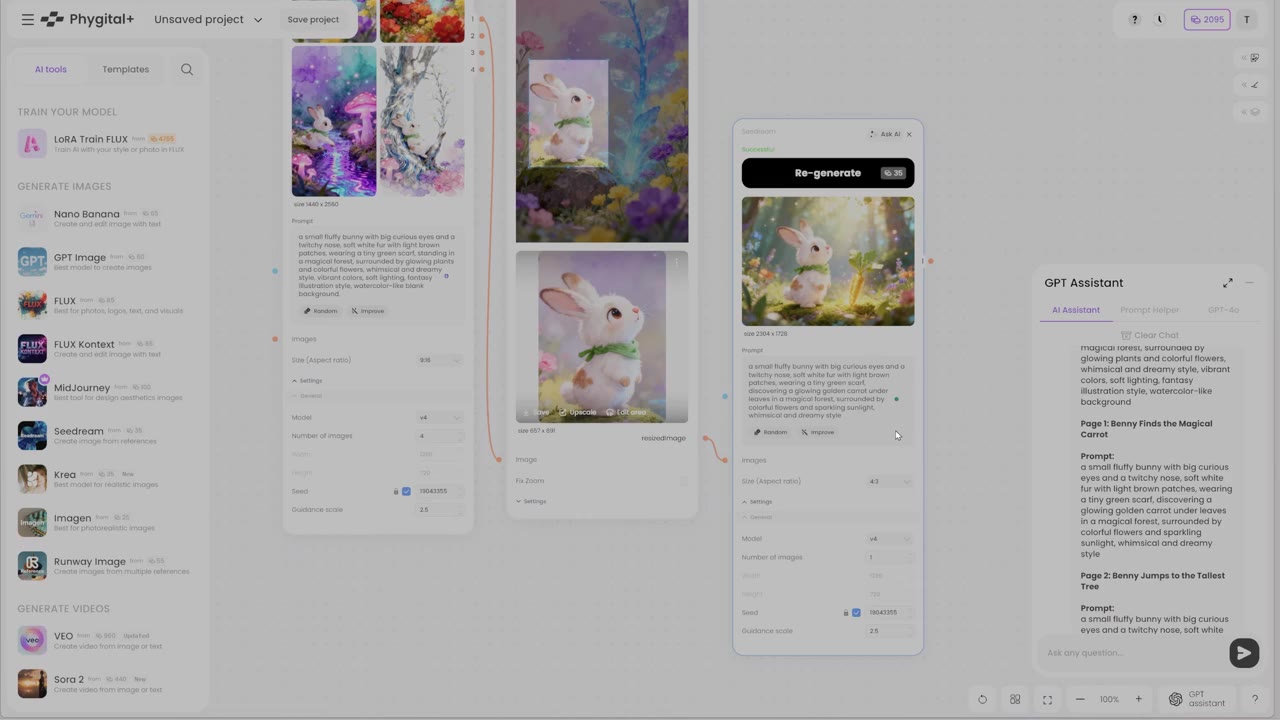
Phygital+ works with credits, so every generation lowers your balance. I used Seedream because it costs the fewest credits. To keep the characters consistent you need to use the same model for every image in the book. Drag the model from the tools list on the left to the canvas and paste the character prompt. If you have more than one character, create them together in one image, because you can use only one image as a reference.
Seedream lets you choose how many images you get, so I set it to four and clicked generate. Pick the character you like. If you don’t like any of them you can generate again, but it costs more credits.
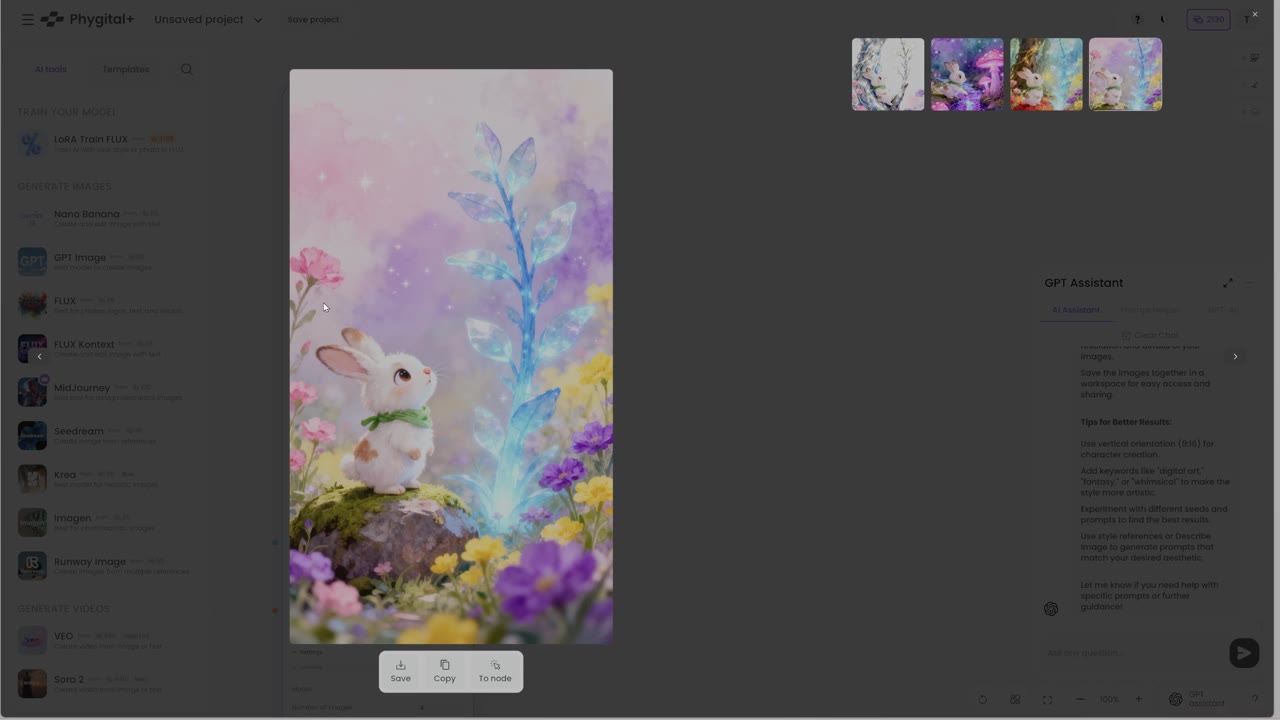
To focus on the character, connect the image to the free crop tool and crop it.
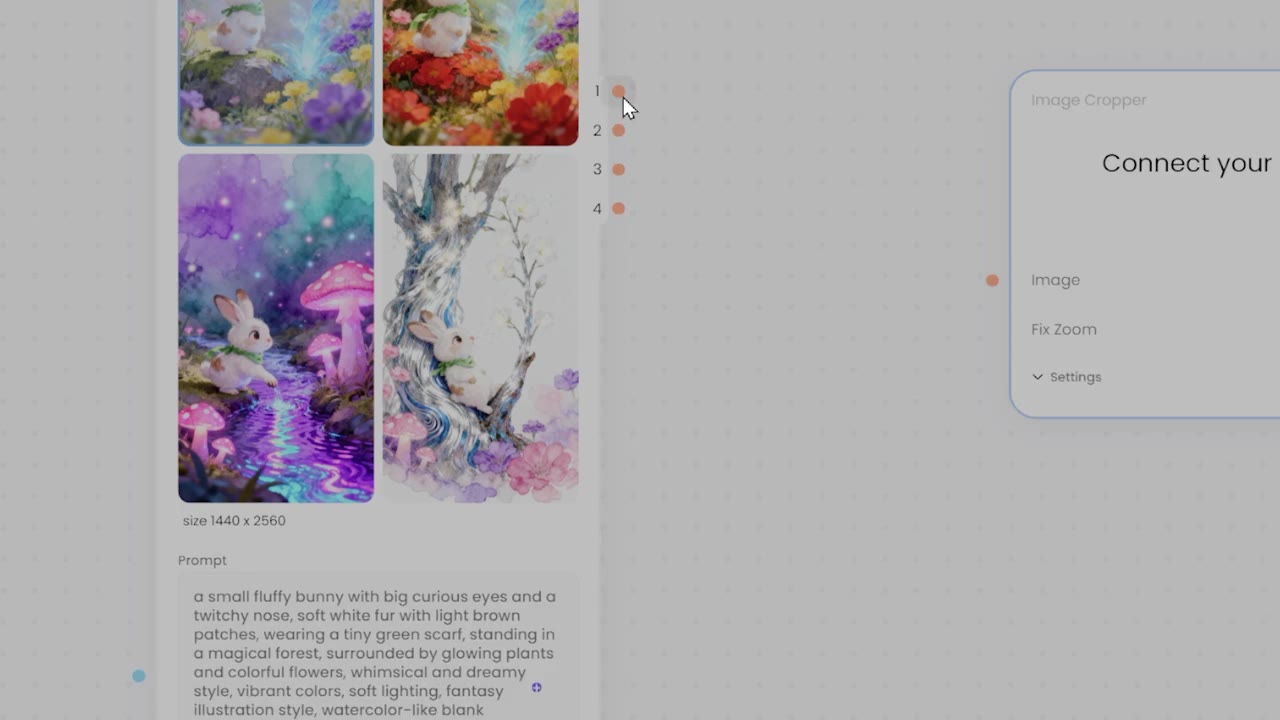
Step 3: Create the story images with the same character
Add another Seedream node and connect the orange dot from the cropped image, so it knows which character to use. A few things keep the images consistent:
- Generate three images each time, so you have more to choose from for the same credits.
- Copy the seed number from your first generation into the node settings and lock it.
- Use the same description for the characters and the background in every prompt.
- Choose the right image size before you start. KDP picture books are usually square or portrait, and I made the mistake of choosing 4:3.
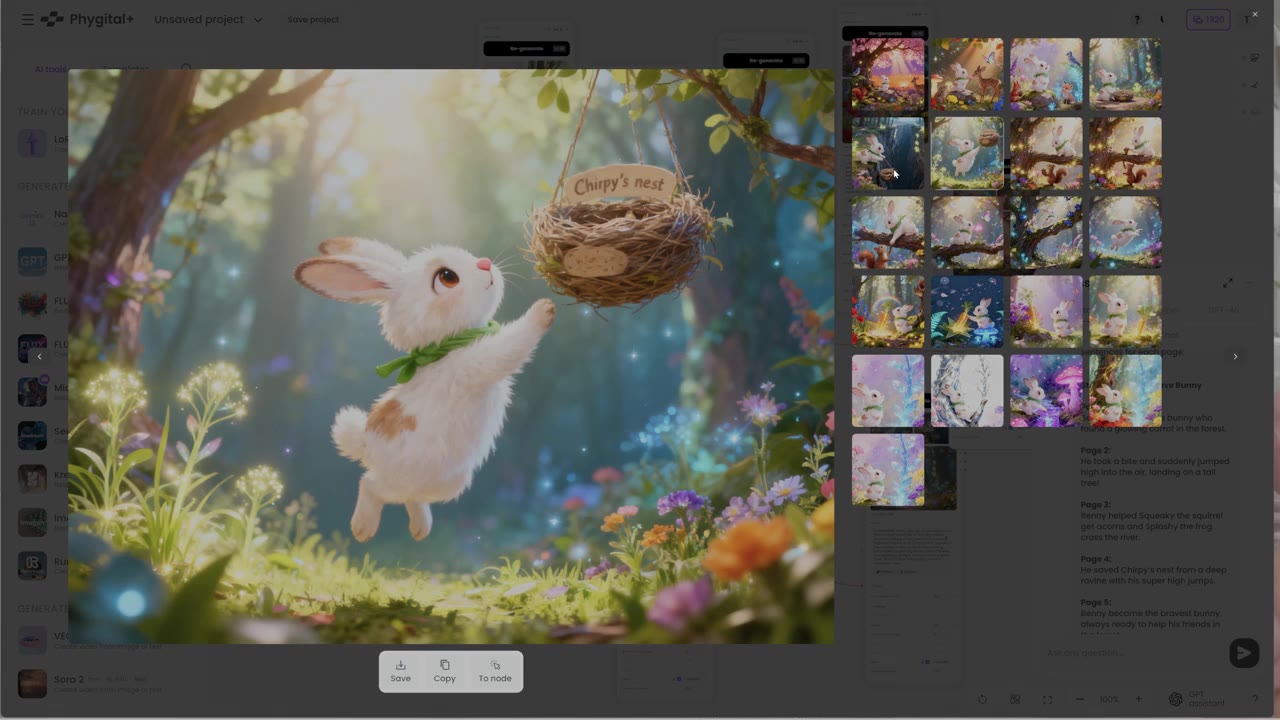
If a generation stops with an error, the credits go back to your account. When all the images are ready, click an image to see the whole set on the side and save each one to your computer.
Step 4: Choose the book size before you design
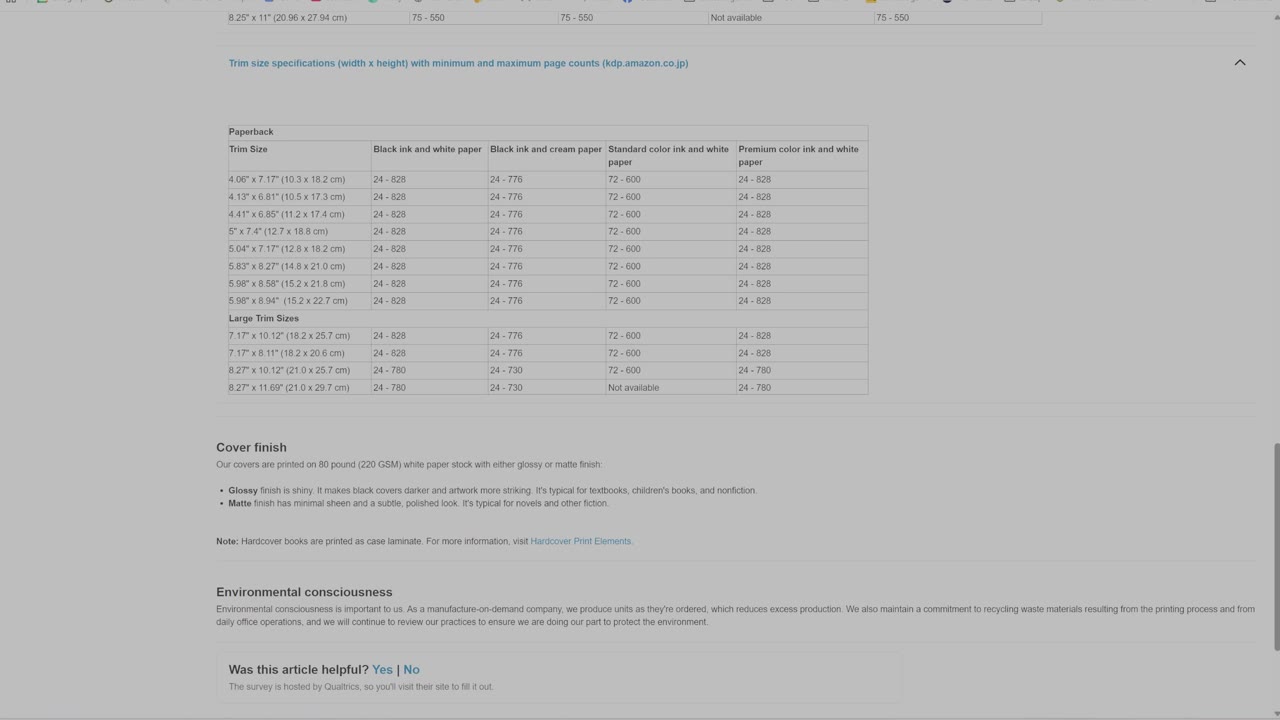
Decide the trim size before you start in Canva. Check the list of trim sizes on Amazon KDP, then create a design with a custom size that matches. My images were square, so I used 8.5 x 8.5 inches. Resizing later can cause problems, and resize is a Canva Pro feature.
Step 5: Fix mistakes with Magic Eraser
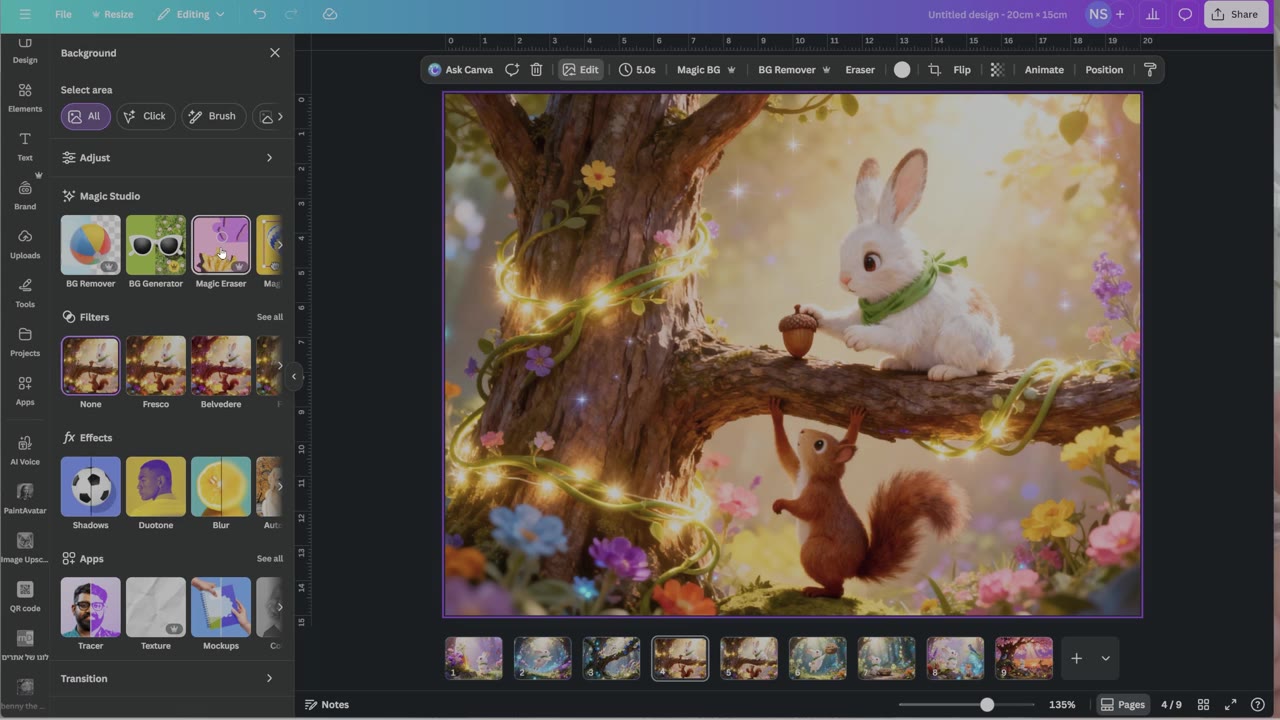
Put one image on each page. One of my images had a squirrel with three hands, so I fixed it in Canva: click the image, click Edit, open Magic Eraser, adjust the brush size, mark the extra hand and click Erase.
Step 6: Add the text and the first pages
Add the text to each page. A slightly transparent shape behind the text makes it easy to read. Then add the opening pages. In a left-to-right book the first page is on the right side, so the story should start on an odd page:
- Page 1 is blank.
- Page 3 is the title page.
- The next page, on the left, is the copyright page. ChatGPT can write the text.
- Then a dedication page, and a blank page so the story starts on the right.
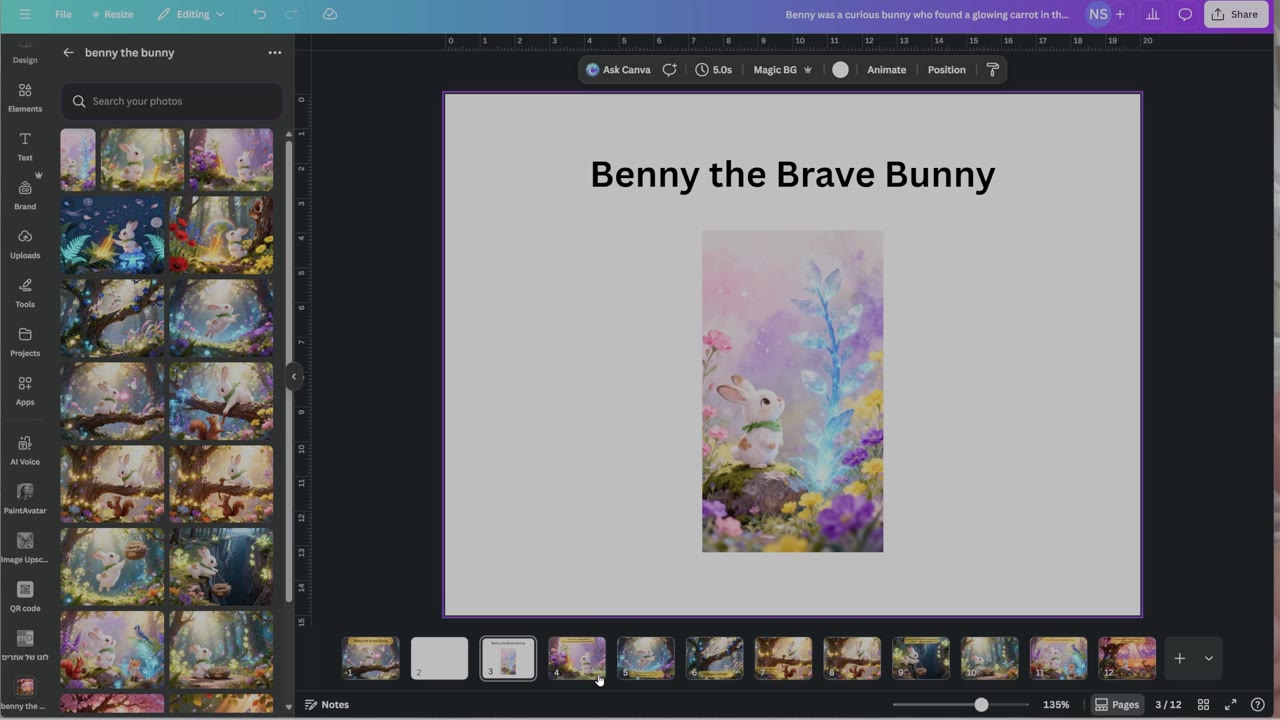
For a right-to-left language like Hebrew, the story starts on the left side.
Step 7: Add pages that add value
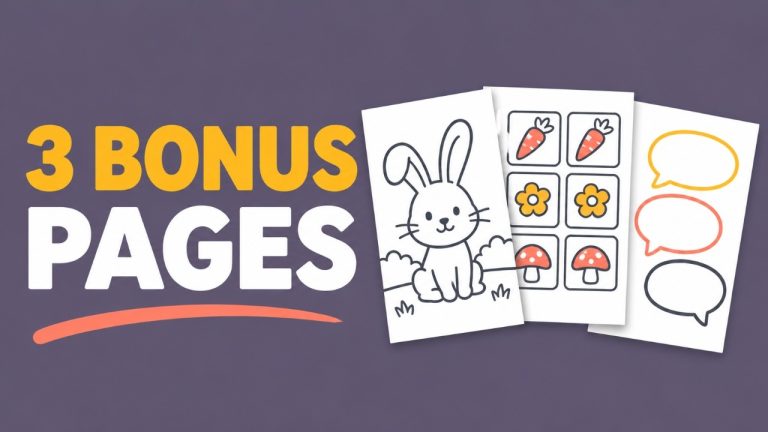
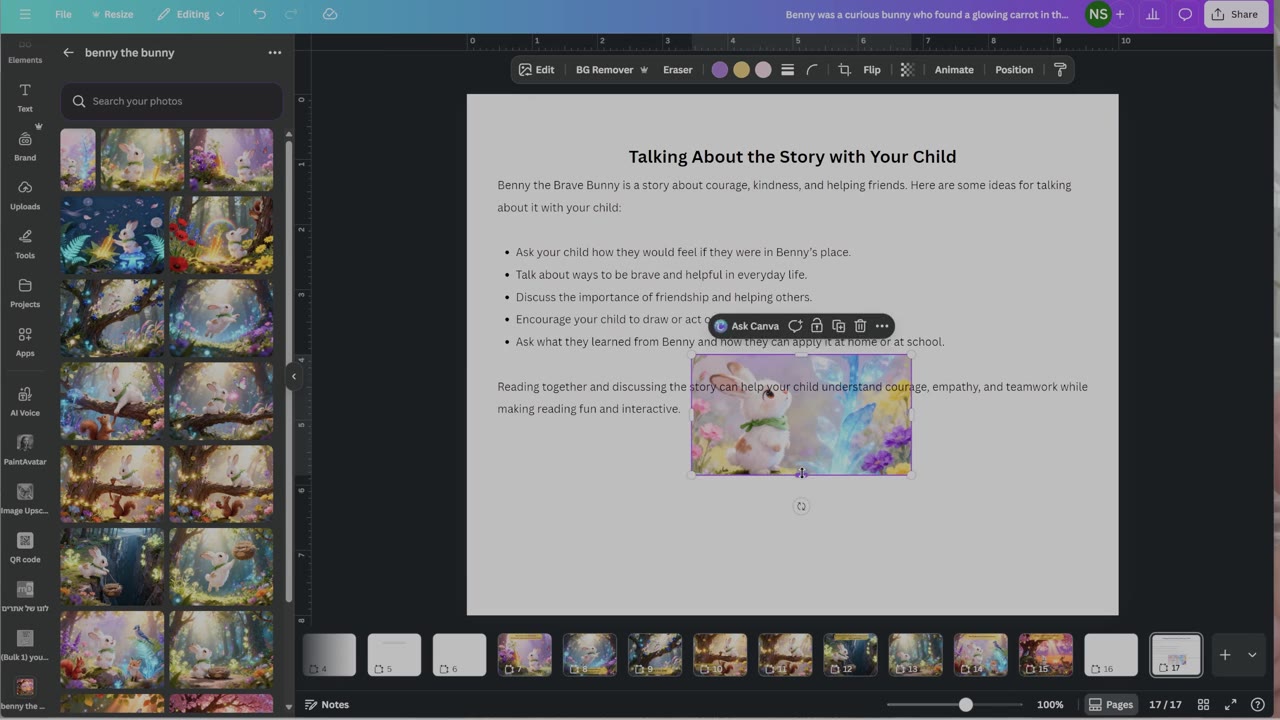
My story was too short, so I added three kinds of pages after it: questions for parents to talk about the story with their child, a coloring page made from one of the illustrations, and a memory card game. I explain each one in how to add coloring pages, games and questions to a kids book.
Step 8: Make the cover
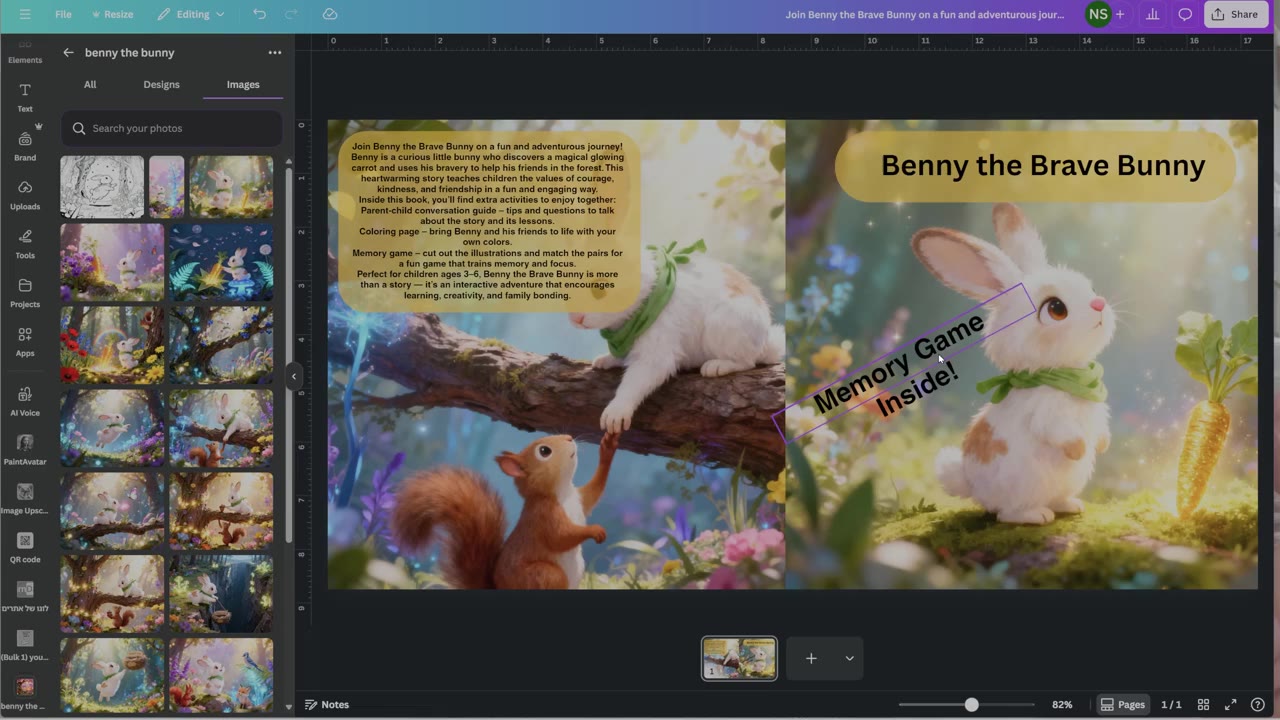
Use the free KDP cover calculator to get the exact cover size for your trim size, paper and page count, then download the template and build the cover in Canva. The full steps are in how to make a KDP paperback cover in Canva.
Next steps
When the book and the cover are ready, follow how to upload a kids book to Amazon KDP, and then turn the book into a read-aloud video to promote it. Phygital+: phygital.plus.
More videos on this topic
Keep learning
This guide is part of the complete guide: Publish Books on Amazon KDP with AI and Canva and Design Guides for Creators.