How to Make a KDP Paperback Cover in Canva (Cover Calculator and Template)
Your book is ready, but Amazon also needs a full paperback cover: front, spine and back in one file. Here’s how I make it in Canva with the free KDP cover calculator.
Step 1: Use the KDP cover calculator
Open the KDP cover calculator and fill in your book details: binding (paperback), interior type (color for a kids book), paper type (white), reading direction, measurement units, trim size and page count. Choose the trim size before you start making the book.
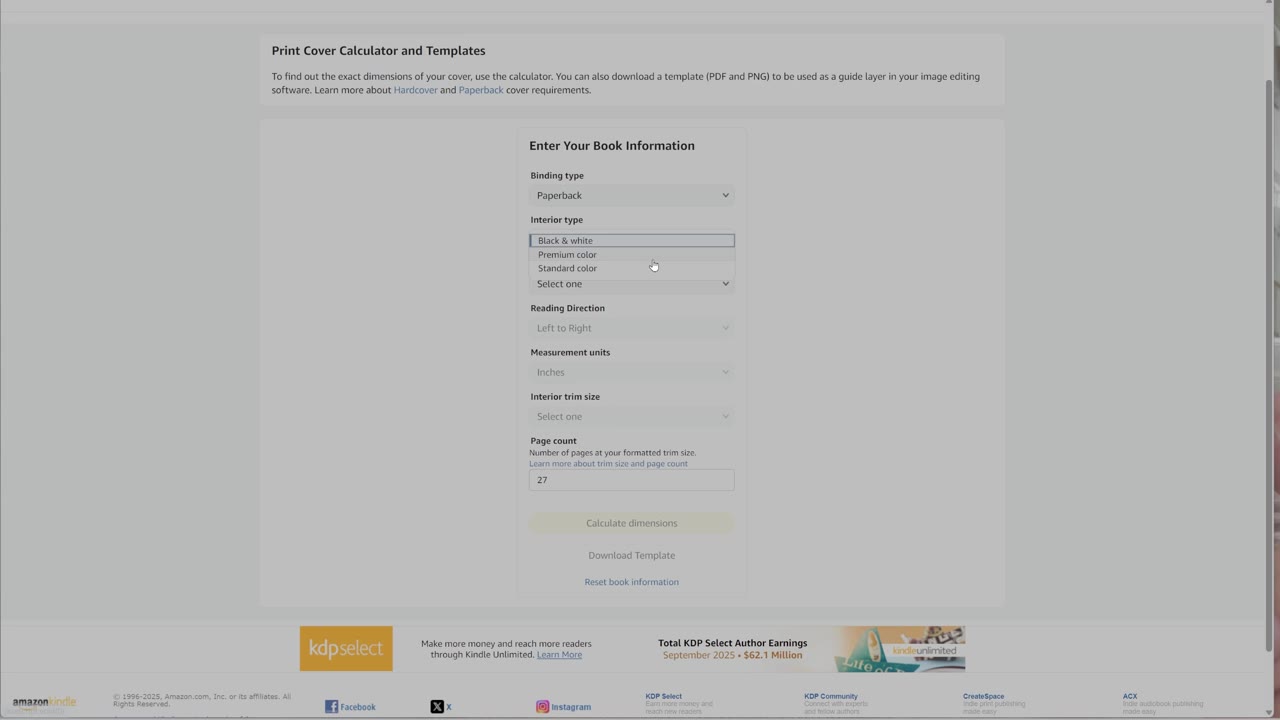
Click Calculate to see all the measurements, and download the cover template.
Step 2: Set up the cover in Canva
Create a Canva design with a custom size using the exact width and height from the calculator. Amazon can reject a cover with the wrong size. Upload the template PDF to Canva, or place it on your custom-size page, stretched to the full page, so you can see the safe areas, where text and images can go, and where nothing important should be placed.
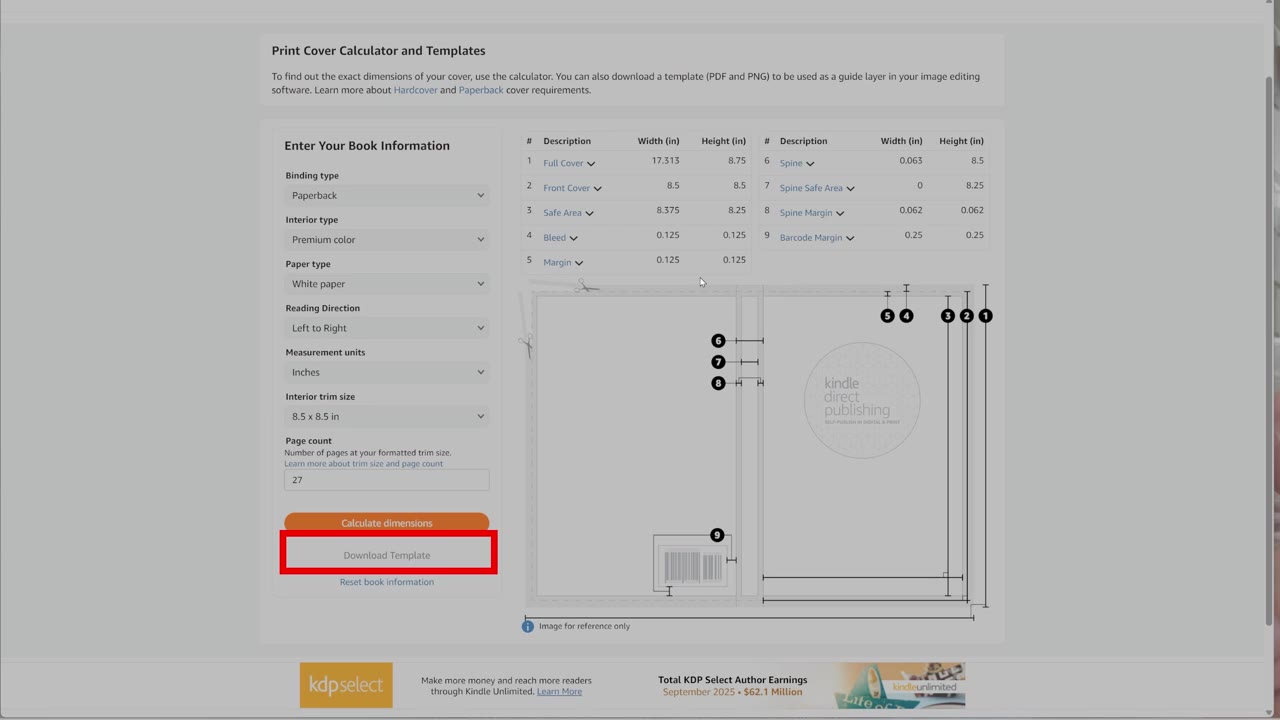
If you already have the ISBN, leave the barcode area that the template marks on the back cover empty, or place your barcode there.
Step 3: Design the front, back and spine
I used two illustrations from the book, one on the front and one on the back. On the front I added the book title and a bubble that says there’s a memory game inside. Add anything that helps sell the book. On the back I wrote a short description, but you can use just an image. Make sure the images cover the whole cover and meet nicely at the spine.
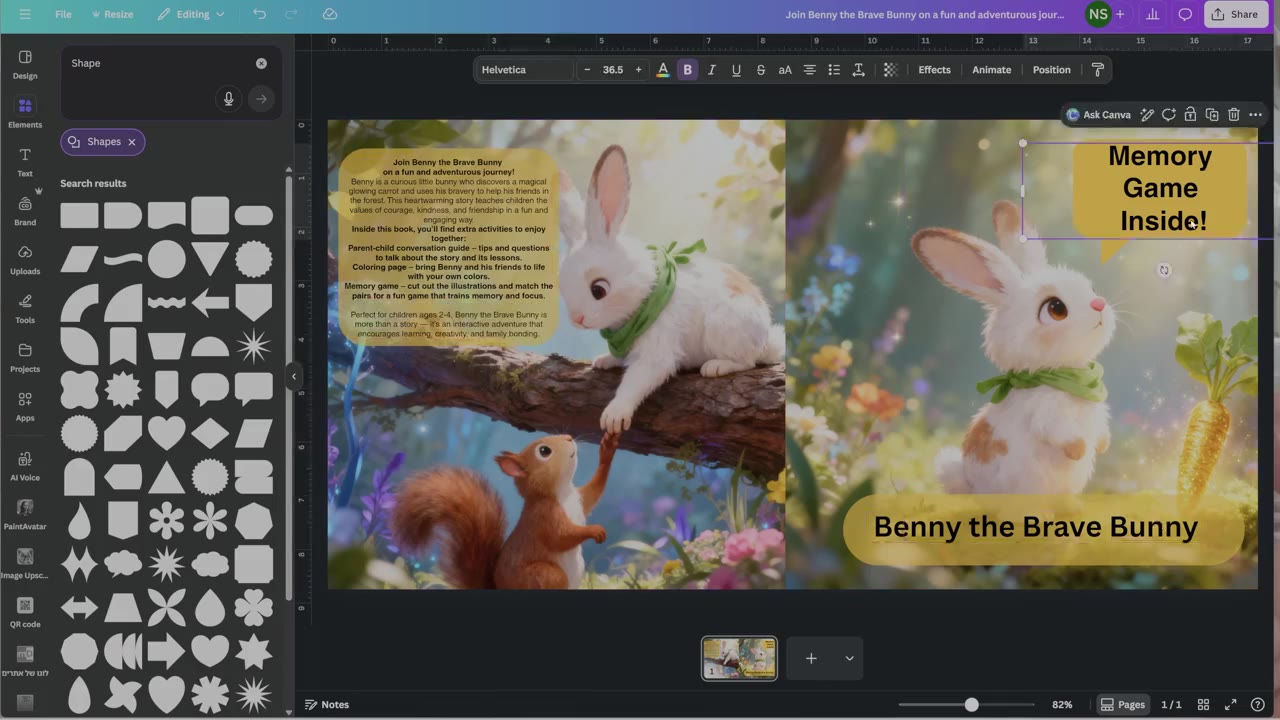
My book is very thin, so there’s no room for text on the spine. On a thicker book, put the title there. You can add the author name on the front, your real name or a pen name.
Next: upload the book and the cover to Amazon KDP. The full book process: how to write and design a children’s book with AI.
Keep learning
This guide is part of the complete guide: Publish Books on Amazon KDP with AI and Canva and Design Guides for Creators.